Templates: export, import, and reuse
Save a campaign as a template, store the ZIP in Images & Files, and generate a new campaign from that template.
Use templates when you want to turn a proven campaign into a reusable starting point. The ZIP route is useful for handoff between organisations, while the direct template route is faster inside one organisation.
Reuse the structure, then review the details
Templates carry the campaign structure forward, including touchpoints, rewards, notifications, and landing-page setup. Before you publish the generated campaign, review destination-specific settings such as add-ons, public links, dates, language, timezone, and reward redemption readiness.
Before you begin
- You can access the source campaign and the destination organisation.
- You know whether the destination campaign should keep the same language as the original template content. In most cases, it should.
- You are ready to review destination-specific add-on settings after generation.
Choose the right template route
| If you want to... | Use this action |
|---|---|
| Create a reusable ZIP file you can store or hand off | Save as template file |
| Create a reusable template entry immediately in the current organisation | Save as template |
Export the campaign as a template file
Open the source campaign
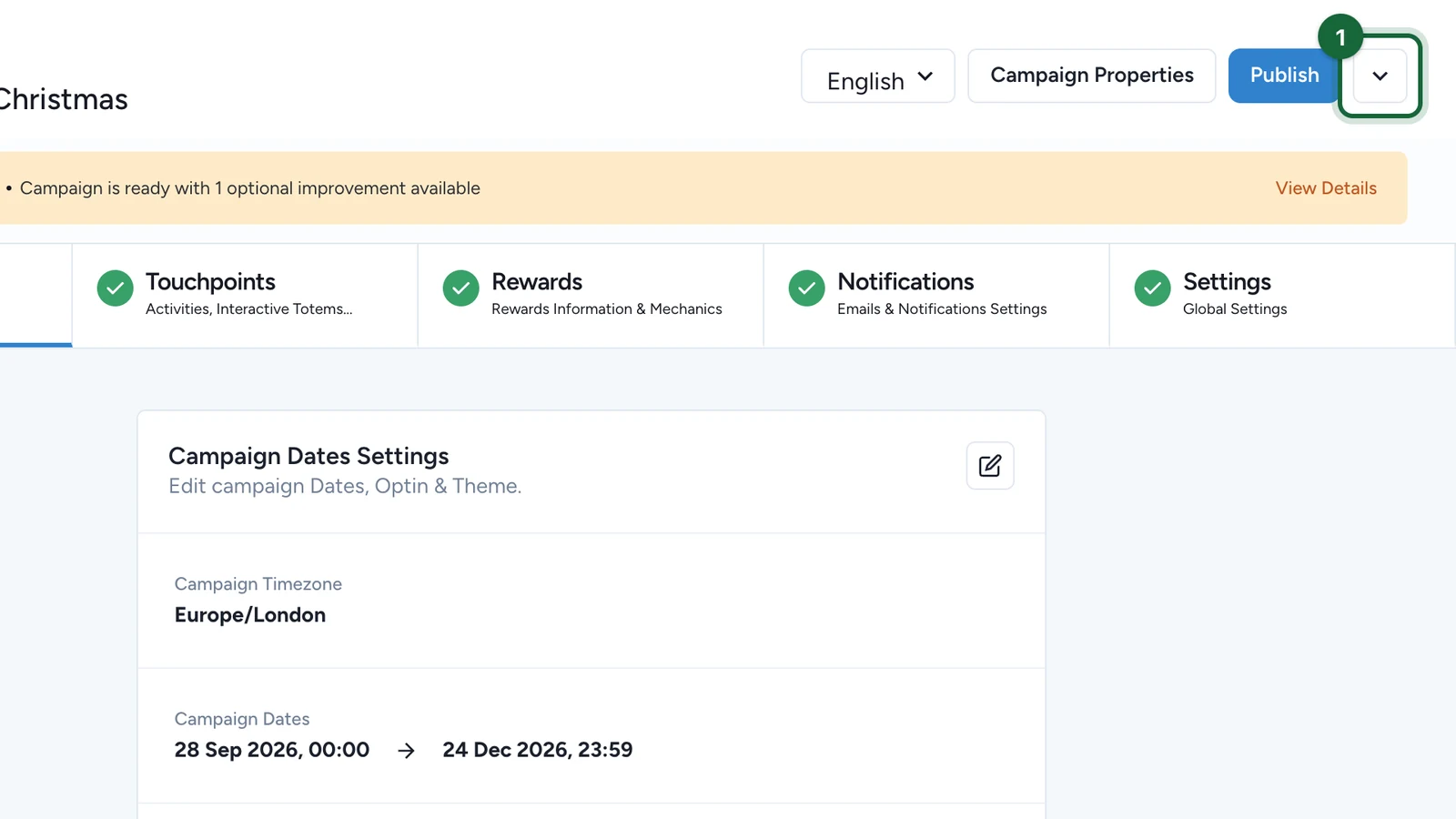
Go to the campaign you want to reuse, then open its detail view with View.
Save the campaign as a template file
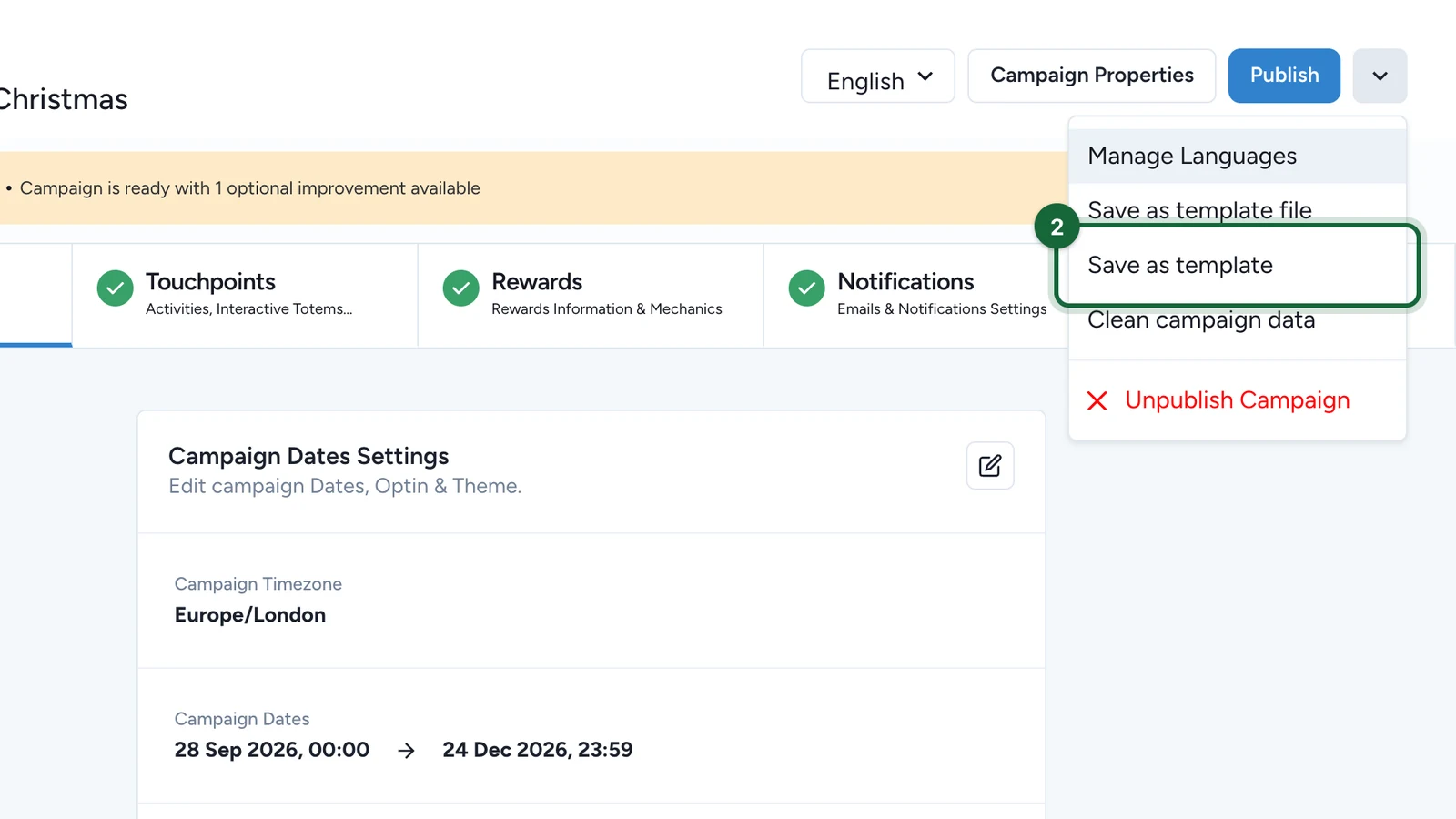
Open the campaign action menu and choose Save as template file.
Retrieve the ZIP from Images & Files
The platform generates the template file and stores it in Images & Files. Open that library, find the new ZIP, and download it before moving to the destination organisation.
Create a local template directly
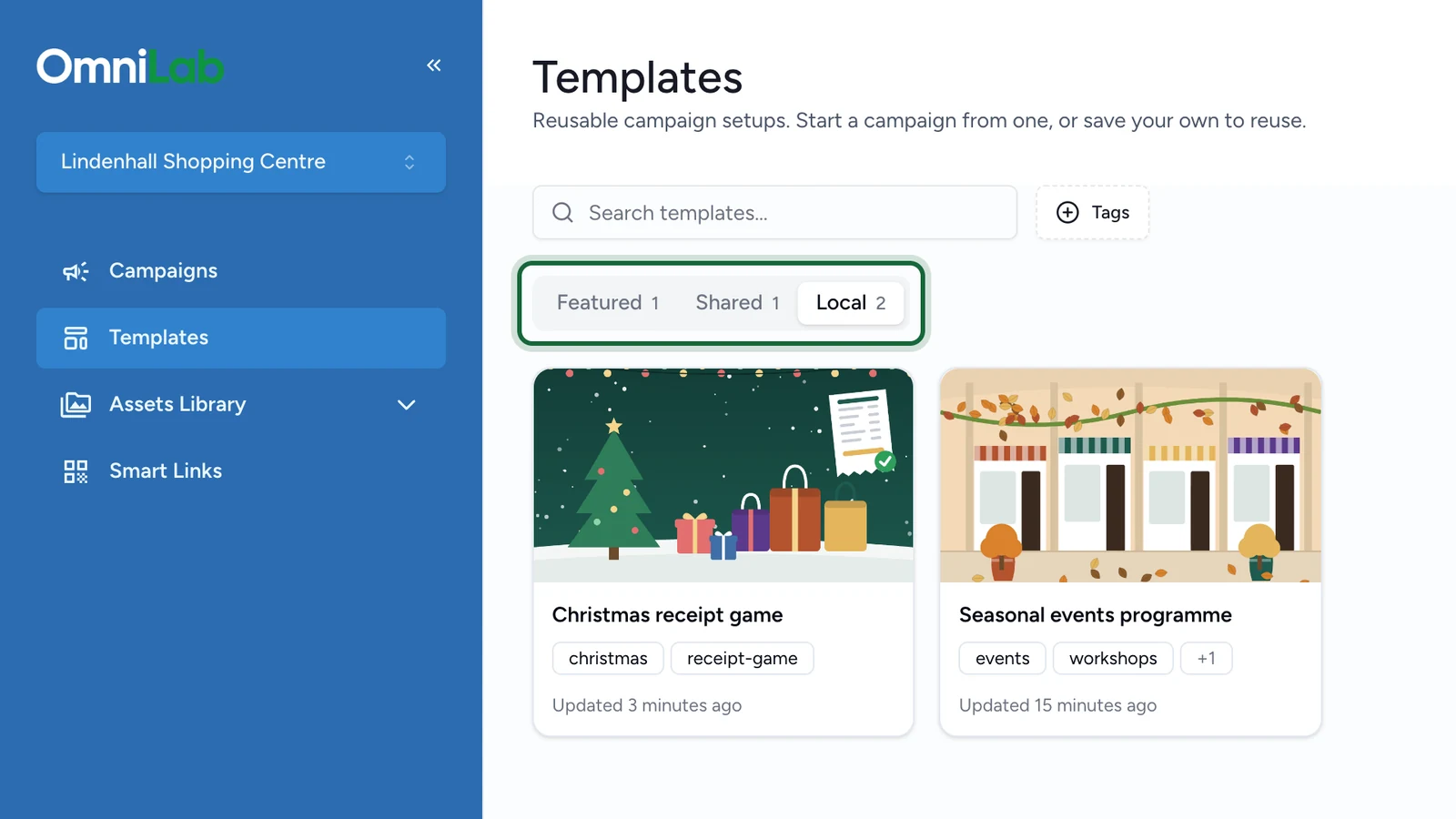
If you are staying in the same organisation and do not need a ZIP handoff, use Save as template instead. This creates a reusable template entry in Templates without making you go through the import flow first.
Import the ZIP into Templates
Open Templates in the destination organisation
Switch to the correct organisation first, then open Templates.
Create a new template entry
Use Create Template, provide a template name, then upload or select the exported ZIP through the file picker flow.
Save the template
Select the uploaded ZIP, save the template configuration, then confirm Create Template.
Generate a campaign from a template
Open the template actions
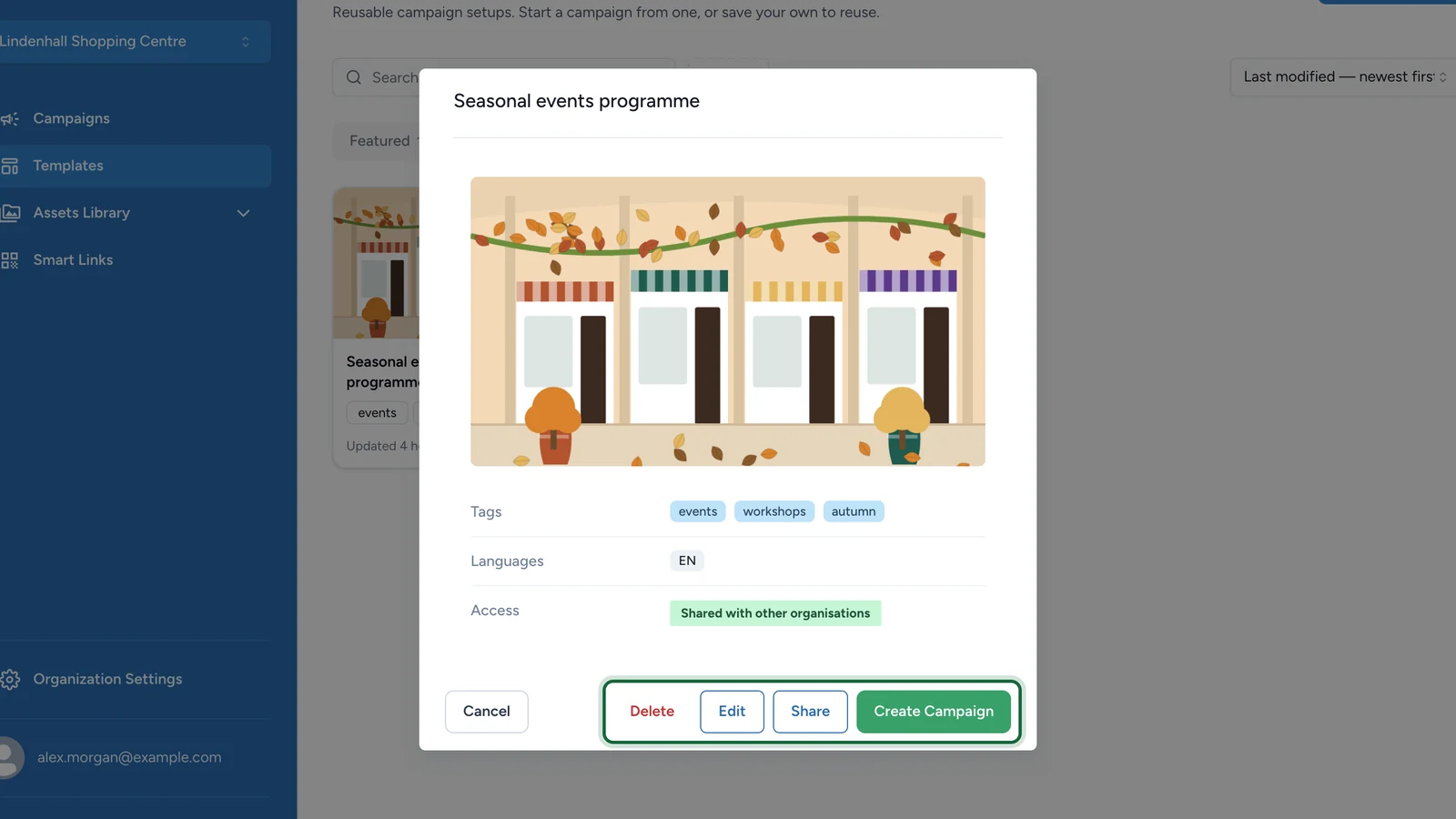
In the template view, use View Actions and choose Create Campaign.
Review Generate Campaign from Template
The generation modal asks for the new campaign details, including:
Campaign TitleCampaign Public Key- campaign language
- timezone
Review the prefilled Campaign Public Key carefully, then use Generate Campaign.
Keep the generated campaign aligned with the template
Choose the language and timezone that match the campaign you want to launch. In most cases, the safest route is to keep the generated campaign aligned with the template content unless you are deliberately rebuilding it for another language or market.
Review the generated campaign before publishing
Once the campaign is generated, review it before publishing:
- update destination-specific values in
Settings->Advanced Settings->Addons - confirm the new public link is correct
- review dates and timezone
- confirm rewards, touchpoints, and landing-page behavior still make sense for the destination organisation
- review secure reward coupon stock if the campaign depends on prepared coupons
- run validation, then publish
The add-on review is often the most important post-generation step because reusable structure does not automatically make every destination-specific value correct.
Related
Share a template across organisations
Use direct template sharing when the source and destination organisations are both accessible to you.
Duplicate a campaign within an organisation
Use duplication instead when you only need a quick same-organisation variant.
Validation & publishing
Run validation before the generated campaign goes live.