Event Host App access problems
Fix a scanner link that won't open, a password that's refused, a camera that won't start, or slow scanning.
1 min read
Most problems come from an old scanner link, a changed password, a blocked camera or a weak connection. Check the device you'll use on the day: a recent tablet or phone with an up-to-date Chrome or Safari.
The scanner link doesn't open, or opens the wrong event
Fix it:
- In Studio, open Share on the Activity, then the Event Host App tab.
- Copy the scanner link again and send it to the host.
The password is refused
Why this happens:
- The password was changed. One password covers the whole campaign.
- The host typed a personal password or an email instead.
Fix it:
-
Under Password Protection, select Show password and check it.
-
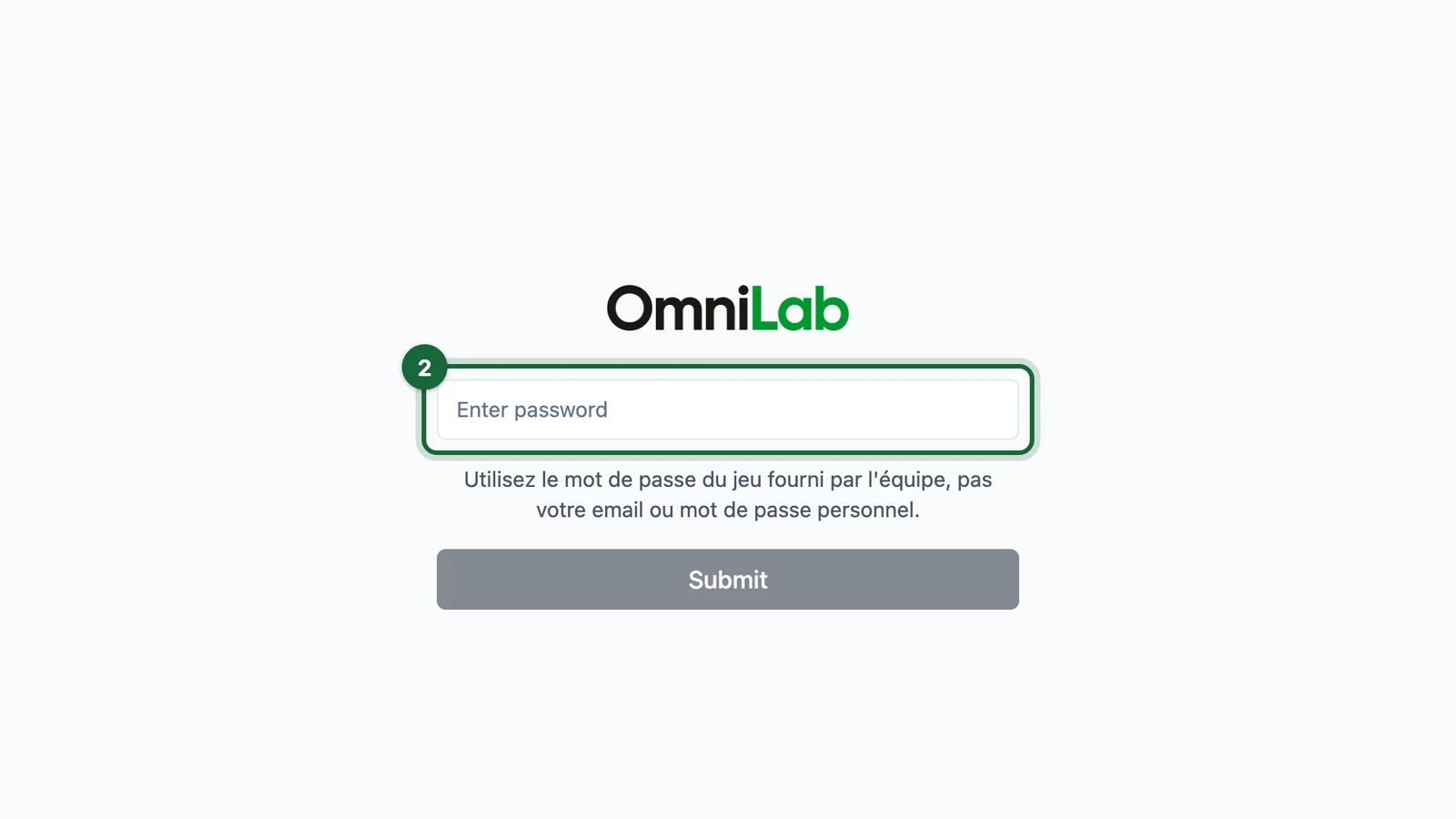
On the host's device, enter that password on the sign-in screen.
-
If the app keeps using an old password, select Clear credentials and refresh, then sign in again.
The camera doesn't start
Fix it:
- In the browser's site settings, allow the camera for the Event Host App page.
- Reload the page, then select Scan QR Code again.
- If the device has several cameras, choose the rear one.
Scanning is slow or fails
- Scan the attendee's ticket QR code, not a poster or sign QR code.
- Clean the lens, raise the attendee's screen brightness, and hold the code steady in the frame.
- Move to steady Wi-Fi or better mobile coverage: each check-in needs a connection.
- If a code still won't scan, use Find by Email. See Use the Event Host App on the day.
Still stuck?
If the app fails on more than one device, contact your Customer Success Manager. Send a screenshot, the device model and the browser version.