Use the Event Host App on the day
Scan guests' tickets at the door, read each result, and see how full every session is.
On the day, staff check guests in from a tablet or a phone with the Event Host App in the browser. Here, Lindenhall's workshop team checks in the Kids' Pottery Workshop.
Before you begin, set the app up and test it on each device: see Set up the Event Host App.
Check guests in
-
Open the scanner link on the device.
-
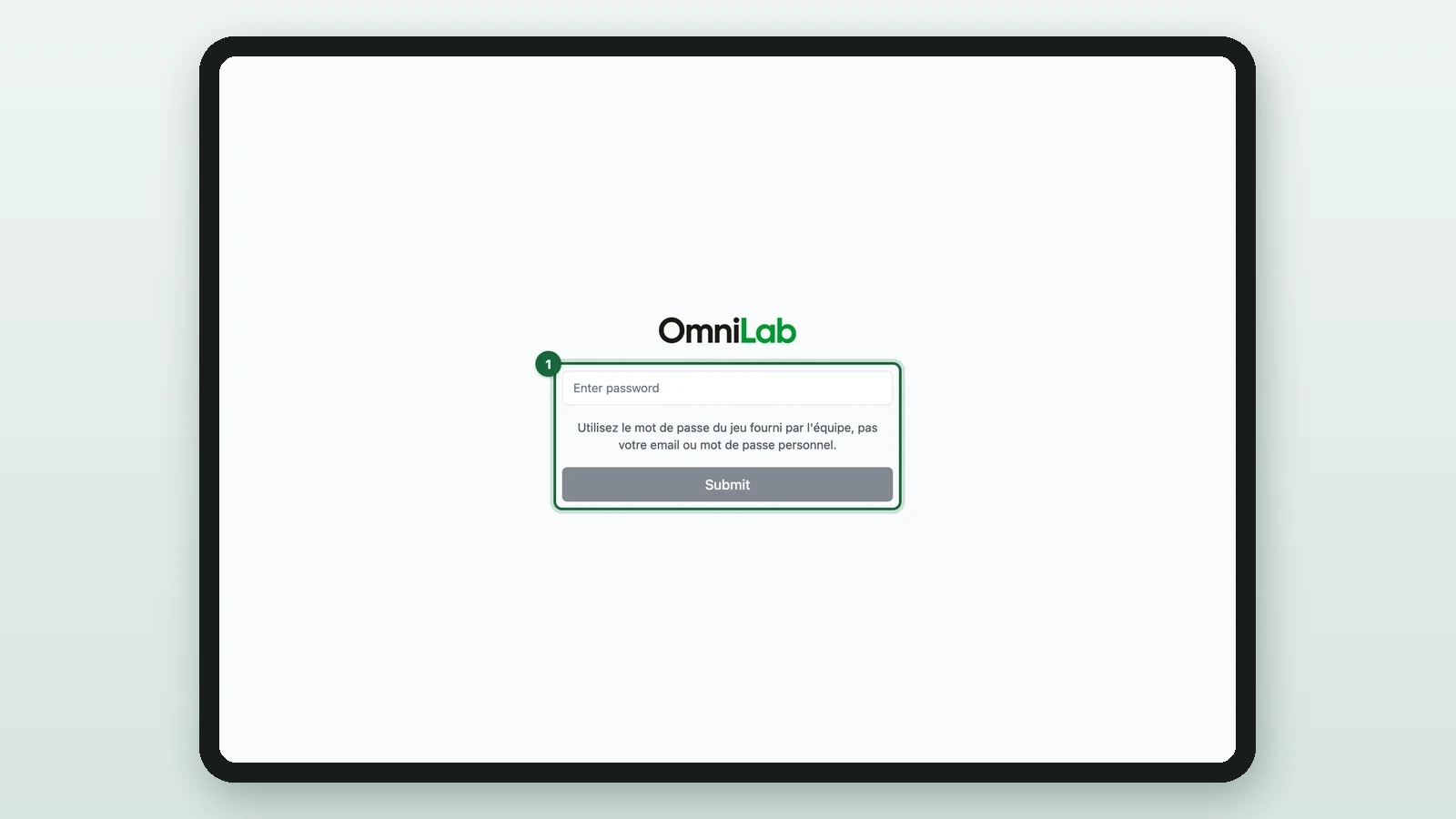
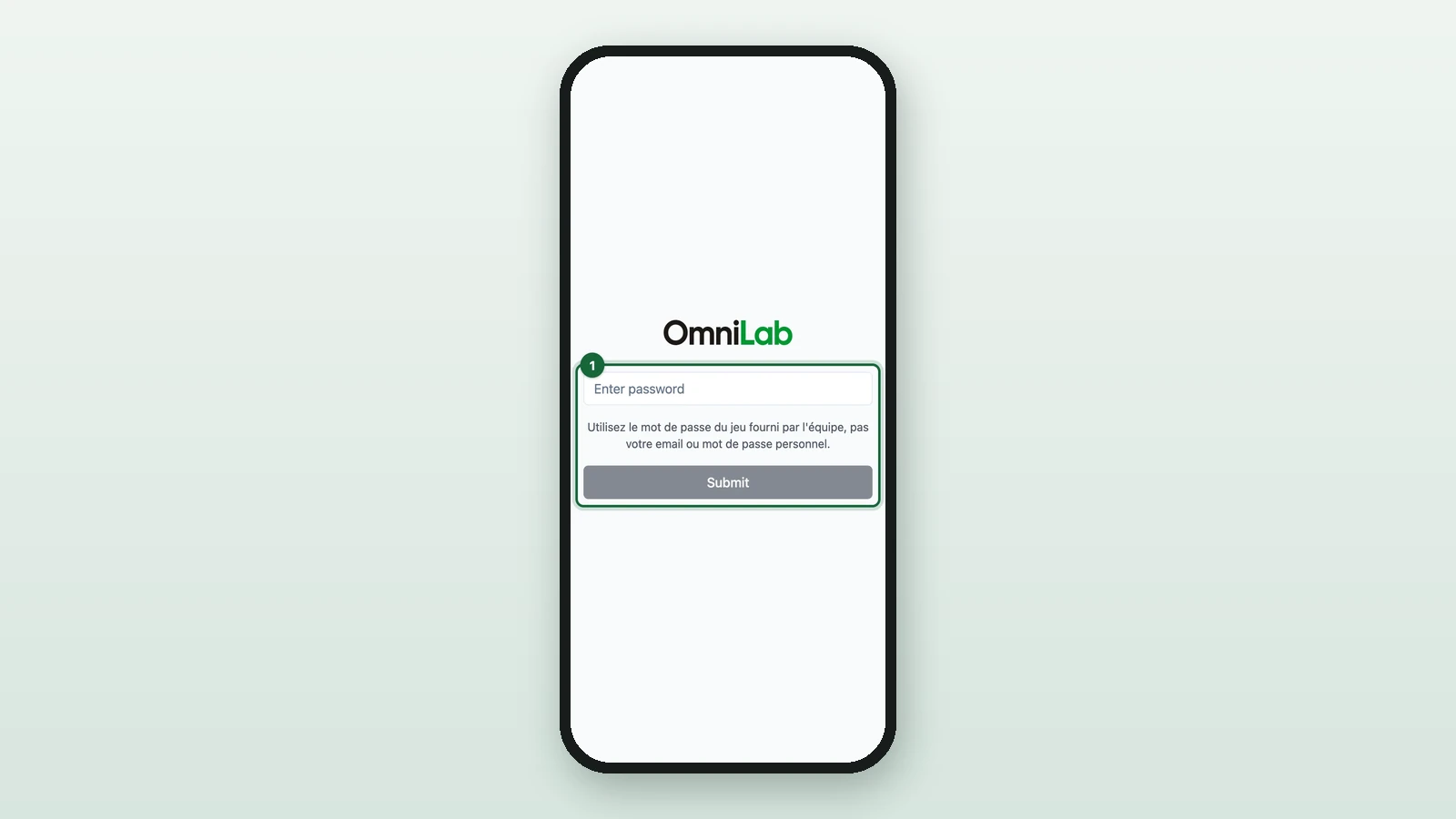
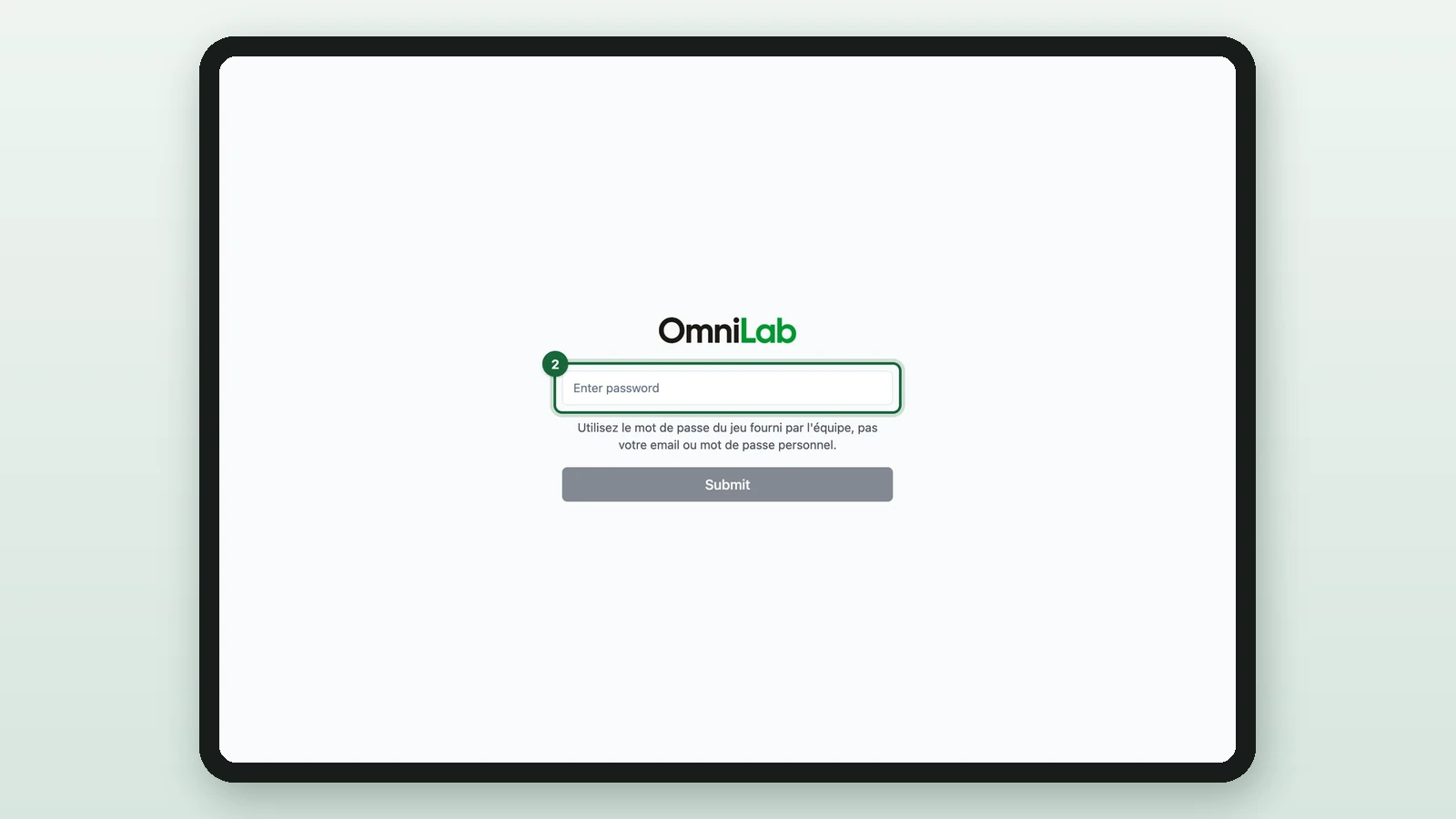
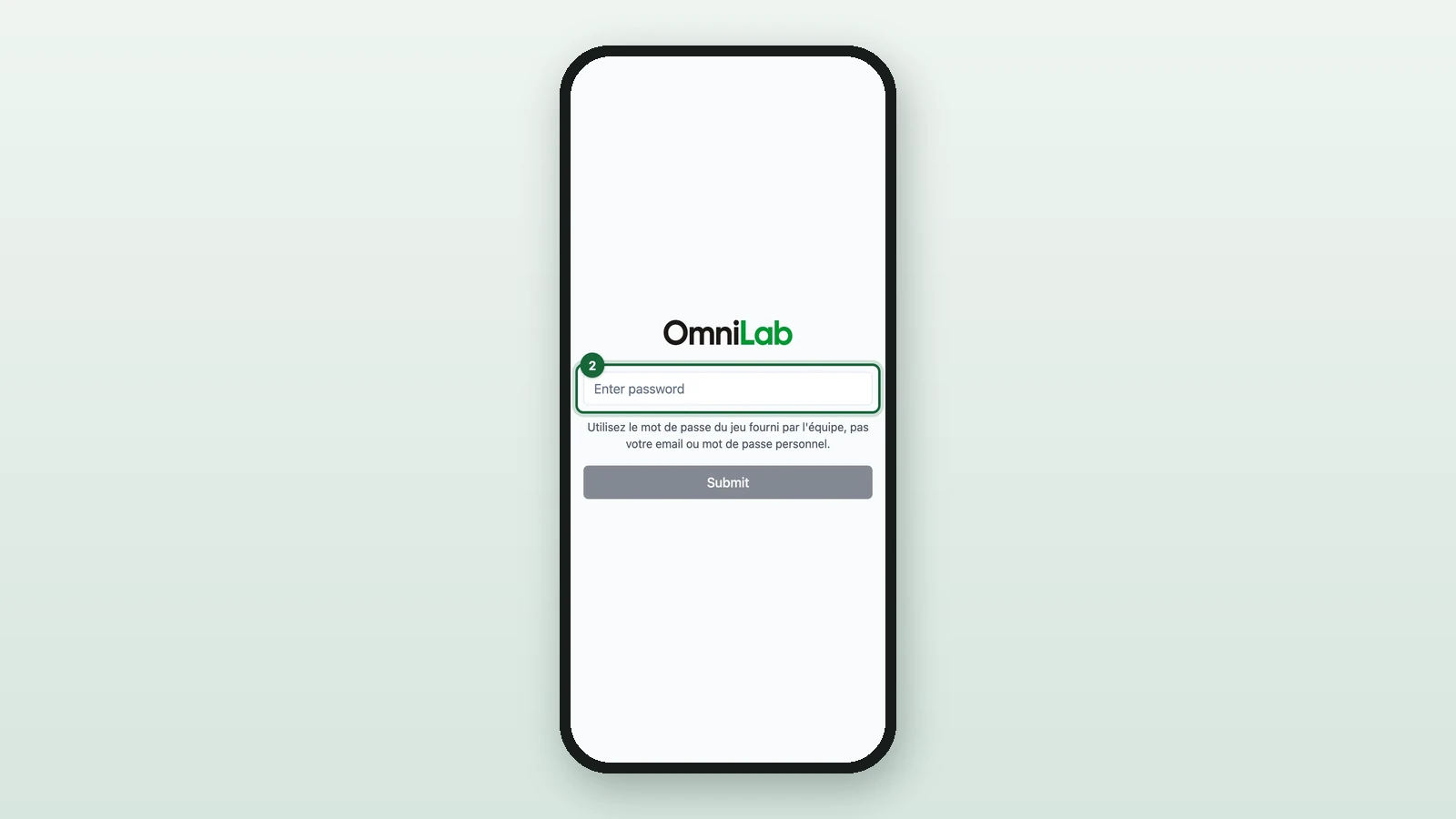
Enter the team's password.
-
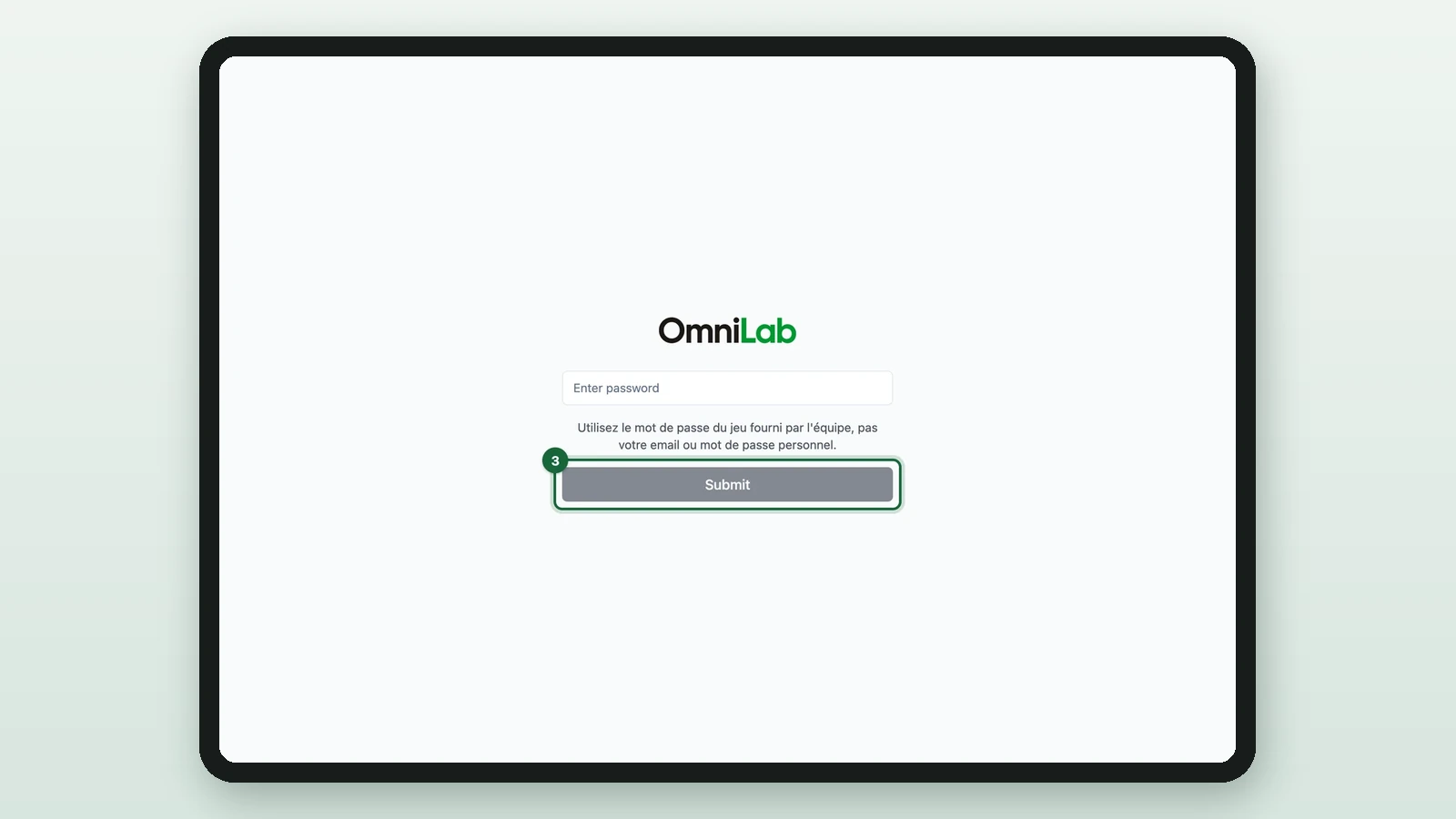
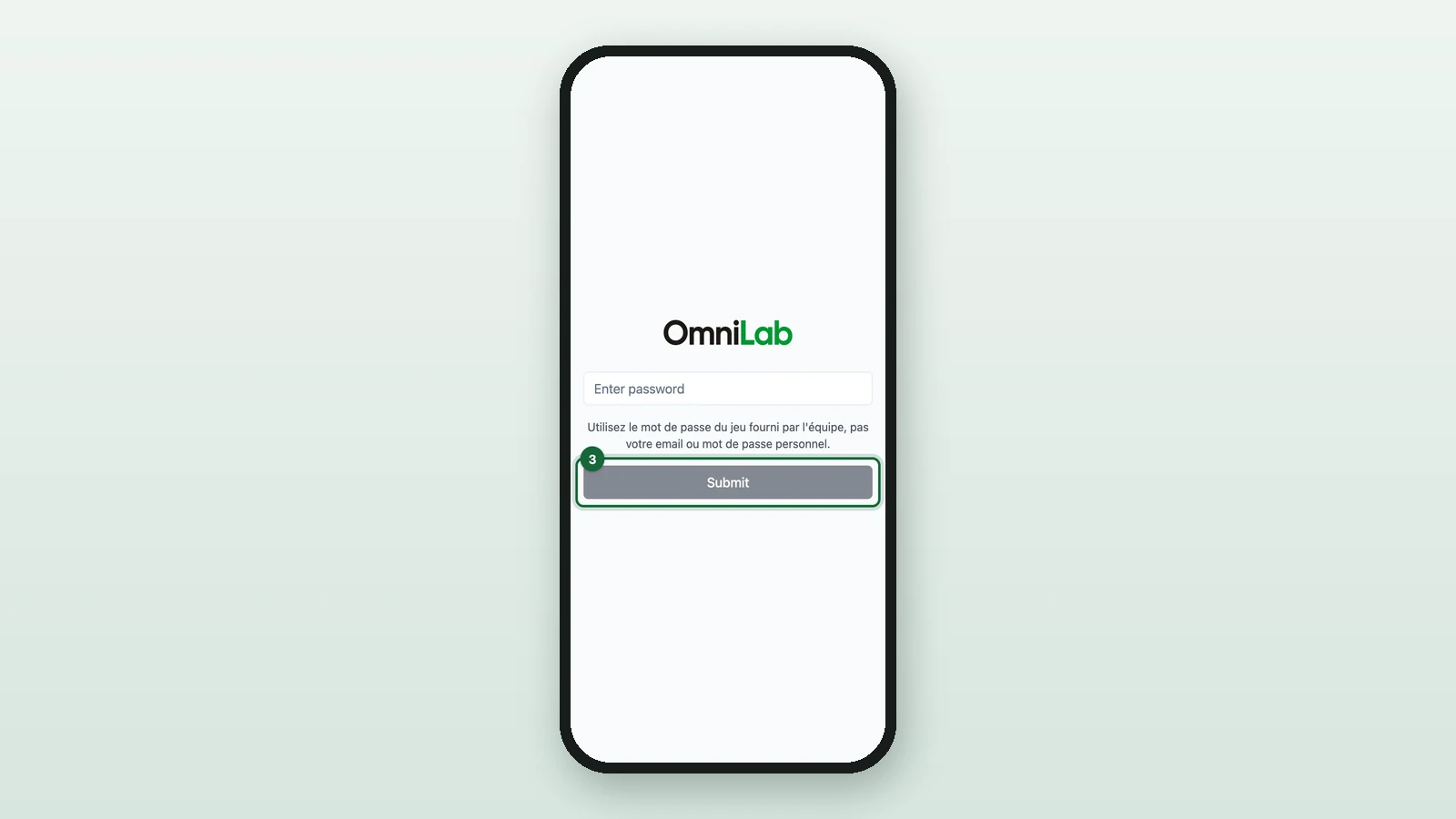
Select Submit. It turns blue once you've typed the password.
-
Select the Activity.
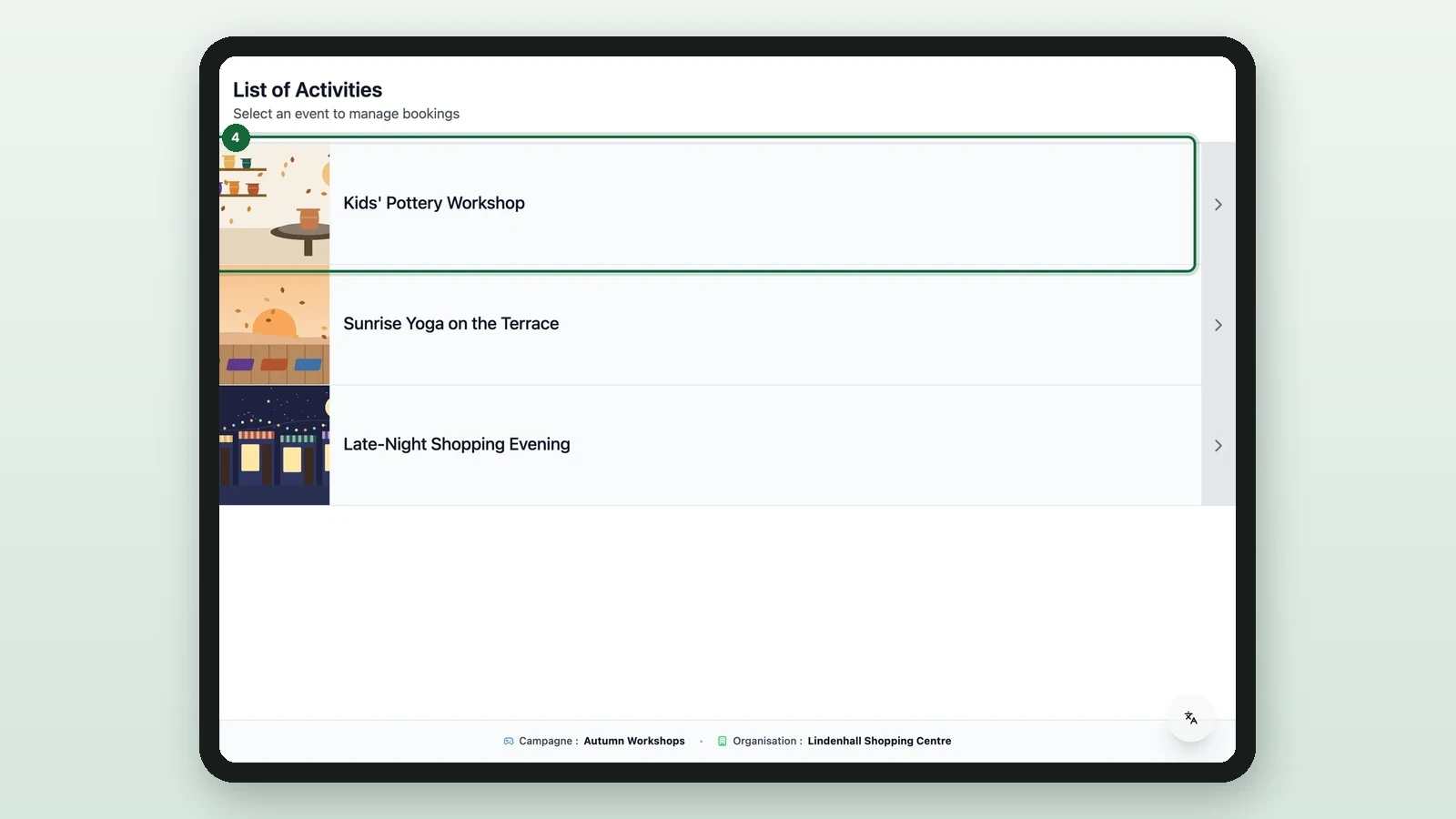
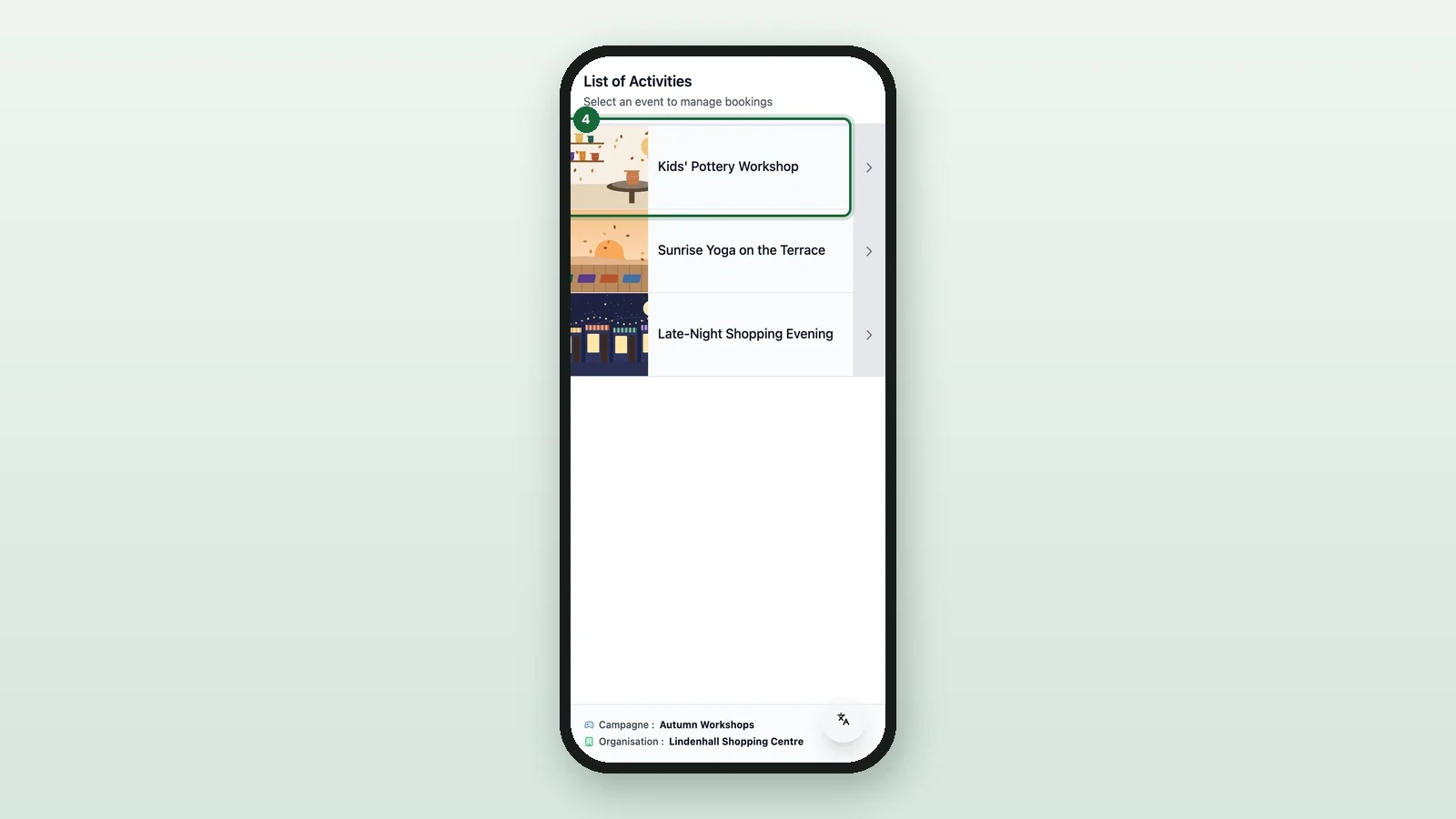
-
Select Scan QR Code.
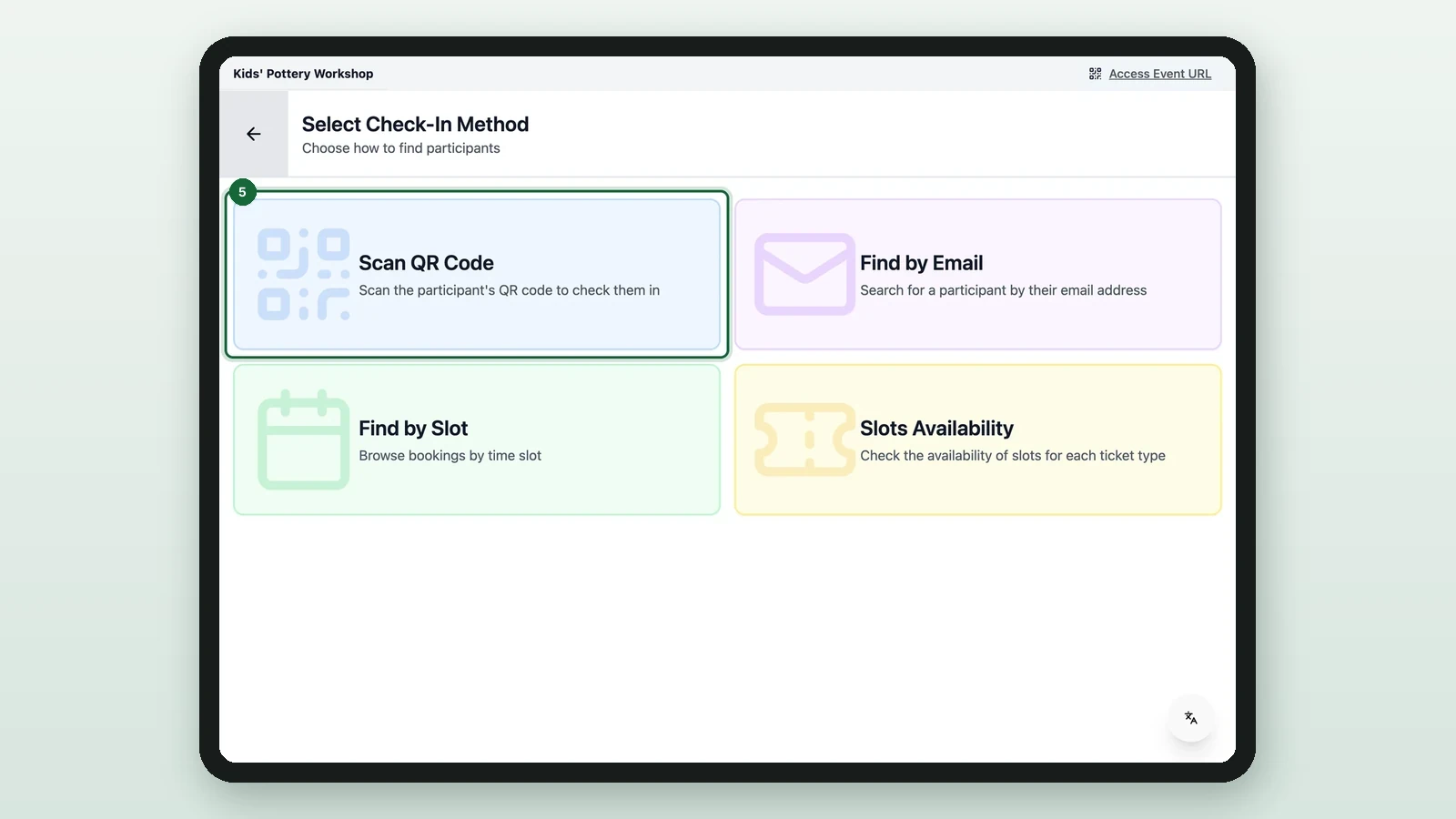
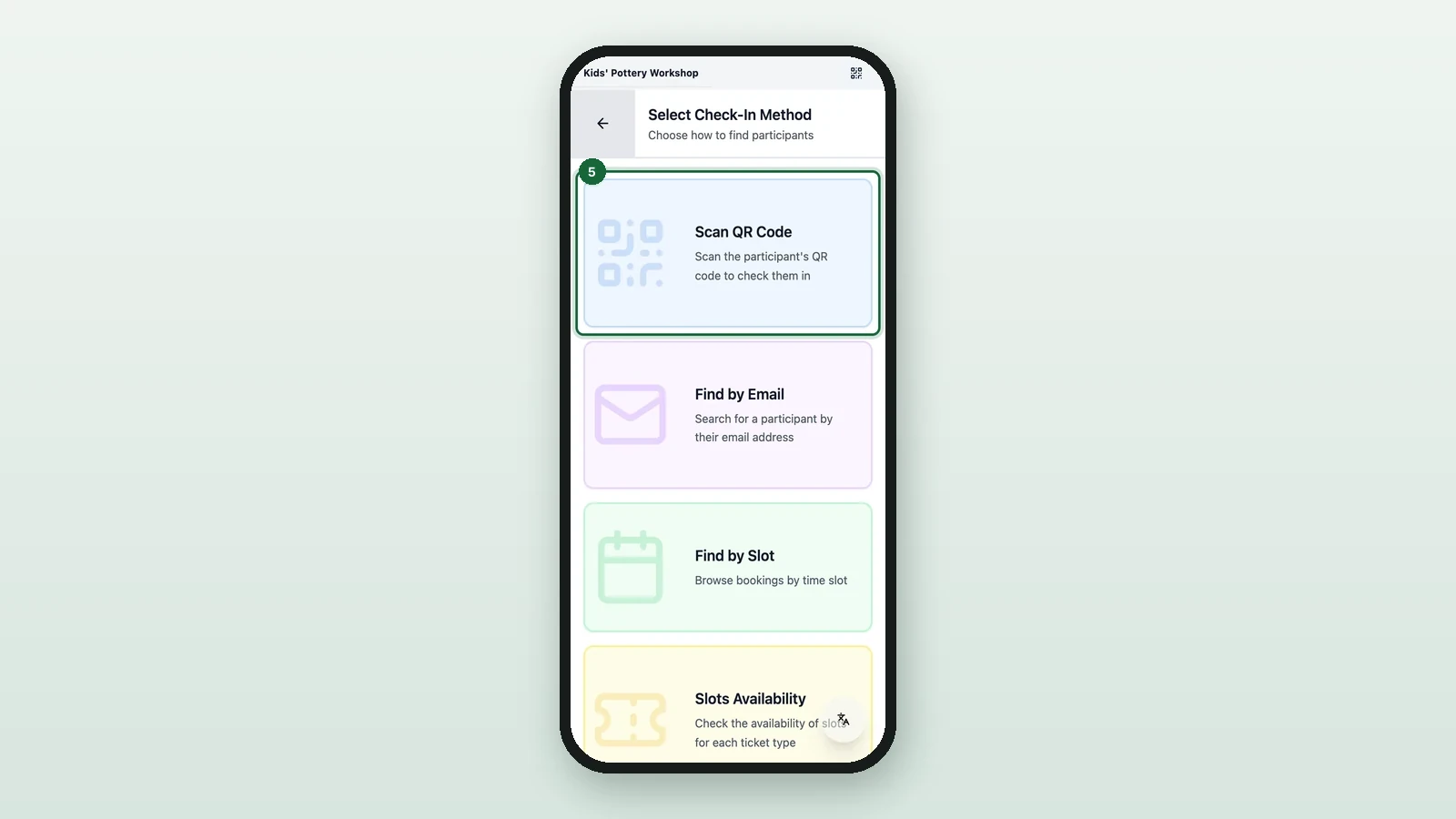
Allow the camera if the device asks. With several cameras, choose the back one.
-
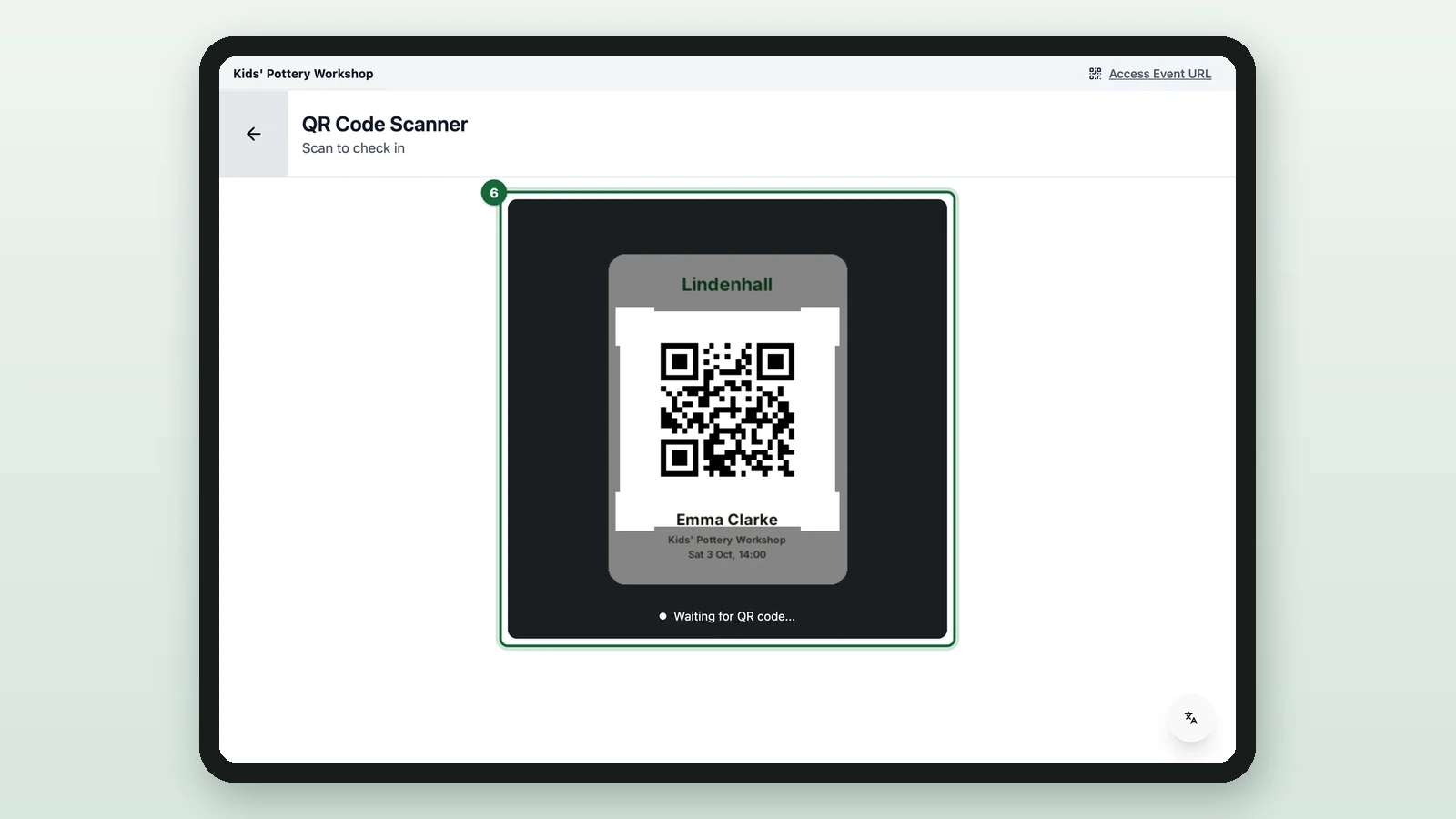
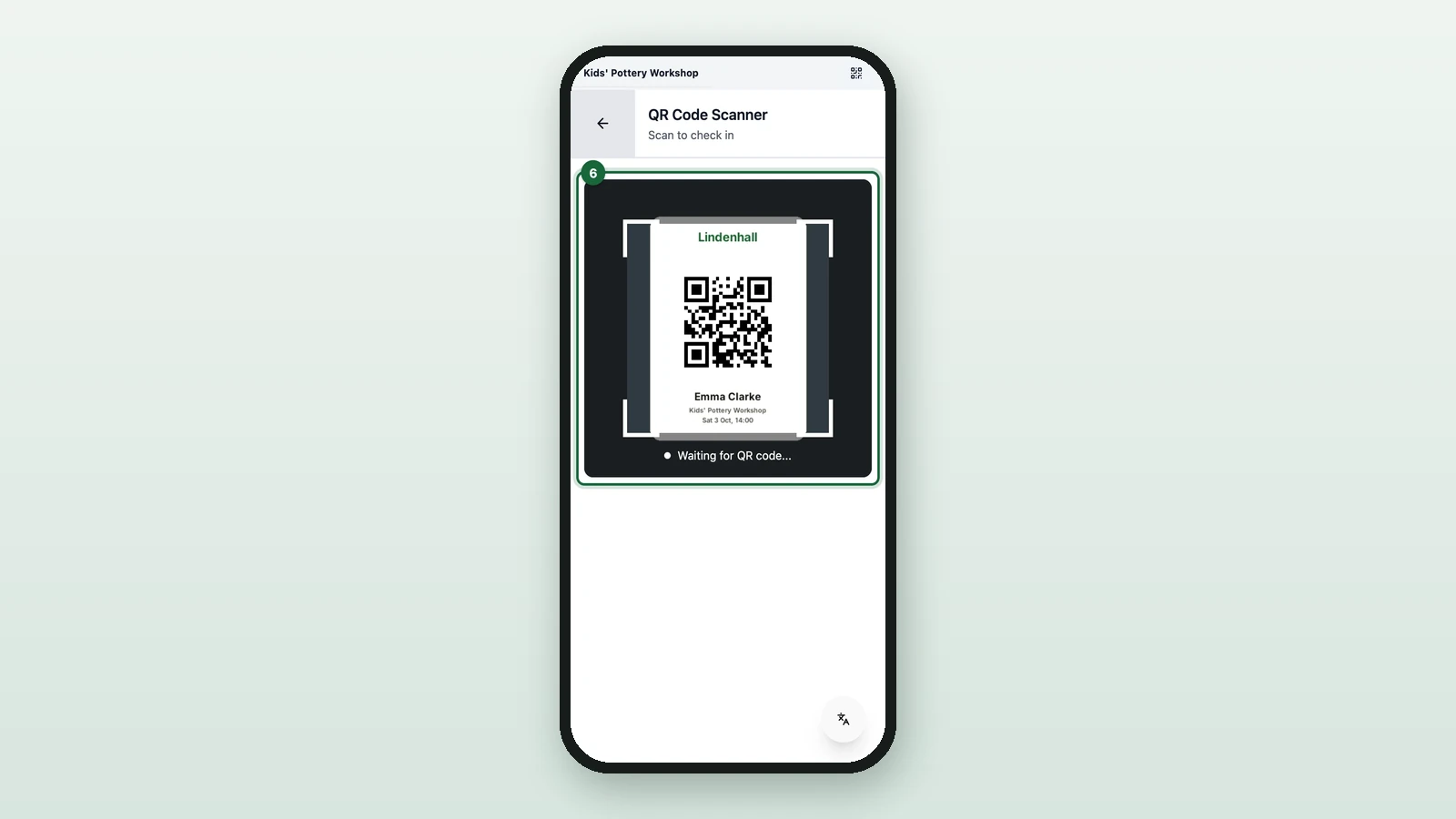
Point the camera at the QR code on the guest's ticket.
-
Read the result before you let the guest in.
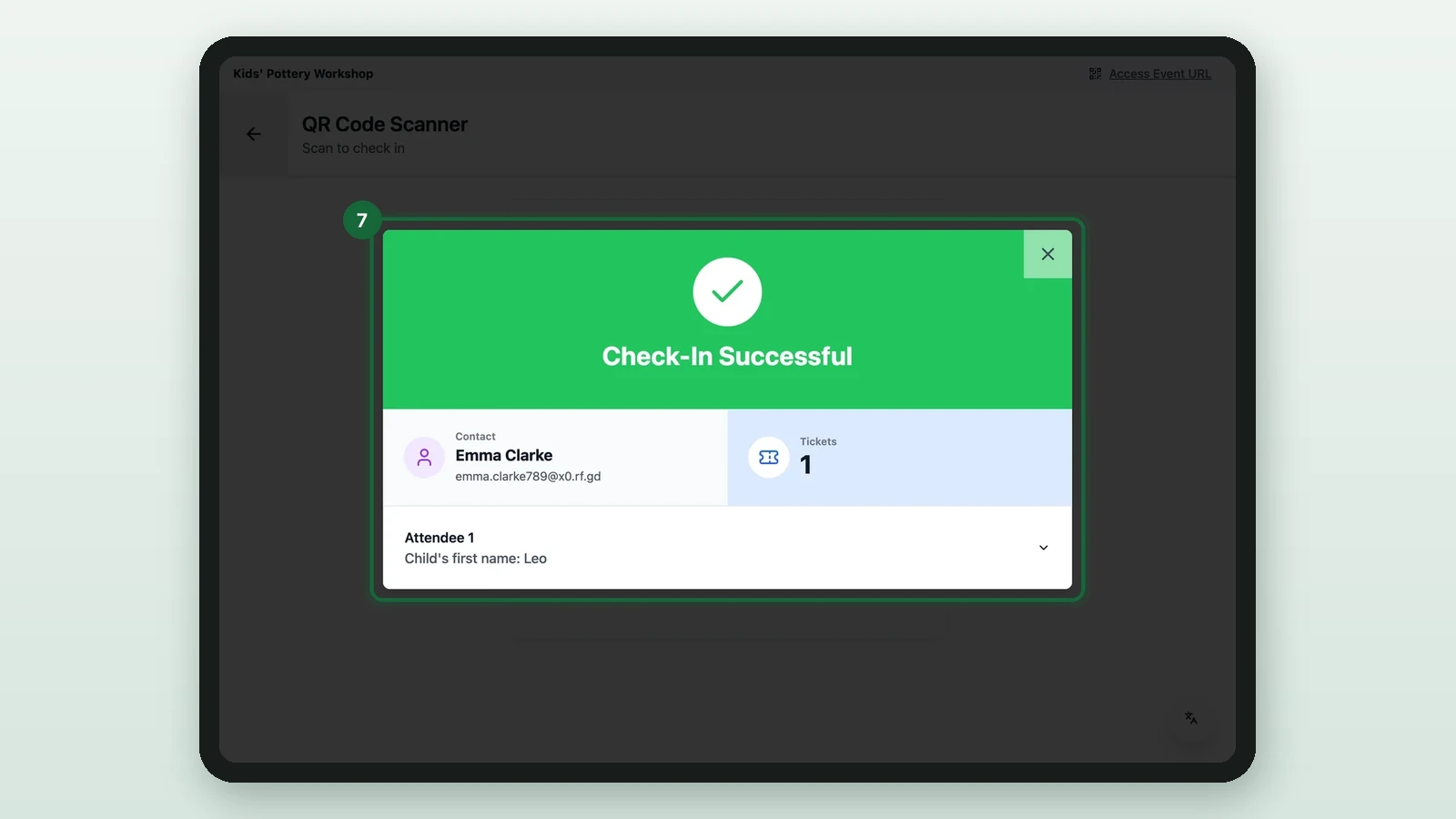
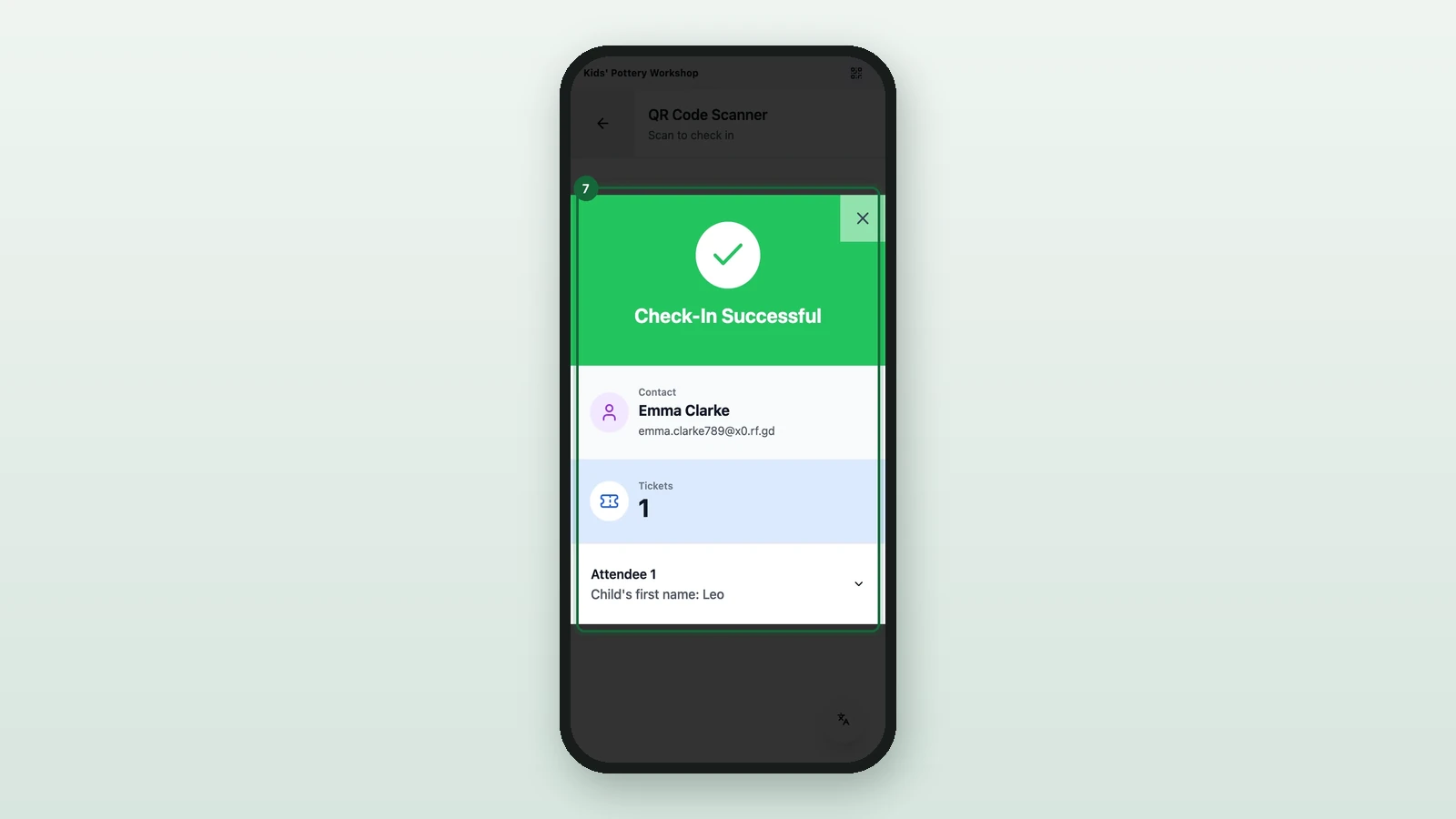
Check-In Successful means they're in. Any other result needs a decision: see Check-in statuses.
If a code won't scan, find the guest by email or by session instead: see Manual check-in.
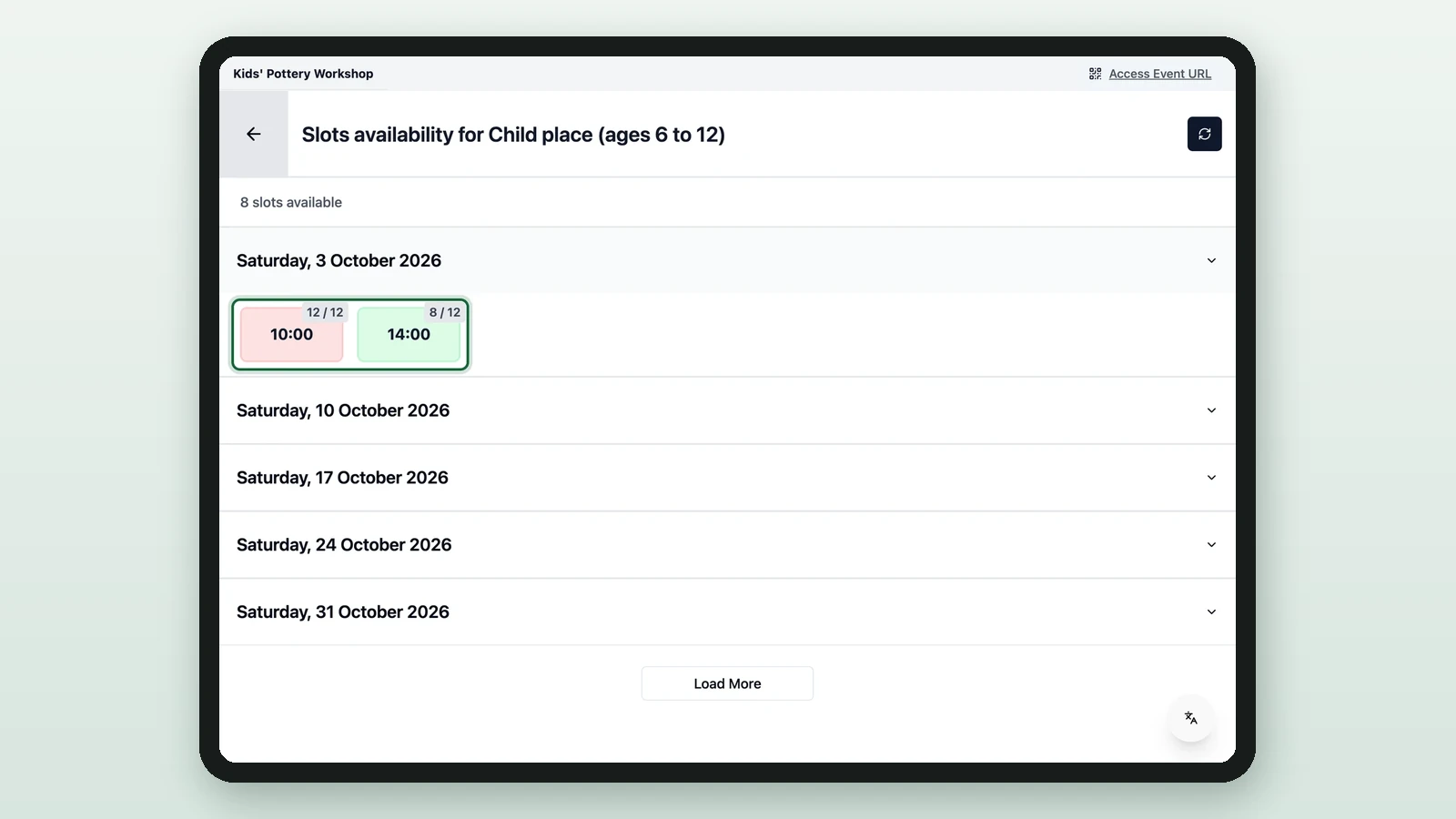
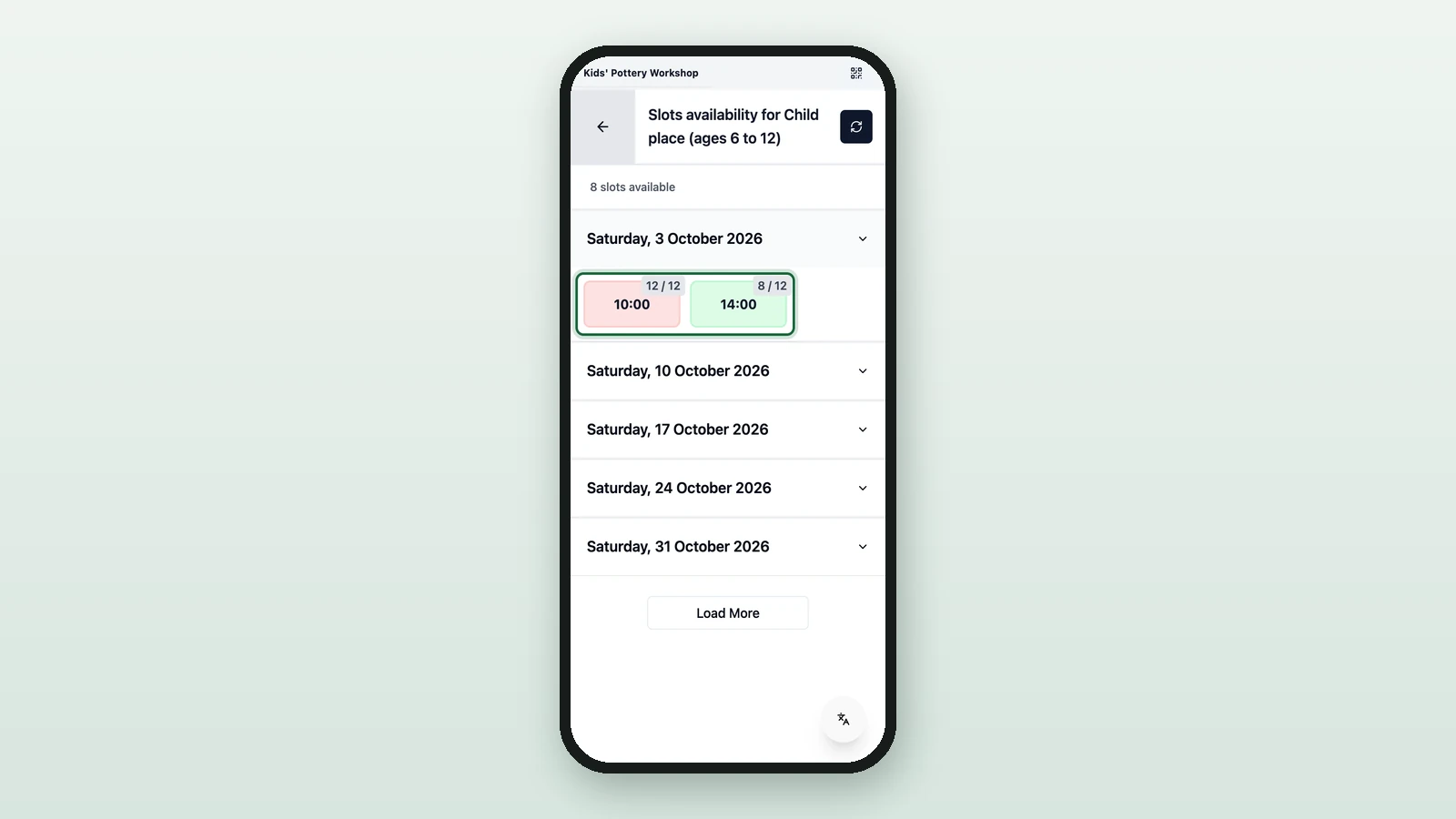
See how full each session is
Open the Activity, then:
-
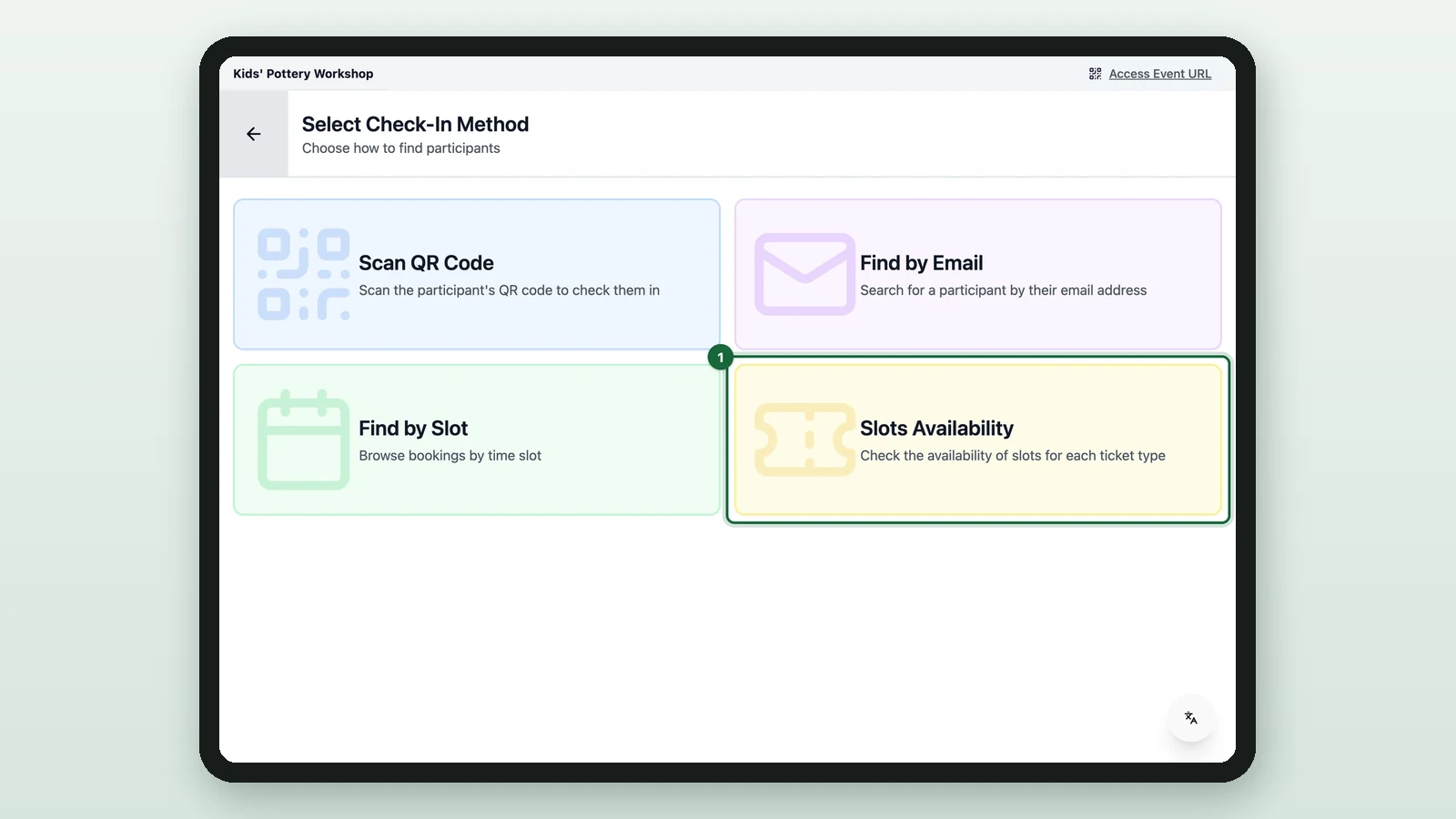
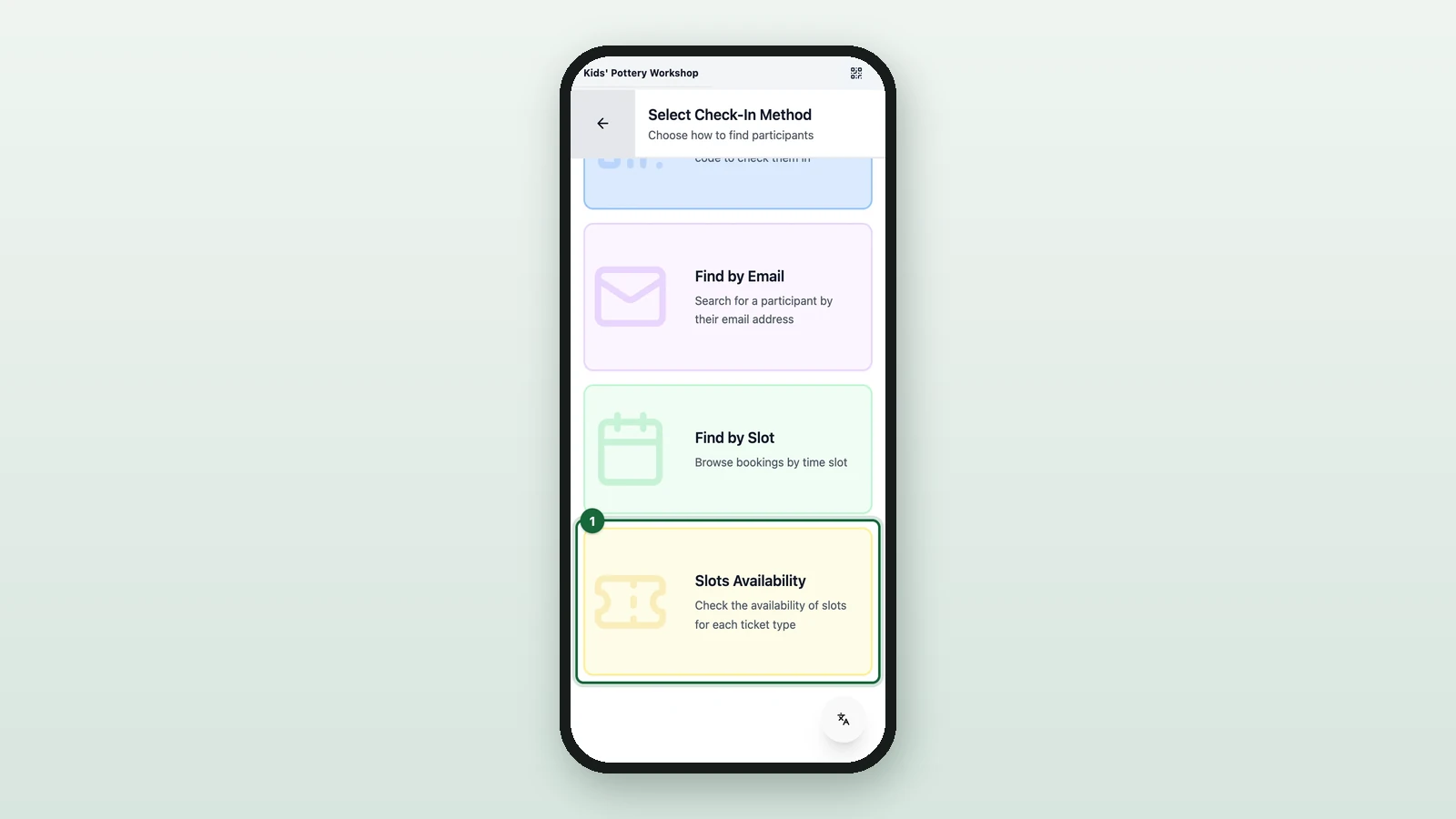
Select Slots Availability.
-
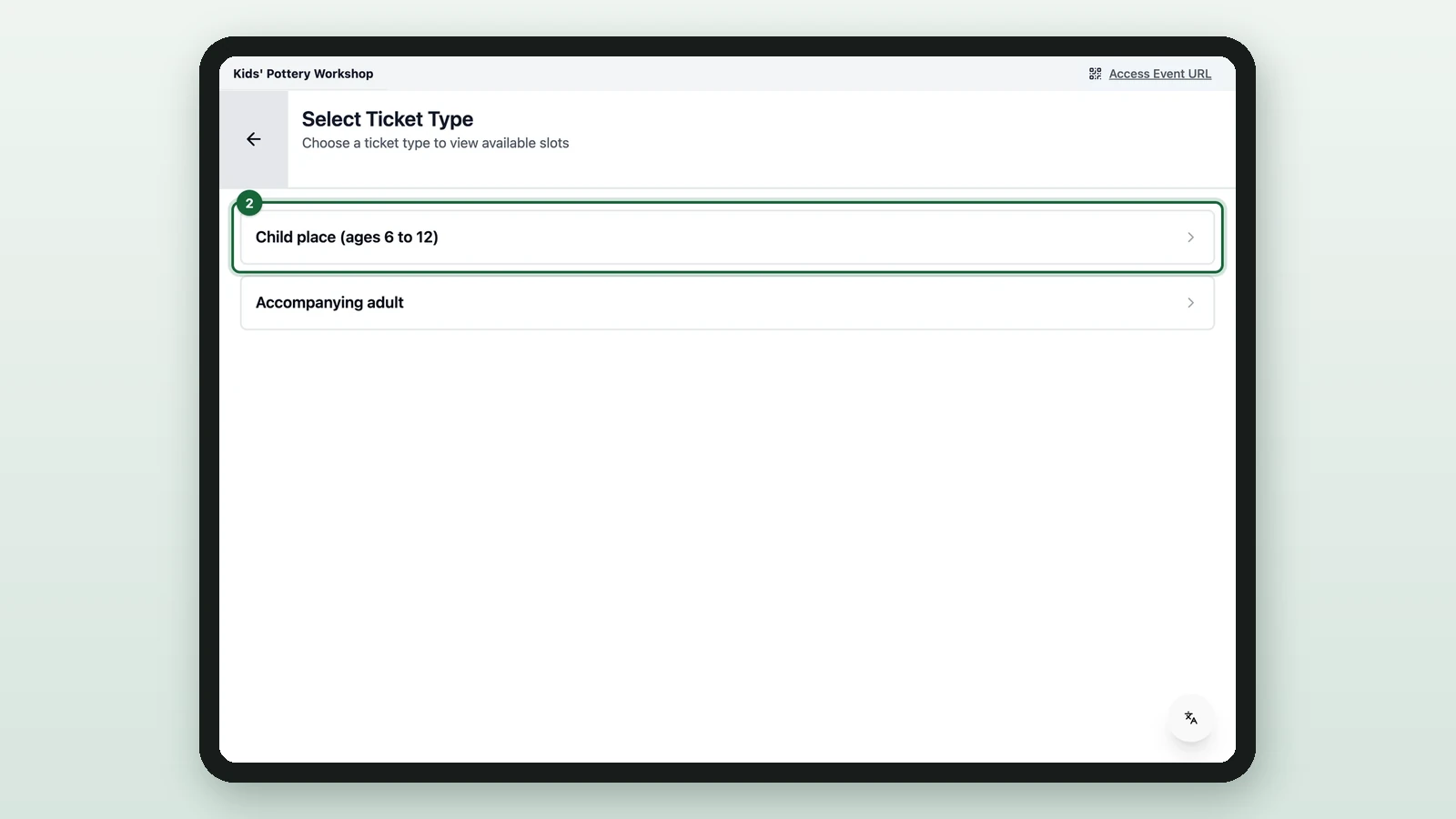
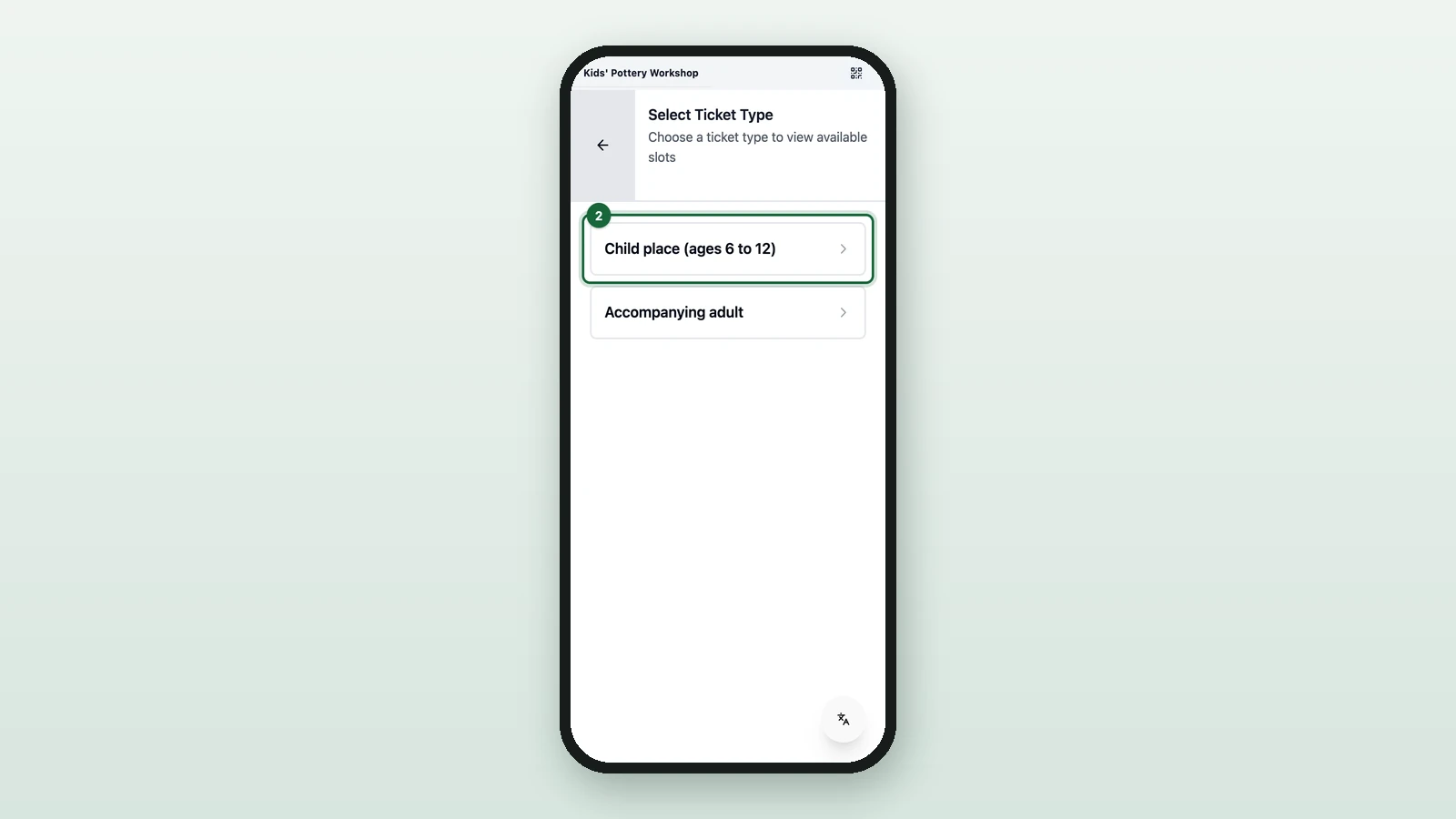
Choose the ticket type.
-
Select the day.
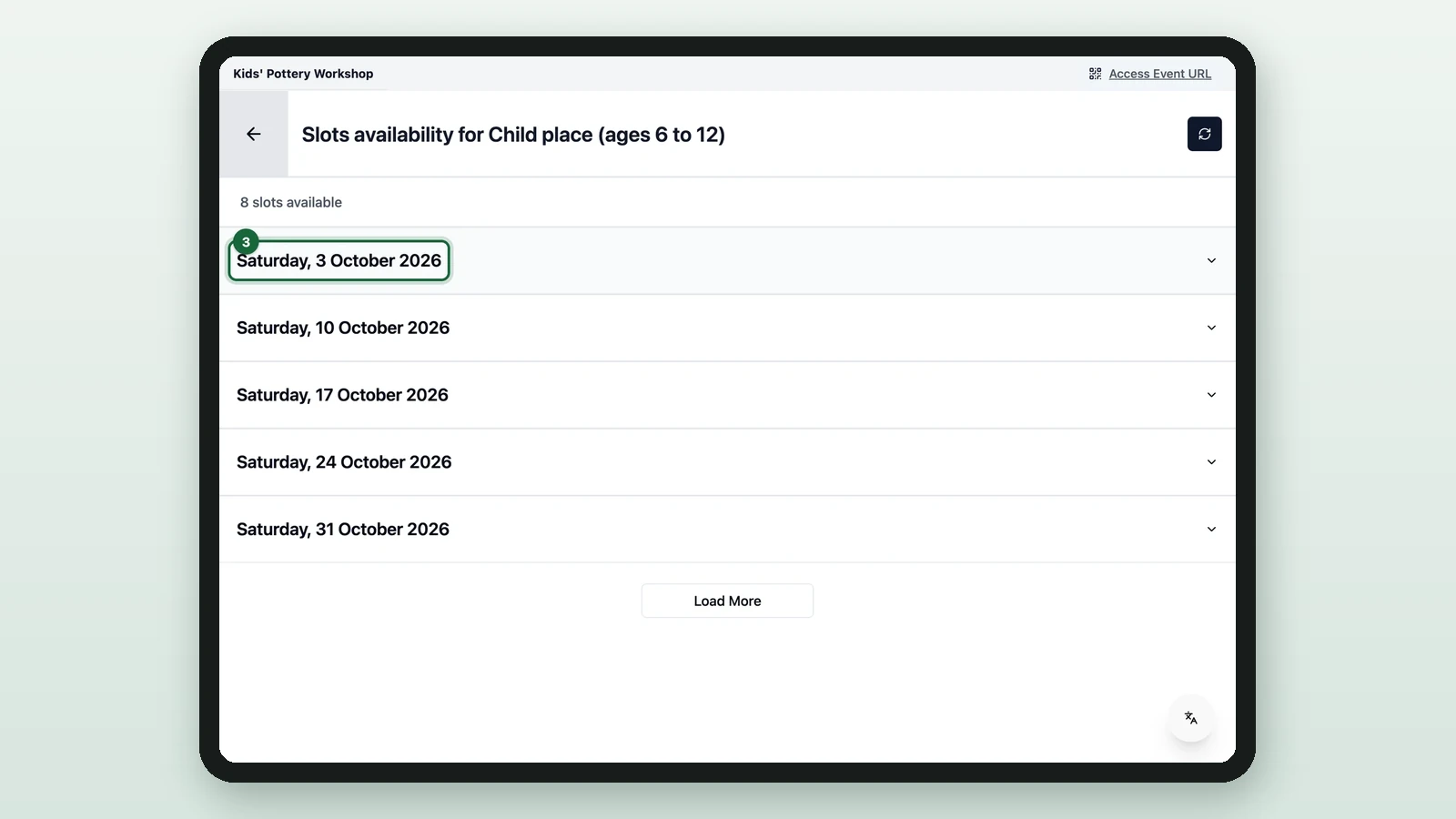
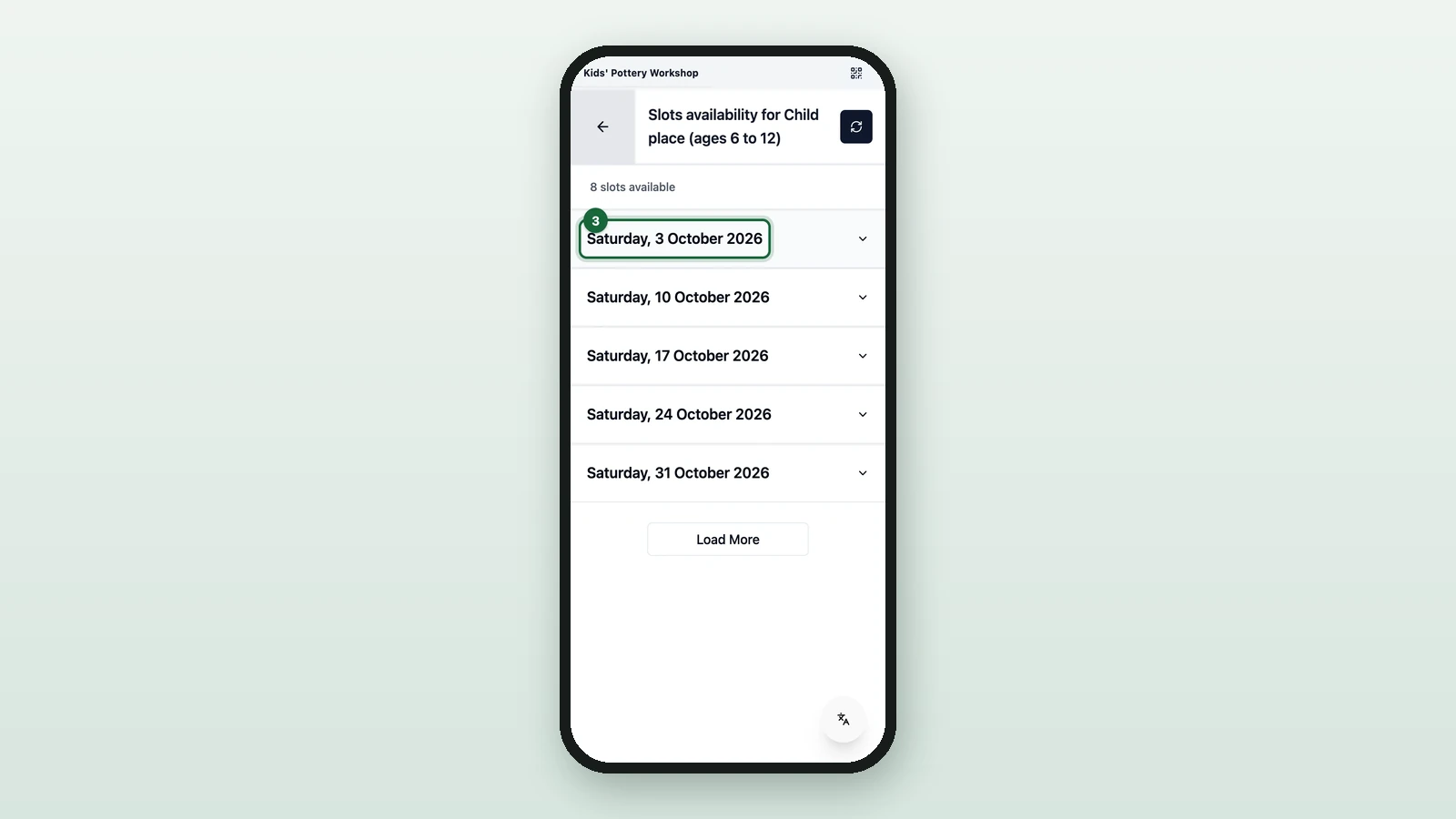
Each session shows its places taken. A full session shows in red.