Manual check-in
Check a guest in without scanning: find their booking by email or by session in the Event Host App.
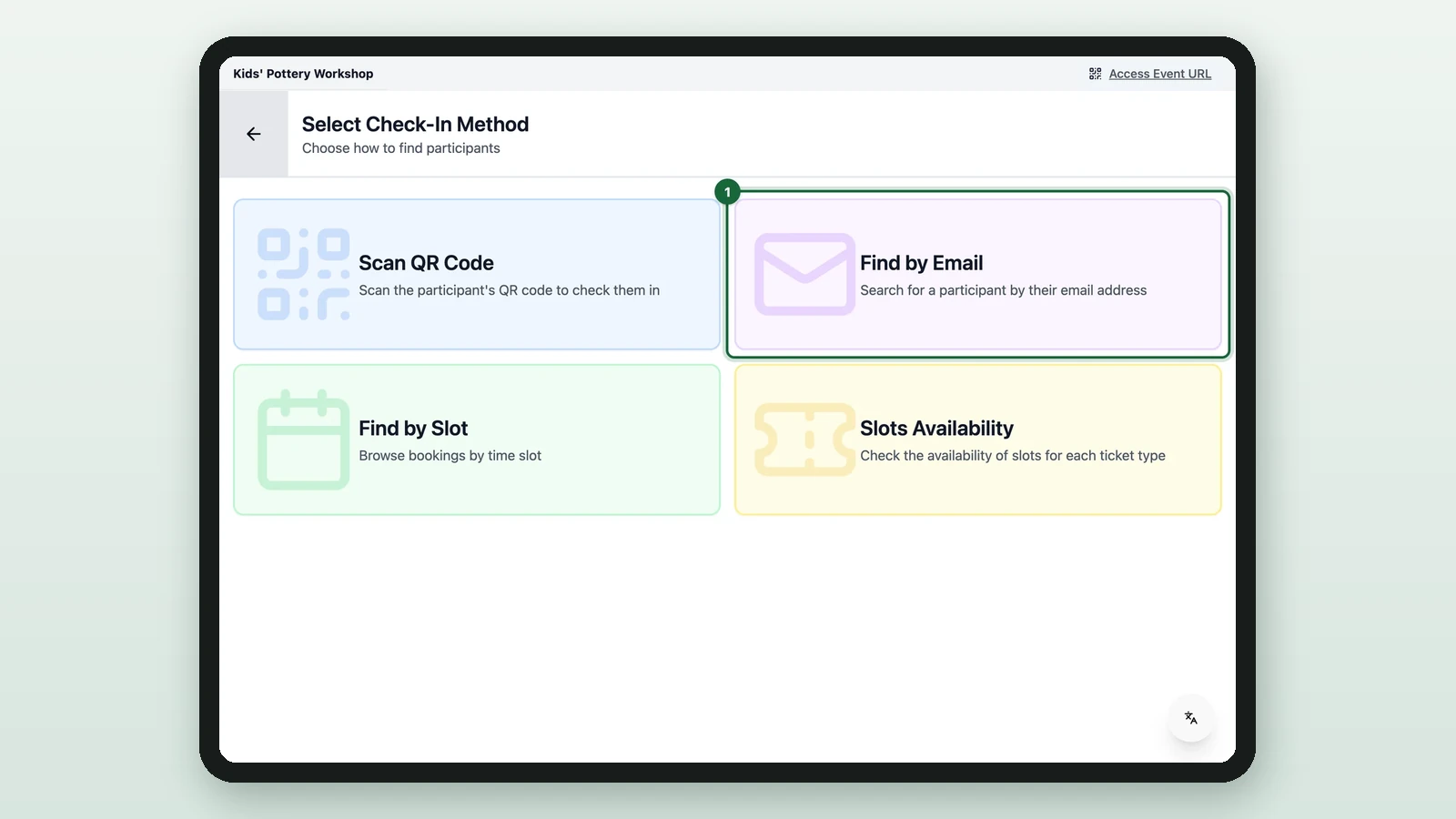
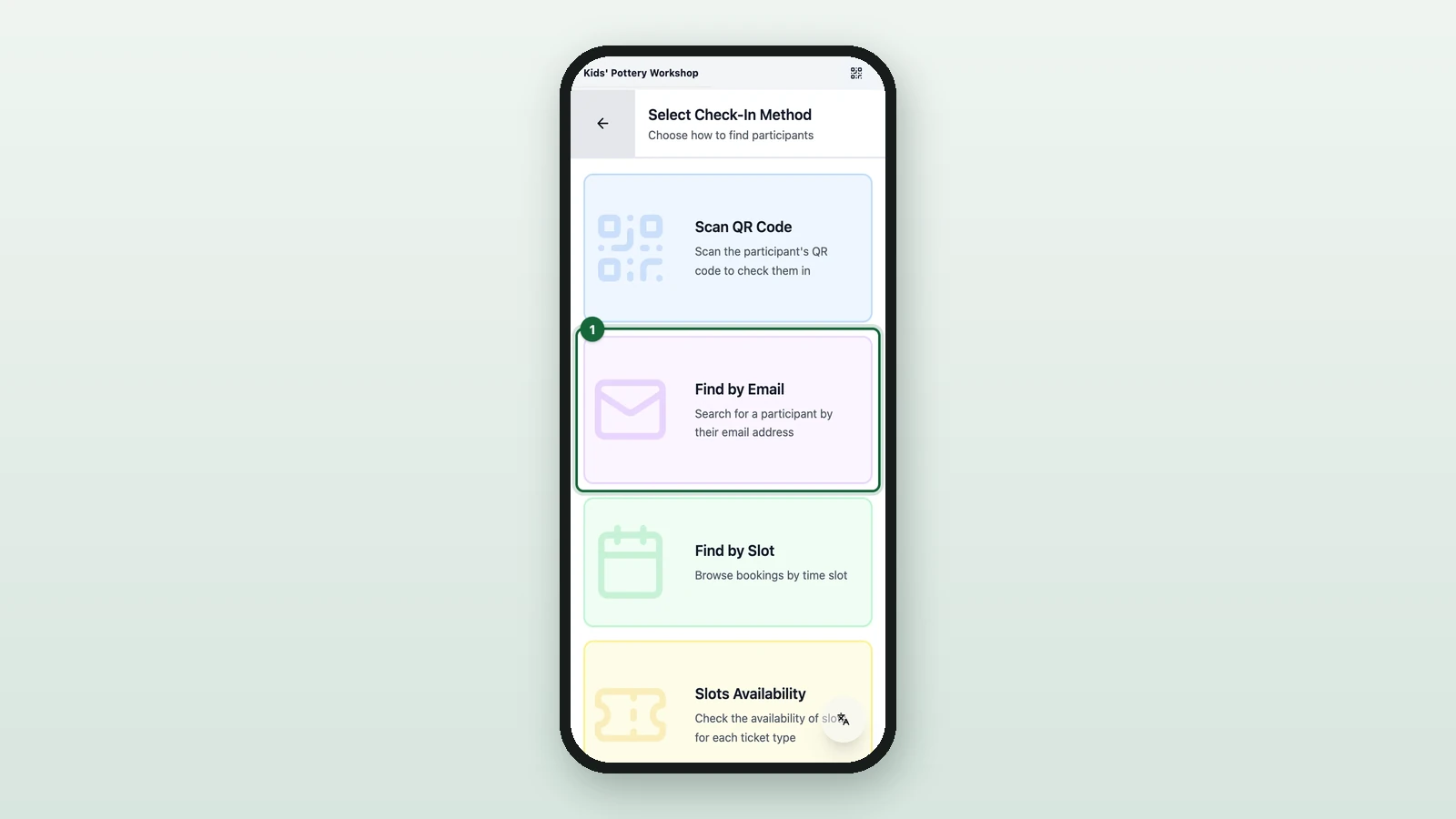
When a ticket won't scan, or a guest can't find it, check them in by hand. Here, a host at the Kids' Pottery Workshop finds a guest by email, then another by session.
Find the guest by email
On the Activity's menu in the Event Host App:
-
Select Find by Email.
-
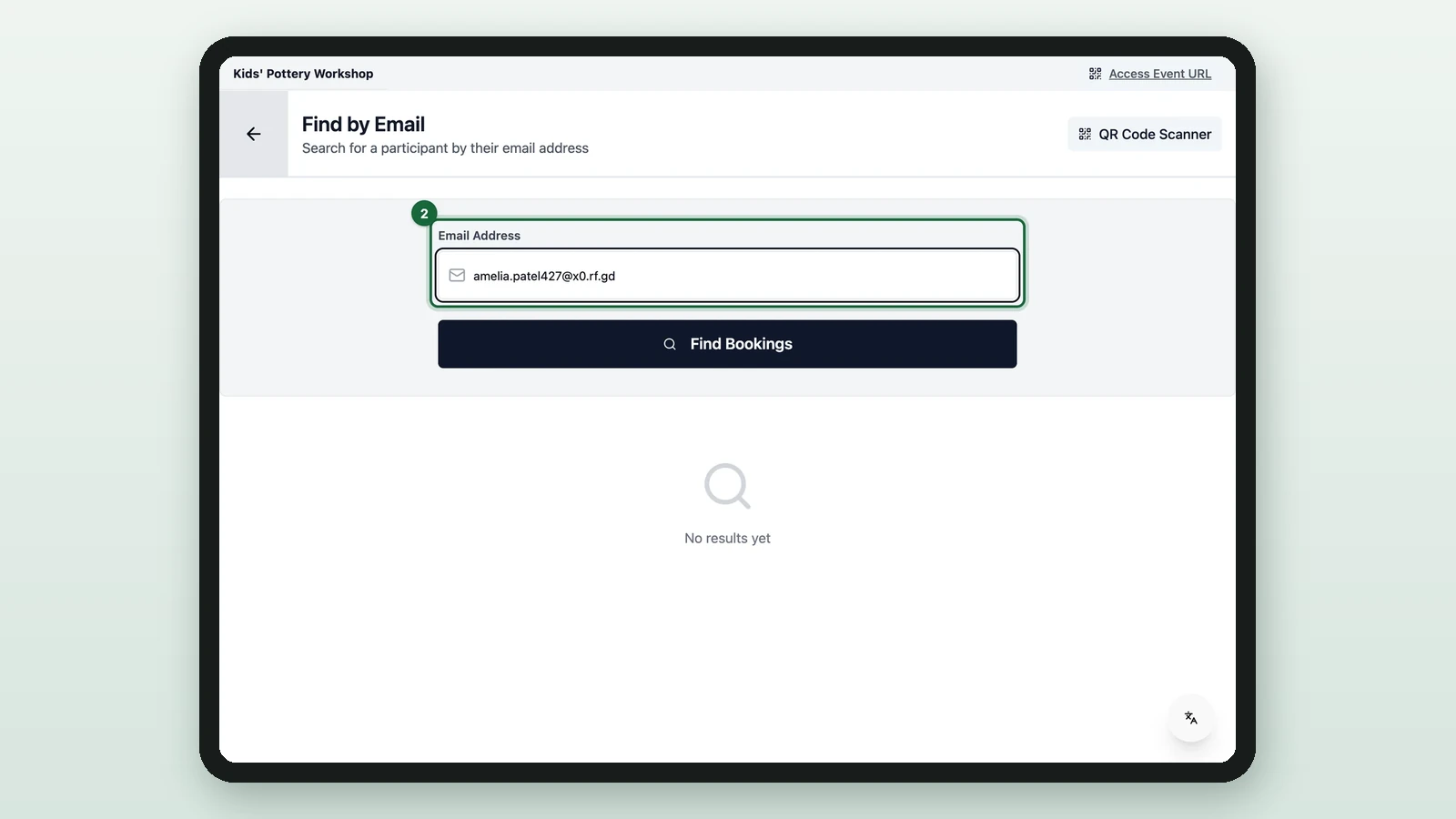
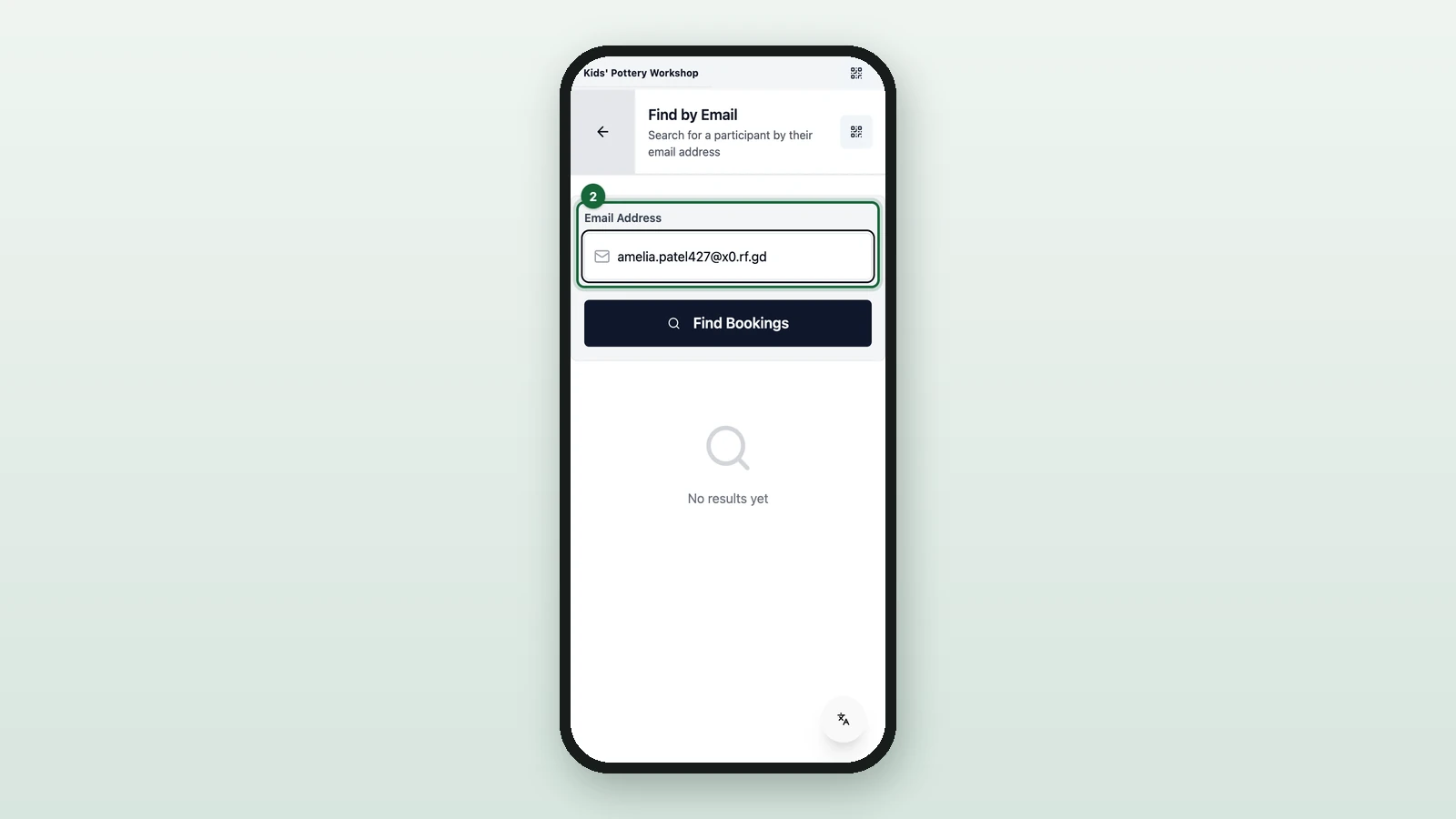
Enter the guest's email address.
-
Select Find Bookings.
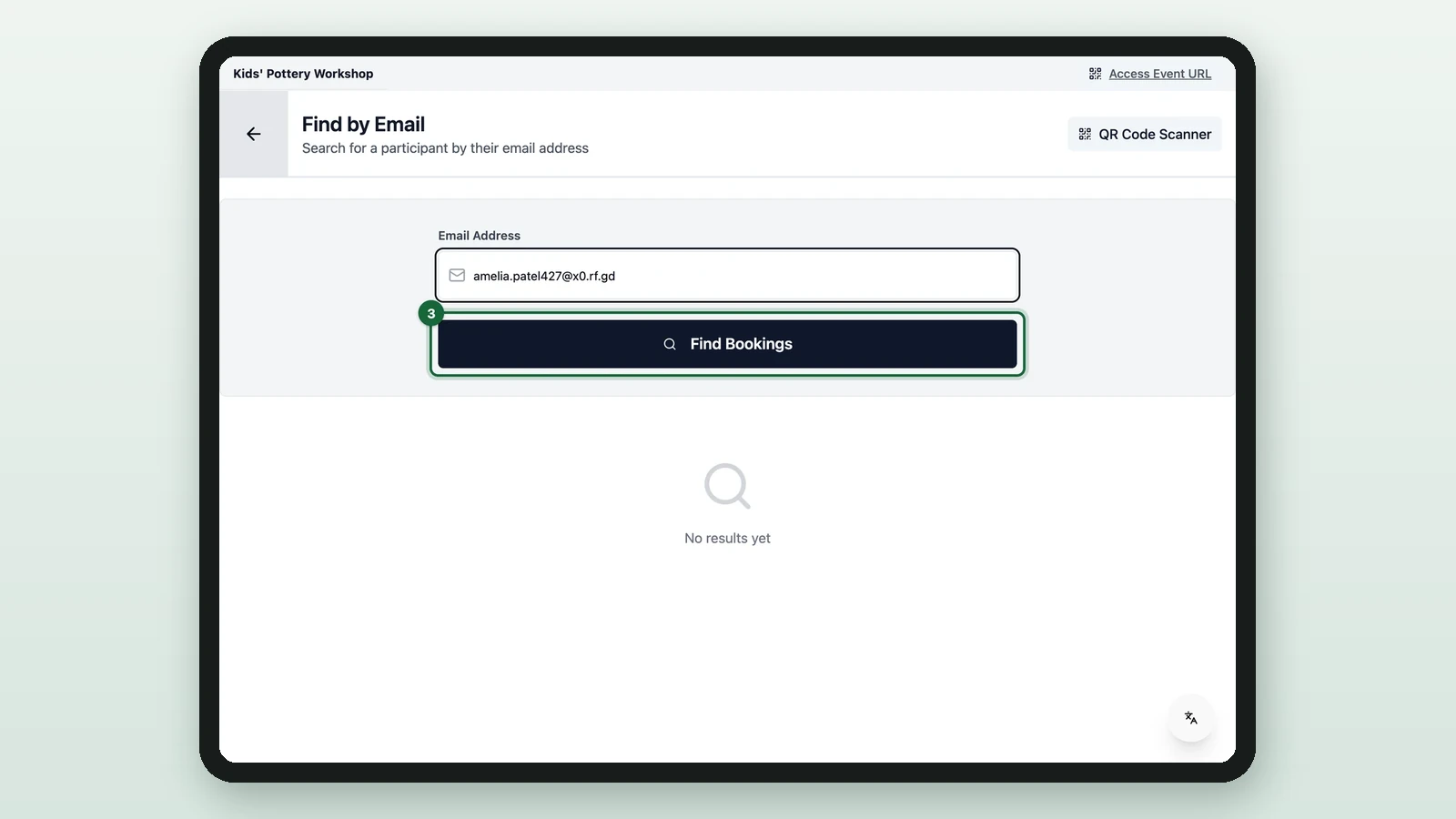
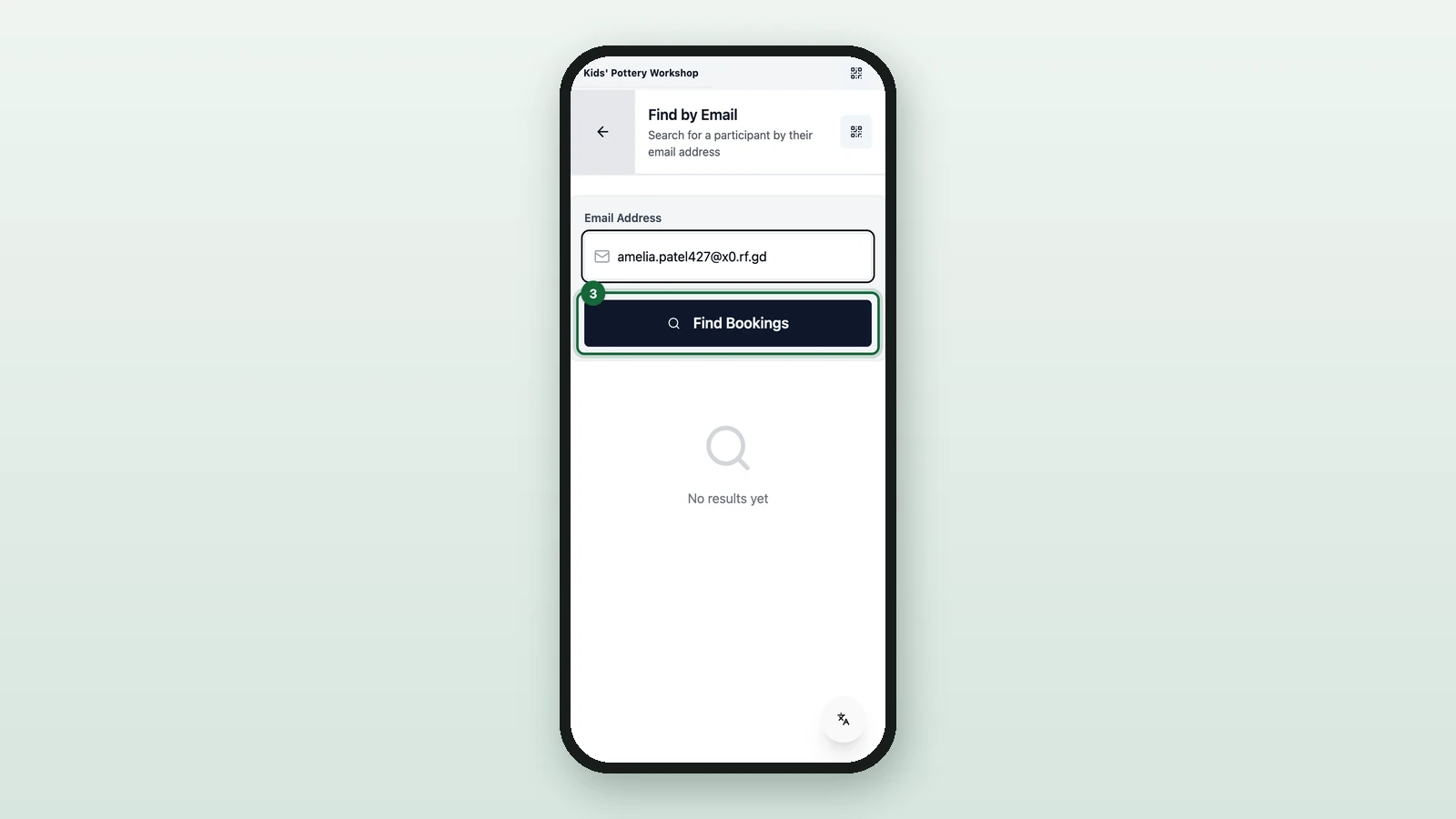
-
On the confirmed booking, select Check-in.
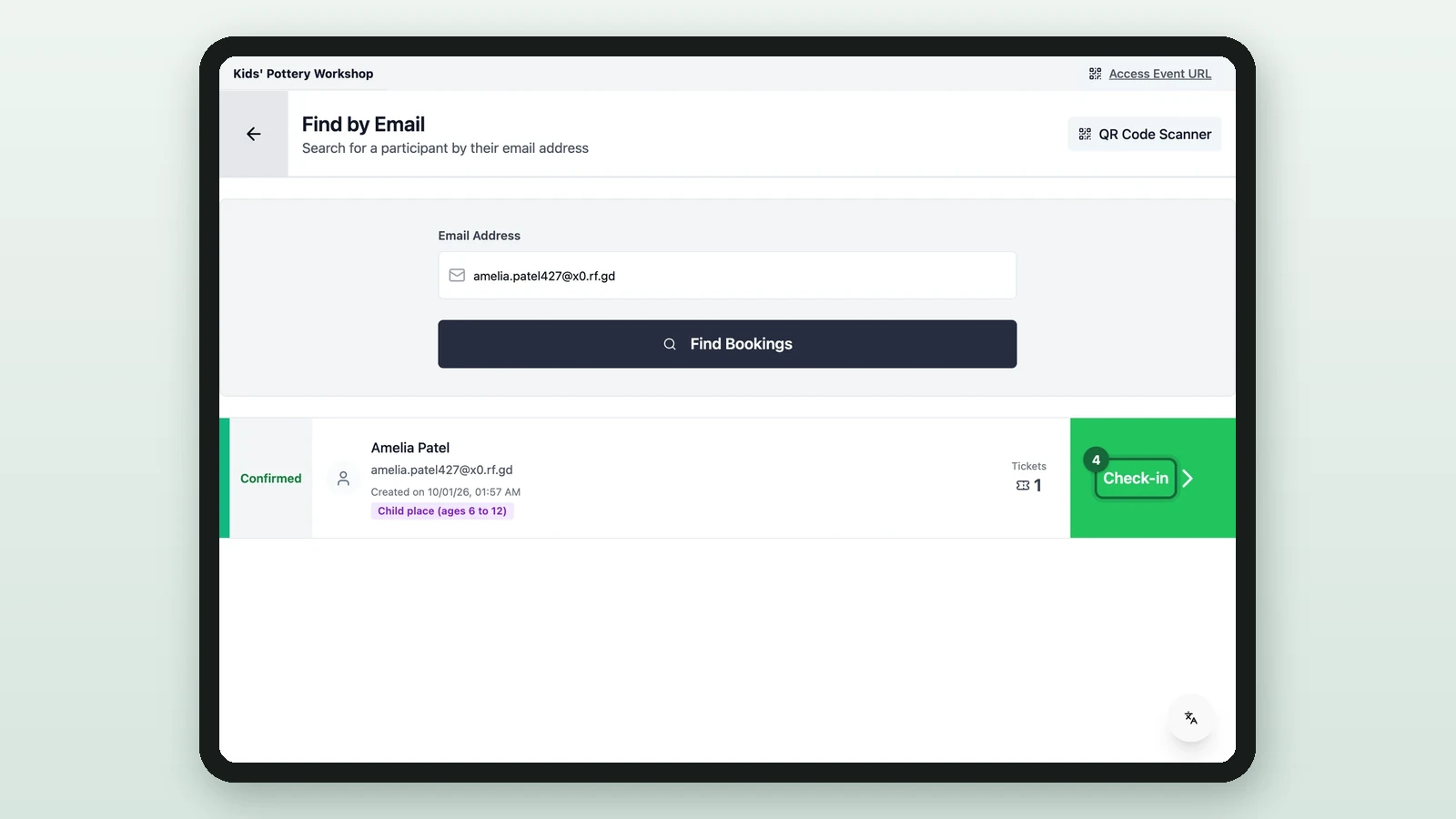
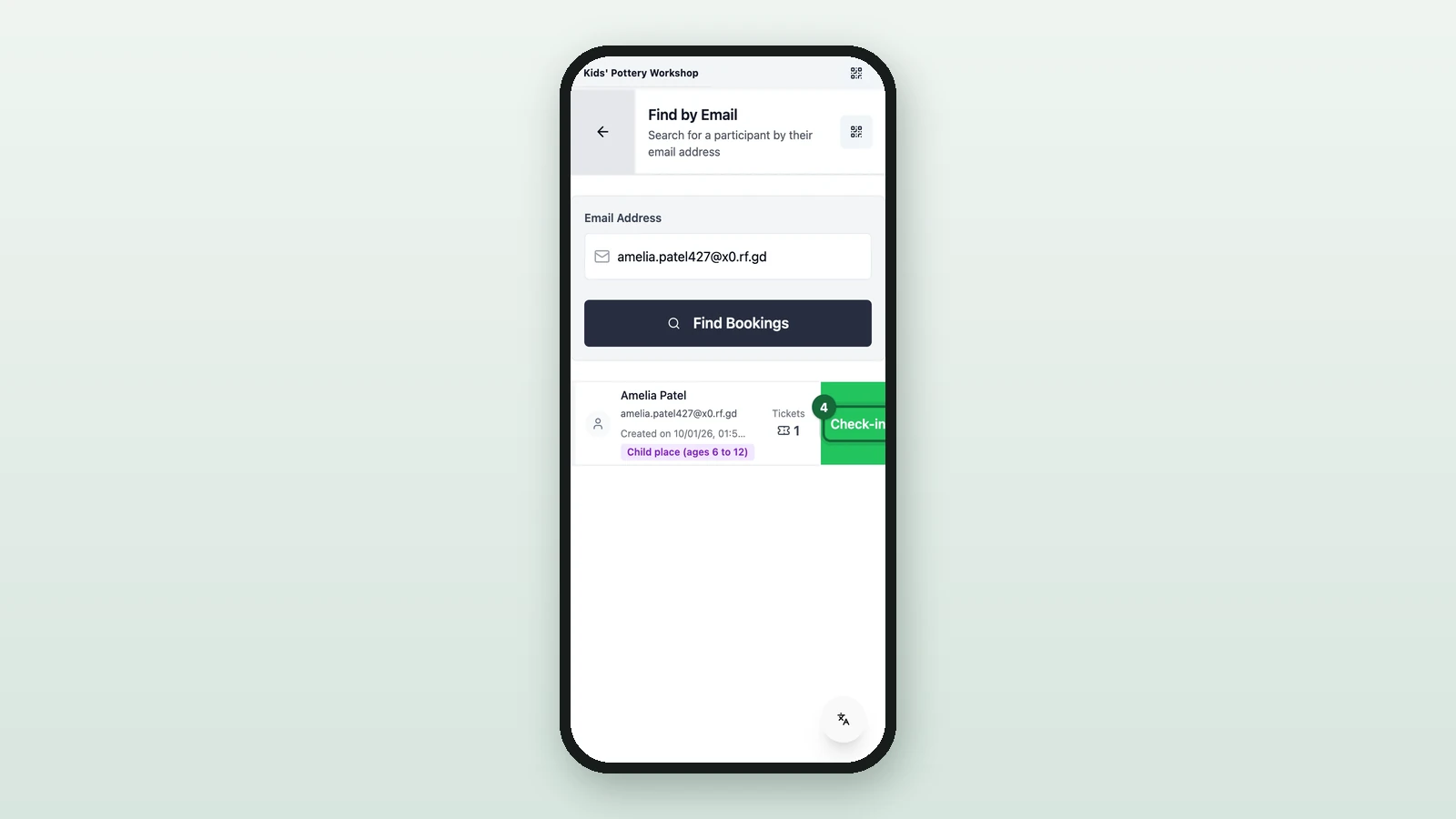
With several bookings, check the ticket type first.
-
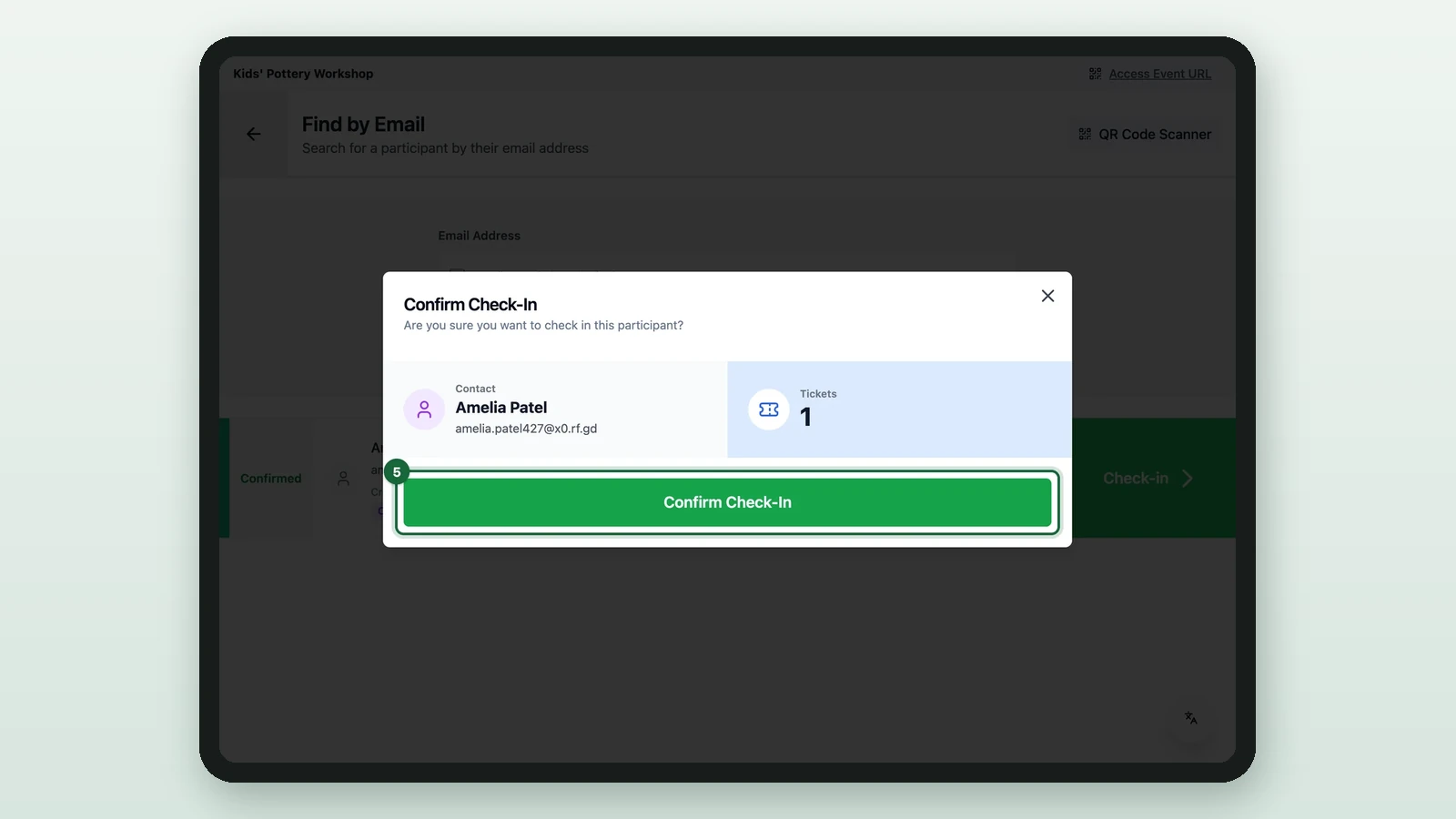
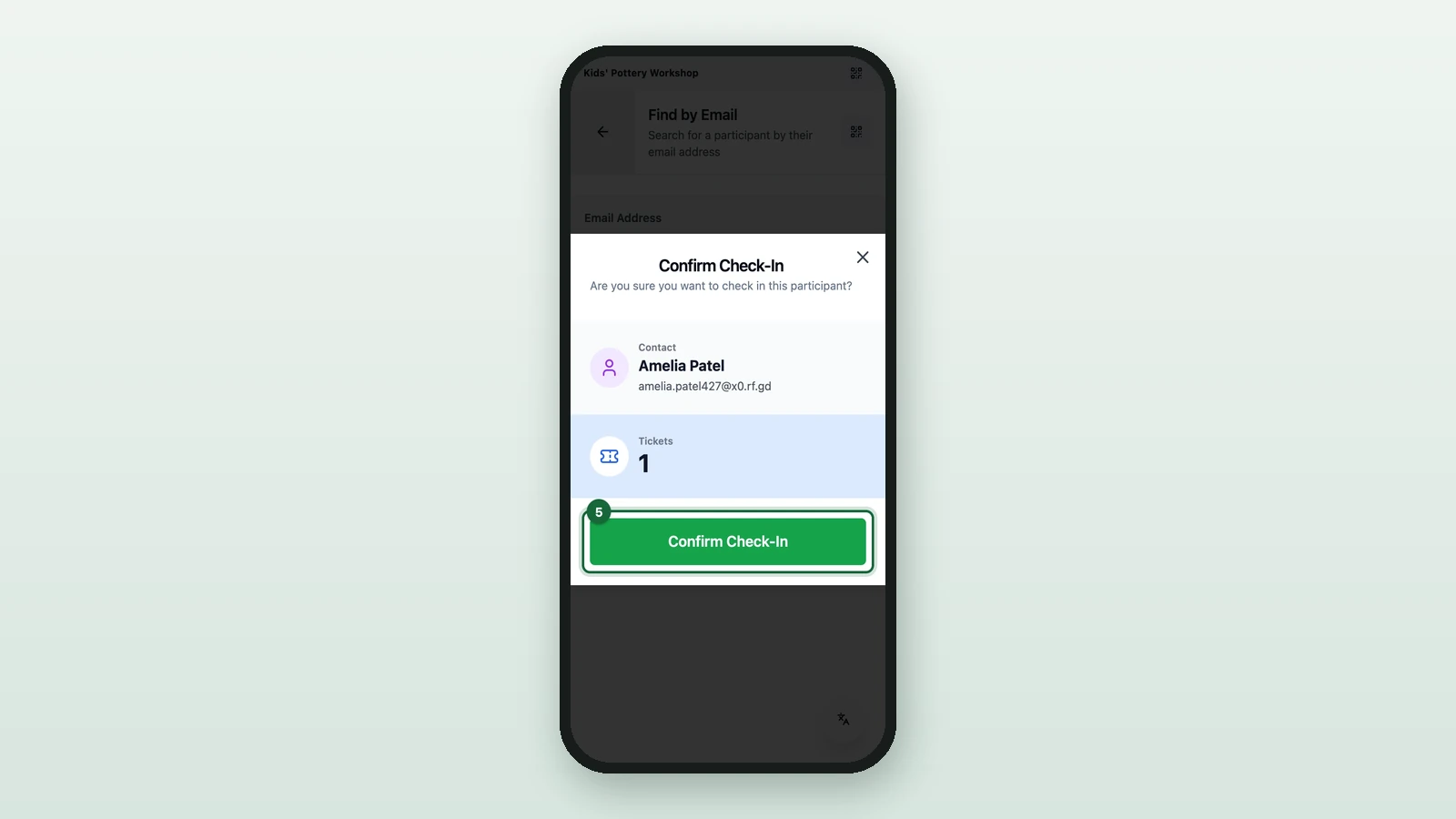
Select Confirm Check-In.
-
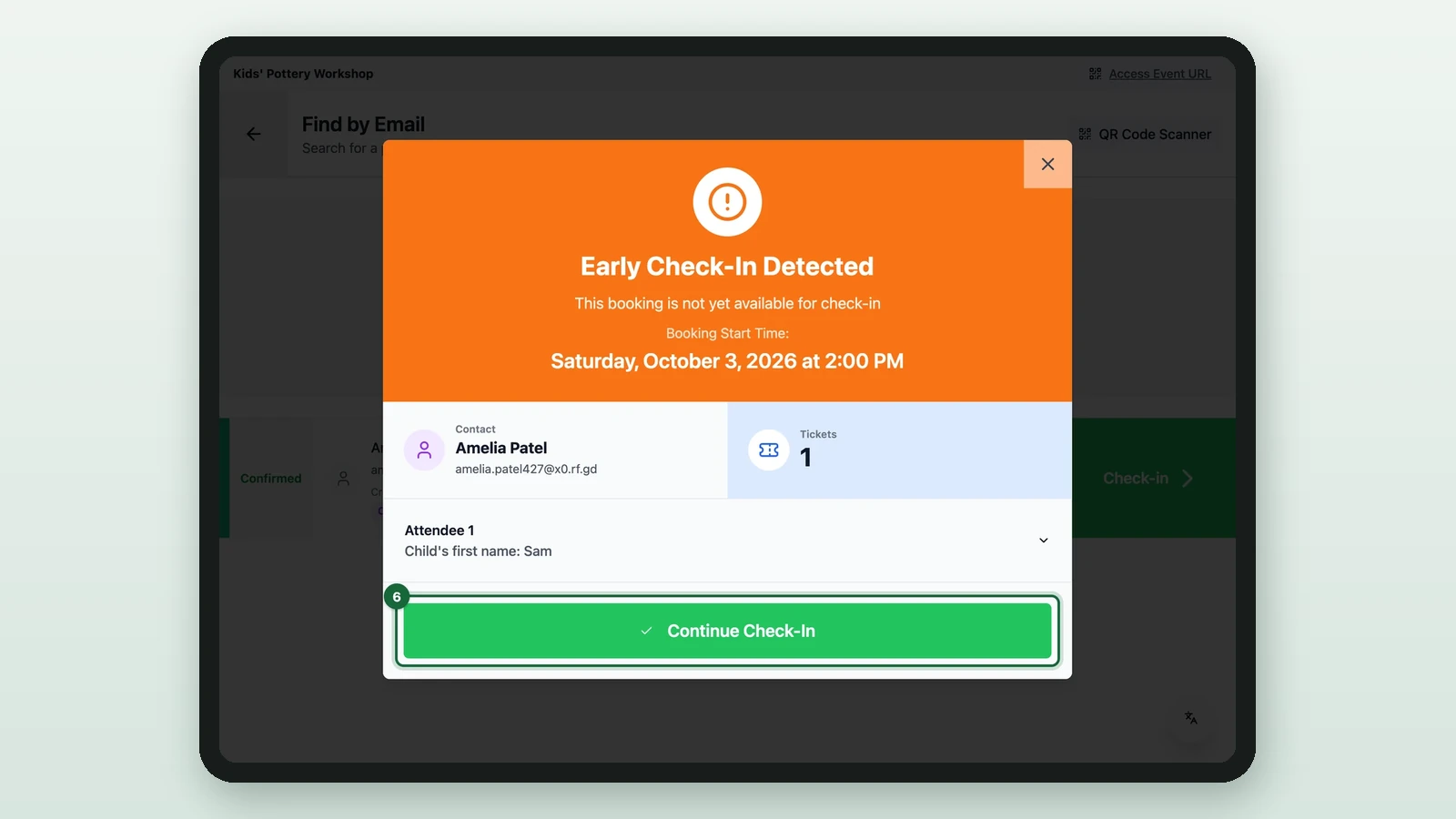
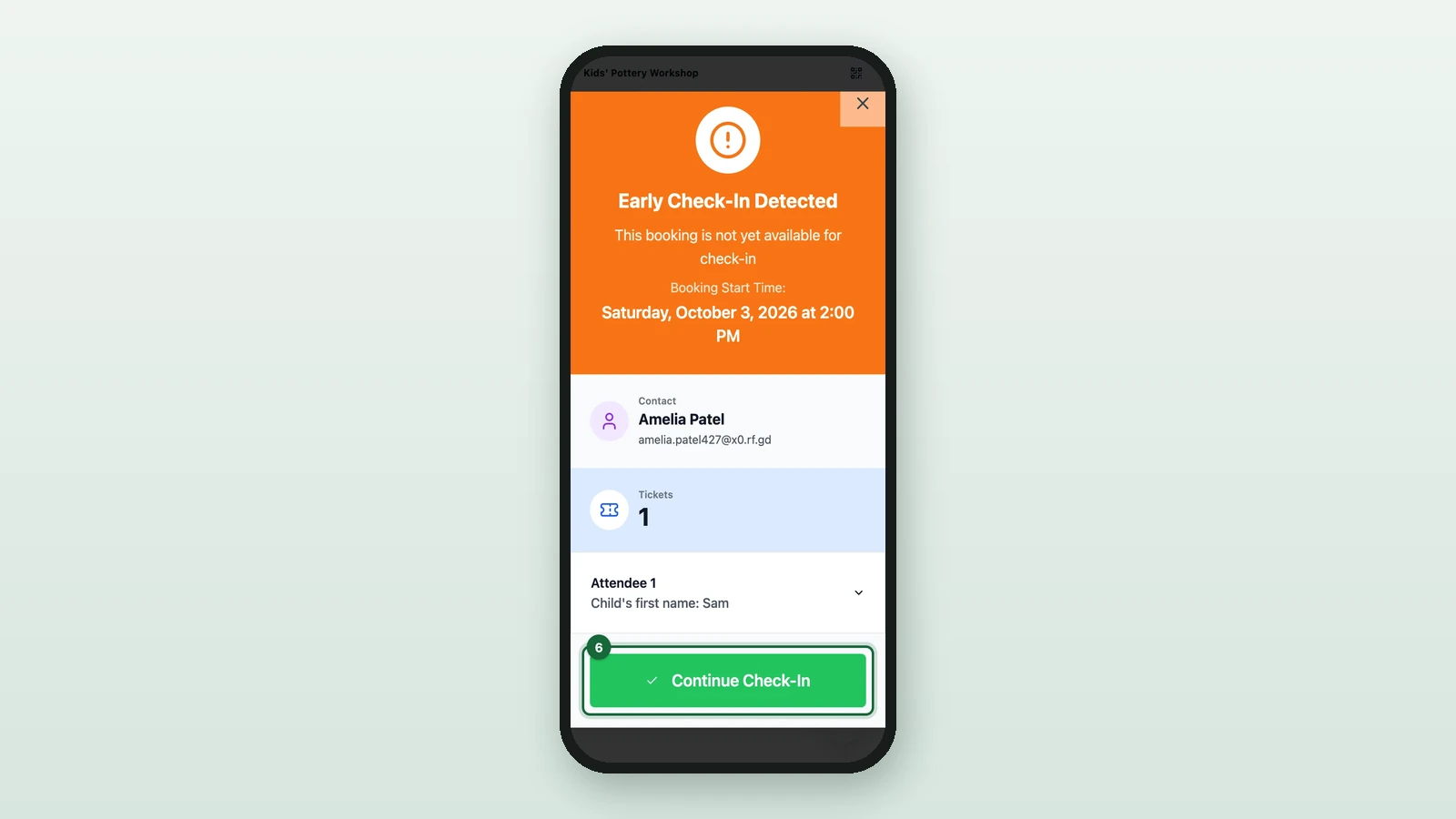
If the app warns that the guest is early or late, select Continue Check-In only if your event allows it.
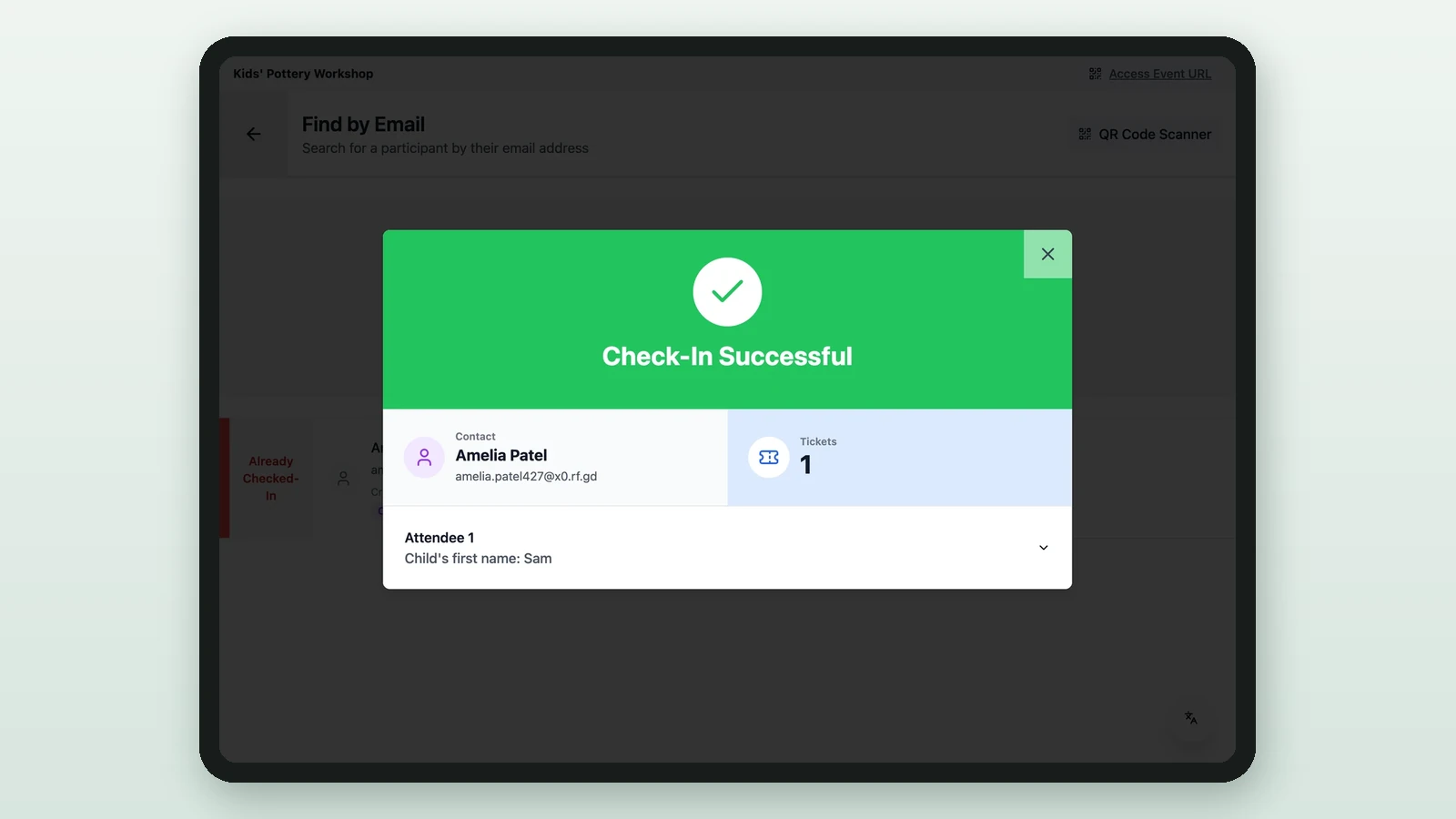
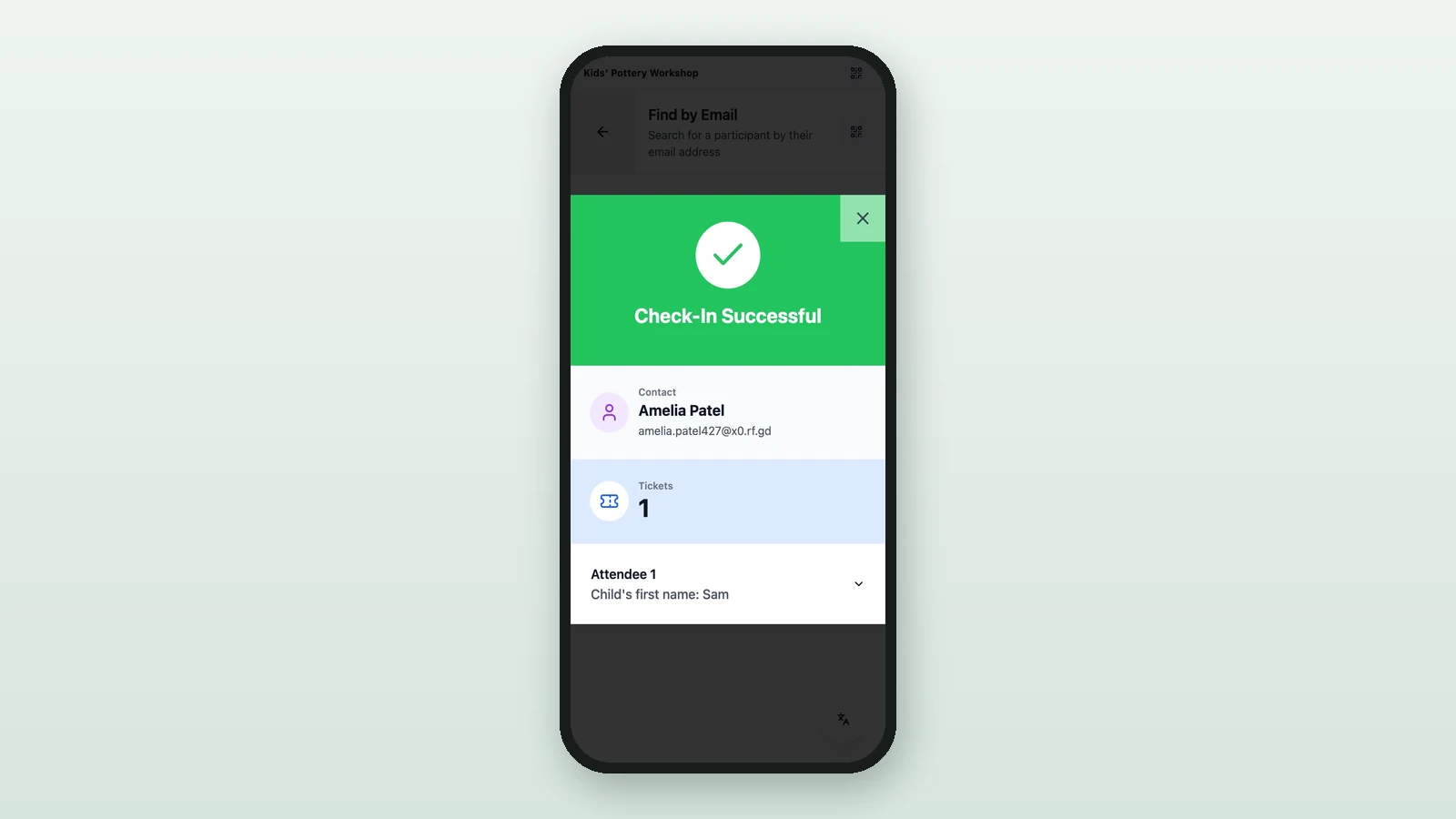
Check-In Successful then shows, and the booking reads Already Checked-In.
Find the guest by slot
When the guest knows their slot, the session time, but not their email:
-
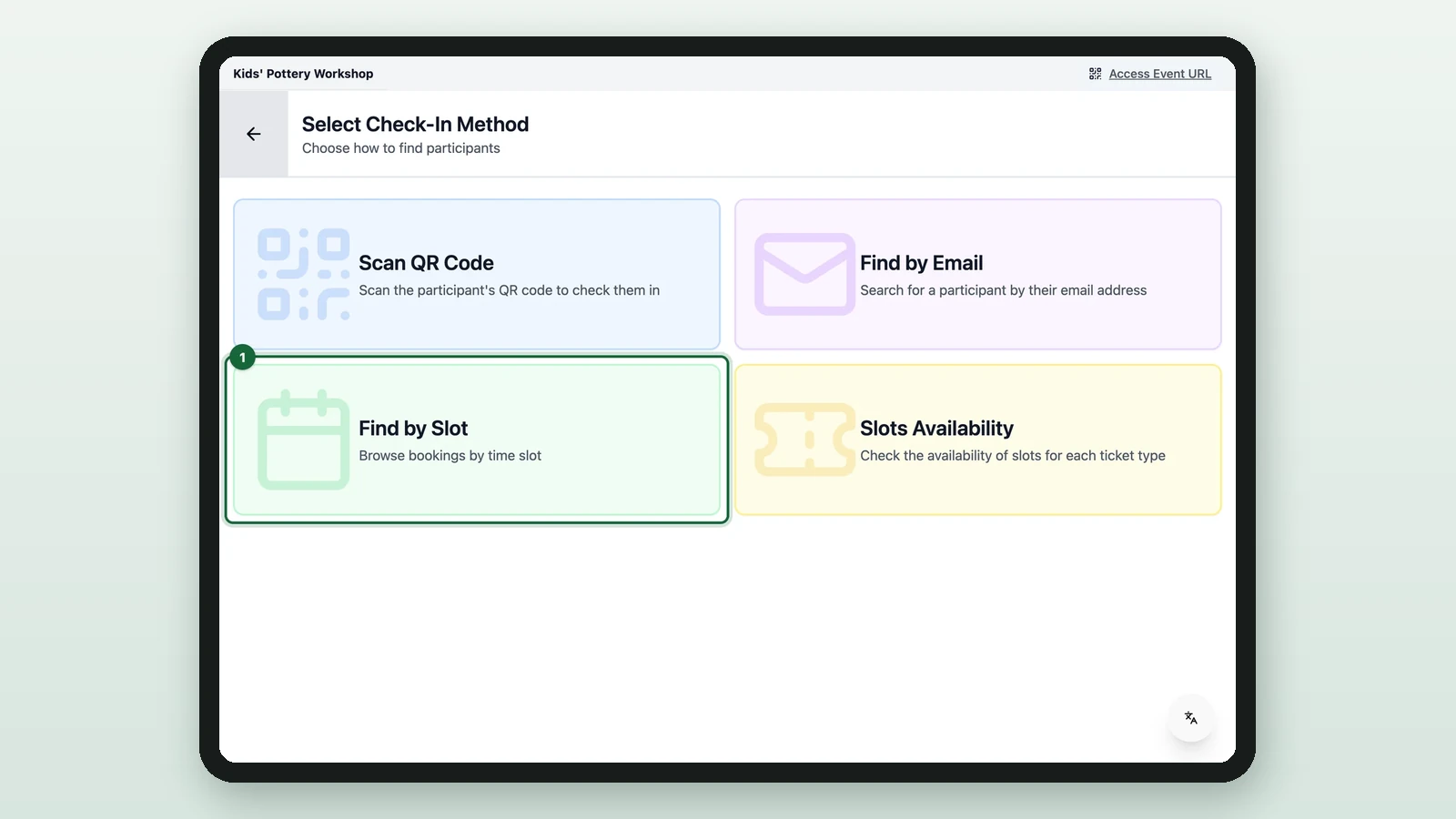
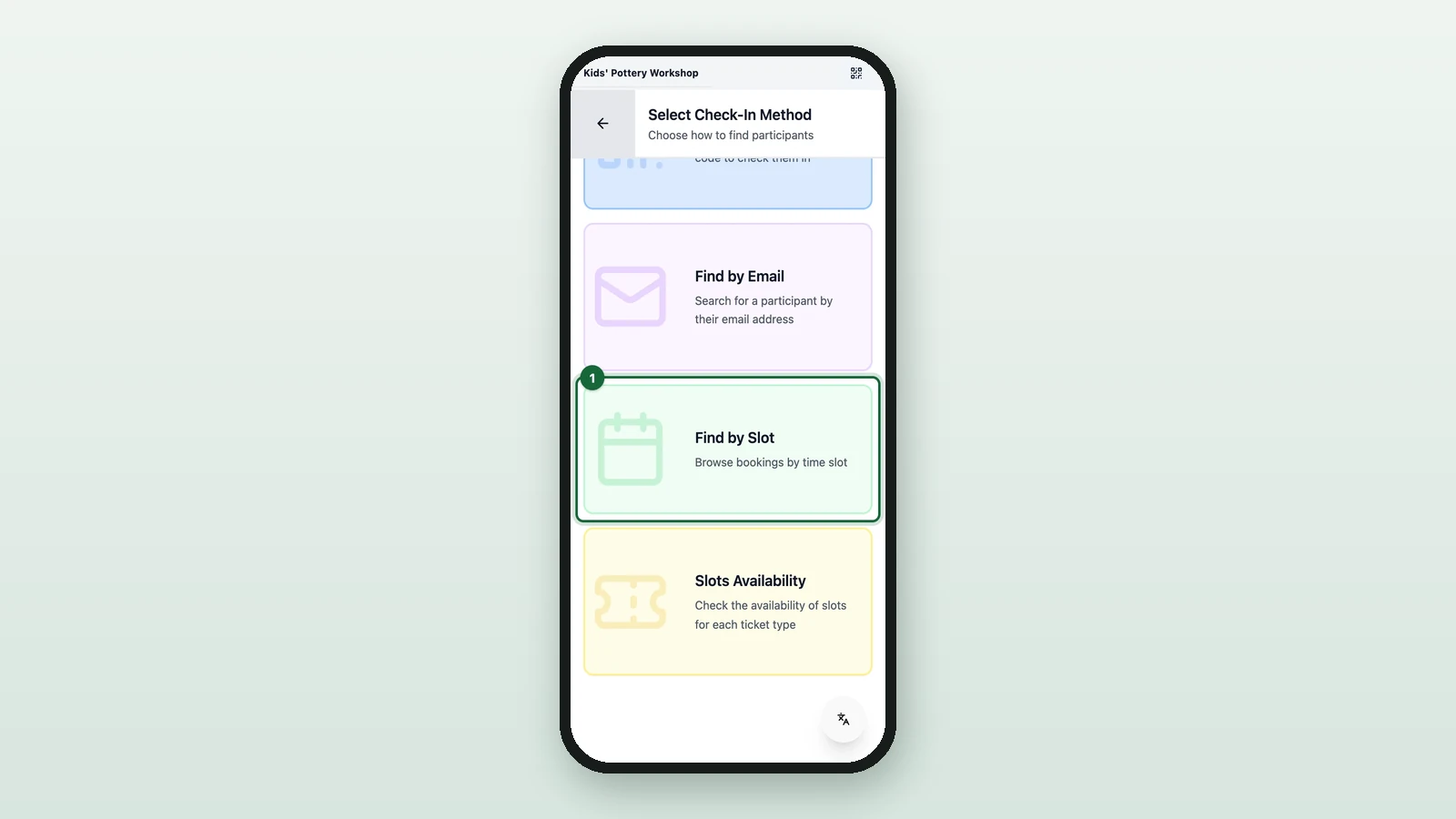
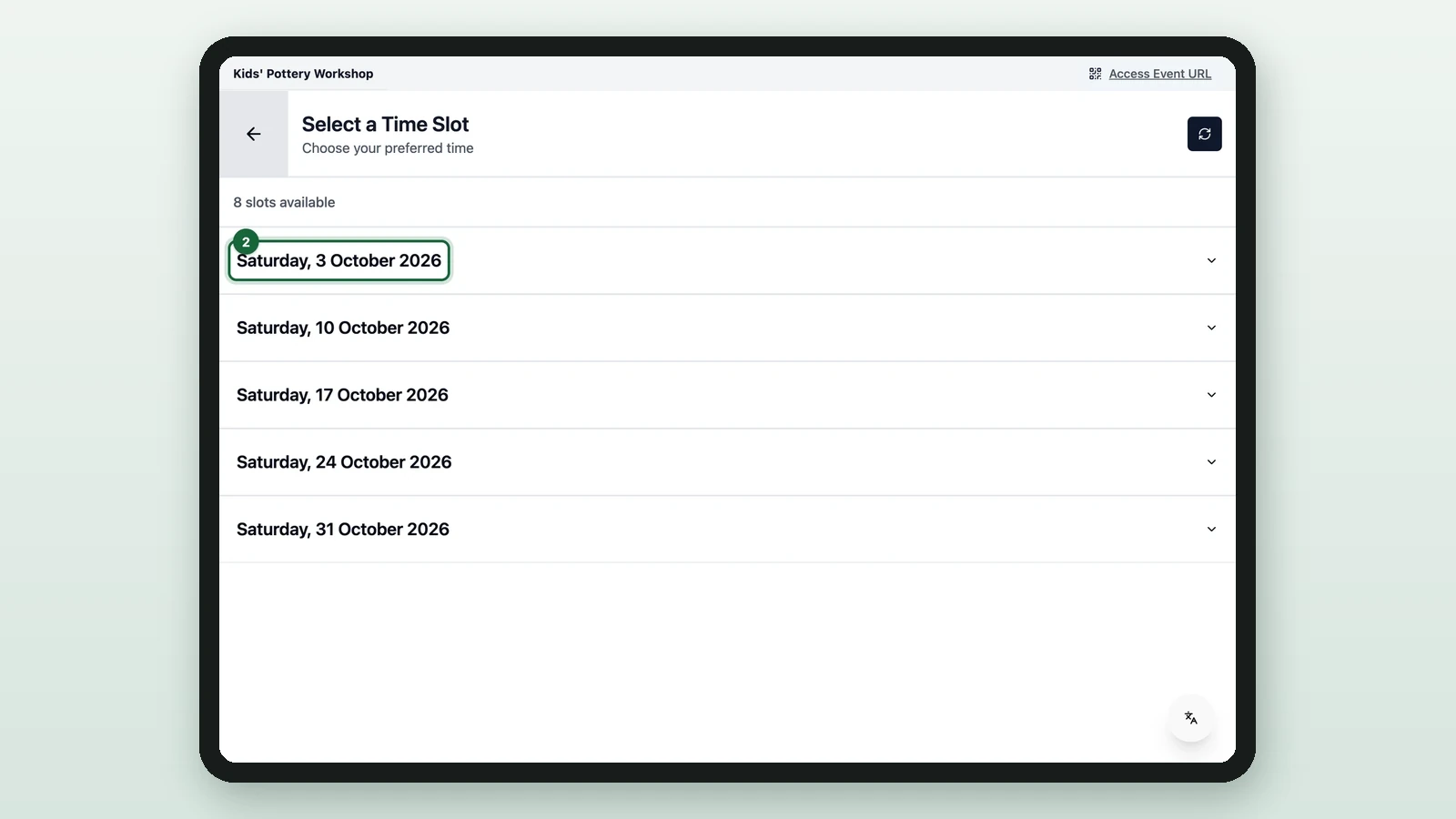
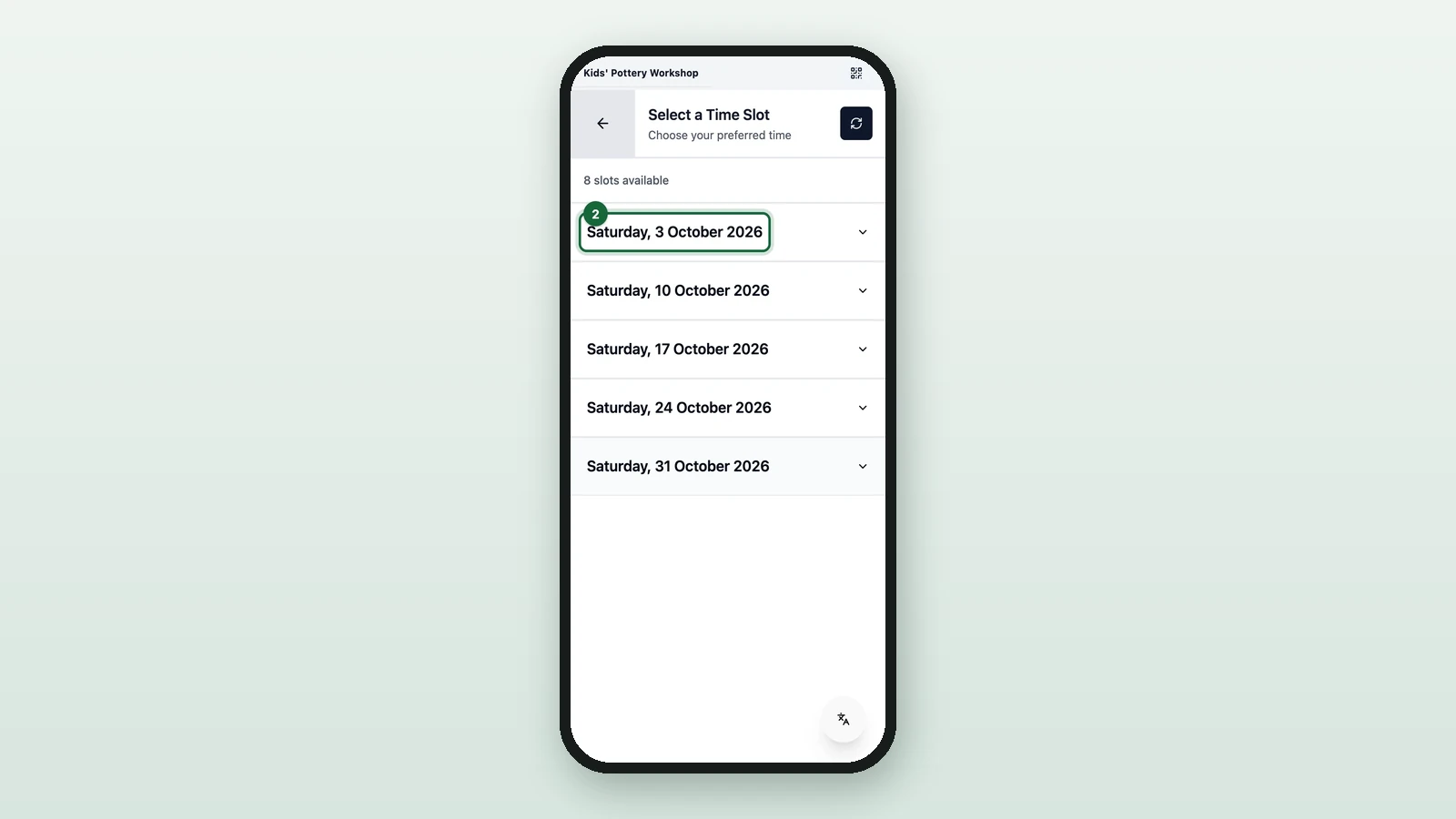
On the Activity's menu, select Find by Slot.
-
Open the day.
-
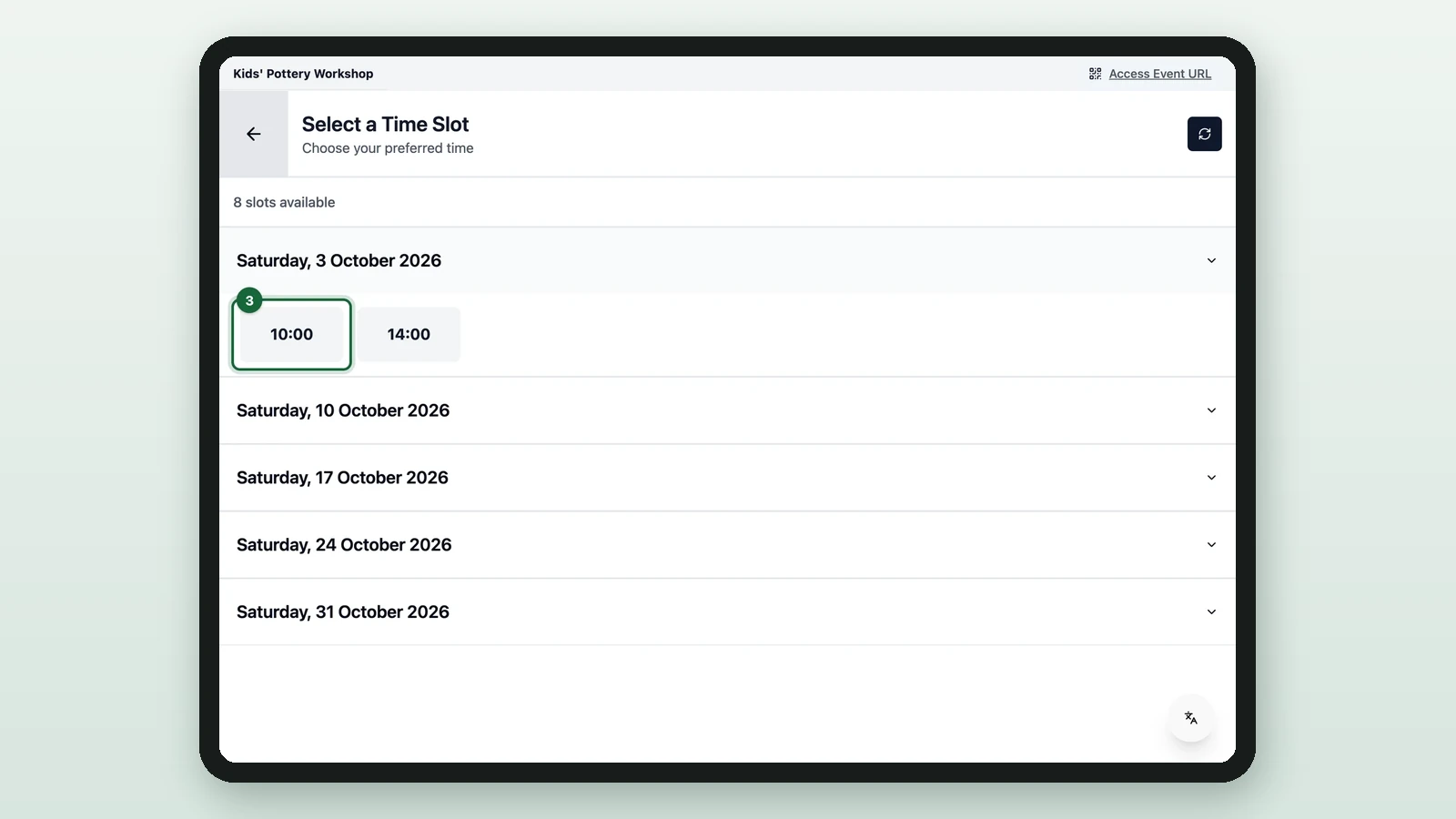
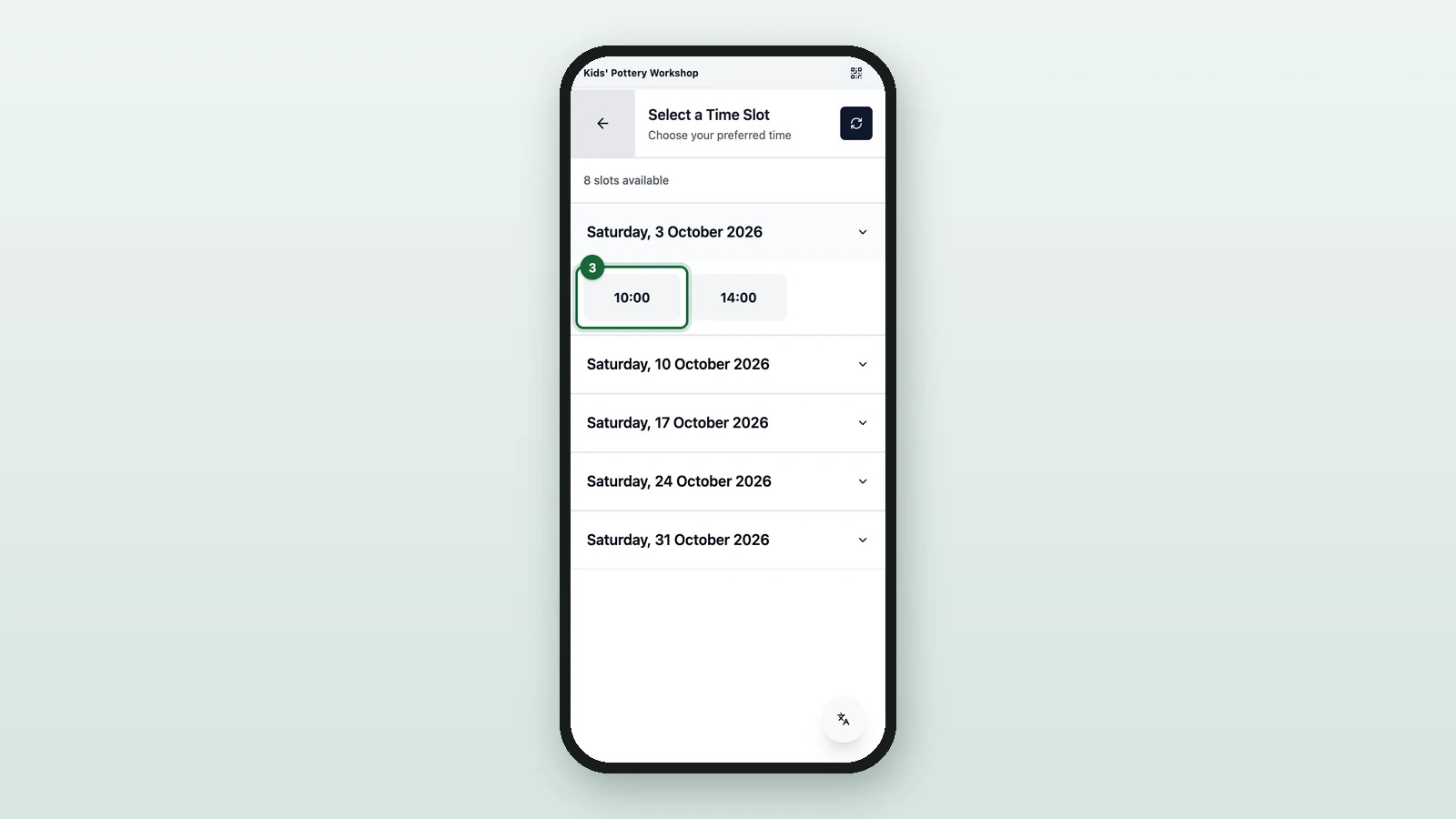
Choose the session.
-
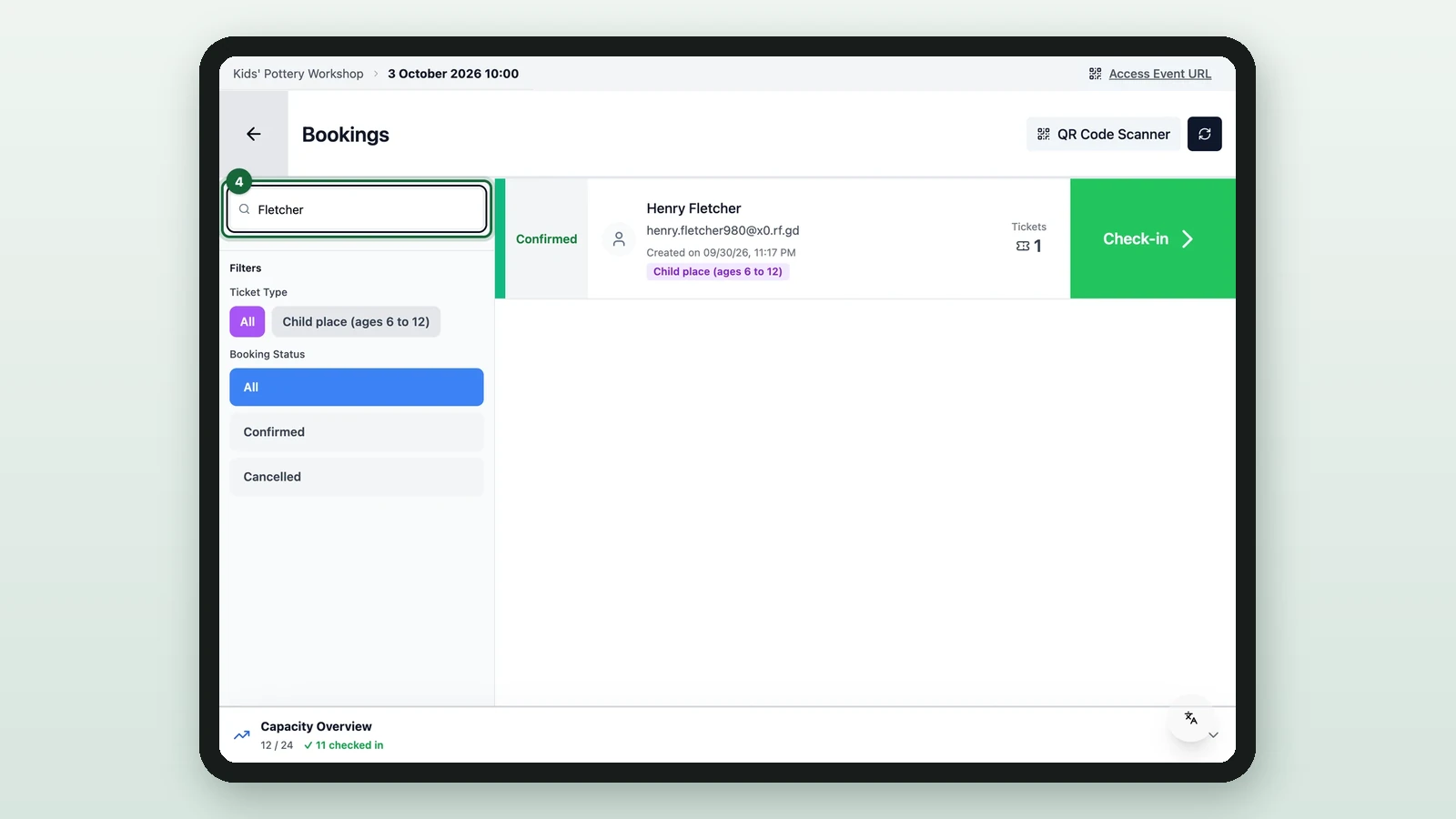
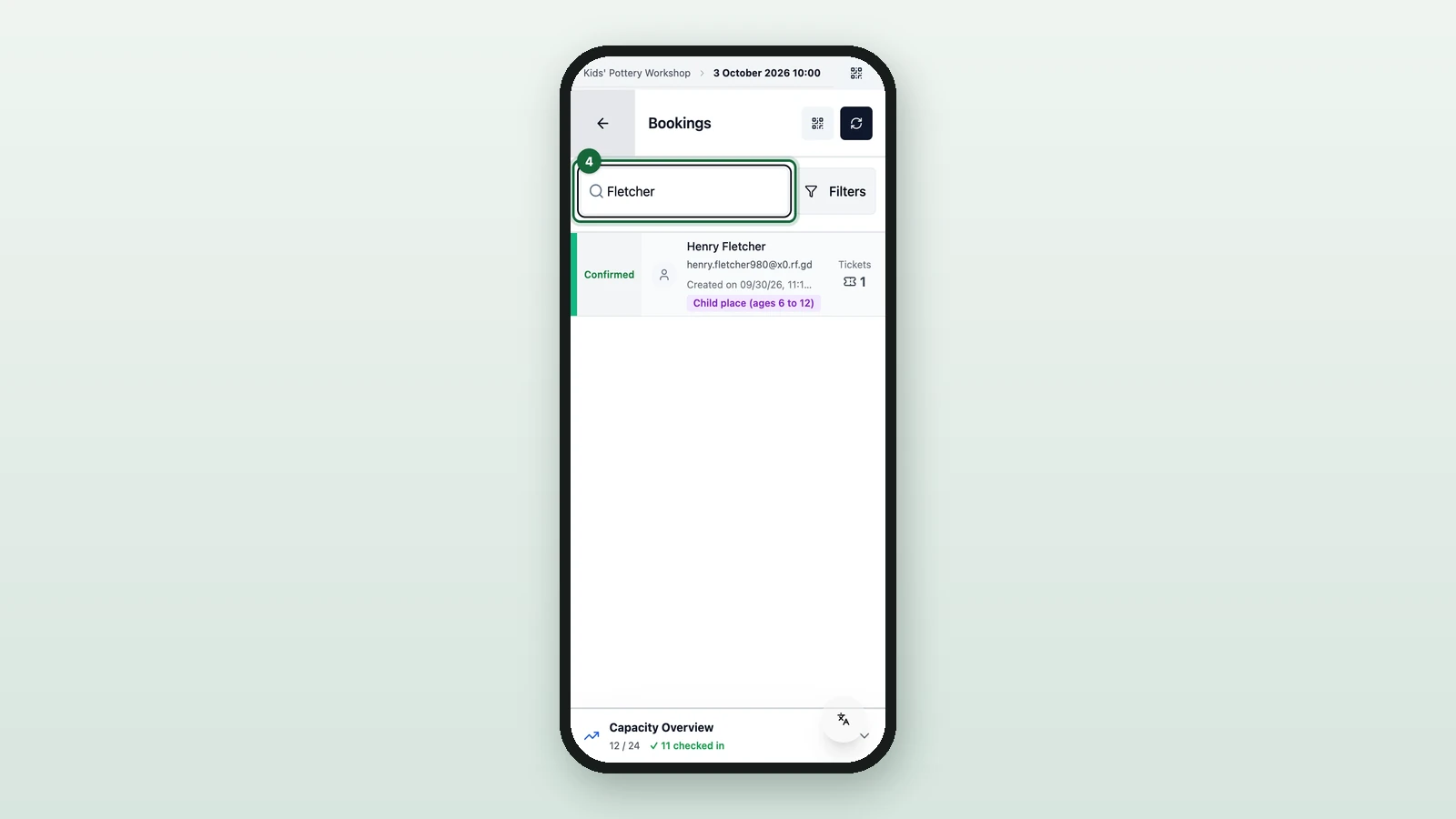
Type the guest's name in the search box.
-
On their booking, select Check-in.
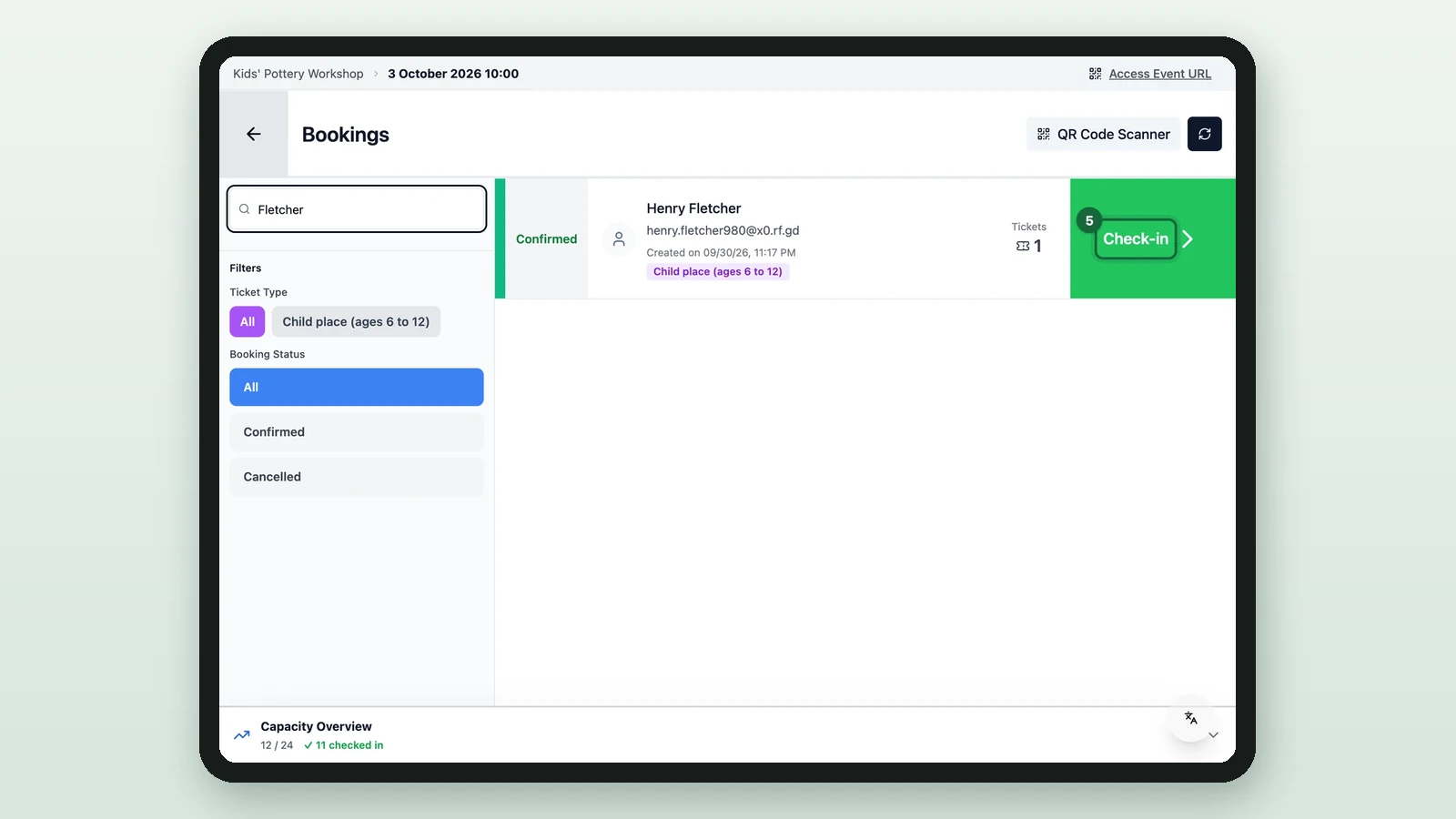
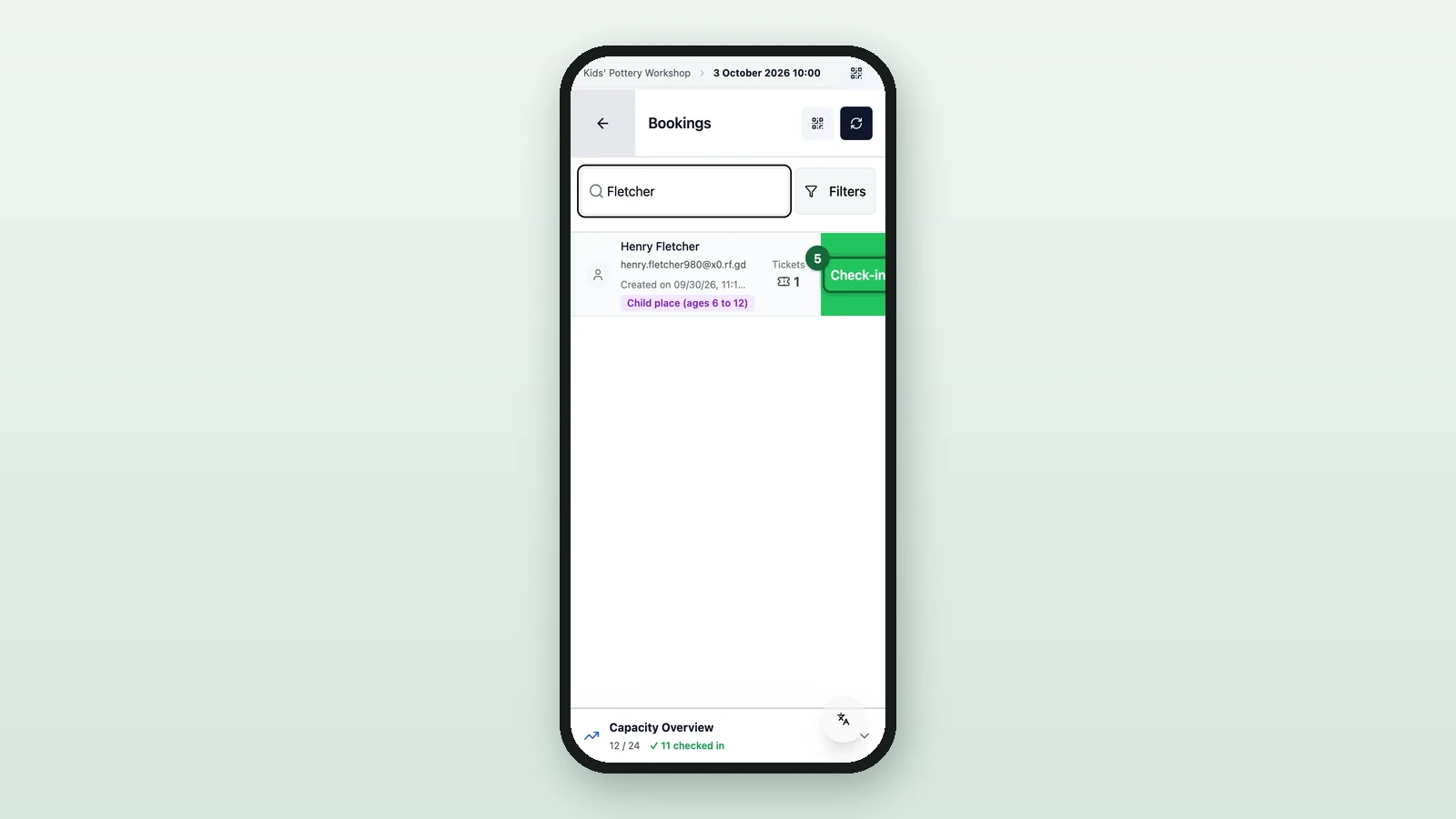
Then confirm as in steps 5 and 6 of Find the guest by email. Booking Status (under Filters on a phone) can narrow the list to Confirmed bookings.