Download QR codes (event + activity slot)
Choose the right event QR assets for attendees and staff, then test them before launch.
In this article, you'll choose the right QR assets for your event launch, download the attendee-facing event QR code, and verify the ticket QR code your staff will scan on the day.
Prerequisites
- Your event is ready for internal launch testing or publication.
- You know whether attendees should arrive through a direct event URL, a landing page, or an existing booking confirmation.
- If staff will assist with arrivals, you are also preparing the Scanner App.
Choose the right QR asset
| QR asset | Who uses it | What it does | Typical placement |
|---|---|---|---|
| Event activity QR code | Attendees | Opens the public event activity URL | Entrance signage, posters, table cards, kiosks |
| Ticket QR code | Staff using the Scanner App | Identifies one booking during host-assisted check-in | On the attendee ticket shown on screen or in the ticket file you distribute |
| Scanner App URL / QR | Staff only | Opens the staff web app for scanning and lookup | Internal briefing, host messaging, shift instructions |
Do not assume a slot QR for every event
The standard event launch flow centers on the event activity QR code and the attendee ticket QR code. For on-site slot handling, hosts can use Find by Slot and Slots Availability inside the Scanner App. Only rely on a slot-specific attendee QR if you have already validated that setup in your own event.
Download the event activity QR code
Decide the public entry point first
Before you download anything, confirm which public URL the QR code should open. For most events, that is either the direct event activity URL or the campaign landing page that leads into the activity.
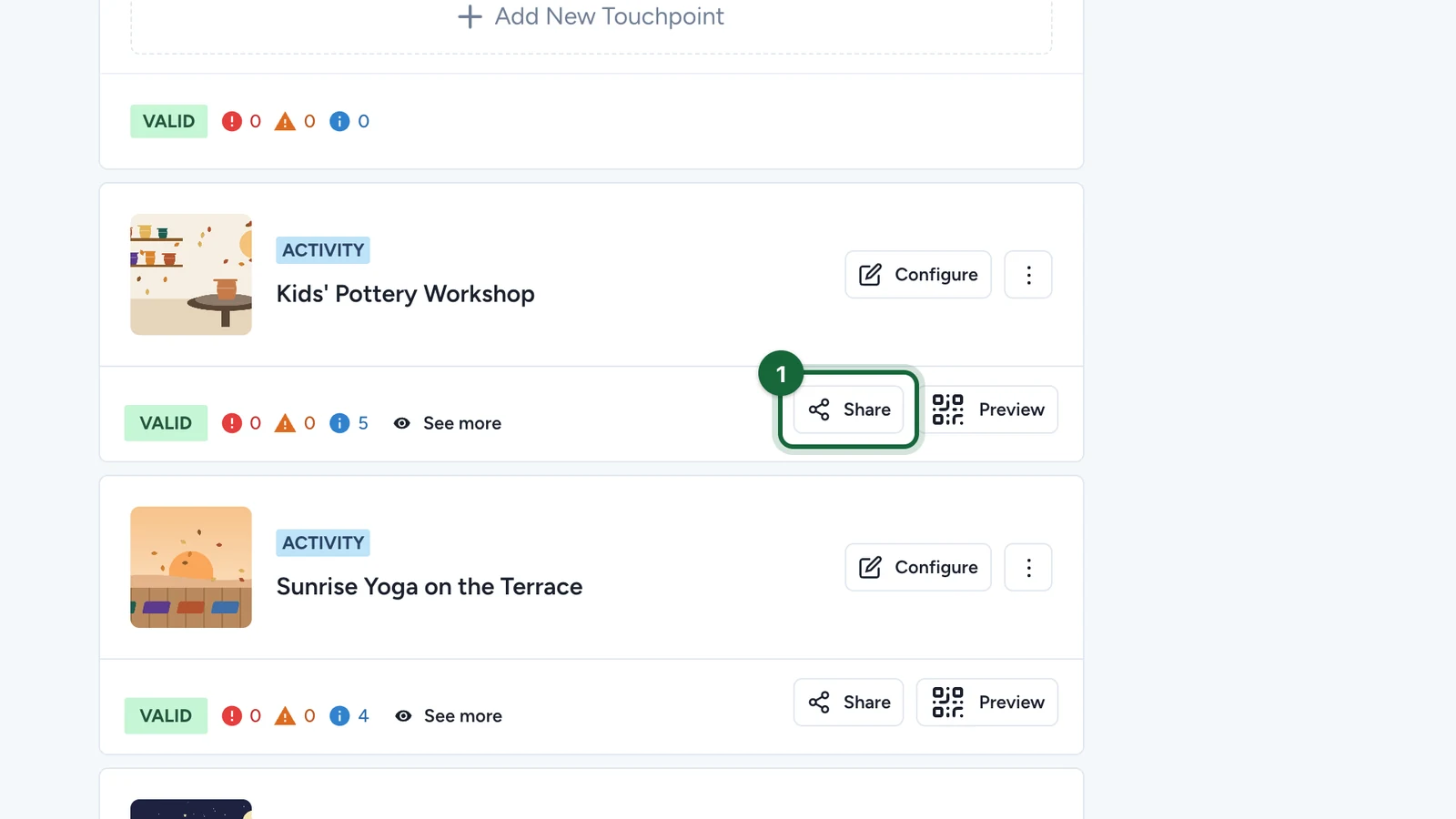
Open the published share flow
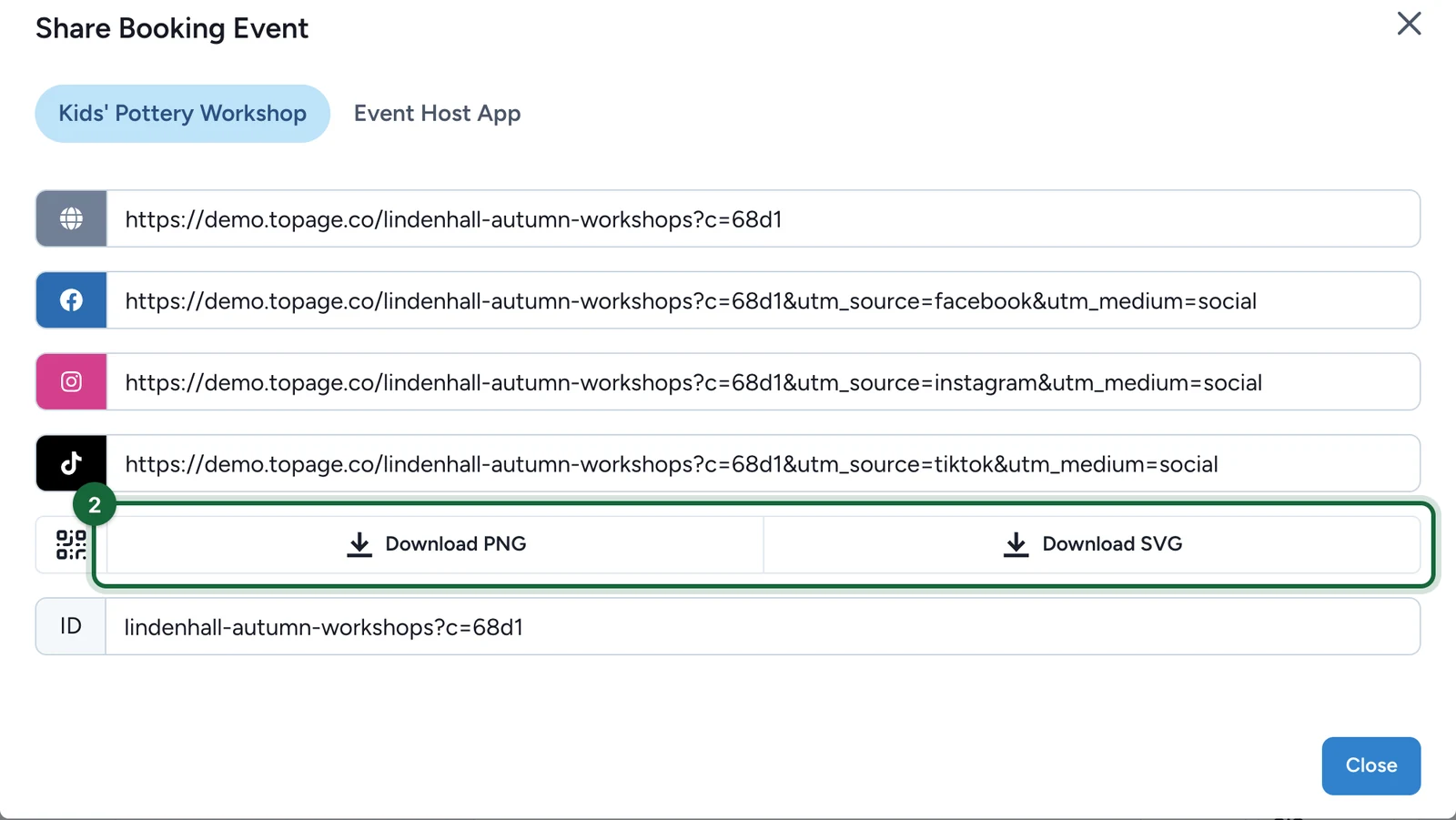
Use the published event's sharing tools to open the URL and QR options for the activity you want to promote.
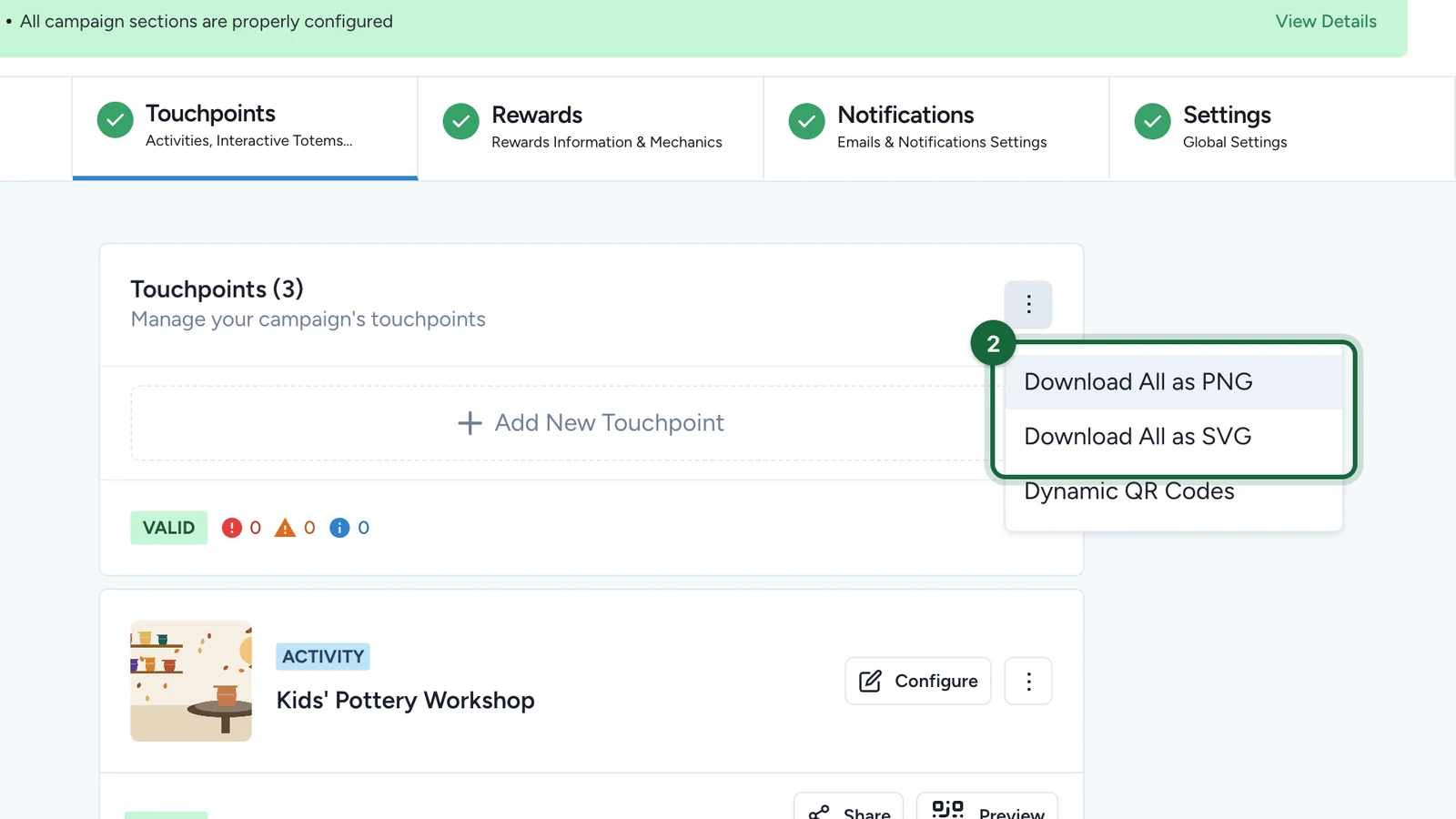
Export the format you need
Keep one version for fast digital sharing and one version for print. Test the final QR code on at least one iPhone and one Android device before you approve signage or handouts.
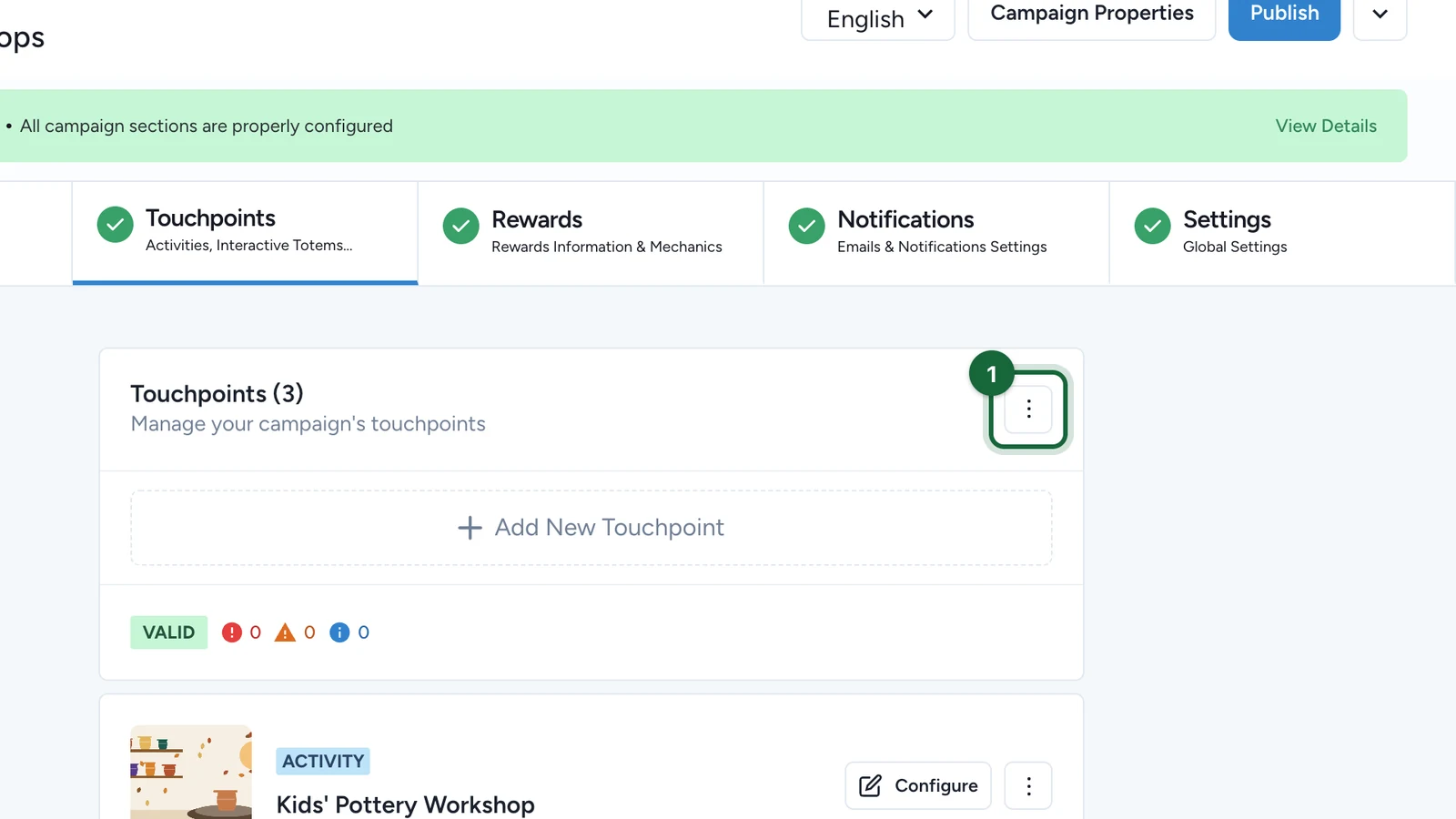
If you need more control over export formats or print design, see QR codes (download, design).
Verify the ticket QR code
Make one internal booking and follow the attendee journey all the way to the final ticket view.
Check the ticket QR code in the exact form attendees will use on the day:
- on the booking confirmation or ticket page
- in the ticket file or PDF, if your event distributes one
- on the device screen brightness and layout attendees are likely to present at arrival
Then scan that QR code from the Scanner App and confirm it resolves to the correct booking, slot, and attendee status.
Example launch setup
For a workshop with limited seats, you might place the event activity QR code at the venue entrance so late walk-ins can open the activity quickly, while hosts scan each attendee's ticket QR code at the desk. If a queue builds around the next session, staff can switch to Find by Slot or Slots Availability instead of printing a separate QR for every slot by default.