The customer activation platform.Every interaction becomes a qualified contact. Book a demo

Your first event in 15 minutes

Create, publish, and test a first Check-In Only activity from an Events template in about 15 minutes.

Placeholders in this article

This article contains placeholder screenshots. Search for placehold.co in this file and replace them before publishing.

This walkthrough takes you from an Events template to a published Check-In Only activity in about 15 minutes. You will create or open one Activity, add one specific date, publish the campaign, and test the attendee flow on a phone.

Estimated time: 15 minutes

Keep the first pass simple

This walkthrough deliberately stays with Check-In Only. Once that works, moving to Booking and Check-In is much easier because the event details, dates, and day-of flow are already in place.

Prerequisites

  • You can open Campaigns in Studio.
  • You have permission to create or edit campaigns in the organisation you are working in.
  • You have one banner image and one location image ready for the activity.

Main task

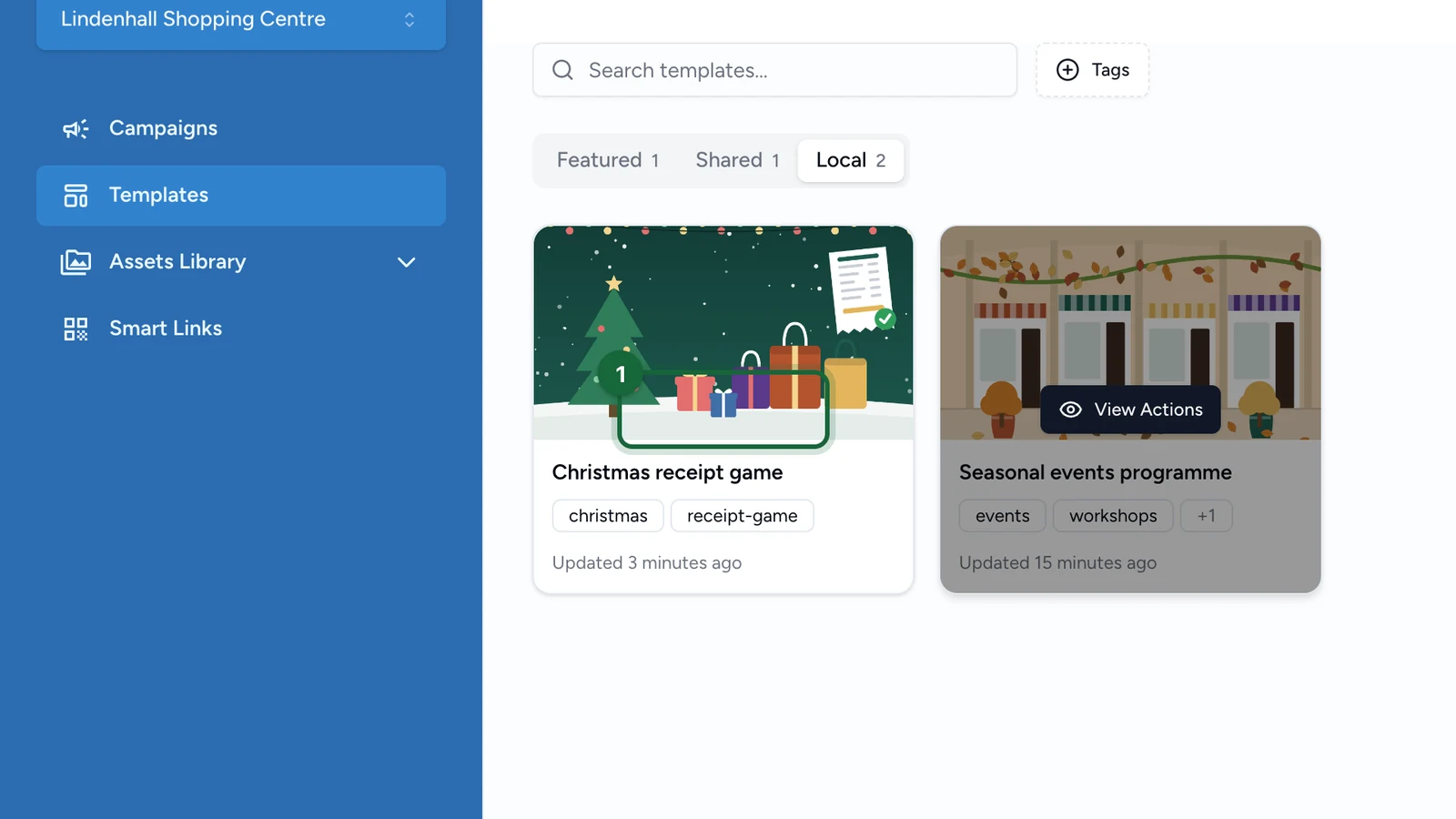
Choose an Events template

Open Campaigns, start from the template catalog, and choose an Events template.

If your catalog shows both booking and non-booking variants, either is fine for this walkthrough. You will switch the activity to Check-In Only later so the first publish path stays simple.

Campaign template catalog with Events templates highlighted

Fill the campaign basics

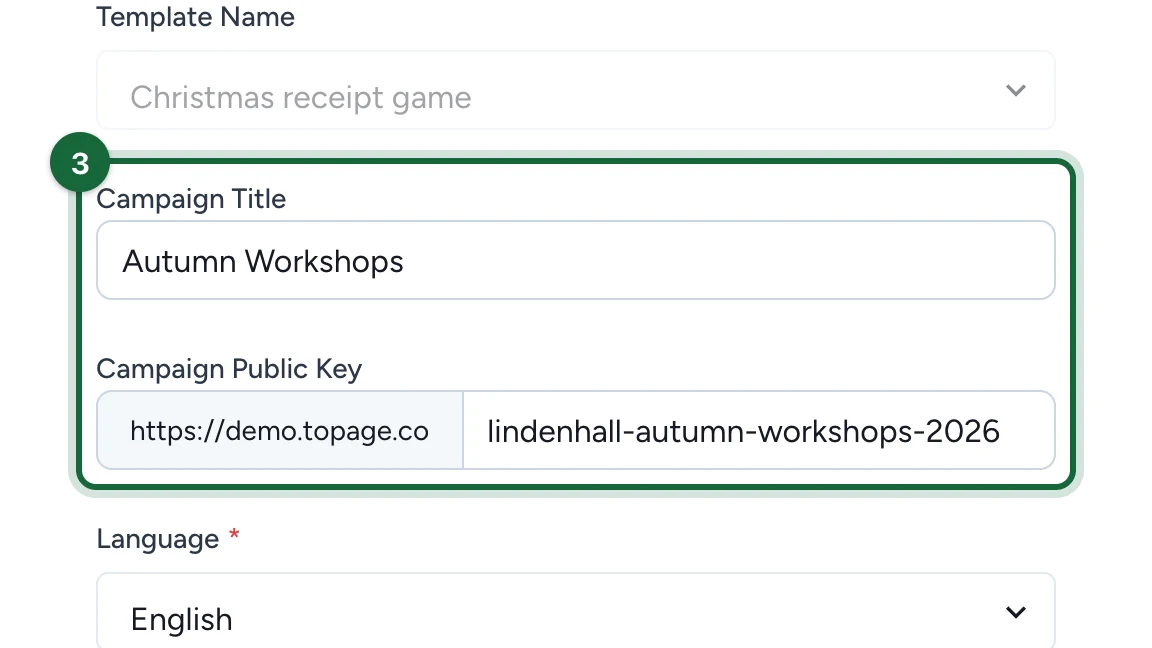
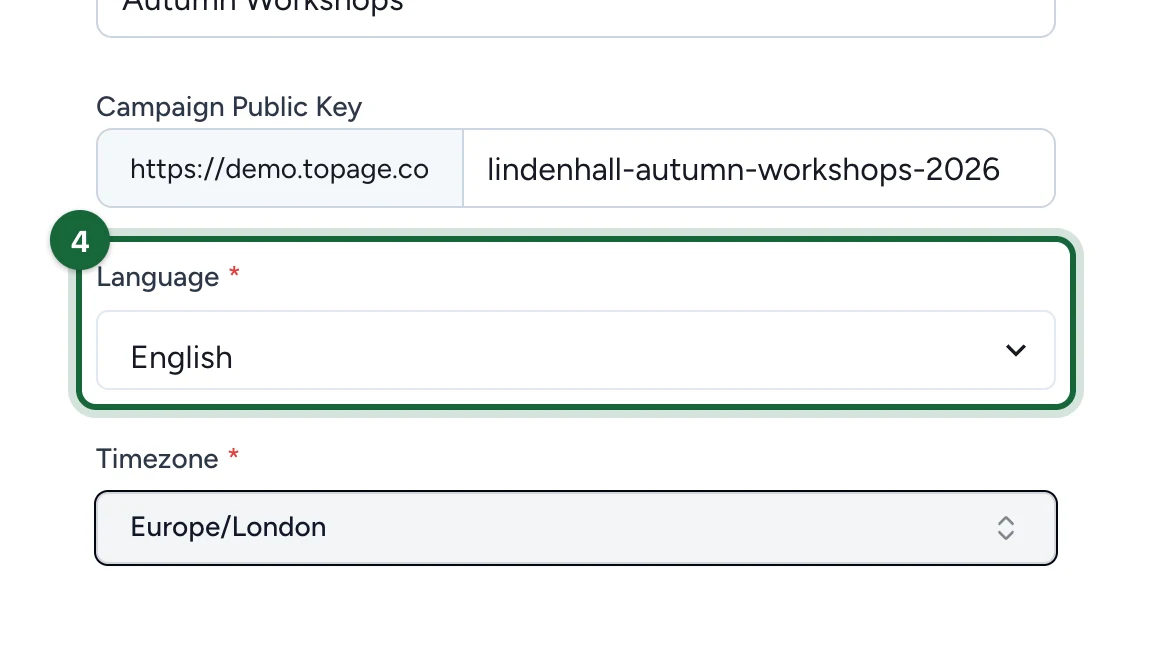
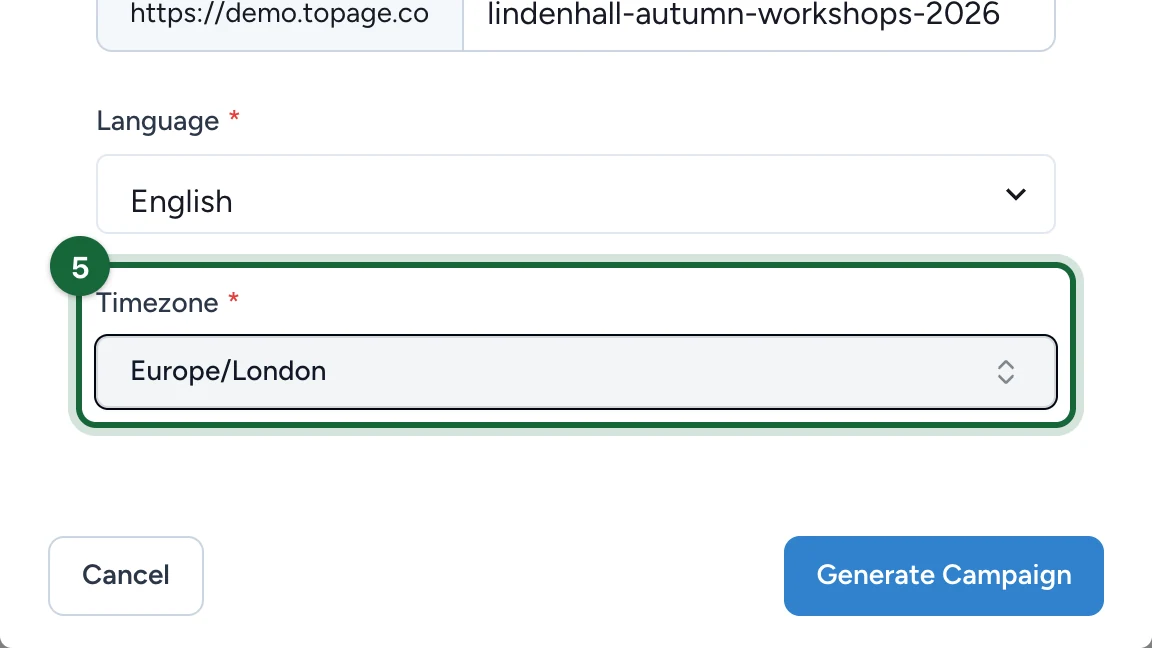
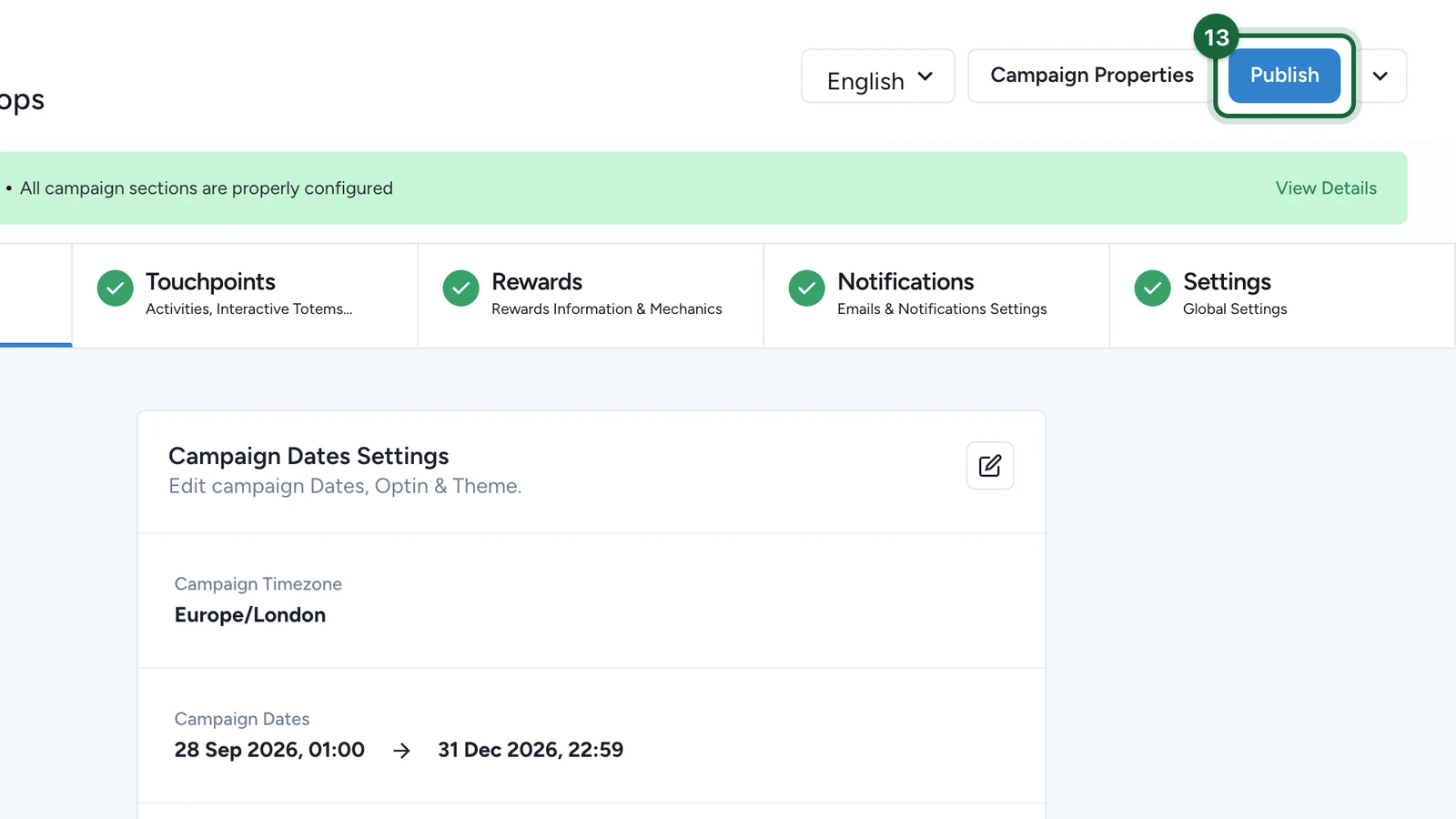
Complete the campaign title, slug, language, timezone, and overall campaign dates. Keep the campaign window wide enough to include the event slot you want to test.

If the template already contains values, review them before you continue. The timezone matters because it affects how dates and check-in windows behave for attendees and staff.

Add or open the Activity touchpoint

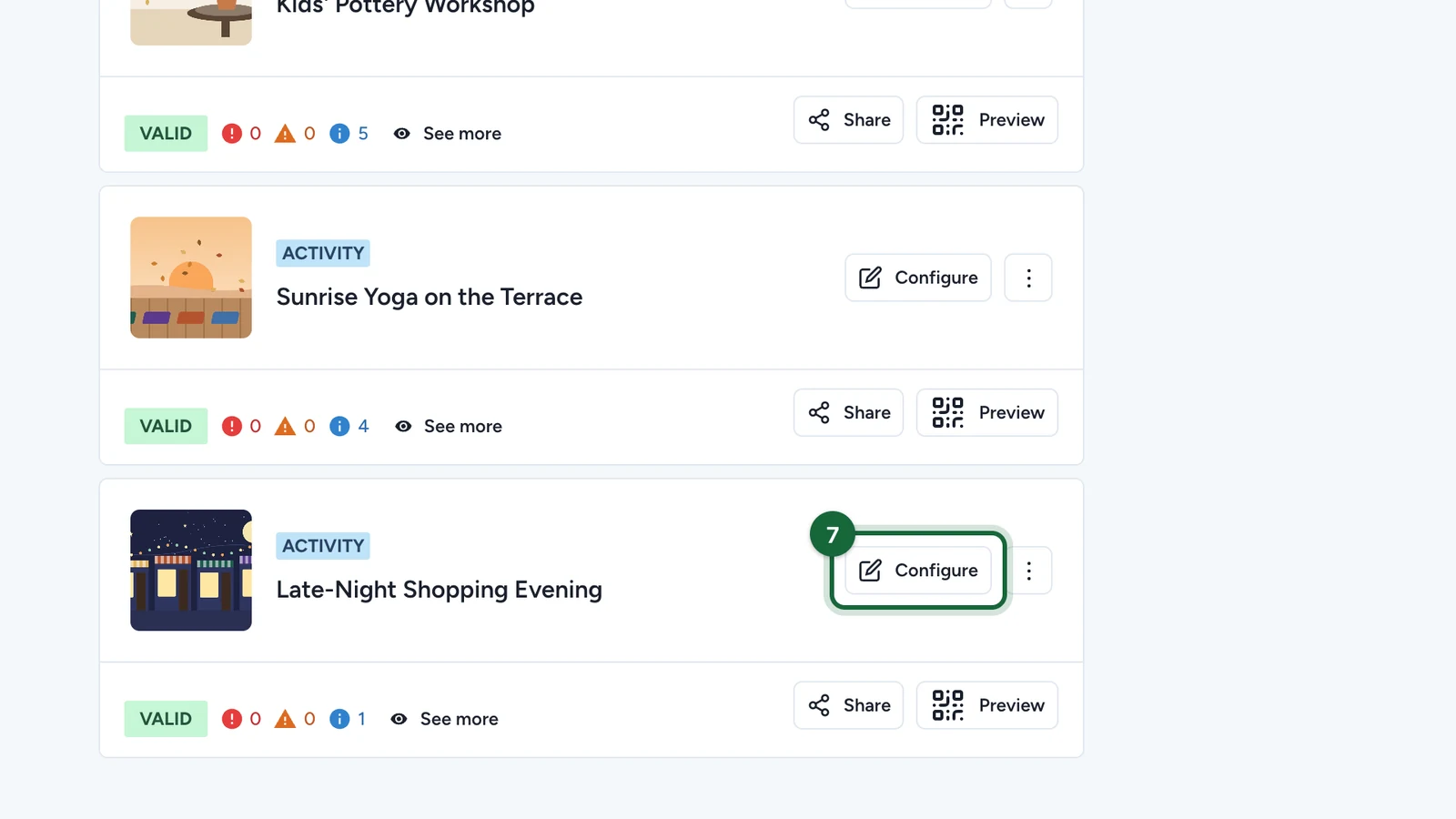
Go to Build -> Touchpoints. Create a new Activity, or open the Activity touchpoint that already came with your template.

In the current v2 flow, Activity is the touchpoint you configure for Events. The choice between Check-In Only and Booking and Check-In happens inside the activity settings, not in the touchpoint picker.

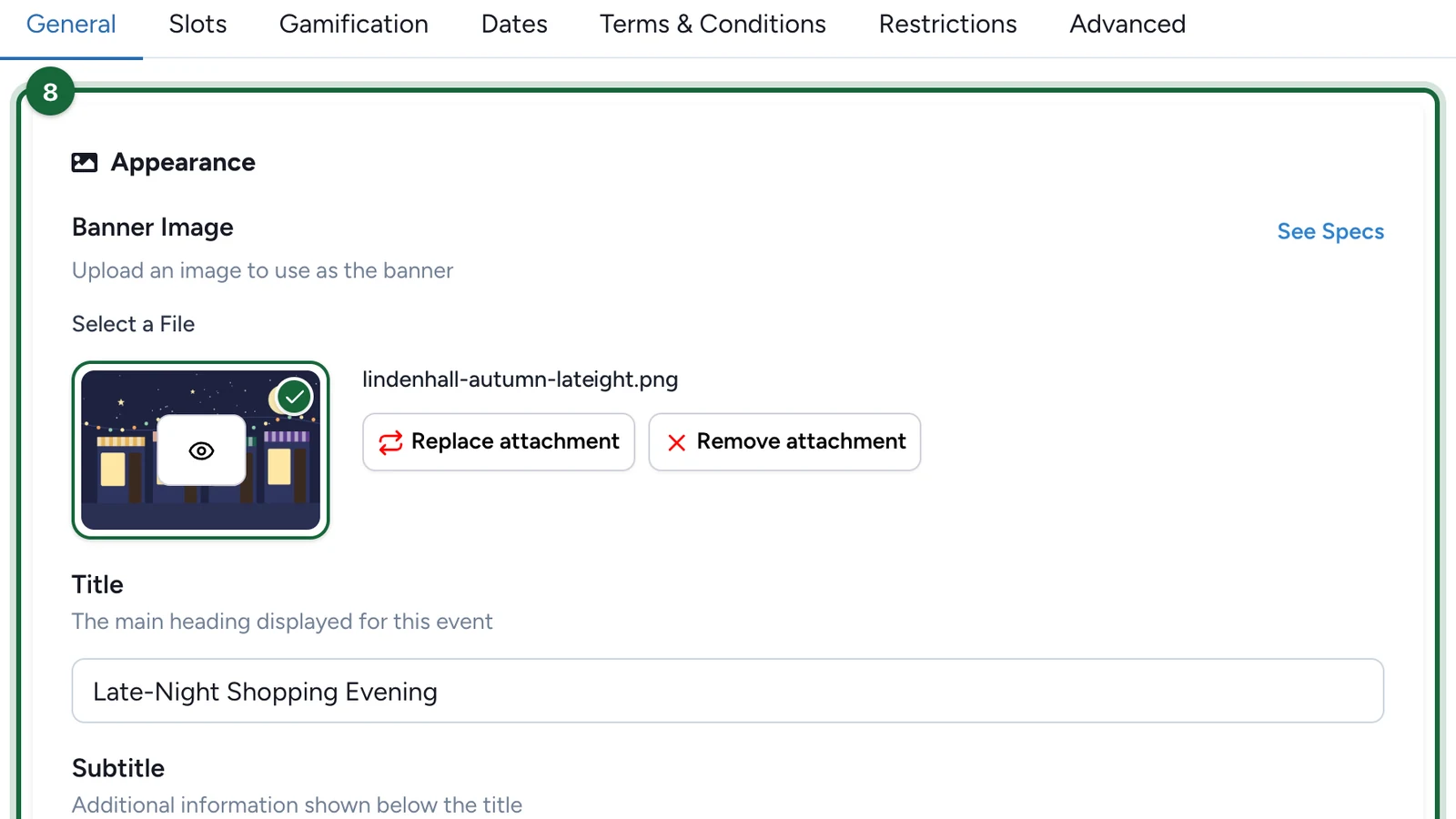
Complete the General settings

Open General and fill the minimum attendee-facing content:

  1. upload a Banner;
  2. add a clear Title and Subtitle;
  3. write a short Description;
  4. fill Location Area;
  5. add a Location Image.

For a first test, a simple example works well:

  • Title: Spring Photo Booth
  • Subtitle: Drop in between 14:00 and 18:00
  • Location Area: Level 1, central atrium

Activity General tab with banner, title, subtitle, description, and location fields

Do not skip the location fields

Location Area and Location Image are often the fastest way attendees confirm they are in the right place, especially in large venues.

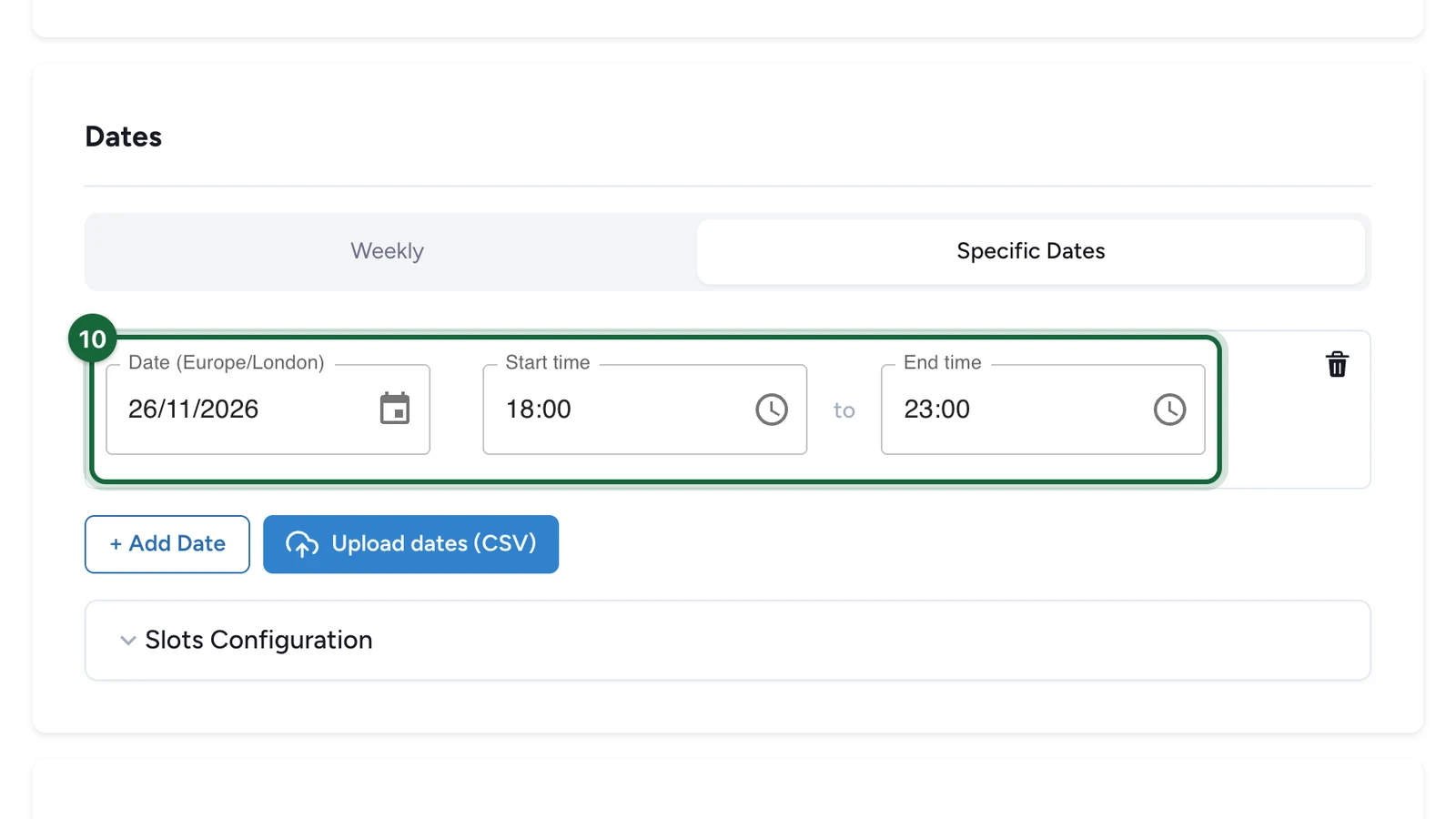
Add one specific date

Open Slots, then Dates. For a first run, choose Specific Dates and add one clear slot, such as Saturday 14:00 to 18:00.

Keep it to a single slot for now. If the slot falls outside the campaign dates, adjust the campaign window before you publish.

Activity Slots tab with one specific date configured

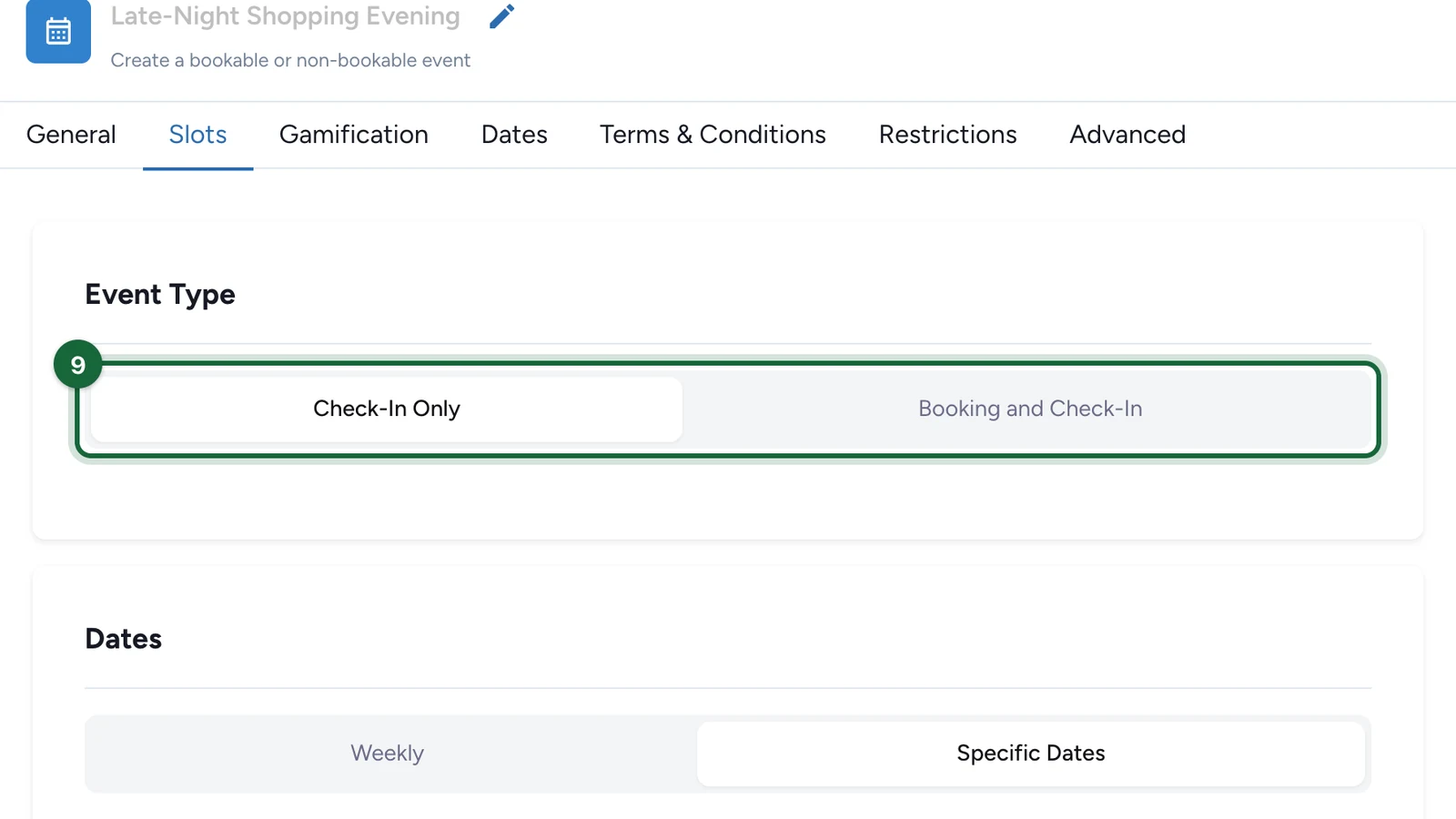
Choose Check-In Only

In Event Type, choose Check-In Only.

This removes advance booking from the attendee flow, which keeps the first setup faster and avoids ticket configuration on day one. If you need to cap walk-ins, turn on Limited capacity and set the Total capacity for the slot.

Event Type set to Check-In Only with limited capacity option

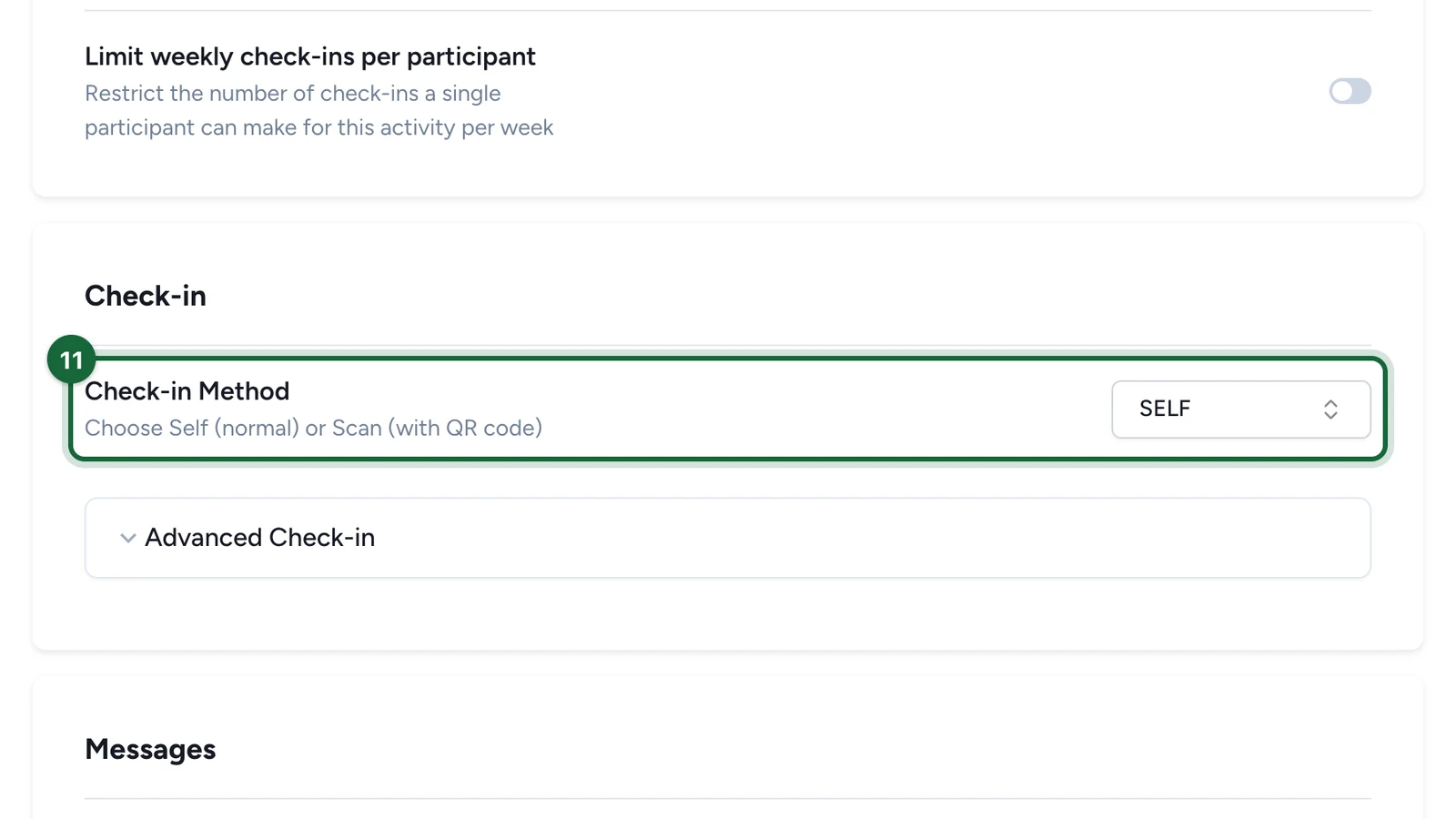
Leave the check-in method on Self

Open the Check-in settings and keep Check-in Method on Self.

This is the fastest way to verify the full attendee flow because people can check themselves in from their own device when the window opens. Switch to Scan later when staff need to validate each arrival with the Scanner App.

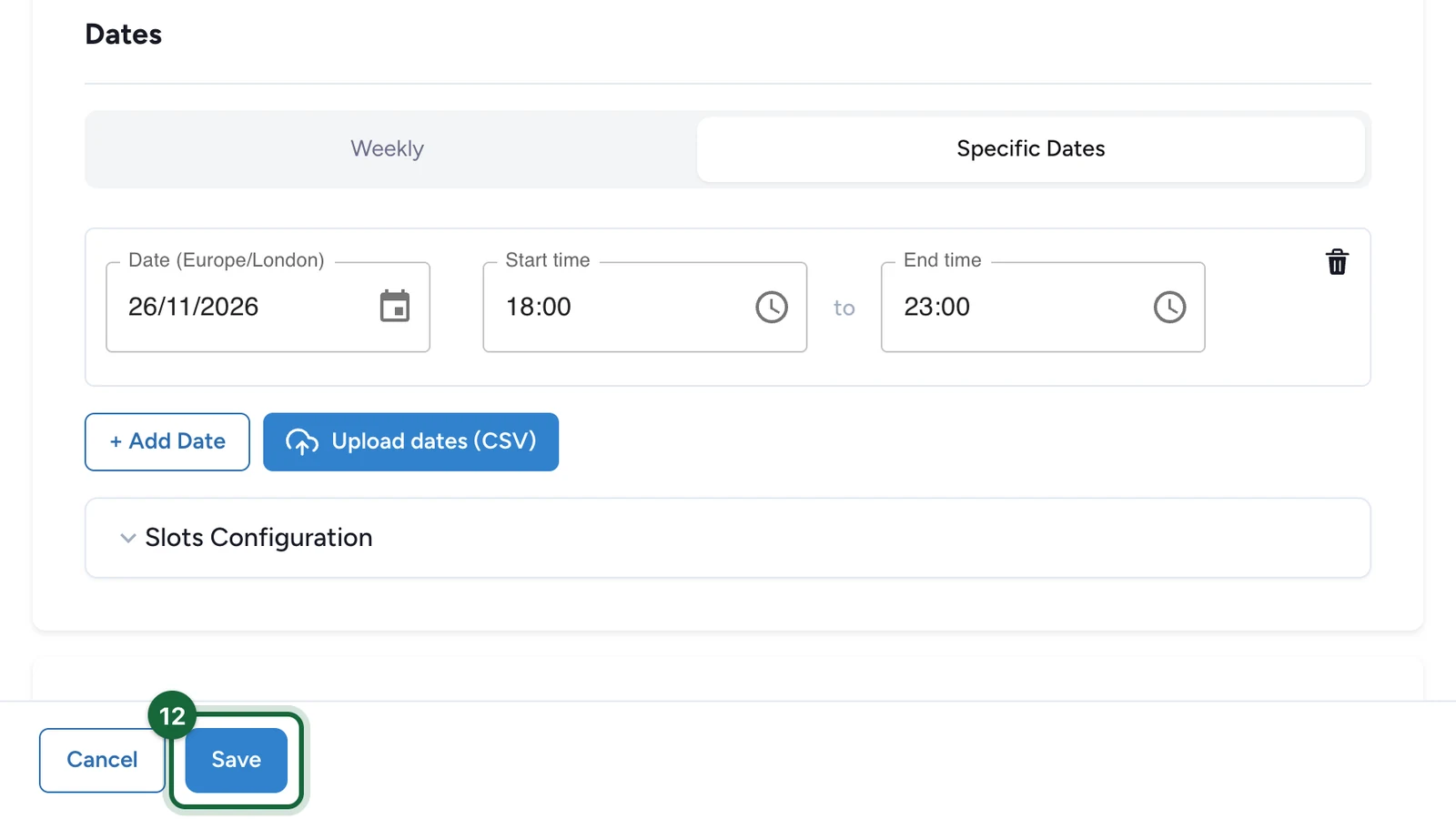
Save and publish

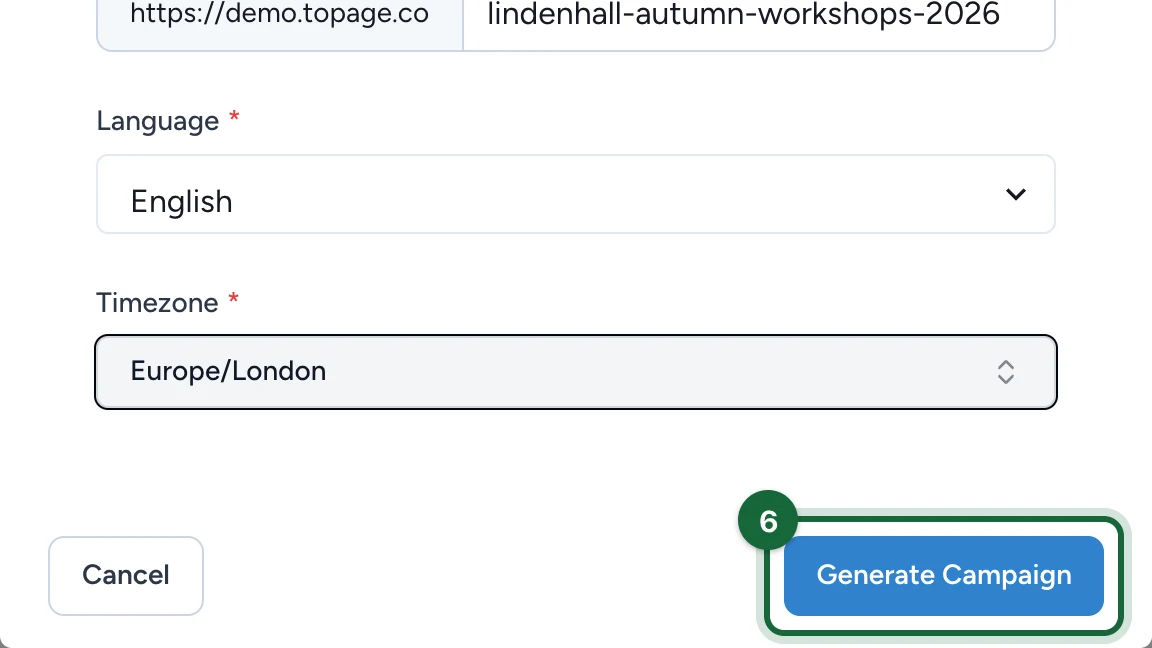
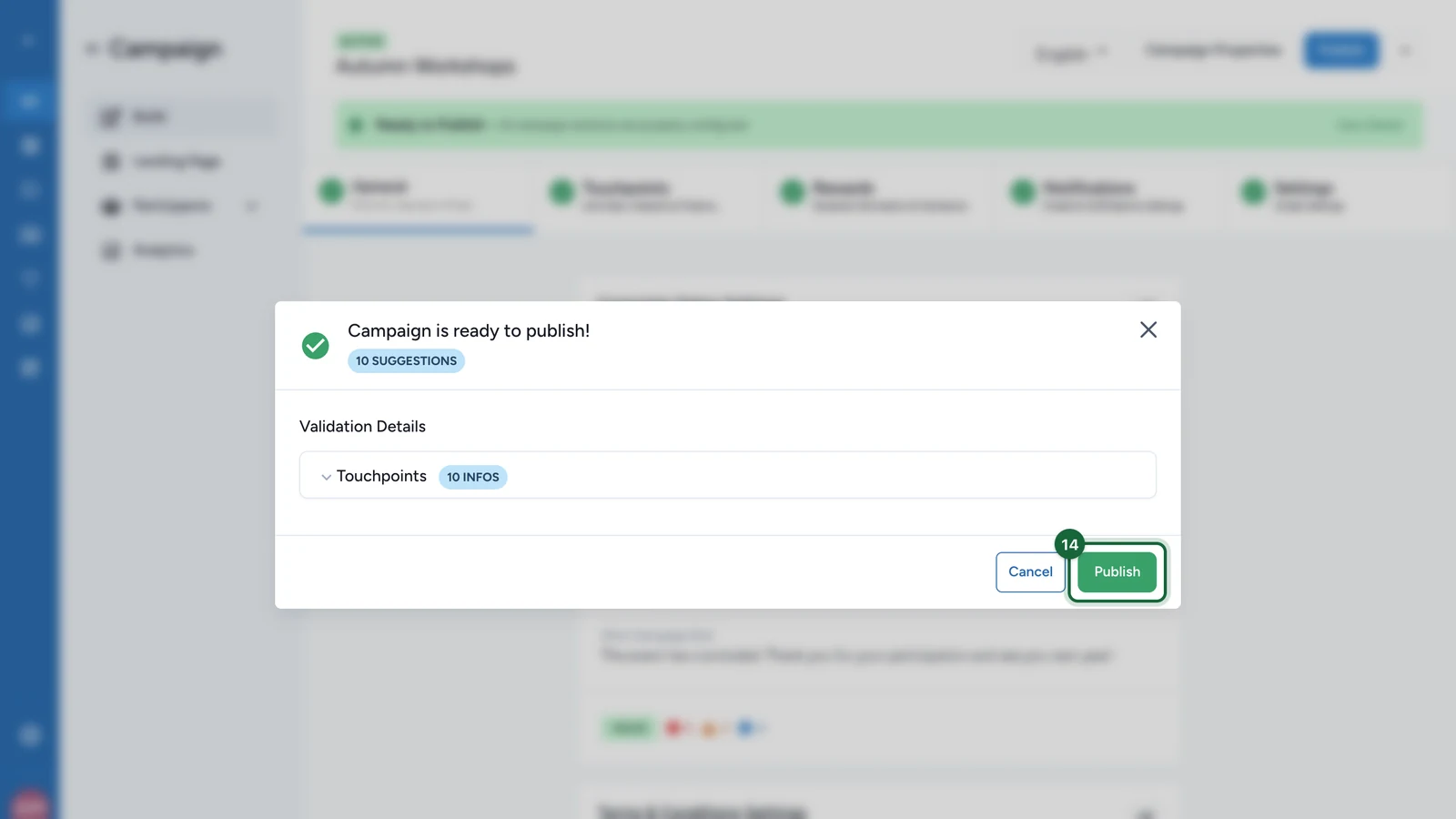
Click Save, then Publish to run validation. Fix any blocking issues, then publish the campaign again once the checks are clean.

For a first pass, the most common blockers are missing event basics such as the banner image, title, or dates.

Test the live attendee flow

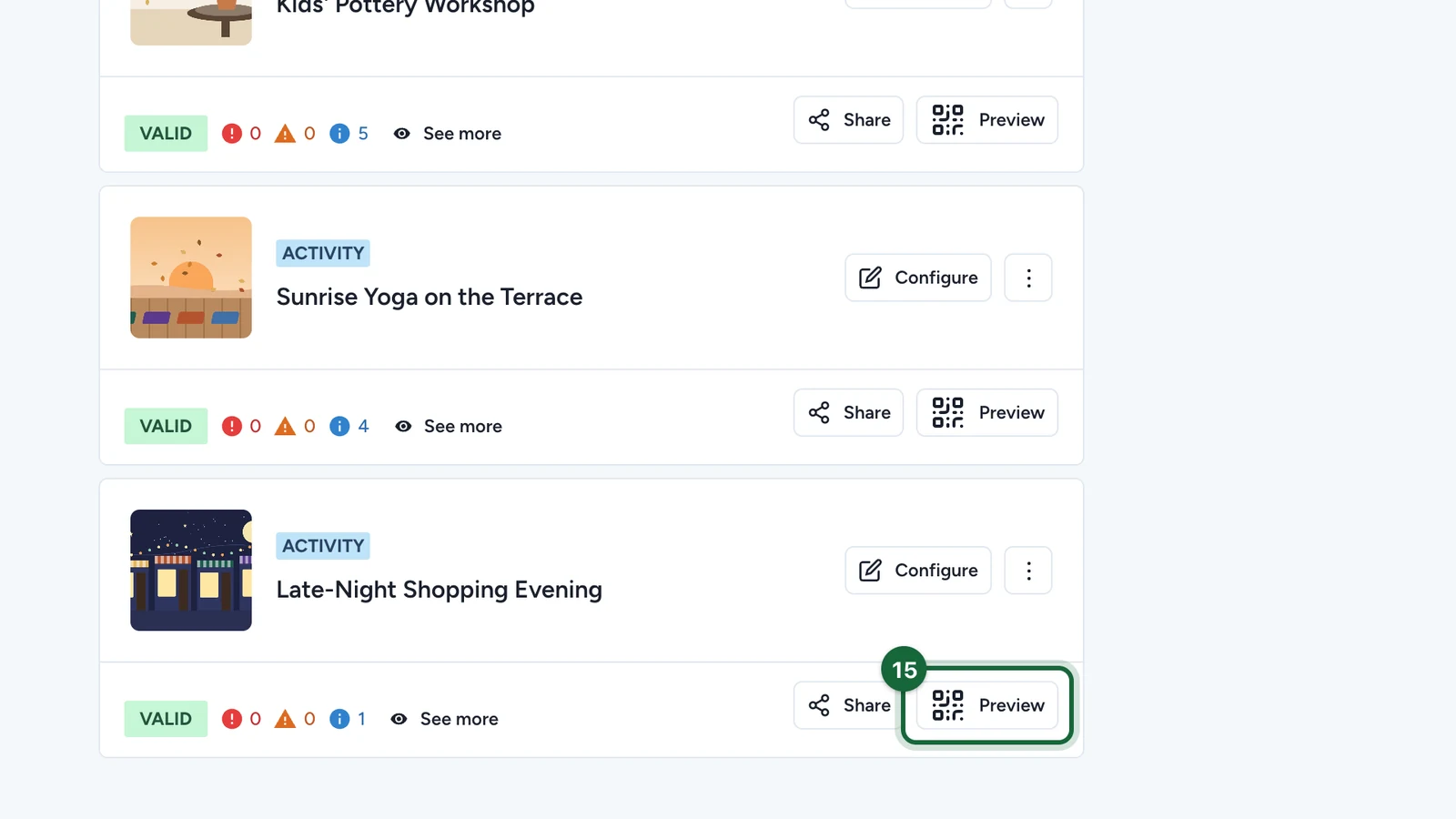
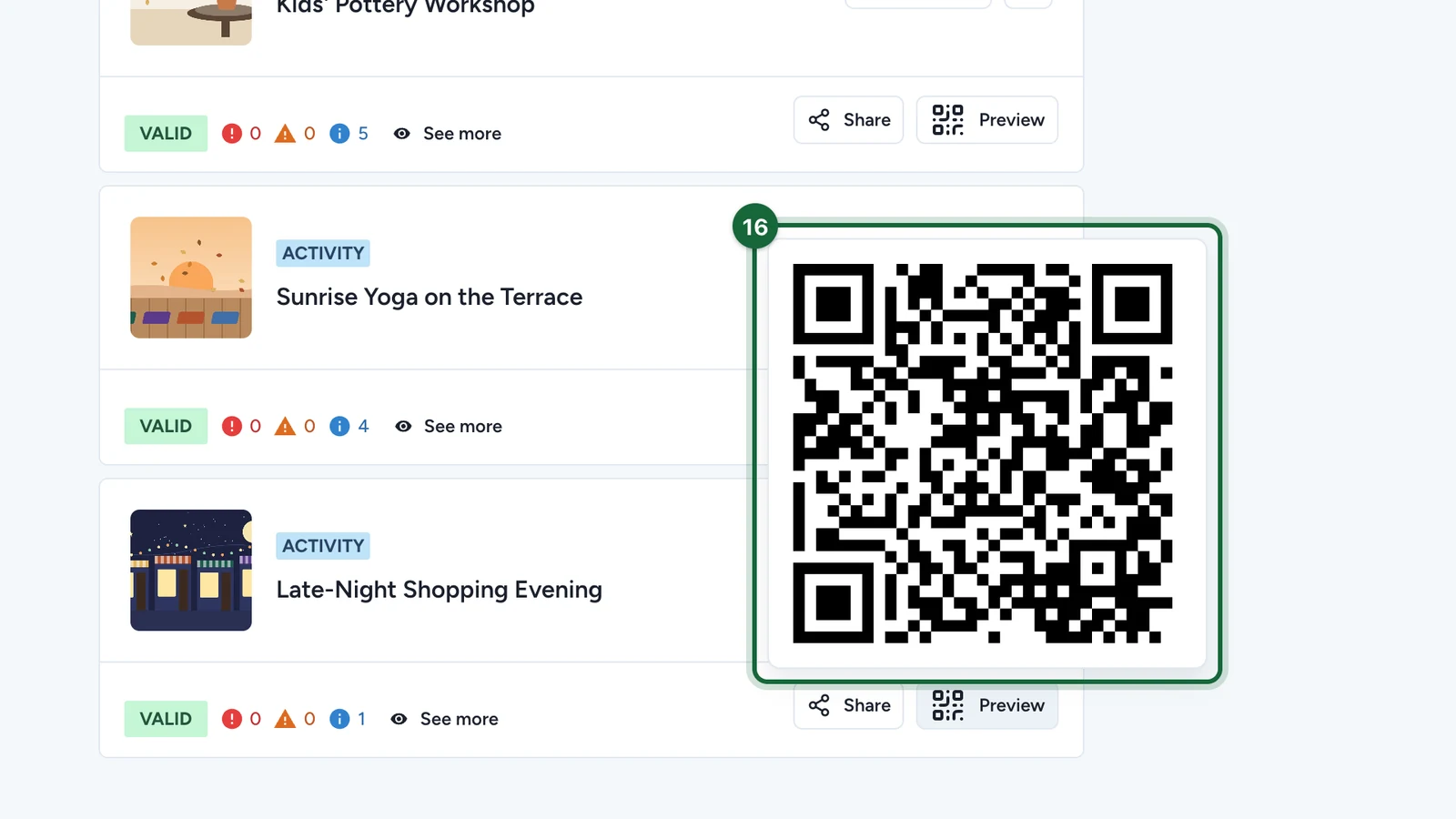
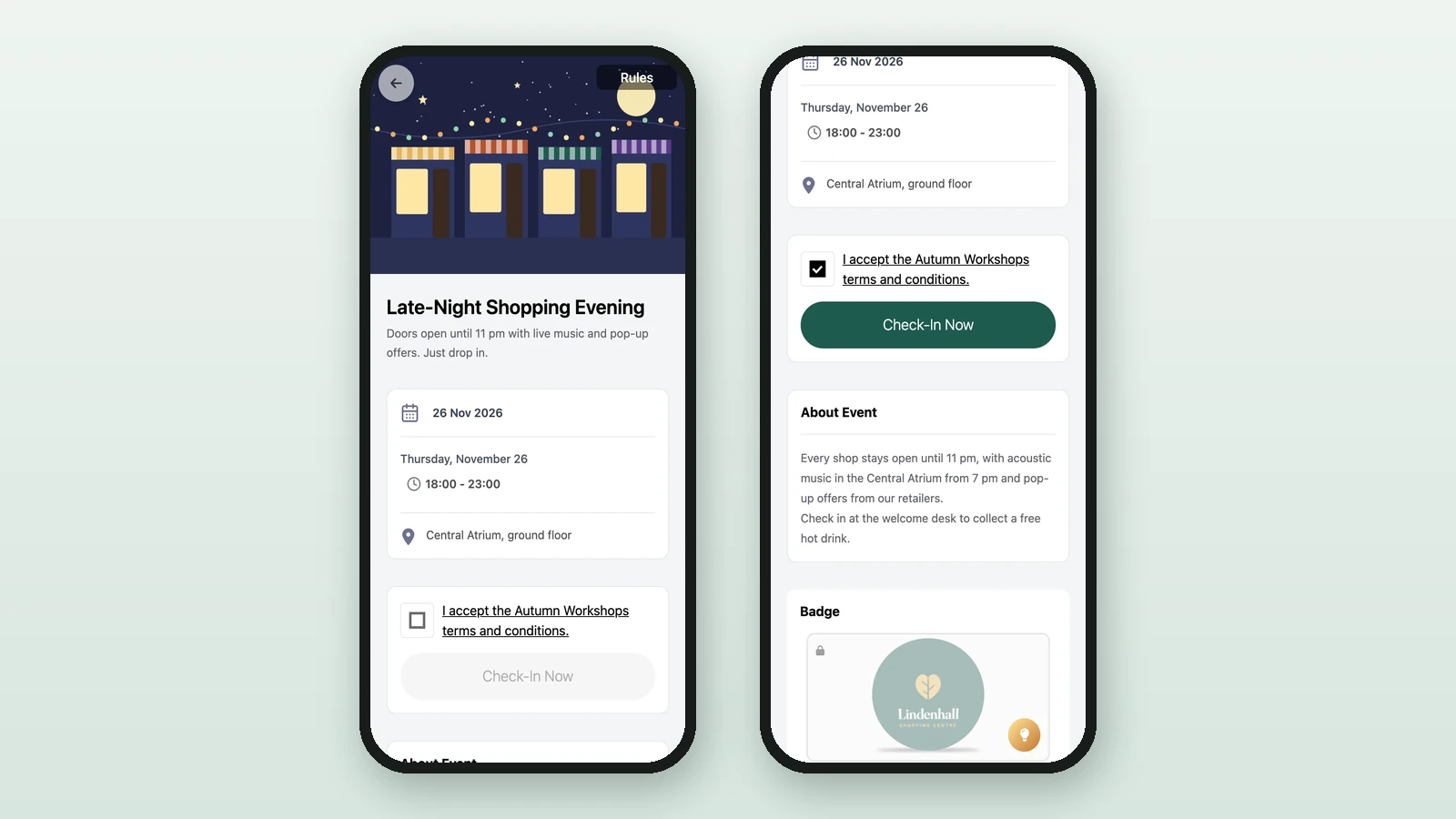
Open the published activity from Share or Preview and test it on a phone. You should see the event details, the location cues, and a self check-in flow instead of a booking journey.

If your campaign uses a landing page, use the landing page URL or QR code there instead of the direct touchpoint link.

Event preview on mobile showing a simple self check-in flow

Result

You now have a first published Check-In Only event with one slot and a live attendee flow. That is enough to validate the essentials: event content, location cues, publication, and on-site self check-in.

What to try next

When this first run feels comfortable, switch the same activity to Booking and Check-In so you can add ticket types, advance reservations, and staffed scanning.

Was this helpful?

Optional comments help us improve this page for future authors and readers.

On this page