Multi-org access
Switch between assigned organisations in Studio and understand what changes when the working context changes.
In this article, you'll learn how multi-org access works in Studio, what changes when you switch organisation, and which parts of access stay the same across every assigned organisation.
What multi-org access means
A single OmniLab account can be assigned to more than one organisation. When that happens, the sidebar switcher lets the user move between:
- the current organisation
- the Global organisation, if it is assigned
- other assigned organisations
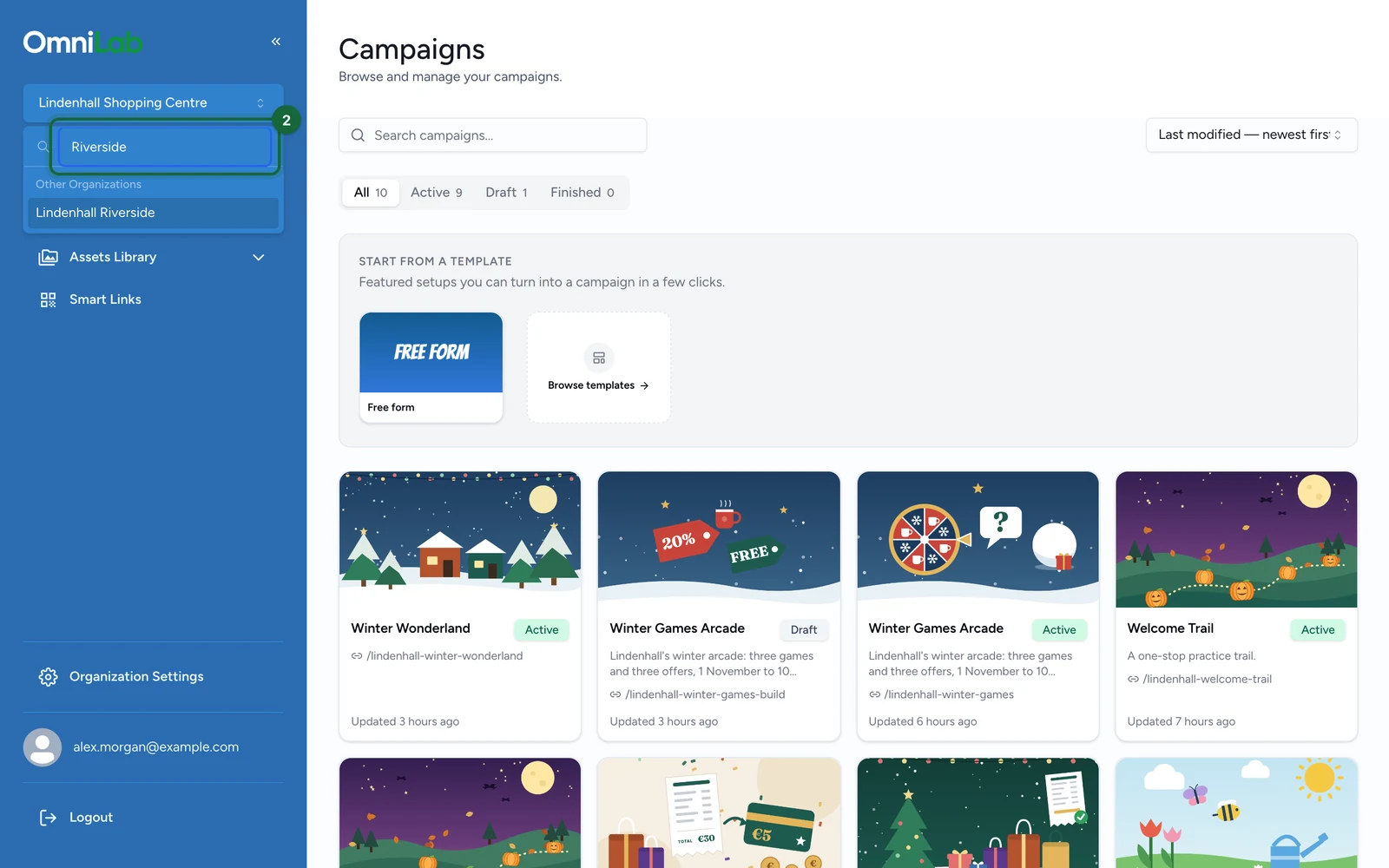
What appears in the organisation switcher
The switcher groups assigned organisations into the same labels the product uses:
| Switcher section | What it means |
|---|---|
Current Organization | The organisation you are working in right now |
Global Organization | The shared governance organisation, shown only if it is assigned and not already current |
Other Organizations | The rest of the organisations assigned to your account |

What changes when you switch organisation
| What changes | What it means in practice |
|---|---|
| Campaigns, templates, and settings context | Studio shows the content and settings for the organisation you selected |
| Admin settings surface | Admin users see General Settings when Global is selected and Organization Settings when a regular organisation is selected |
| Local variables and domain settings | Organisation-specific values change with the selected organisation |
These parts stay the same when you switch:
| What stays the same | What it means in practice |
|---|---|
| Role | The current user role stays the same across all assigned organisations |
| Module access | Campaigns and Smartlinks access stay tied to the account |
| Sign-in method | Users keep the same authentication method for the whole account |
Switch organisations in Studio
Open the organisation switcher
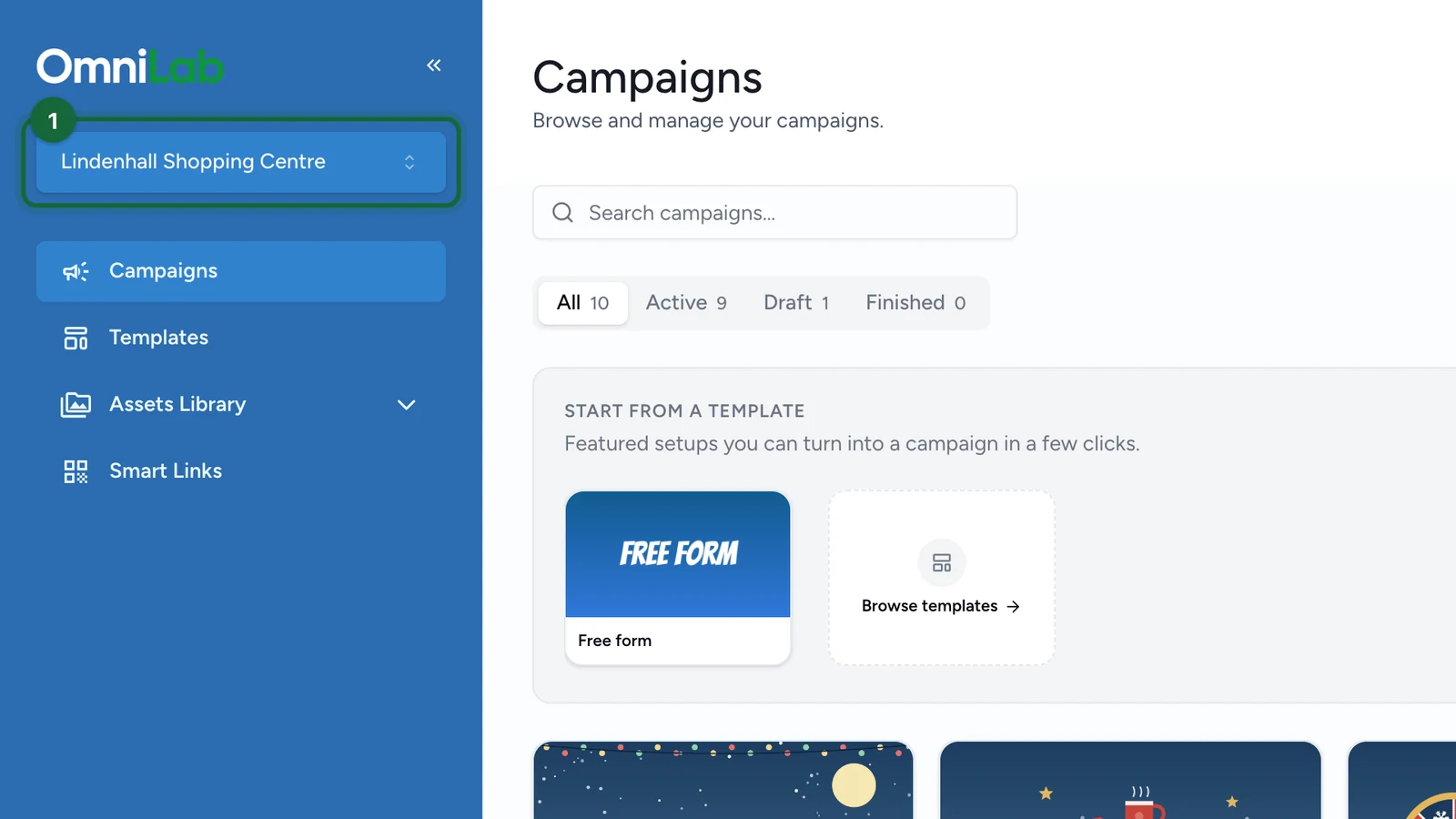
Use the switcher in the sidebar, just below the OmniLab logo, to review the current organisation, the Global organisation, and any other assigned organisations.
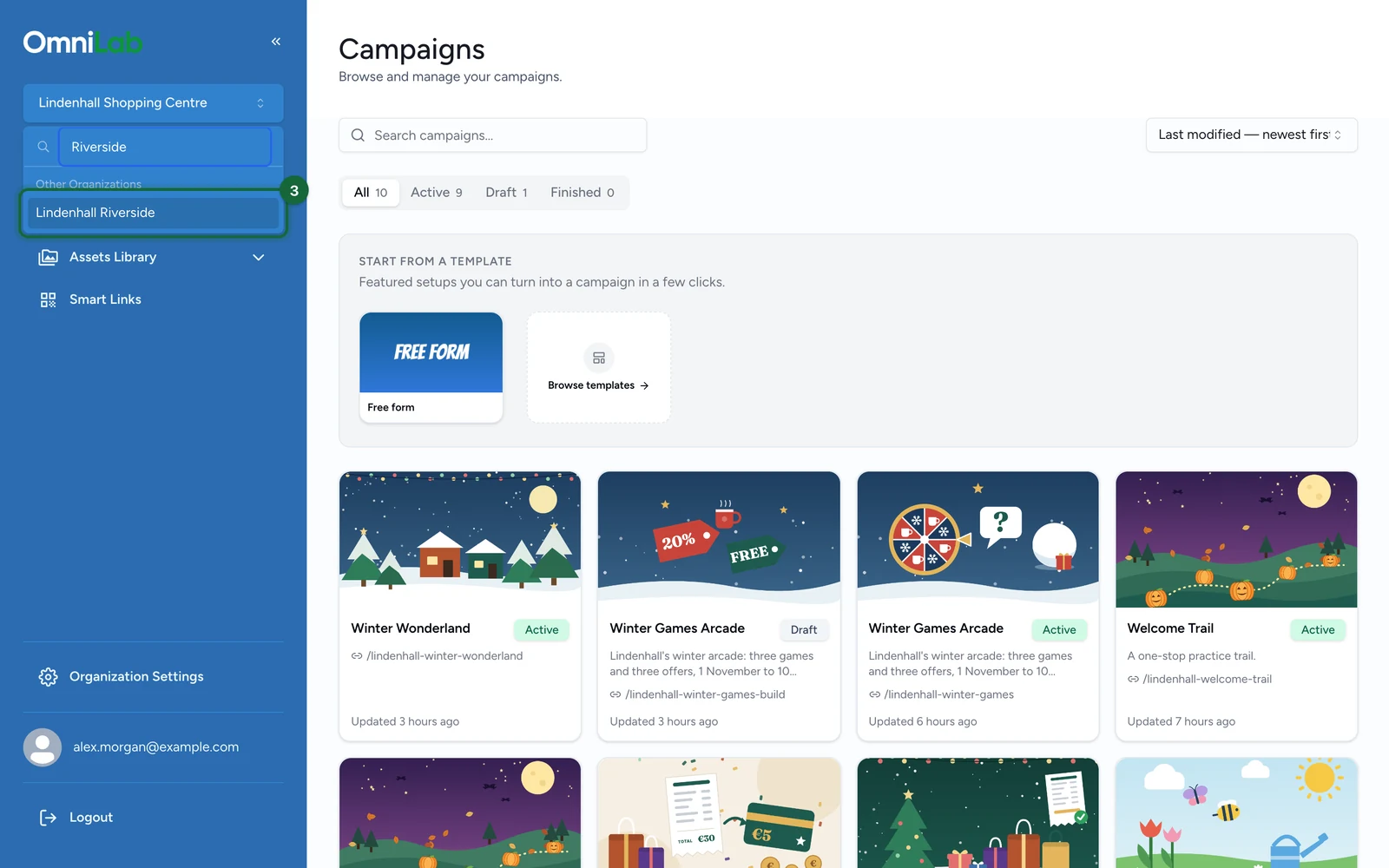
Choose the organisation you want to work in
Select the target organisation from the list. Studio switches the working context to that organisation.
Let Studio reload the new context
After the switch, Studio returns to the main workspace and refreshes the available content for the selected organisation.
Confirm the context before you continue
Before you create, update, or publish anything, make sure the selected organisation is the one that should own the work.
If an organisation is missing from the switcher
Users can switch only between organisations already assigned to their account.
If the organisation you need is missing:
- ask an admin to update your
Assigned Organizations - confirm whether you also need
Campaigns,Smartlinks, or both - return to Access request process if the account still needs to be provisioned
Open tabs stay in sync
If you switch organisation in one tab, other open Studio tabs may refresh the next time they become active so the selected organisation stays consistent.
Current limitations to keep in mind
- You can switch only to organisations assigned to your account.
- The current role is account-wide, so changing organisation does not change
AdminversusContributor. Smartlinksstill requires both account access toSmartlinksand an organisation where Smart Links are enabled.