The customer activation platform.Every interaction becomes a qualified contact. Book a demo

Modify or revoke access

Update a user's role, modules, or organisation assignments, or remove the account when access is no longer needed.

In this article, you'll update an existing user's access, remove access to a specific organisation or module, and delete the whole account when the person should no longer use OmniLab.

Prerequisites

  • You are signed in as an Admin.
  • The Global organisation is selected in Studio.
  • You know whether the change is an edit to the account or a full account removal.

Edit assignments before you delete

If the user still needs access to at least one organisation, update Assigned Organizations instead of deleting the account. Deletion is the full-account removal path.

Update an existing user's access

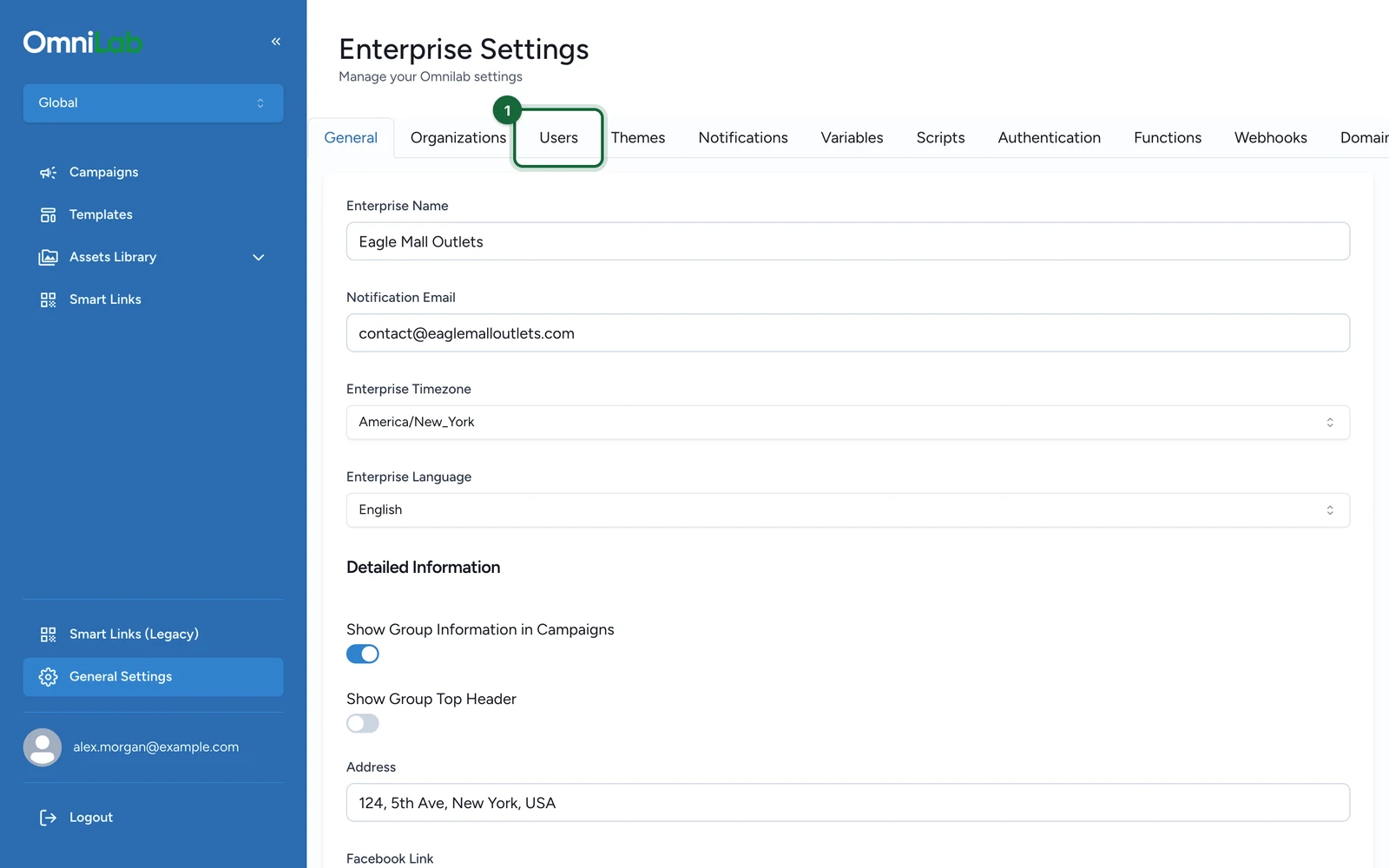
Open the Users tab from the Global organisation

Switch to the Global organisation, open General Settings, then open Users.

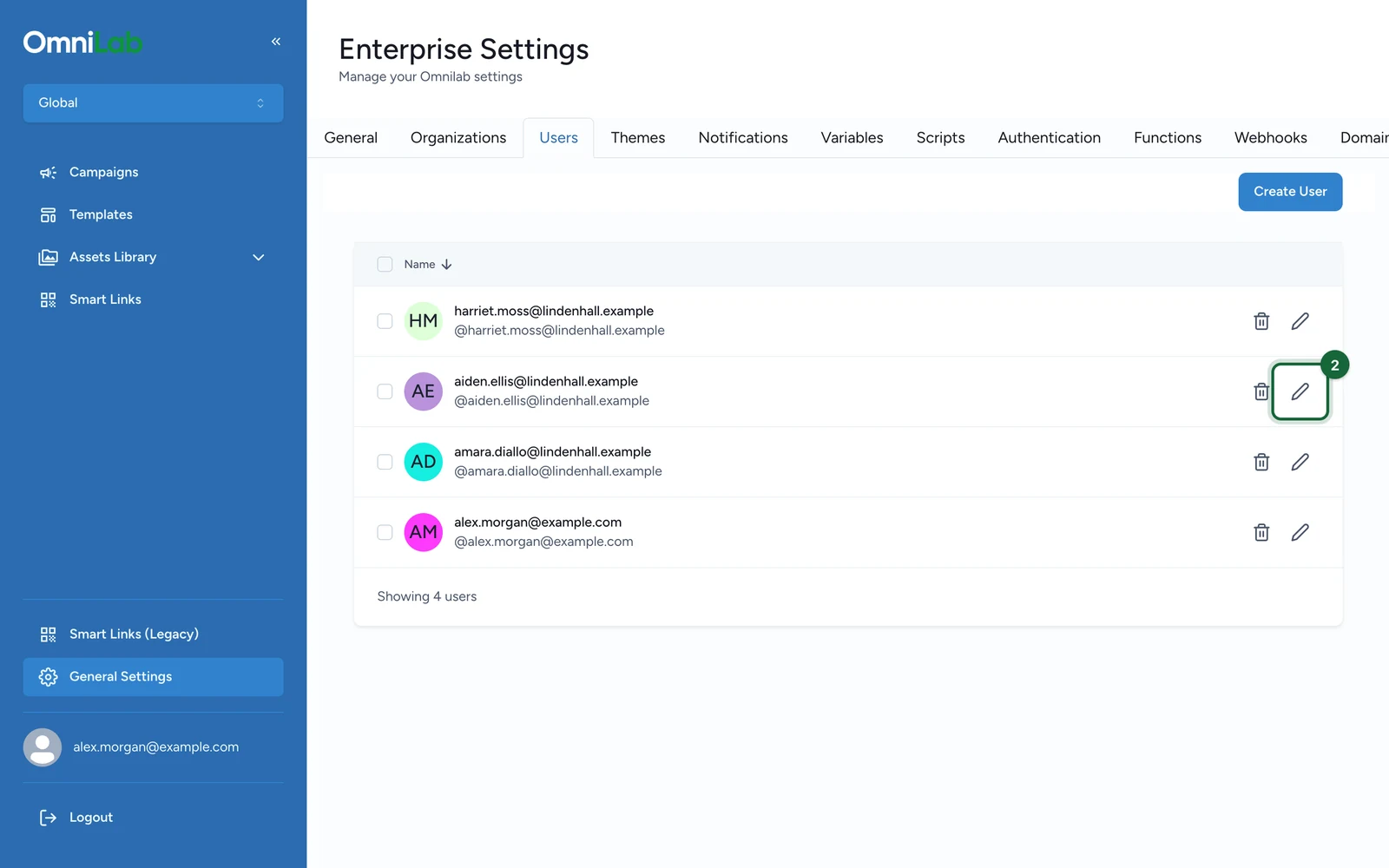
Select the user and open Edit

Find the user in the list and use the edit action to open the existing user form.

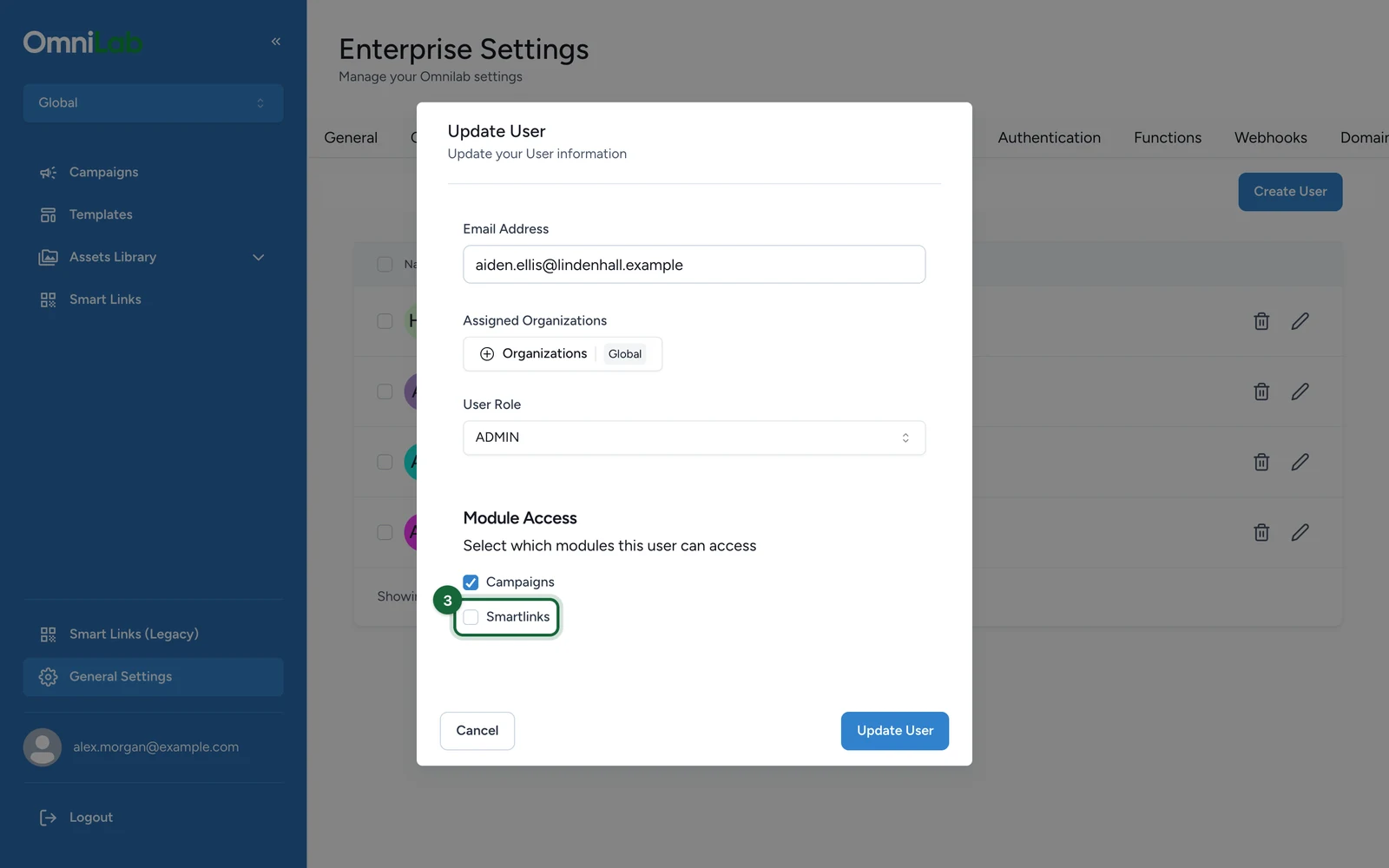
Change role, organisations, or modules

Update the fields that need to change:

  • User Role if the user should become an Admin or a Contributor
  • Assigned Organizations if the user should gain or lose organisation scope
  • Module Access if the user should gain or lose Campaigns or Smartlinks

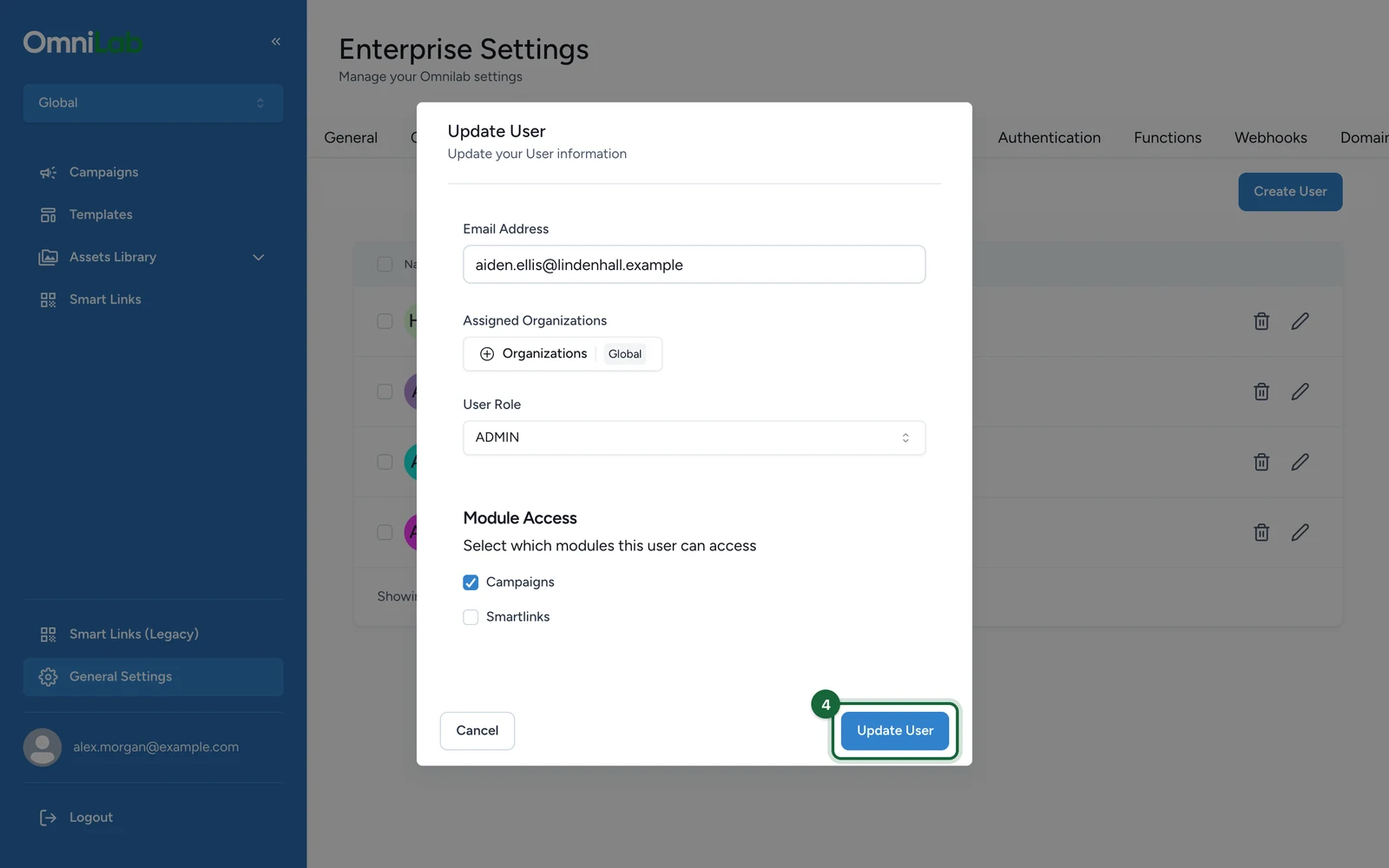
Save and verify the result

Save the changes, then confirm the user still has the right organisations and access level in the users list.

Revoke access safely

Change neededBest action
Remove one organisationEdit the user and remove that organisation from Assigned Organizations
Remove one moduleEdit the user and update Module Access
Remove all OmniLab accessUse the delete action from the users list

If a user loses one organisation assignment but still has others, the account stays active and the remaining organisations stay available.

Delete the account

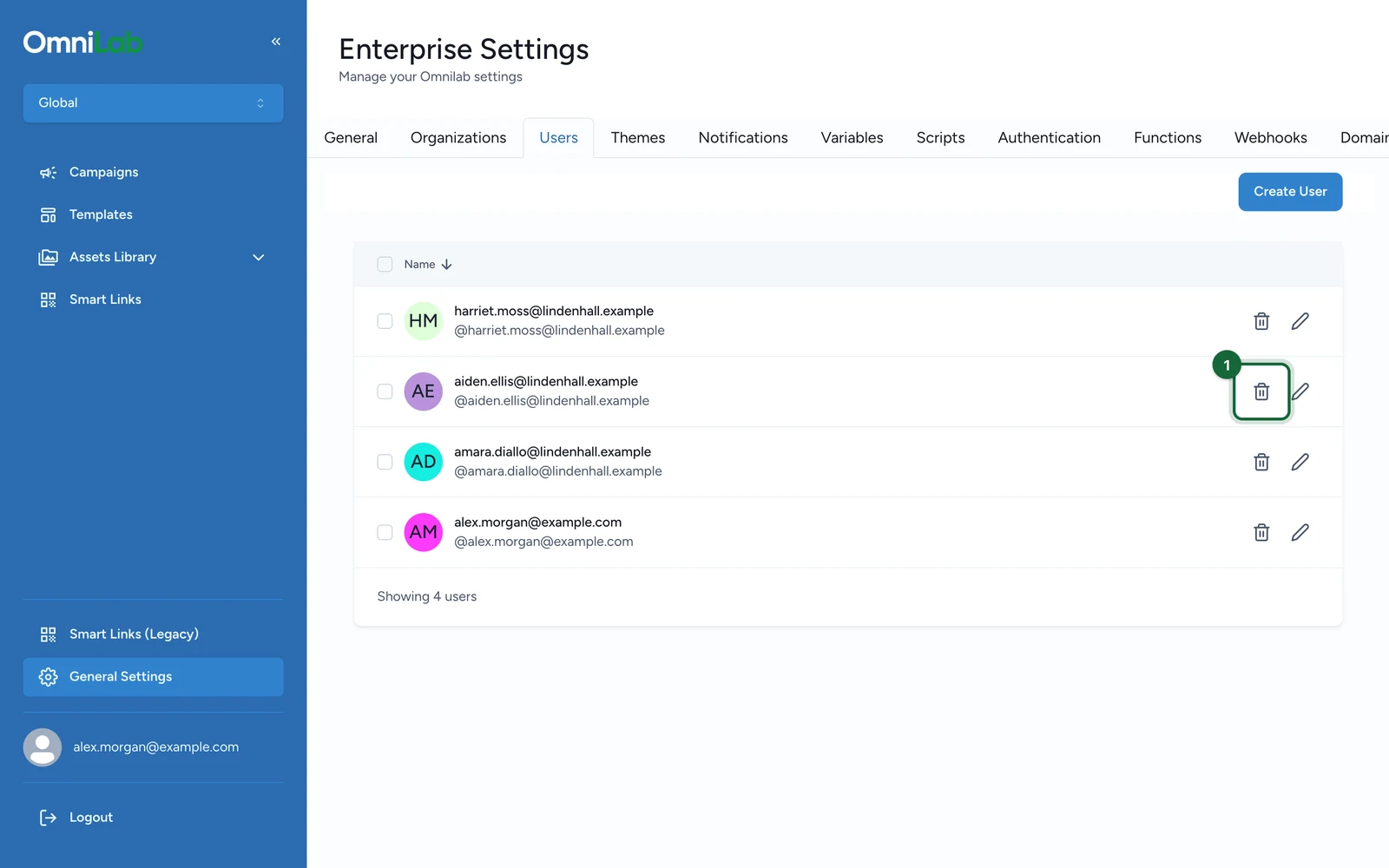
Use the delete action from the users list

From General Settings > Users, choose the delete action on the user row you want to remove.

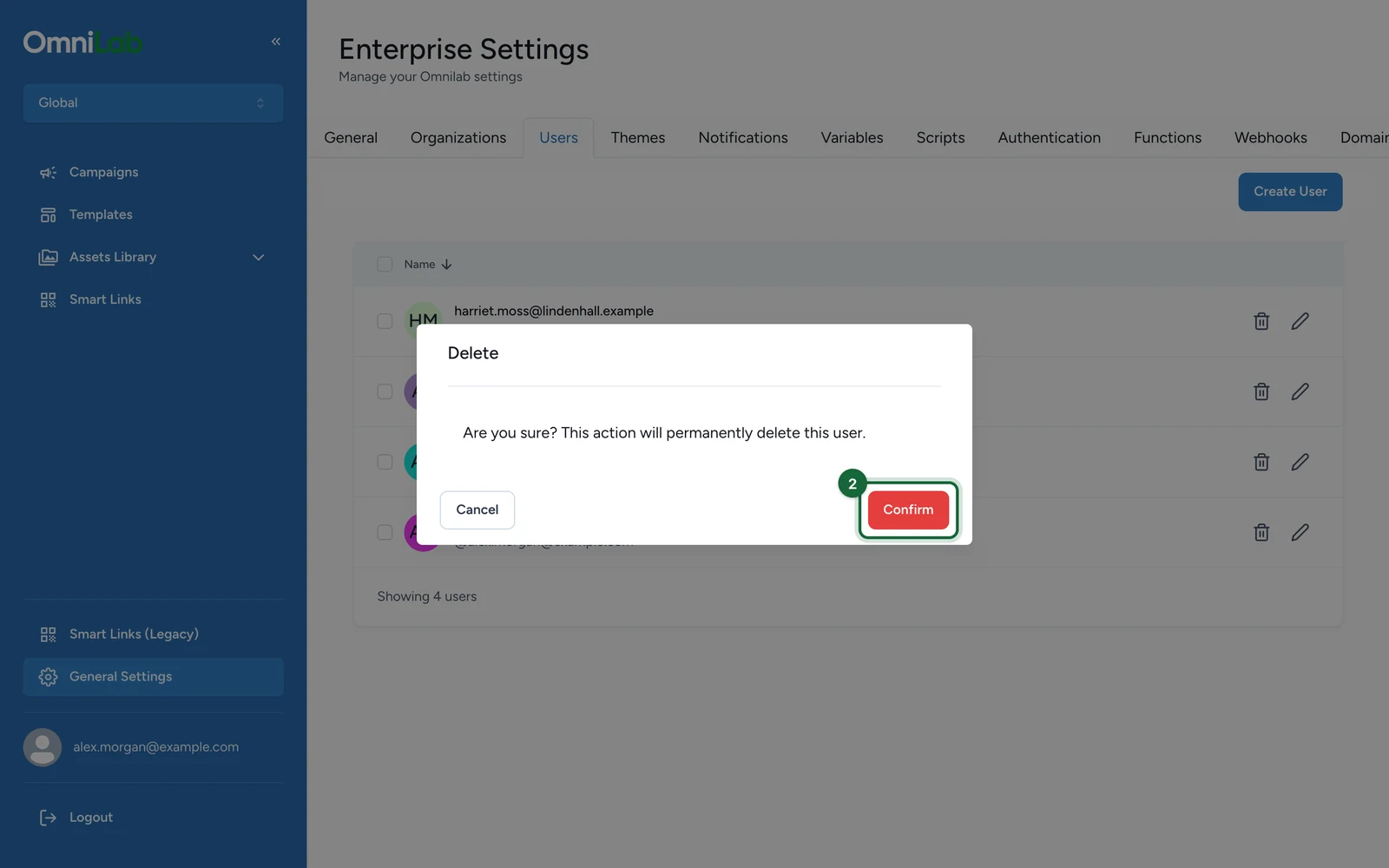
Confirm the deletion

Review the action in the confirmation modal, then confirm it only when you are sure the user should no longer have any OmniLab access.

Verify the post-delete state

Check that the account no longer appears in the users list and that any remaining access has been intentionally removed.

Was this helpful?

Optional comments help us improve this page for future authors and readers.

On this page