Assign users to organisations
Create or update a user with the right organisations, role, and module access from General Settings.
In this article, you'll assign a user to one or more organisations, choose the right role, and set the module access they need before the first sign-in.
Prerequisites
- You are signed in as an
Admin. - The Global organisation is selected in Studio.
- You know the user's email address, required organisations, role, and modules.
One role applies across all assigned organisations
The current user form applies one role to the whole account. You can assign several organisations to the same user, but you do not choose a different role for each organisation inside this flow.
Know what each field controls
| Field | What it controls |
|---|---|
Email Address | The identity the user signs in with |
User Role | Whether the account is Admin or Contributor |
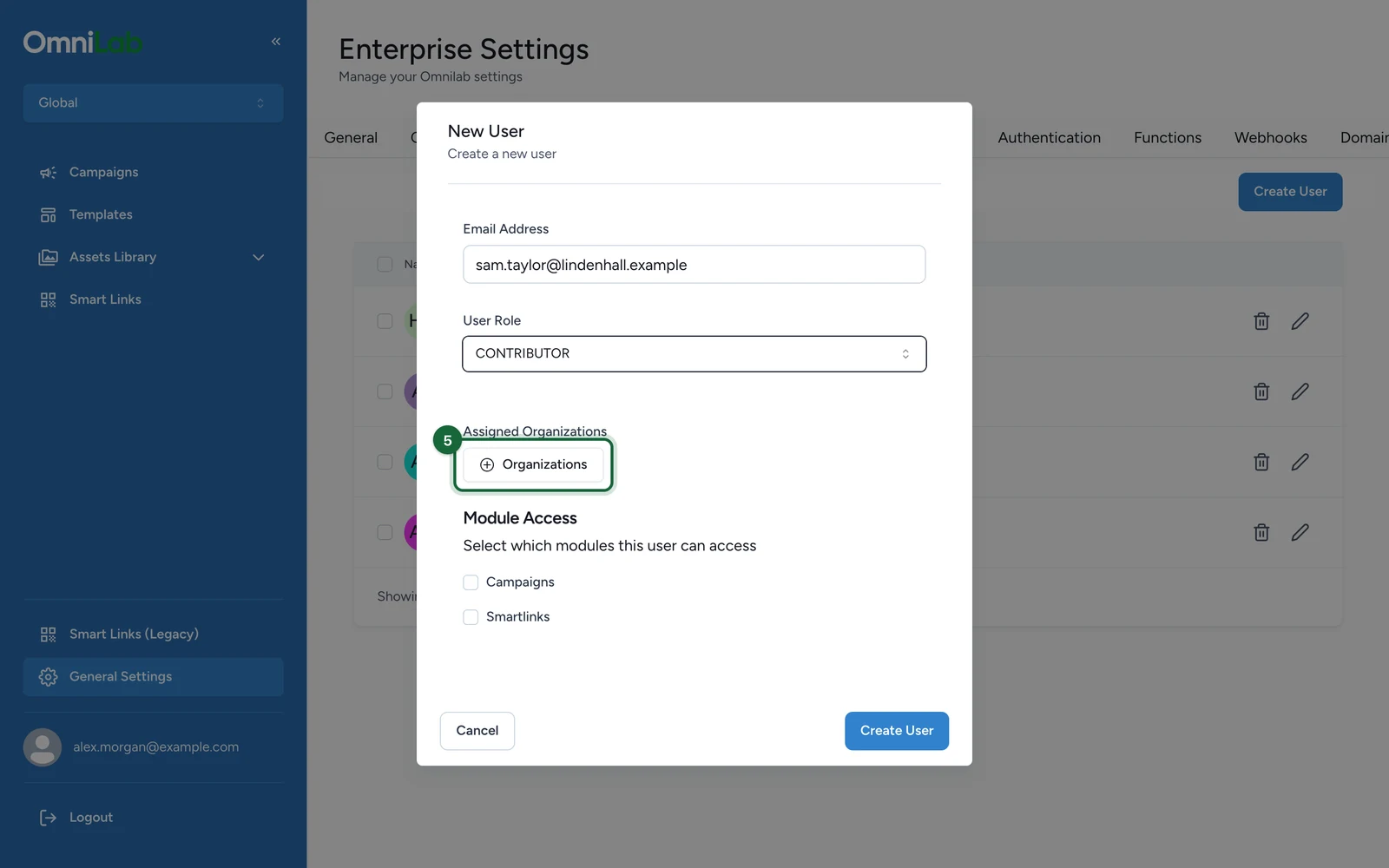
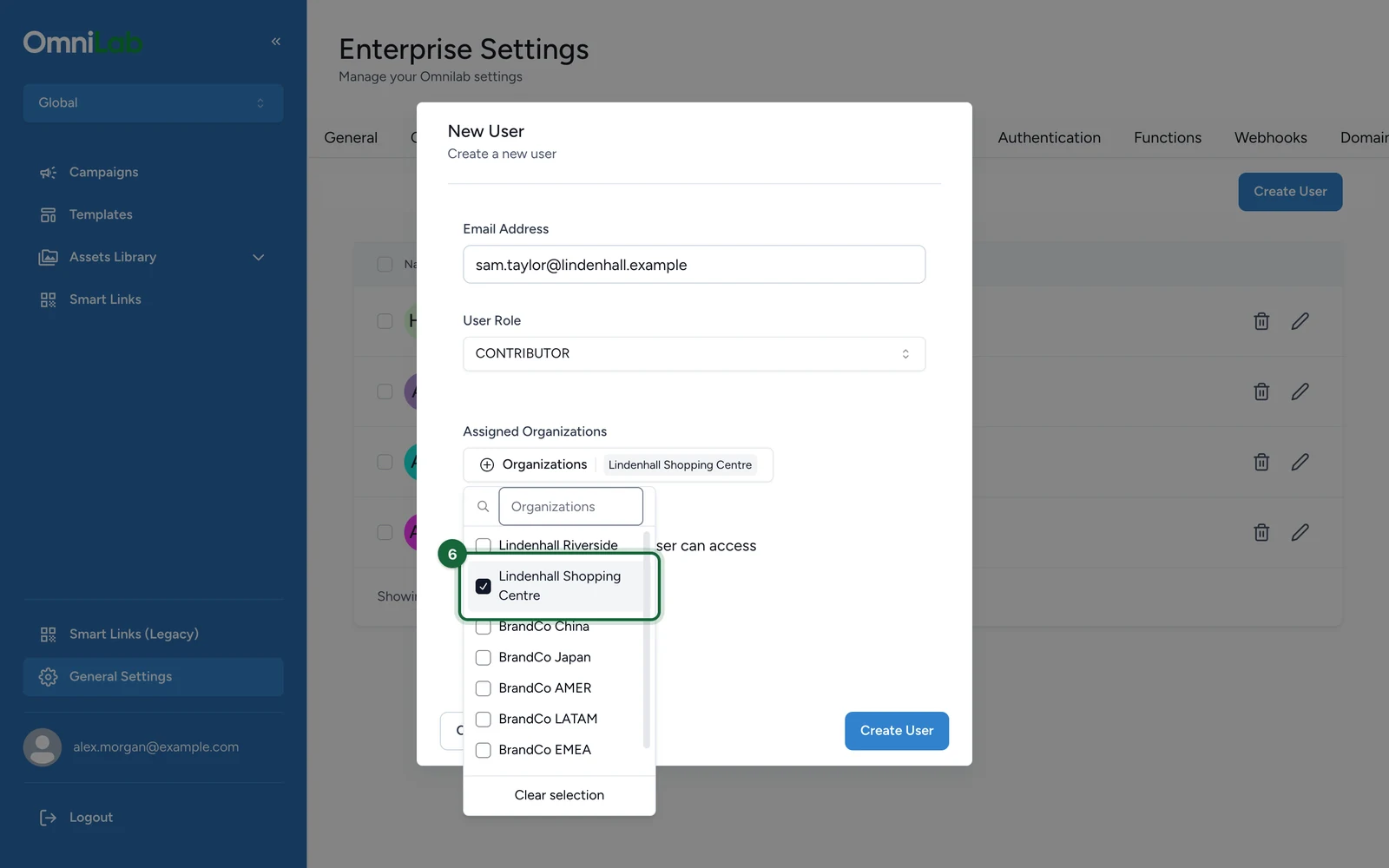
Assigned Organizations | Which organisations the user can select in Studio |
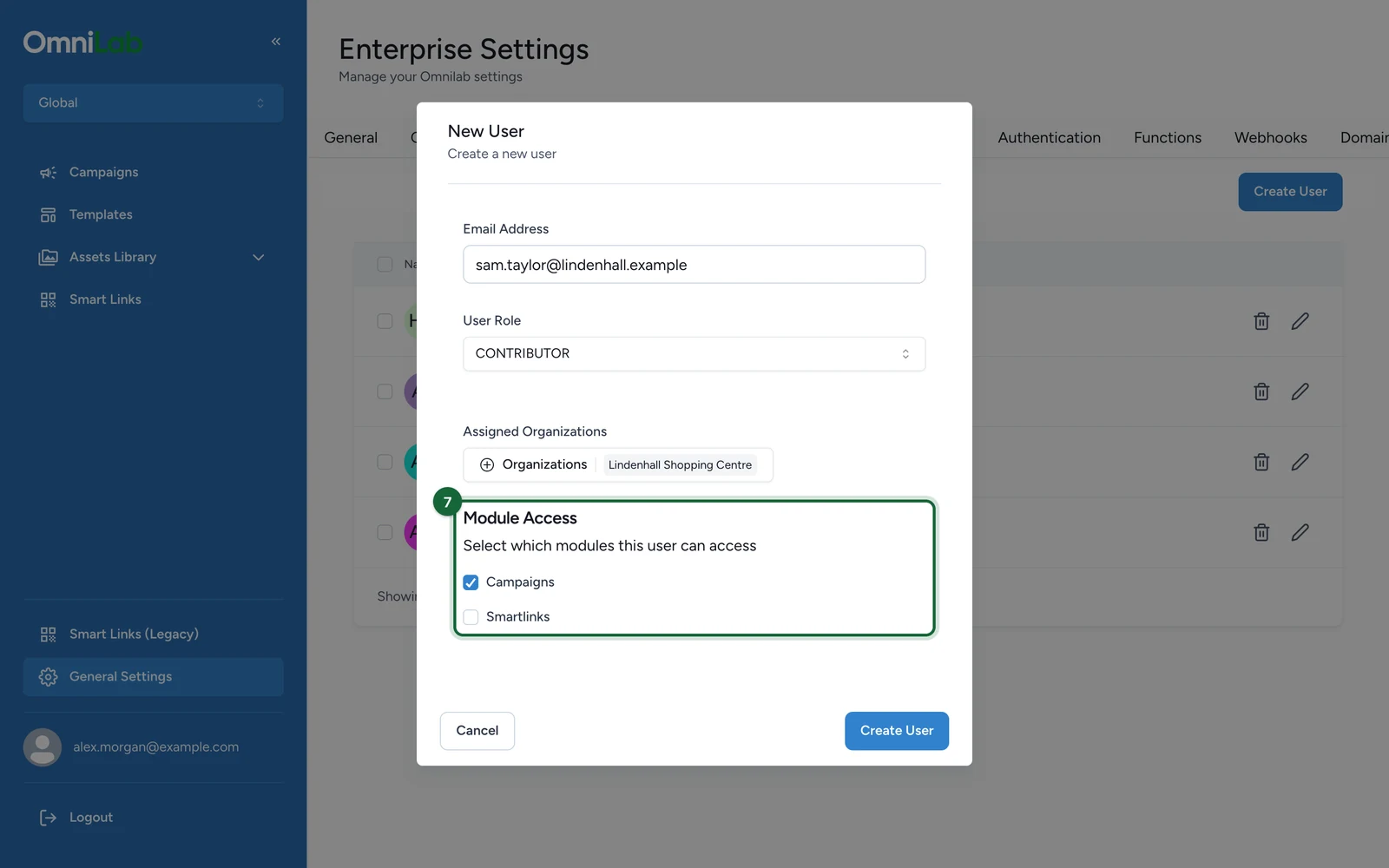
Module Access | Whether the account can open Campaigns, Smartlinks, or both |
Assign a user to one or more organisations
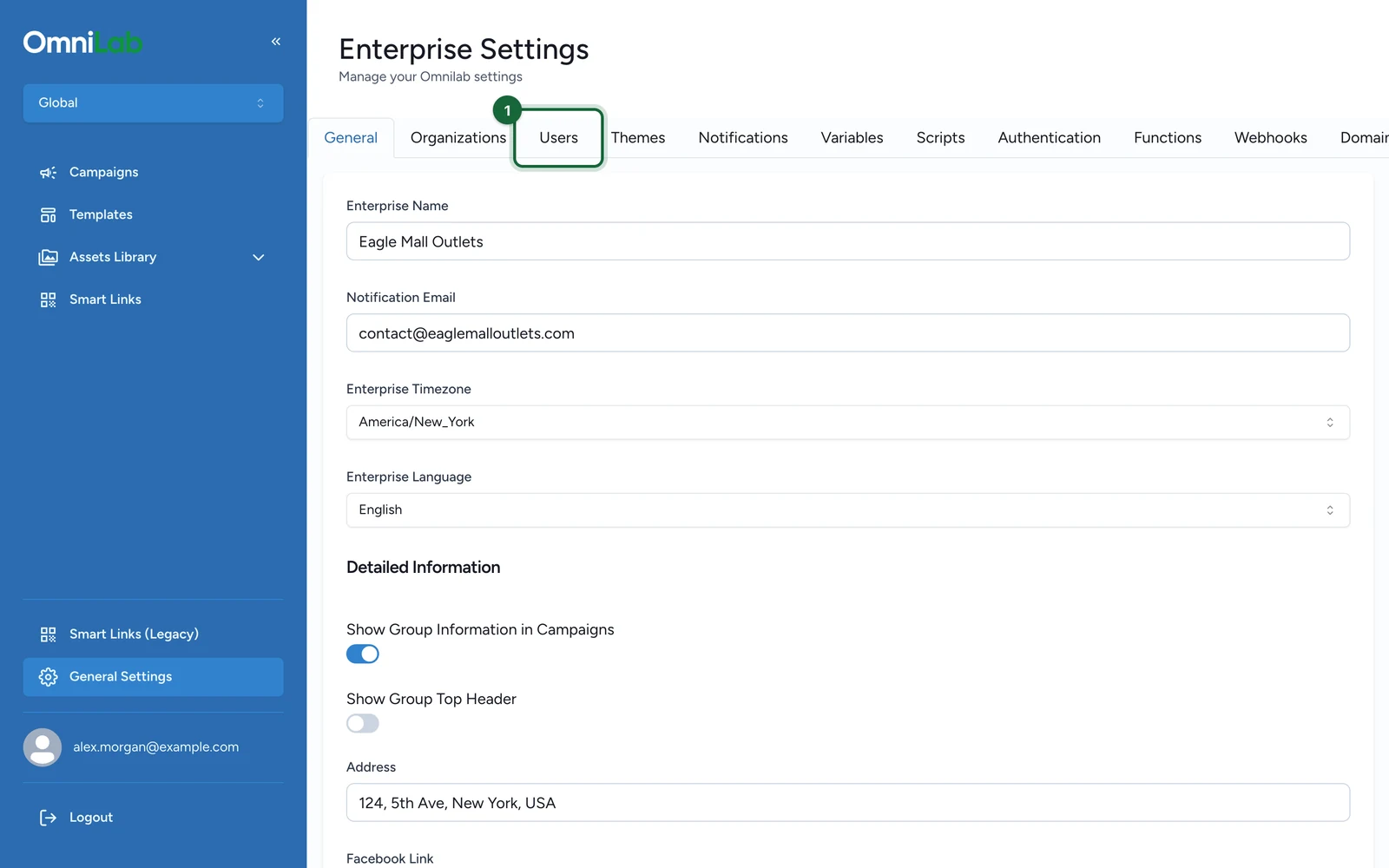
Open the Users tab
Switch to the Global organisation, open General Settings, then open the Users tab.
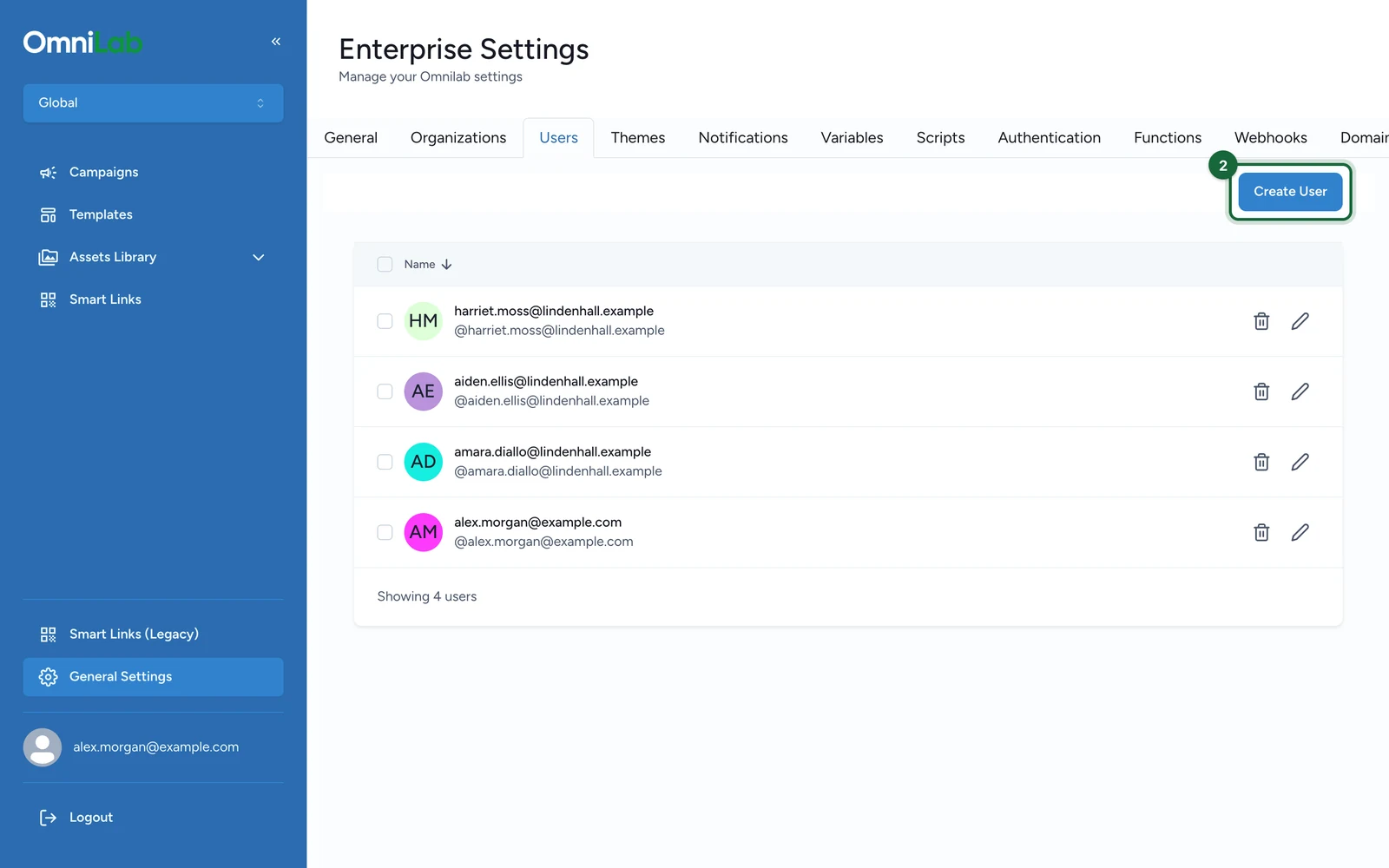
Click Create User
Use the Create User action to open the user form.
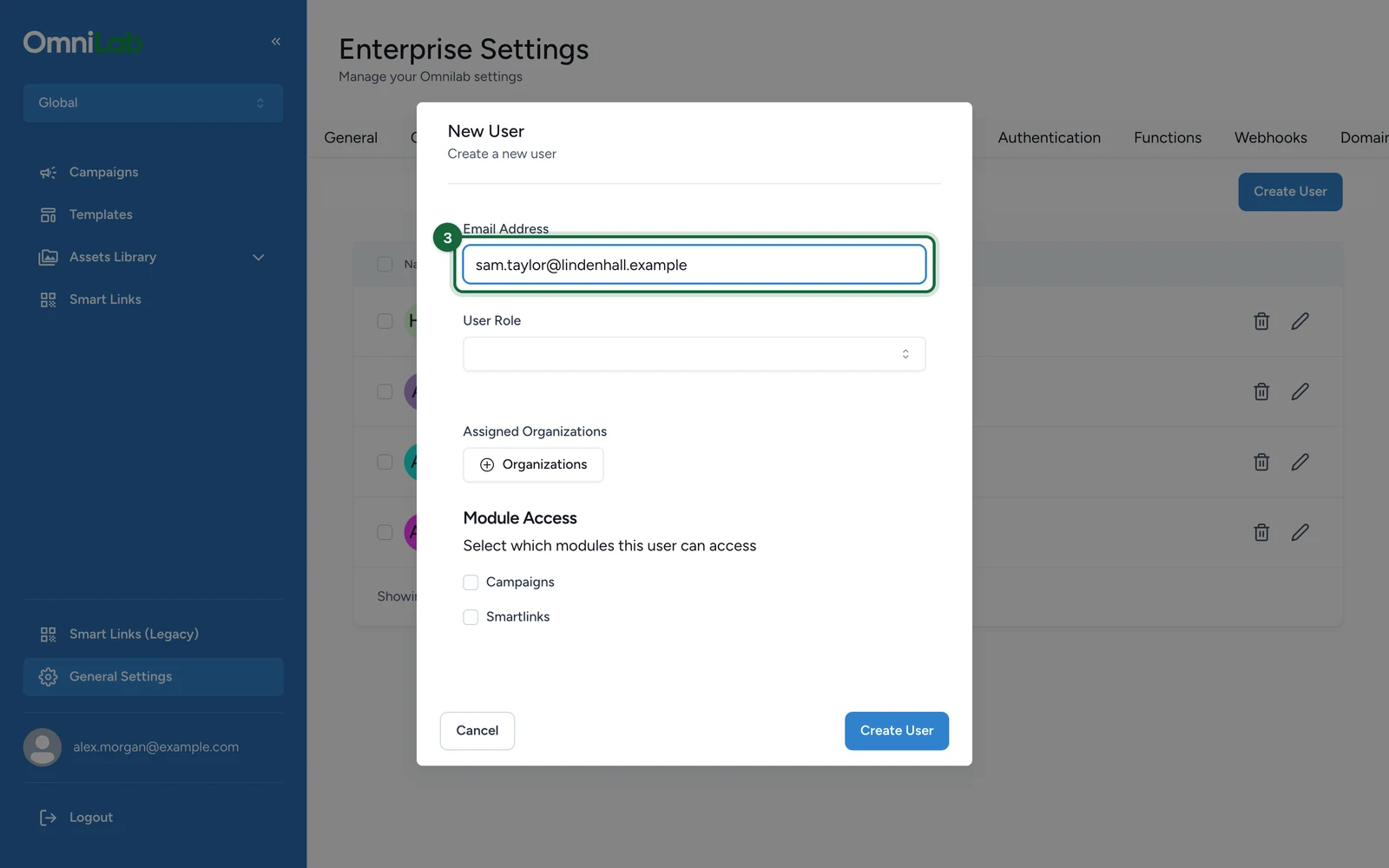
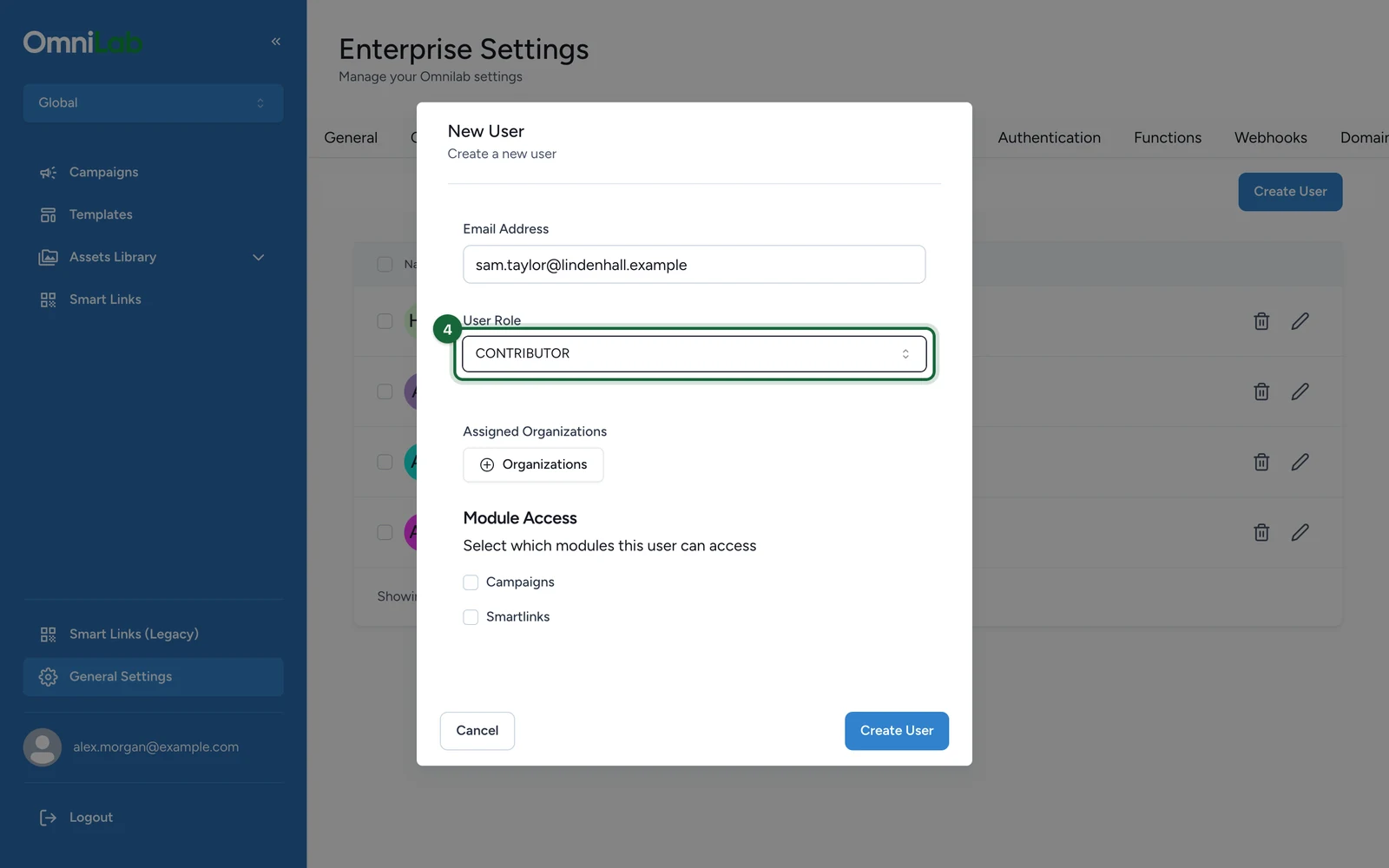
Fill the core identity fields
Enter the user's Email Address, choose the User Role, and select one or more Assigned Organizations.

Set Module Access
Turn on Campaigns, Smartlinks, or both depending on which parts of OmniLab the user should be able to open.
Create the account and confirm the result
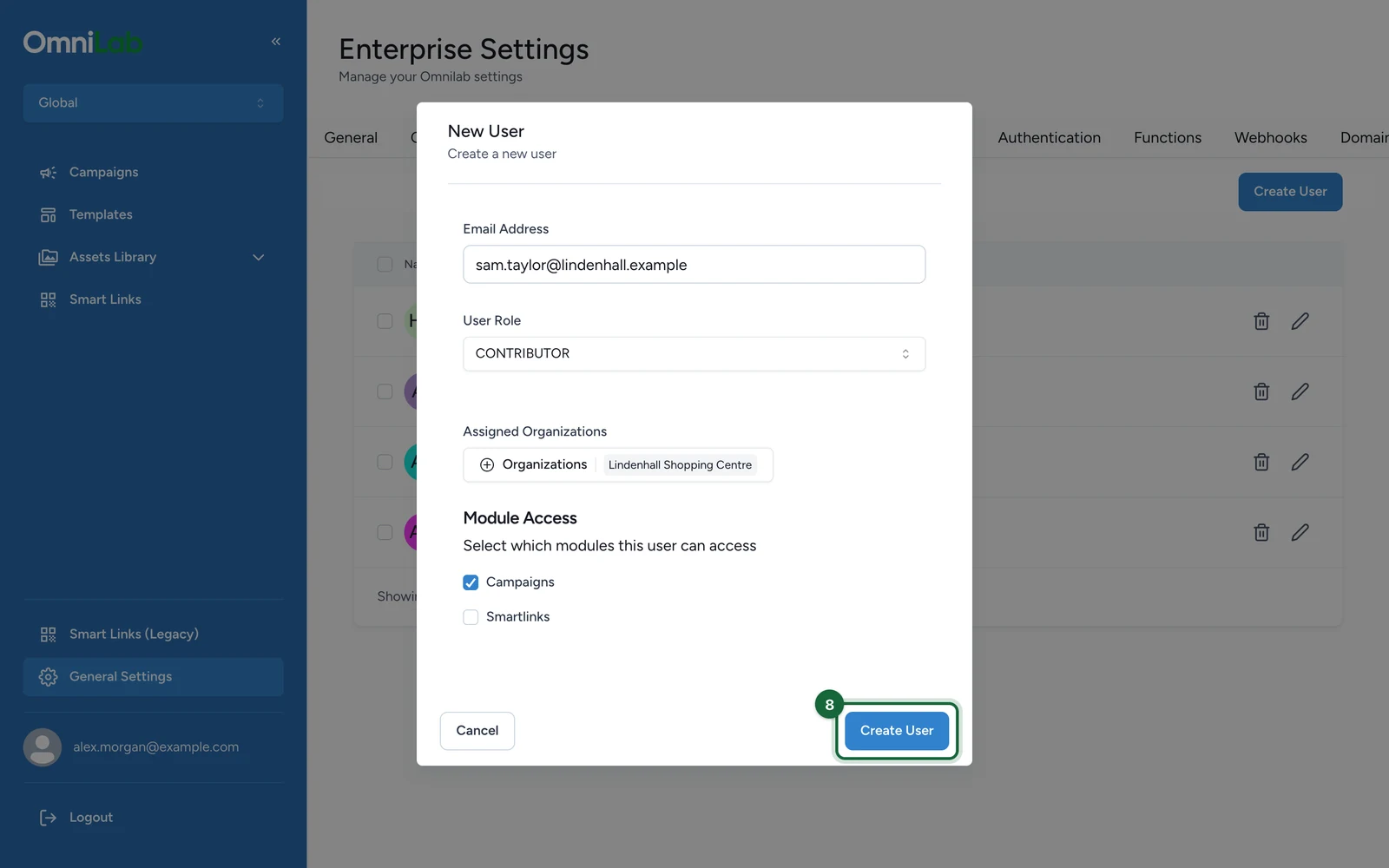
Finish the form, create the user, and check that the new account appears in the users list with the expected organisations and access level.
Multi-org assignment tips
- Use one account when the same person genuinely works across several organisations.
- Assign only the organisations the user needs today so the switcher stays easy to use.
- Remember that the user's role stays the same across every assigned organisation in the current flow.
- If the user later needs another organisation, update
Assigned Organizationsinstead of creating a duplicate account.
What happens next
After the account is created, the user signs in with the method enabled for your environment. If they have more than one assigned organisation, they can switch between them from the organisation switcher in the sidebar.