The customer activation platform.Every interaction becomes a qualified contact. Book a demo

Access request process

Request or provision OmniLab access with the right role, modules, organisations, and sign-in method.

In this article, you'll learn how access requests are usually handled in OmniLab, what information must be collected before access is granted, and how the first sign-in works once the account is ready.

Prerequisites

  • You know the user's email address.
  • You know which organisations the user needs.
  • You know whether the user needs Campaigns, Smartlinks, or both.
  • An existing Admin user can create or update the account from General Settings > Users.

Information to collect before access is granted

ItemWhy it matters
Email addressThe account must be created for the exact email address the user will use to sign in
RoleDetermines whether the user is an Admin or a Contributor
Module accessControls whether the user can open Campaigns, Smartlinks, or both
Assigned organisationsDefines which organisations the user can select in Studio
Sign-in methodDetermines whether the user signs in through SSO or through Continue with Email

Module access and organisation scope are separate choices

Module Access decides which product areas appear, such as Campaigns and Smartlinks. Assigned Organizations decides which organisations the user can actually select in Studio.

Need OmniLab access Collect role, modules, and organisations Admin creates or updates the account Which sign-in method is enabled? Use the configured SSO button Use Continue with Email Open OmniLab Open the magic link from the inbox

The sign-in page is environment-specific

Users only see the sign-in methods enabled for their OmniLab environment. If the expected option is missing, ask an admin to confirm how access is configured.

Request access as an end user

Gather the access details

Before asking for access, confirm the organisations you need, the module or modules you will use, and whether you need Admin or Contributor access.

Ask an OmniLab admin to provision your account

Access is usually provisioned by an existing admin from the Users area in the Global organisation settings surface.

Wait for the sign-in instructions

The admin should confirm which sign-in method is enabled for your environment:

  • an SSO provider button such as Microsoft or another configured provider
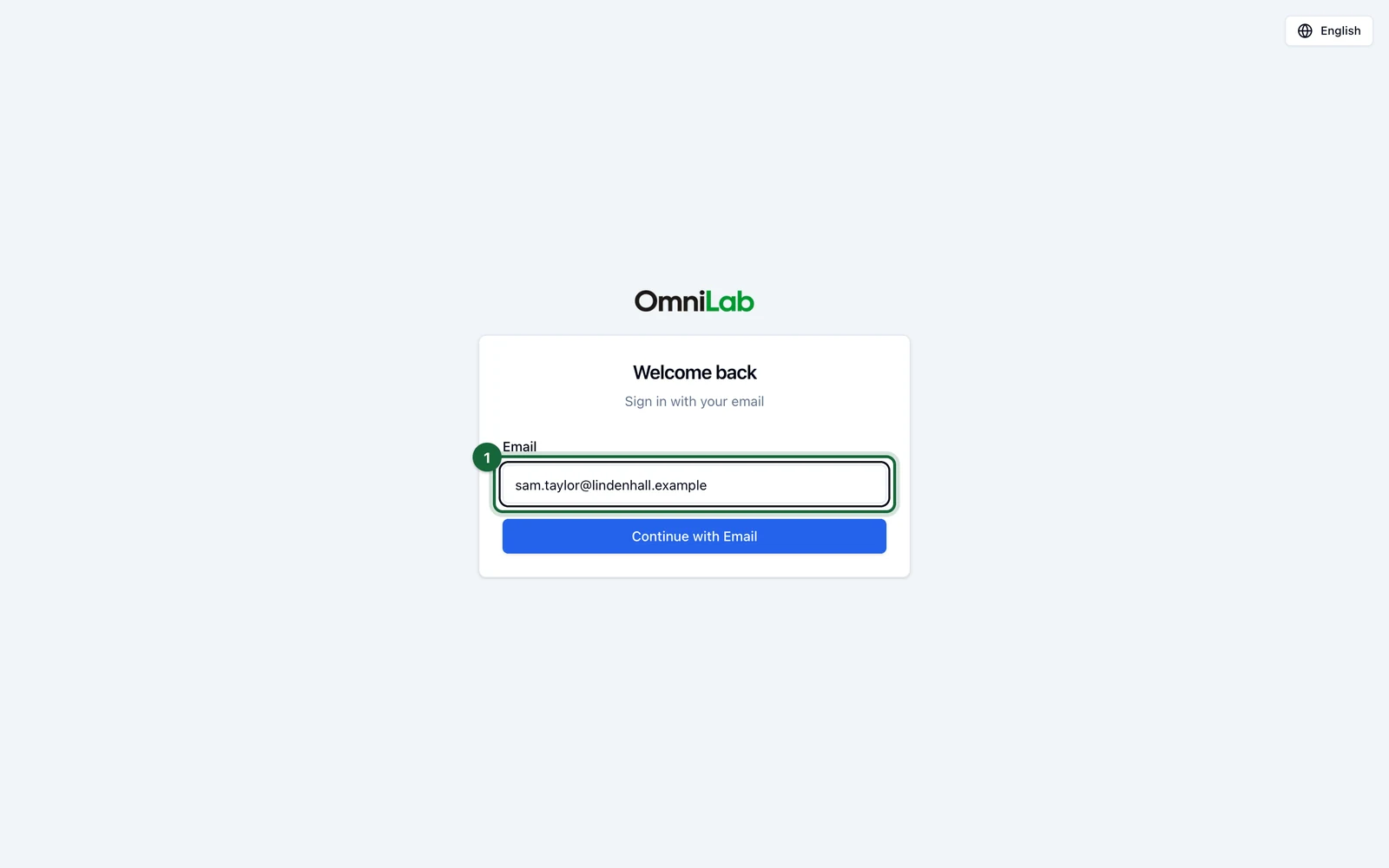
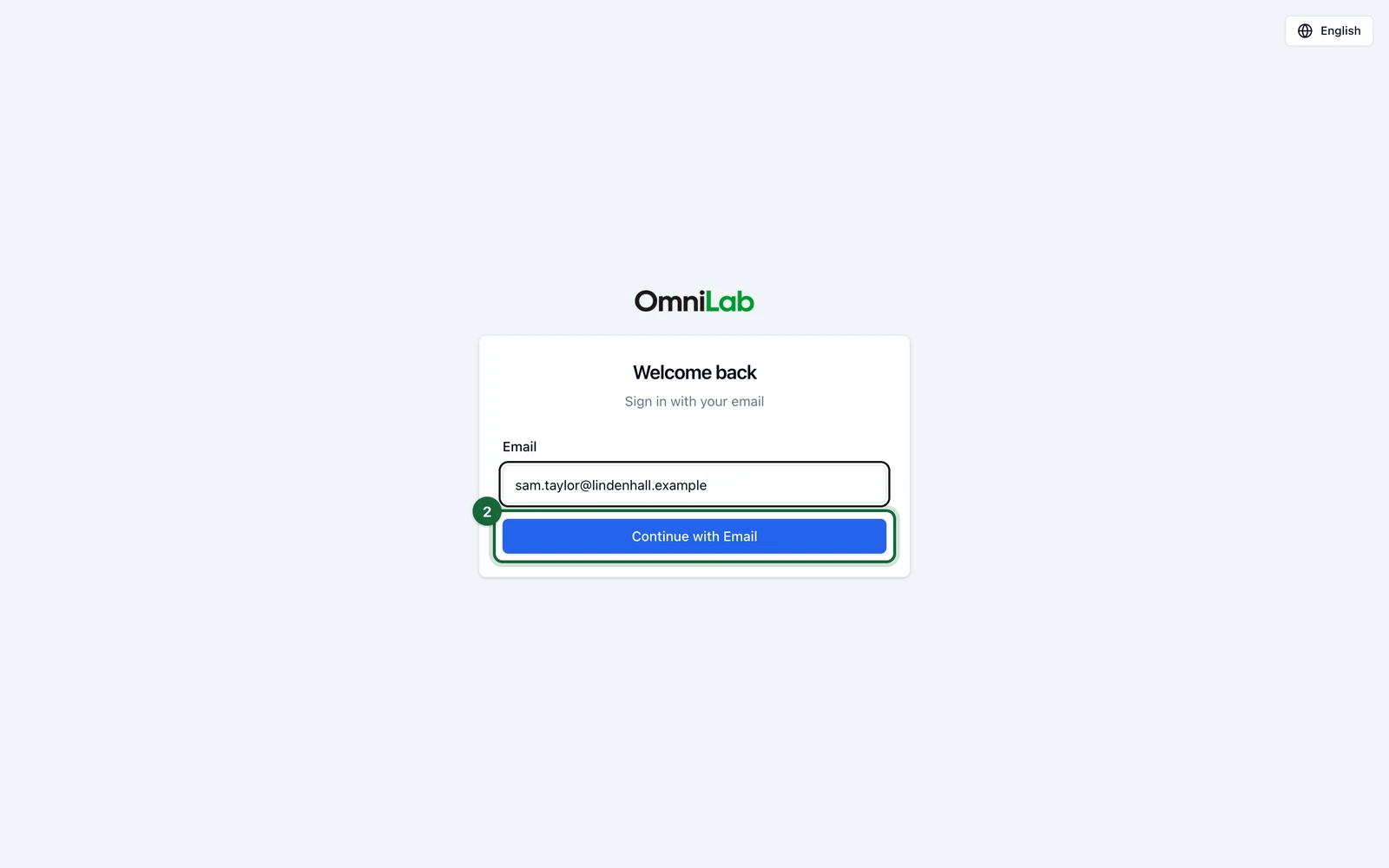
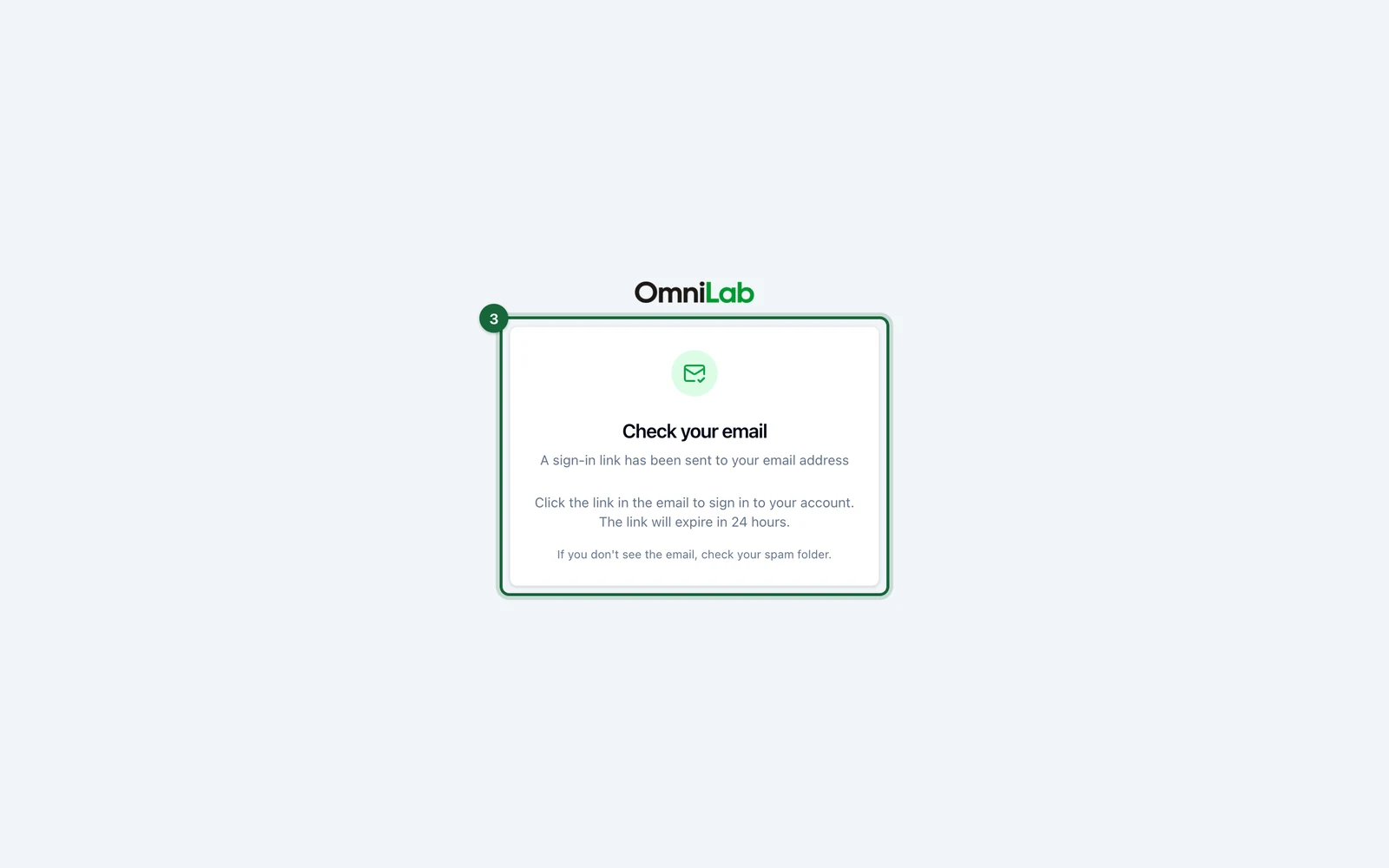
  • Continue with Email, which sends a magic link to your inbox

Complete the first sign-in

Sign in with the method your environment uses. If email sign-in is enabled, open the magic link sent to your approved email address. Once you are signed in, Studio opens with your assigned organisations and module access.

Process requests as an admin

Switch to the Global organisation

Open the organisation switcher in the sidebar, select the Global organisation, and open General Settings.

Open the Users tab

Inside General Settings, open Users to review existing accounts or create a new one.

Create or update the user

Set the user's Email Address, User Role, Assigned Organizations, and Module Access. Use Campaigns, Smartlinks, or both depending on what the user should open after sign-in.

Share the correct sign-in path

If your environment uses SSO, make sure the user signs in through the configured provider. If your environment uses email sign-in, tell the user to choose Continue with Email and use the magic link sent to that same address.

Was this helpful?

Optional comments help us improve this page for future authors and readers.

On this page