Set opt-in for a receipt game
Collect consent the right way when shoppers upload receipts, and choose where that consent is set.
1 min read
Shoppers accept your terms before they upload a receipt. Most campaigns keep one set of terms for every touchpoint.
Check the campaign's terms
-
In Build > General, find Terms & Conditions Settings.
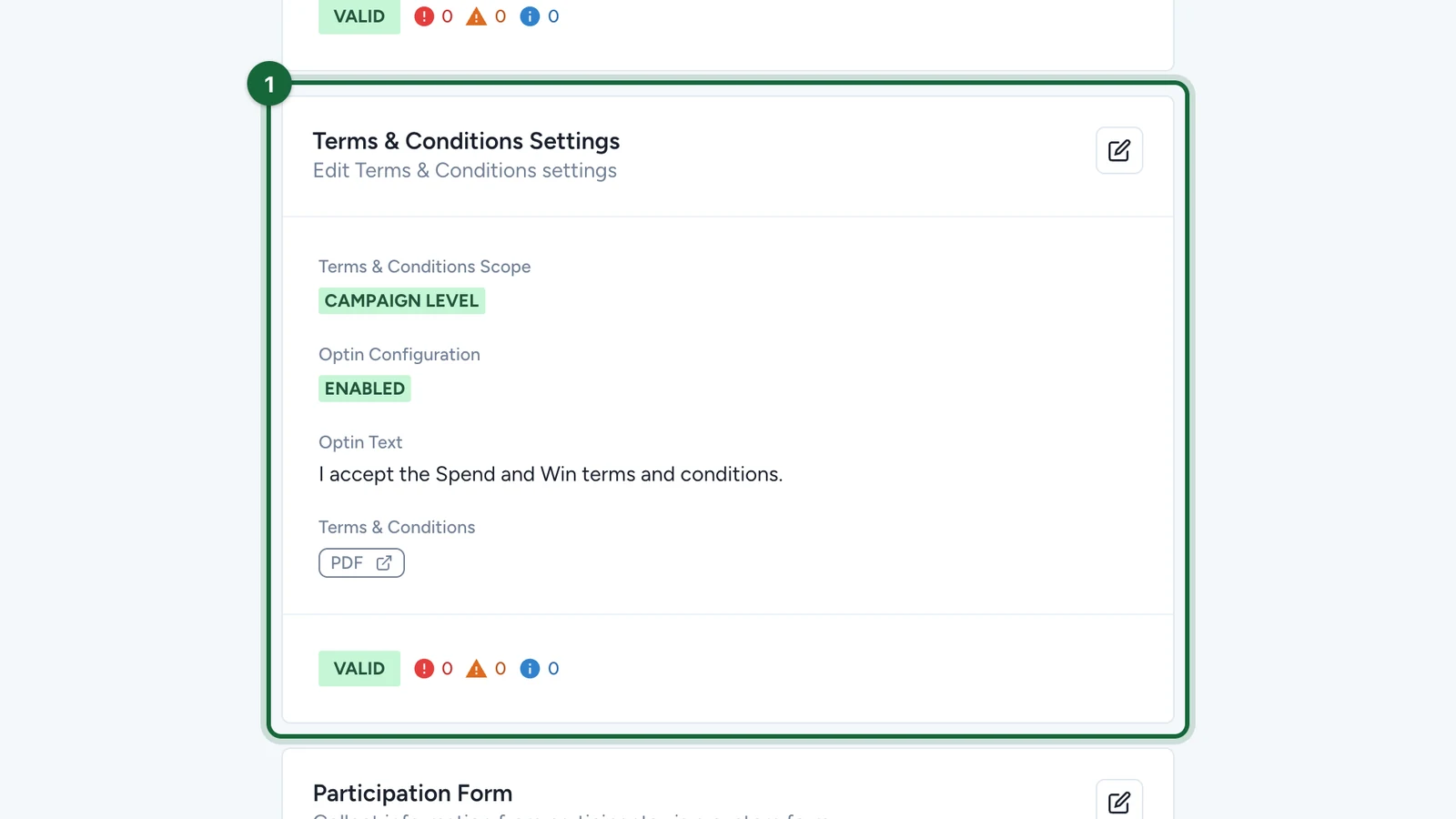
Check the opt-in is on and the terms PDF covers receipts, prizes and your data use.
-
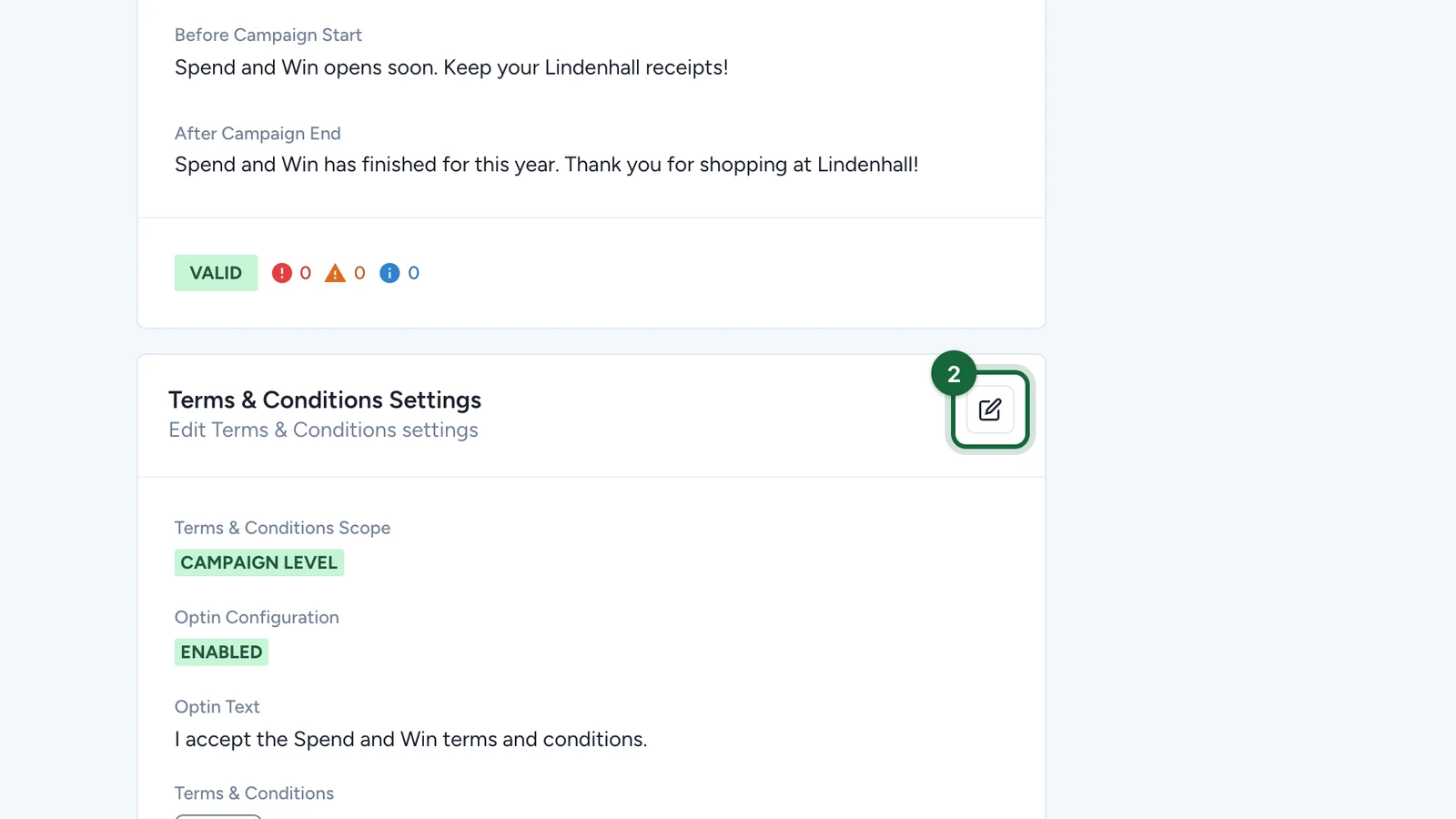
To change them, select the edit button on Terms & Conditions Settings.
Give the receipt game its own terms
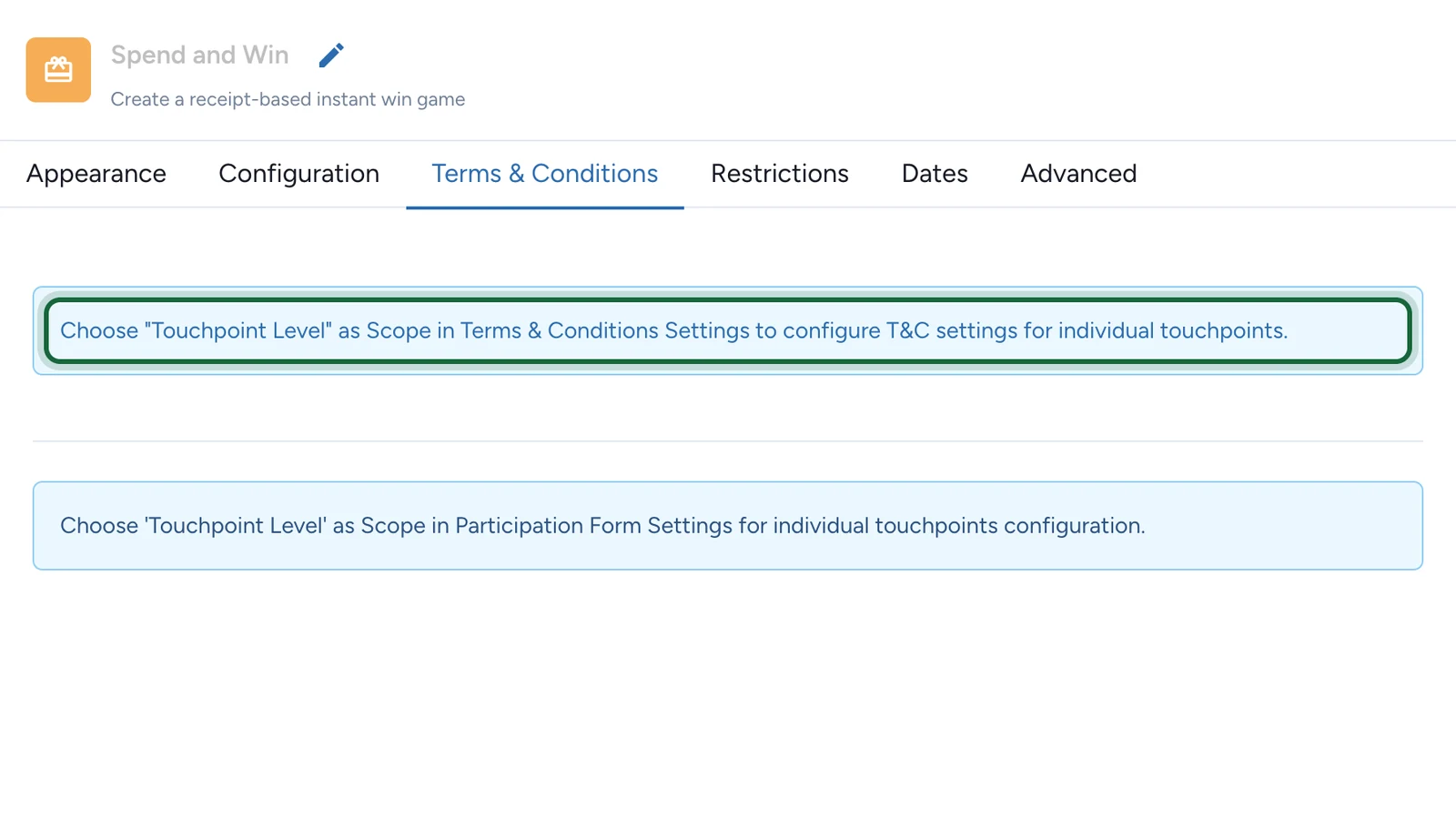
Use this when receipts are run differently from the rest of the campaign, such as with a partner. Set the scope to Touchpoint Level in Terms & Conditions Settings, then fill in the receipt game's own Terms & Conditions tab. Until then, the tab says so: