Custom sections layout
Build the landing page from your own sections: hand-picked touchpoints, automatic lists, rich text, rewards, badges and the call to action.
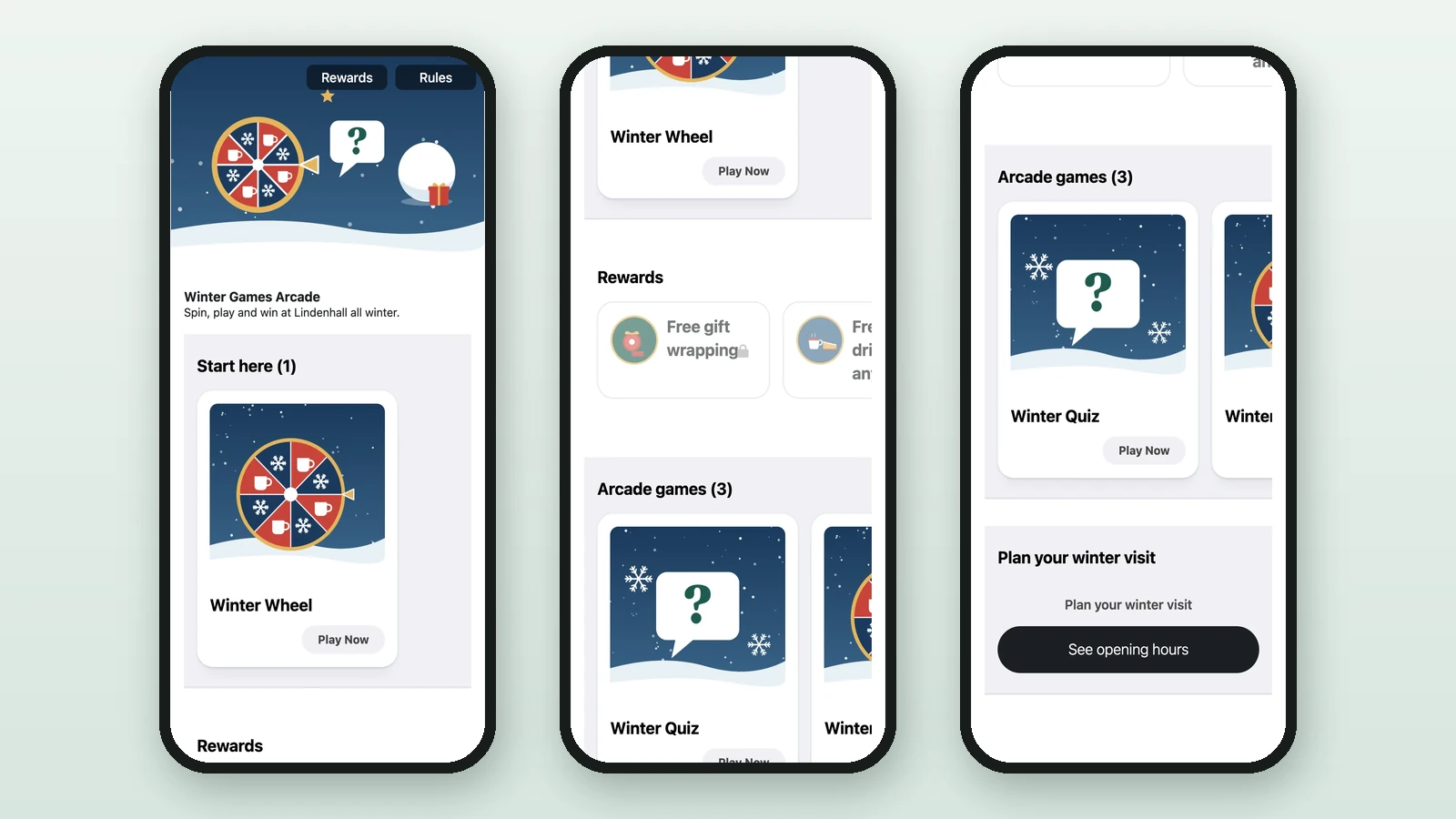
With Custom sections, you choose every block of the landing page and the order they come in. The header stays at the top, and your sections follow in one column, on a computer as on a phone. Here, Lindenhall opens the Winter Games Arcade with a "Start here" section that holds the Winter Wheel.
Switch to Custom sections
In Landing Page:
-
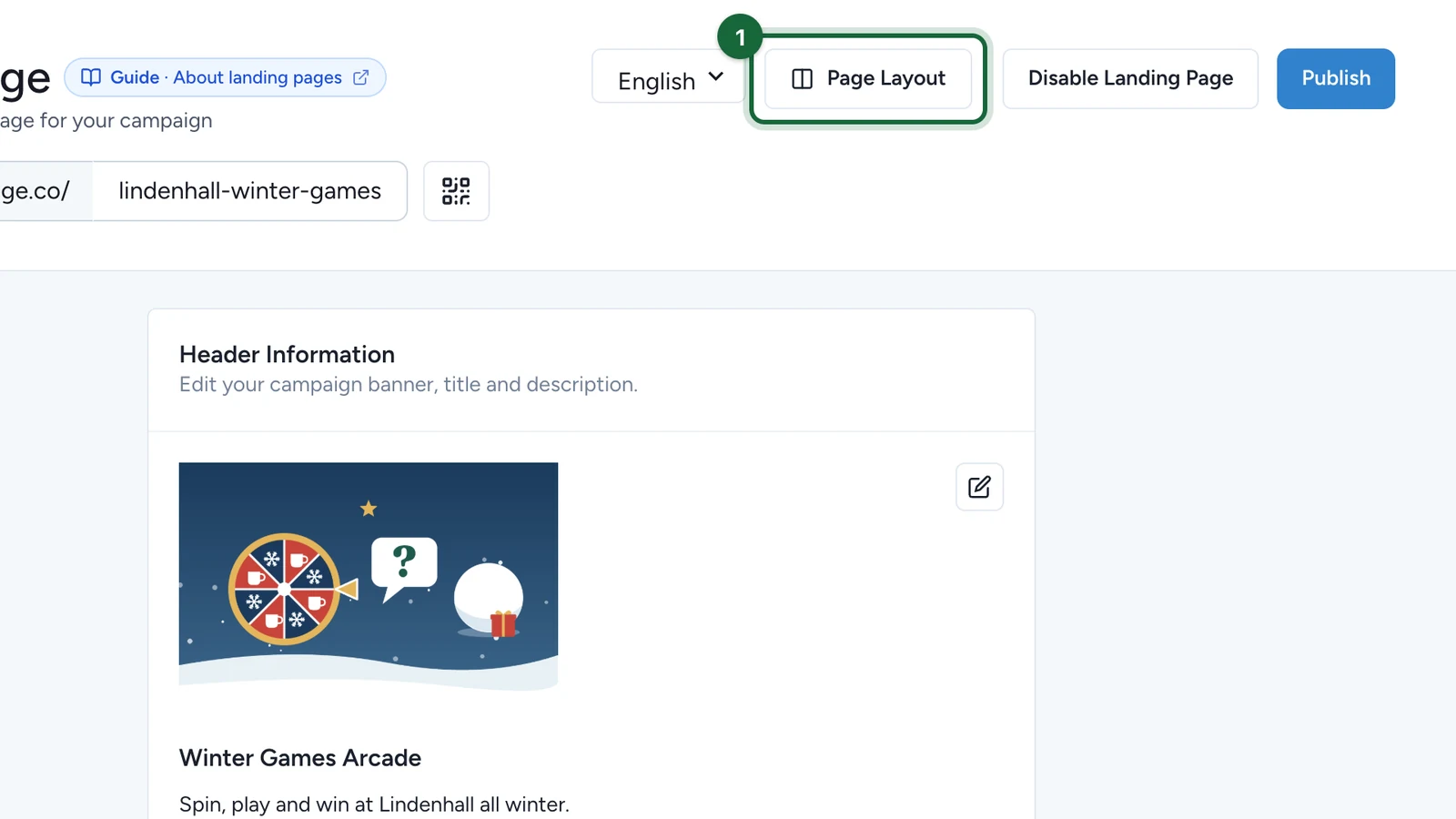
Select Page Layout.
-
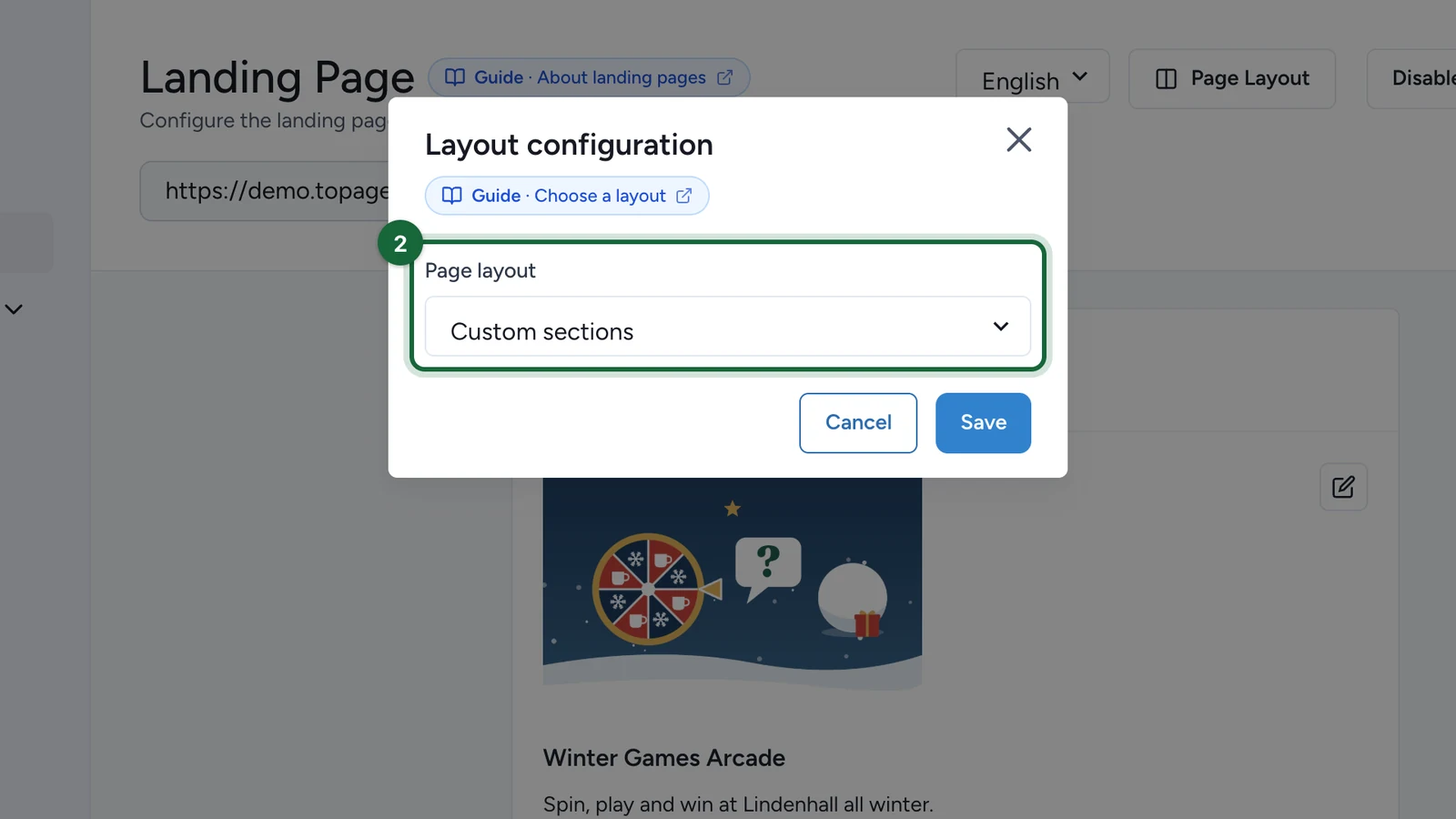
Under Page layout, choose Custom sections.
-
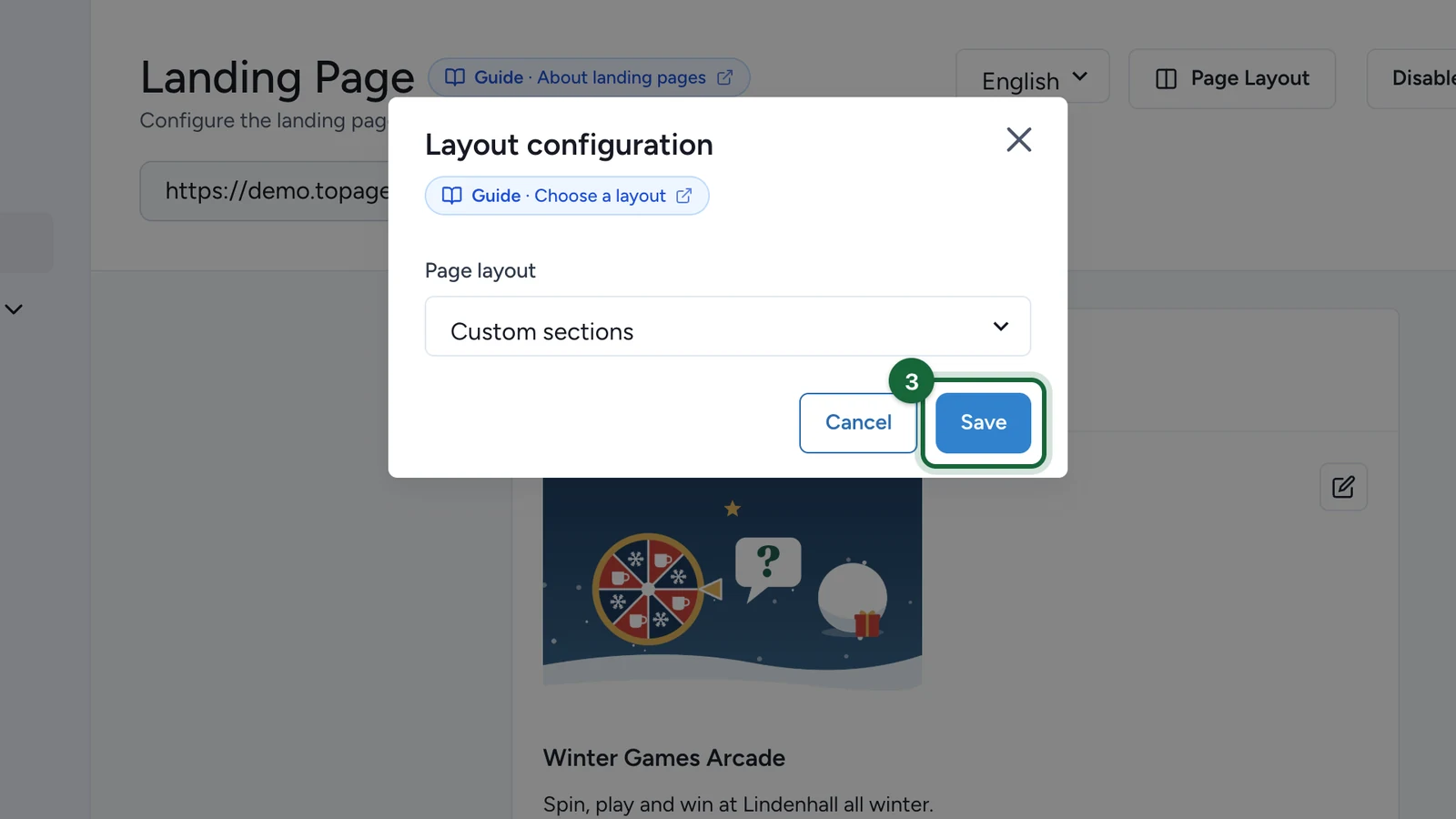
Select Save.
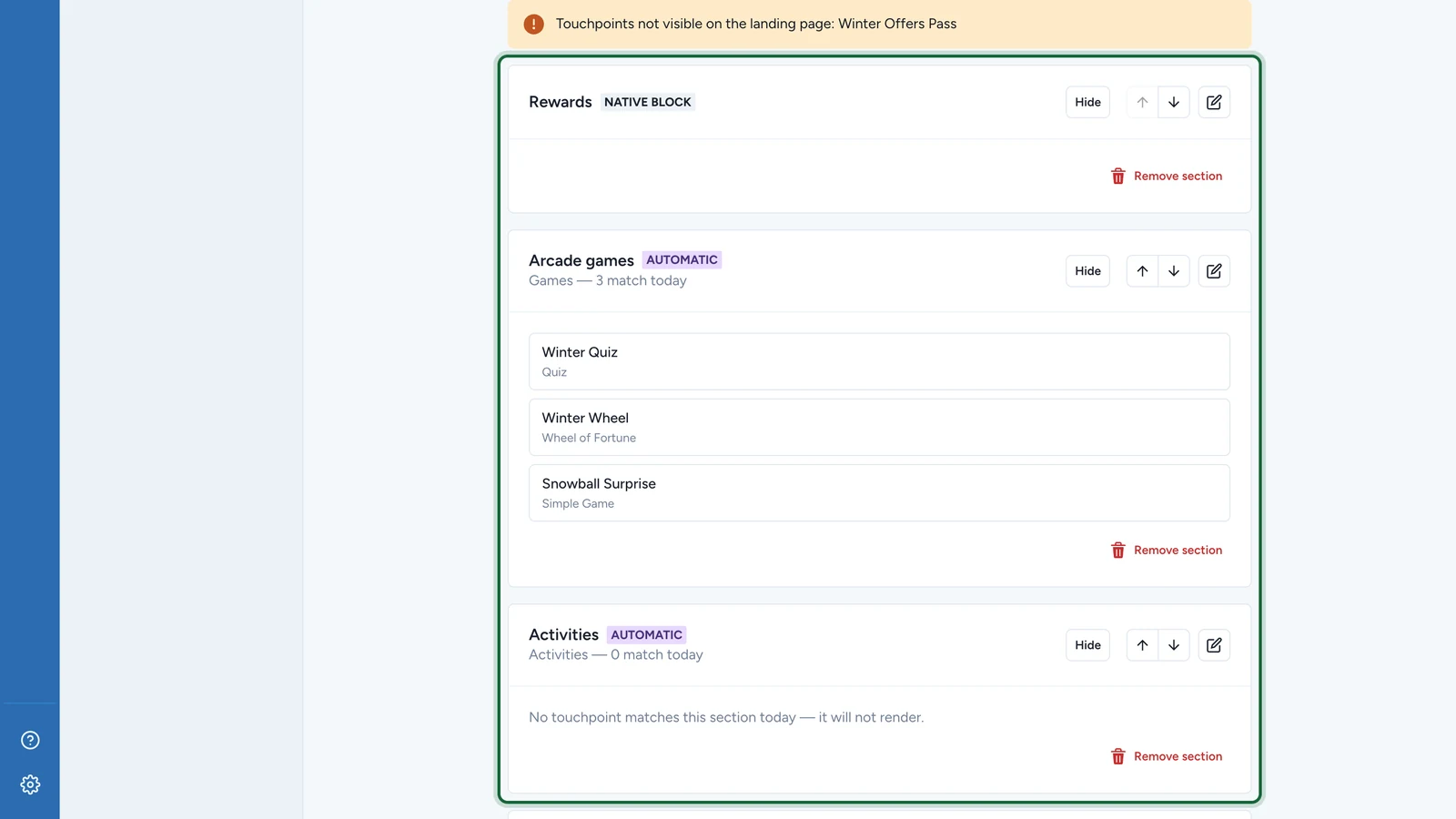
The first time, Studio builds sections that match your current page: Rewards, one automatic section for the games, one for the Activities, Call to action, then Badges. The instructions aren't carried over, because this layout doesn't show them. Switching back and forth keeps the sections you built.
Add a section
This example adds a section of hand-picked touchpoints.
-
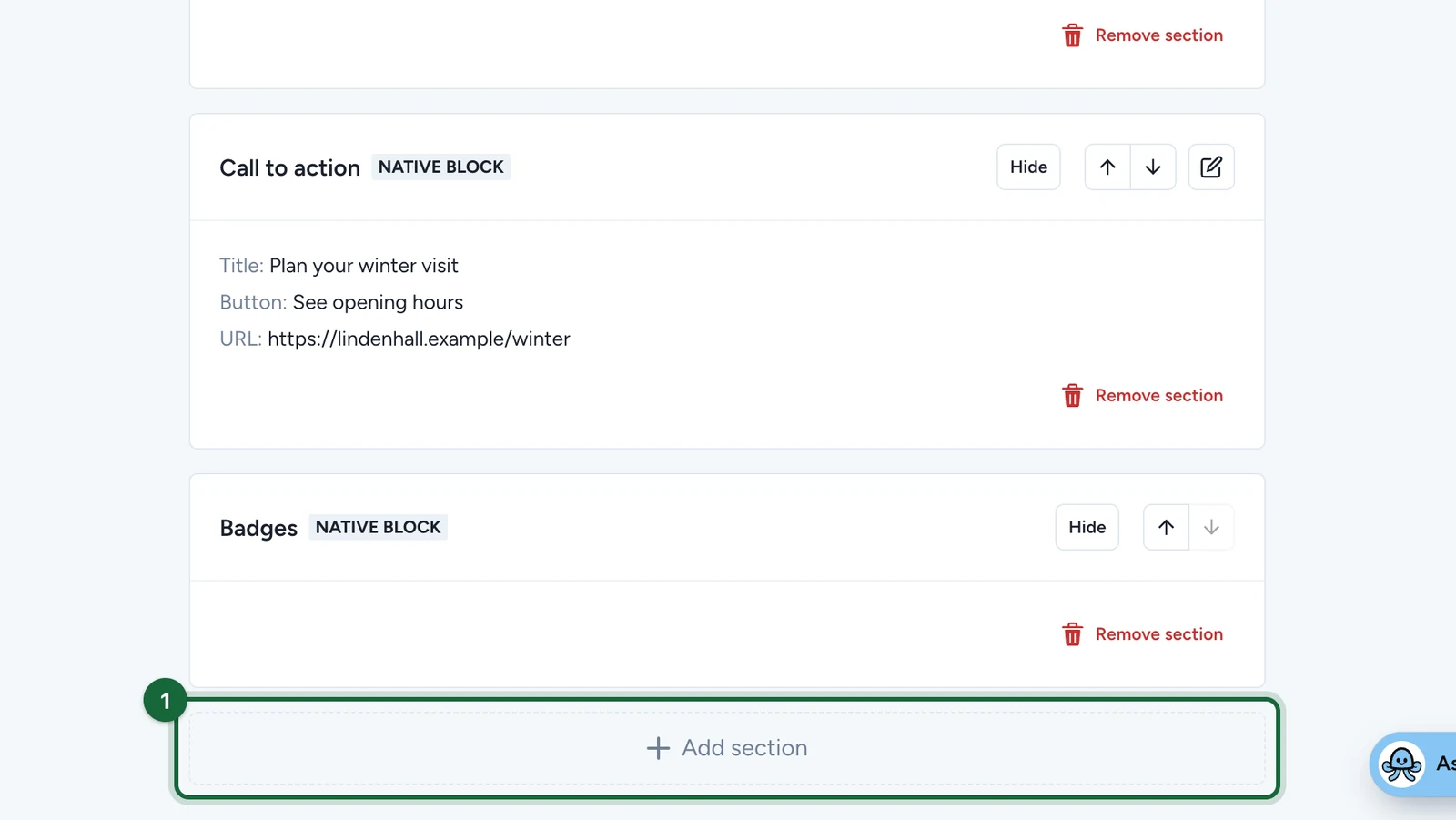
Under the sections, select Add section.
-
Choose Manual section.
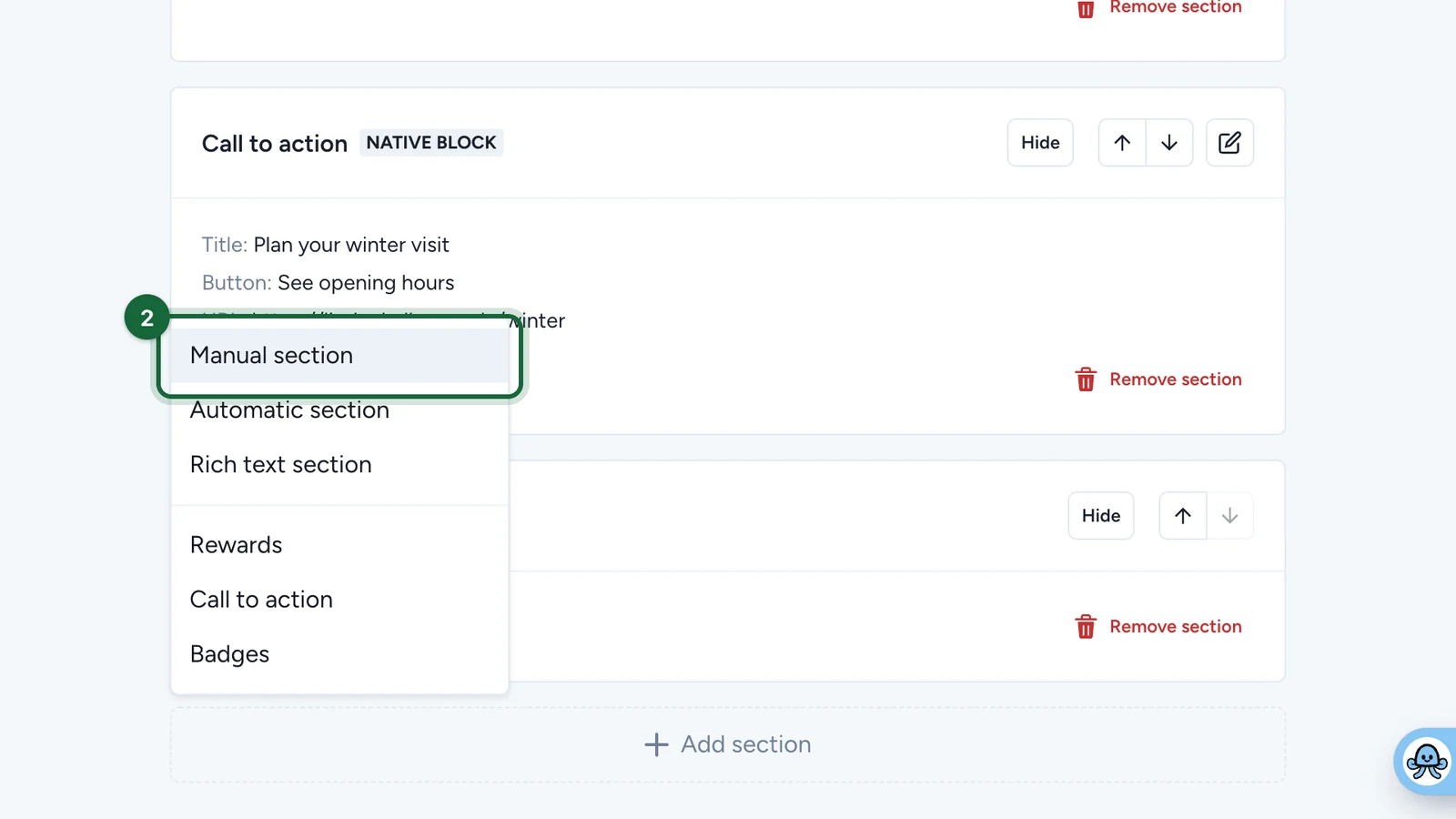
The section is added at once and Edit section opens. If you close it without saving, an untitled section stays on the page.
-
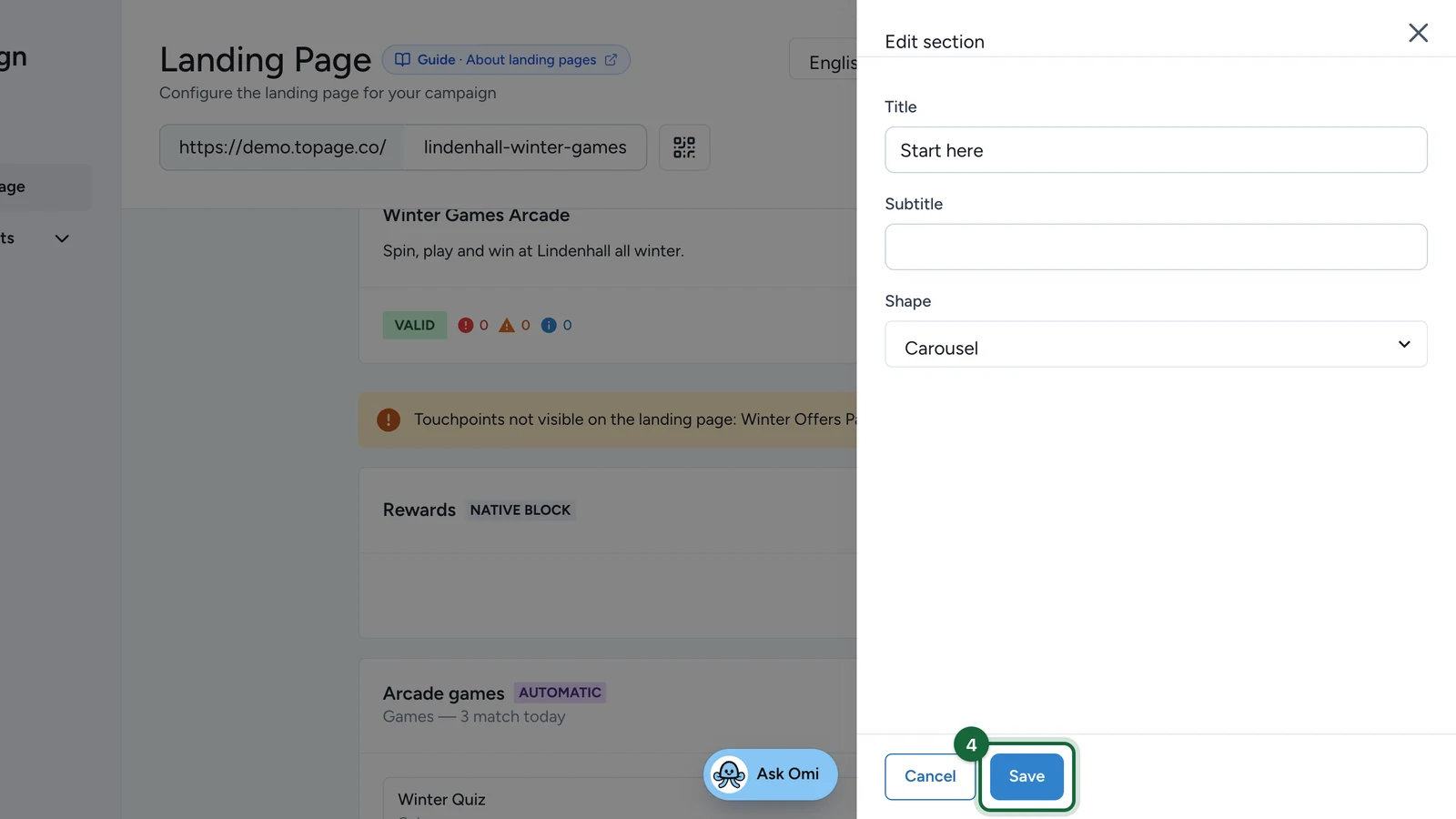
Enter the Title, here
Start here.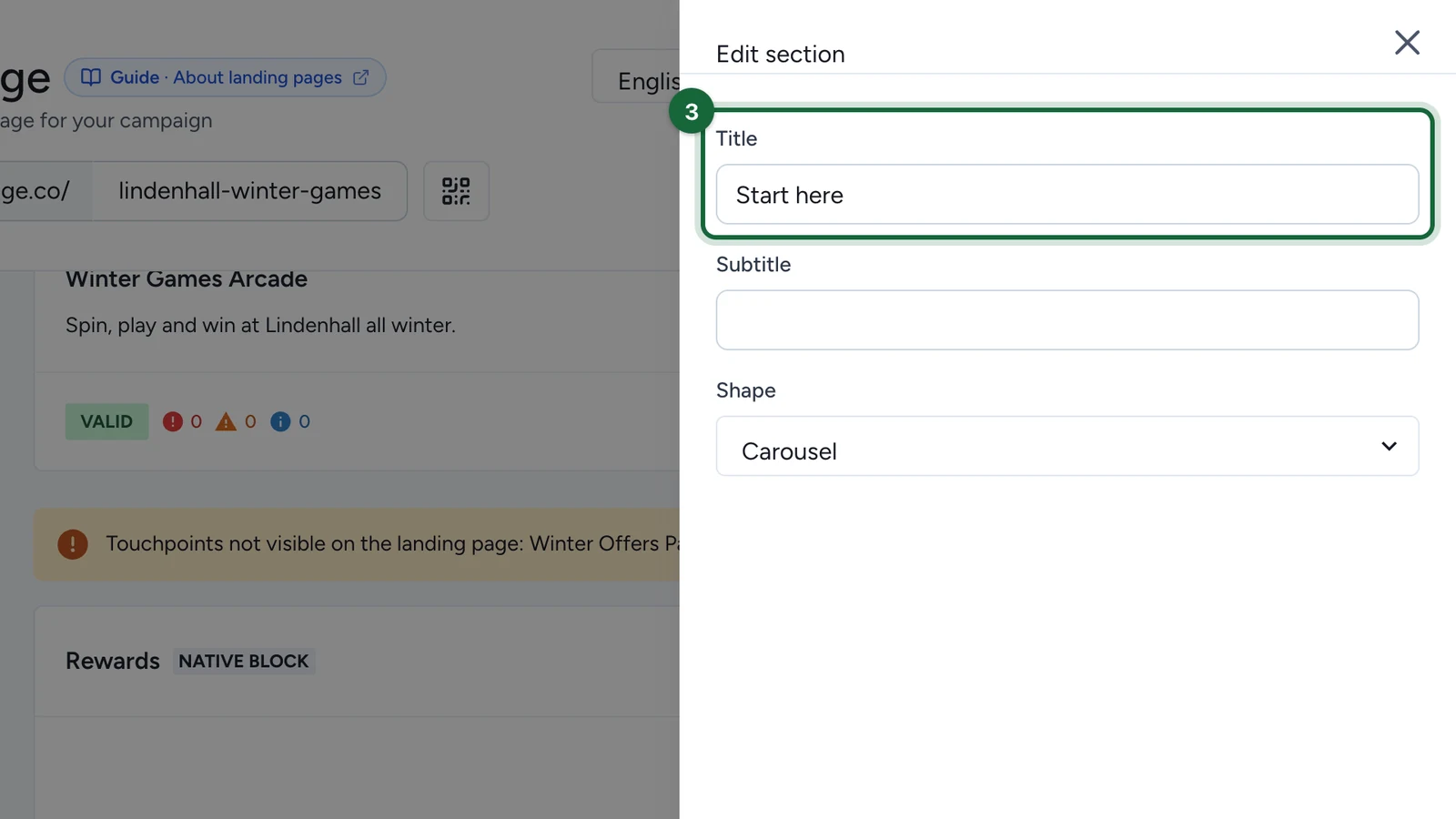
-
Select Save.
-
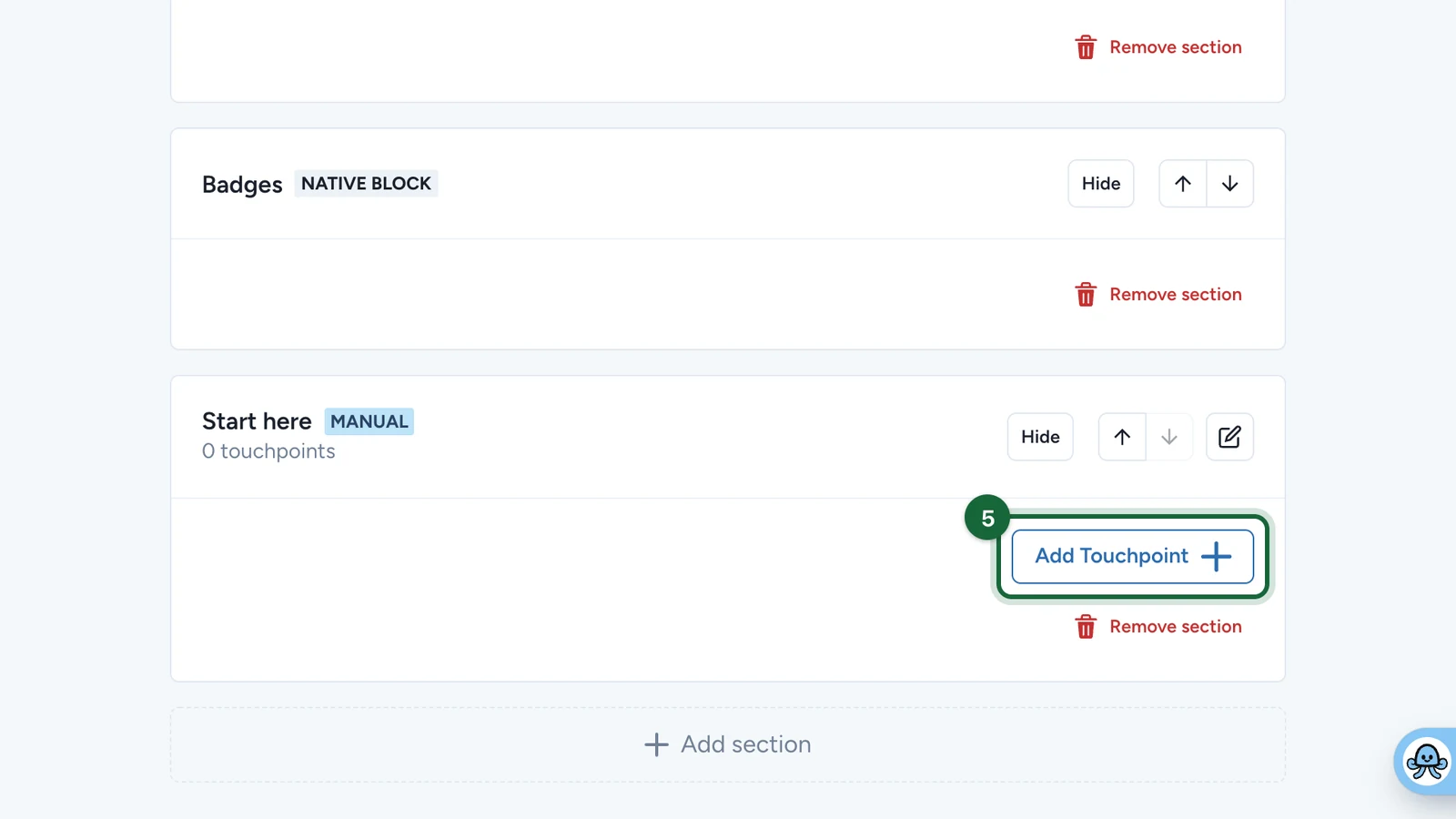
On the new section, select Add Touchpoint.
-
Choose the touchpoint, here Winter Wheel.
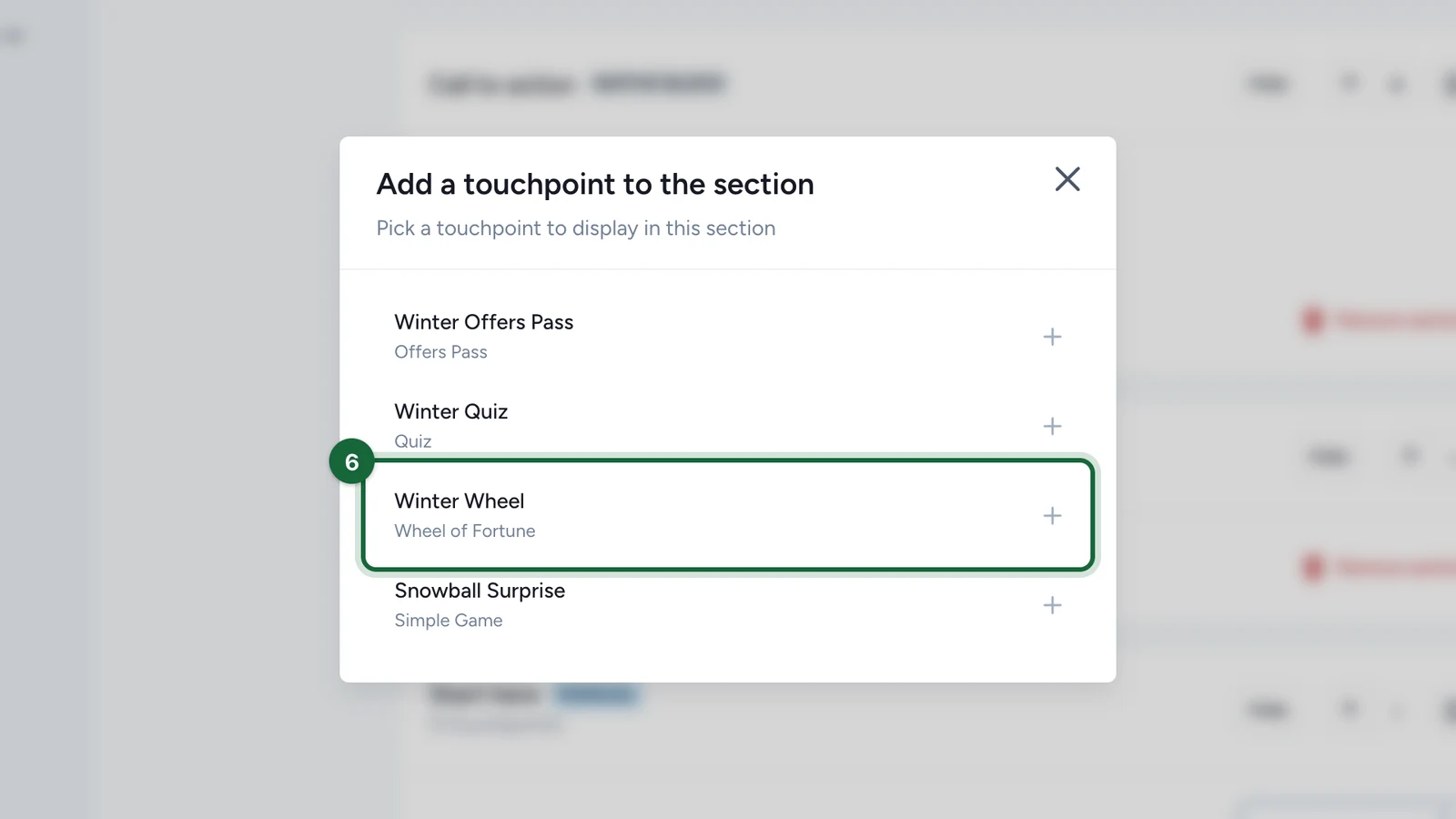
Add the others the same way. On each touchpoint, the switch shows or hides it, the arrows move it and the bin removes it. Its edit button opens Edit touchpoint display, where Thumbnail override and Label override change its picture and name on the card.
Changes save as you make them. Participants see them once you publish again.
The kinds of section
| Kind | Shows |
|---|---|
| Manual section | The touchpoints you pick, in your order |
| Automatic section | Every touchpoint of a category, including ones you add later |
| Rich text section | A title, a subtitle and a paragraph of formatted text, with images if you like |
| Rewards | The campaign's rewards |
| Call to action | The closing line and button. Its edit button opens Edit CTA Configuration: see Configure the call to action |
| Badges | The badges participants collect. It shows only when at least one touchpoint has a 3D badge |
Offers, treasure hunt objects and older quiz totems can't go in a section: participants reach them through the touchpoint they belong to.
Section settings
The edit button on a section opens Edit section. What it holds depends on the kind.
| Setting | Kinds | What it does |
|---|---|---|
| Title, Subtitle | Manual, automatic, rich text | Optional heading. On a touchpoint section, the title shows the number of touchpoints, such as "Start here (1)" |
| Paragraph | Rich text | The text, with formatting and images |
| Category | Automatic | Which touchpoints it lists: see below |
| Sort | Automatic | Default keeps the campaign's order, except in Activities, where the earliest session comes first. Soonest first and Most recent first go by start date |
| Skip touchpoints already featured in a manual section | Automatic | Leaves out touchpoints a manual section already shows |
| Shape | Manual, automatic, Rewards | Carousel or List |
| Category | Lists |
|---|---|
| All touchpoints | Every touchpoint that can go in a section |
| Games | Games, treasure hunts, receipt games and User Generated Content |
| Activities | Activities |
| Access based | Gated Content and Offers Pass |
The start date is the touchpoint's own, when it overrides the campaign's. Otherwise it's an Activity's first session, or the campaign start.
Arrange the page
- Hide keeps a section without showing it, and Show brings it back.
- The arrows move a section up or down.
- Remove section deletes it.
A warning above the sections lists the touchpoints that no visible section shows: Touchpoints not visible on the landing page. Participants can still open them from their own link.
What participants see
- The header and its buttons, then your sections in order.
- A hidden or empty section doesn't show, and neither does a rich text section with no text.
- An automatic section that matches nothing today doesn't show. The editor says so: "No touchpoint matches this section today — it will not render."
- The call to action shows only with both a label and an address.
- No instructions: put how-to-play text in a rich text section.
If publishing is blocked
- No visible section shows a touchpoint: show a section that holds at least one visible touchpoint. Rich text, Rewards, Call to action and Badges don't count.
- A section holds a touchpoint that was deleted or turned off: remove it from the section, or turn the touchpoint back on.
- A section holds a touchpoint that can't stand on its own: remove the offer, treasure hunt object or totem from the section.
- A title, subtitle or label override has no text in the campaign's default language: fill it in for that language, or clear it in every language.
- A thumbnail override isn't a valid image: choose the picture again.
- The call to action has a label without an address, or the reverse: see Configure the call to action.
A touchpoint that's in no section only raises a warning.