Get help in Studio
Ask Omi, the Studio assistant, let Solve with AI explain a validation error, and open the help page linked from each screen.
Studio has help built in. Omi, the assistant, answers your questions from this Help Center, and each screen links to the page that explains it. Here, Alex Morgan asks Omi about the Winter Wonderland campaign.
Ask Omi
-
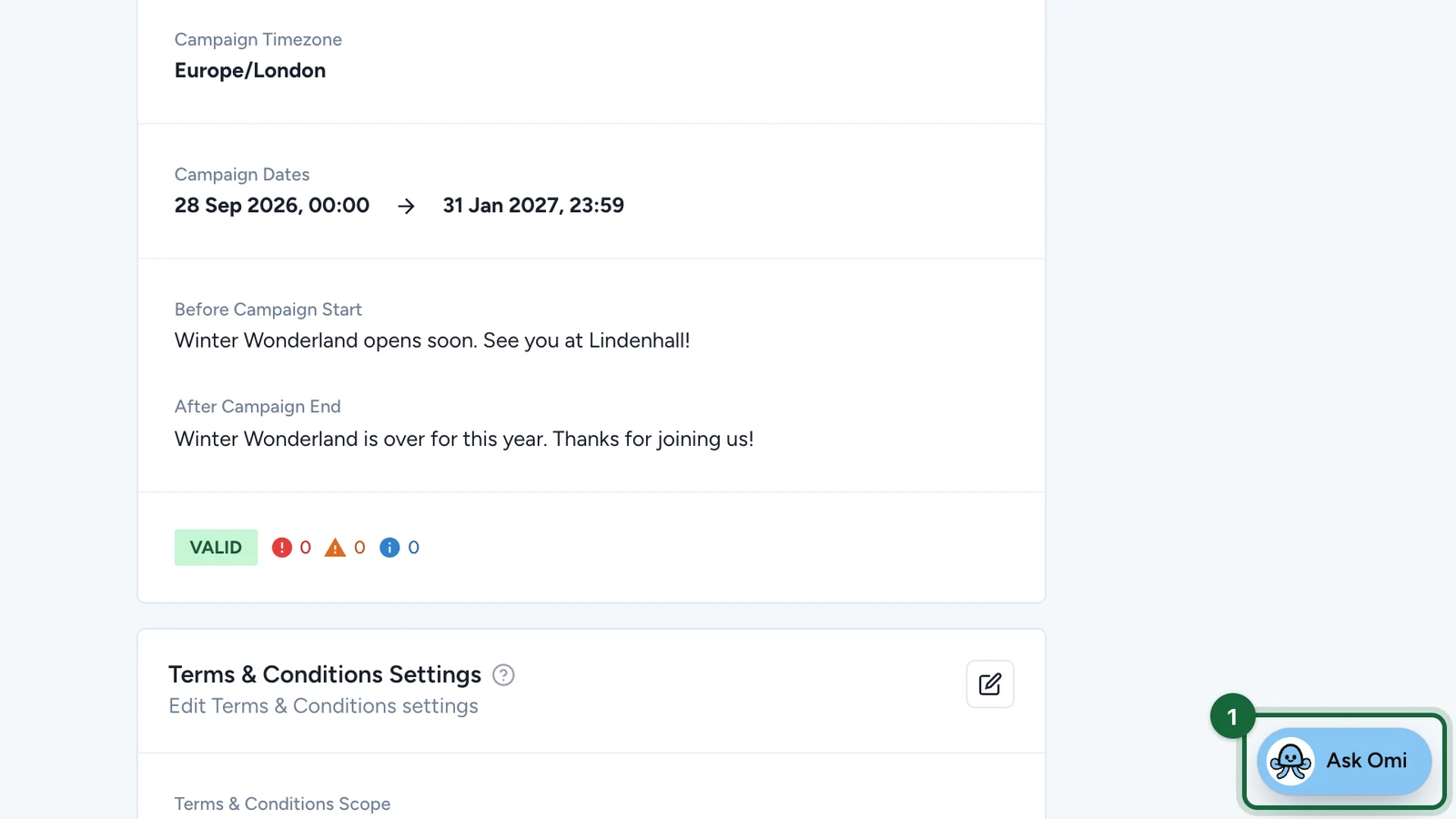
At the bottom of any Studio page, select Ask Omi.
-
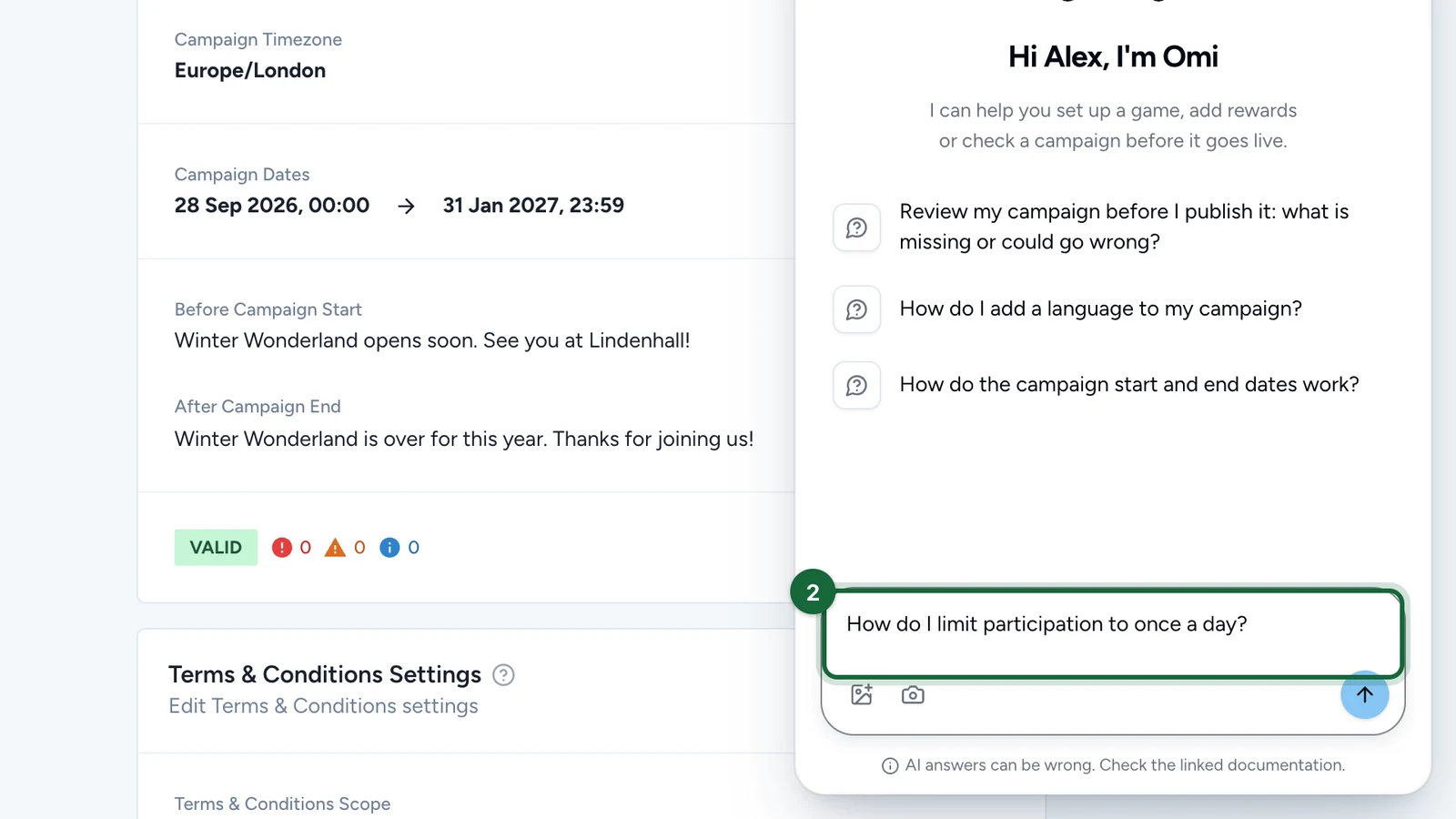
Enter your question, here "How do I limit participation to once a day?".
-
Select Send.
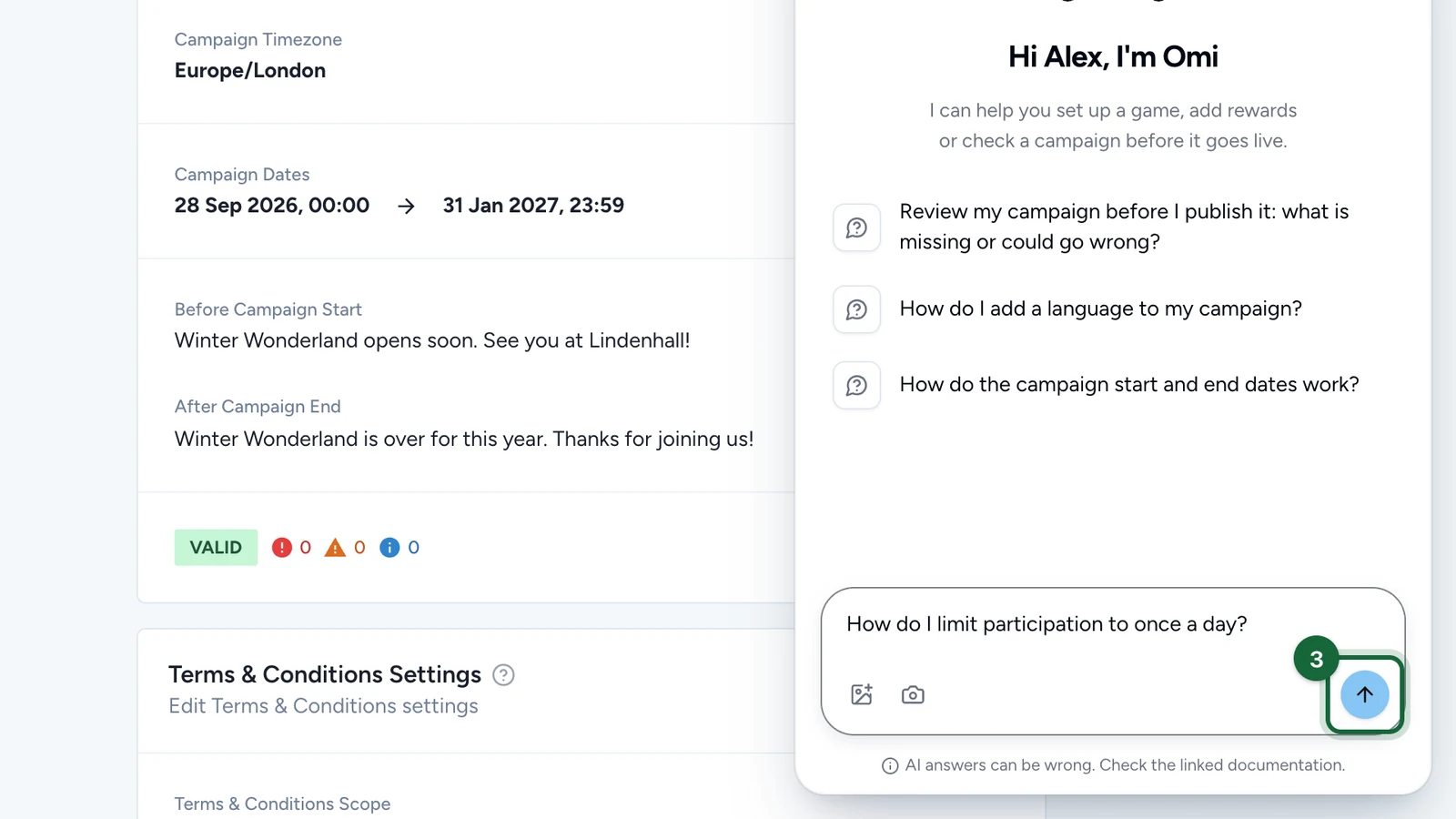
Omi answers, then lists the help pages it used under Sources. Answers can be wrong: check them against the linked pages.
What Omi knows and does
- The campaign you have open. In a campaign, Omi reads its saved settings and the step you're on, and suggests questions about them, such as a review before you publish.
- Your screen and your files. The camera button attaches a capture of the screen, and the image button an image or a text file.
- Images. Omi can draft an image for the campaign, in up to three rounds per conversation. Add to the media library puts the one you choose in your Images & Files library.
The thumbs under each answer, Helpful and Not helpful, tell the team how it did. New chat starts over, and the window can sit on the left or the right of the screen.
Fix a validation error with Solve with AI
When a campaign has errors that block publishing:
-
On the Action Required banner, select Solve with AI.
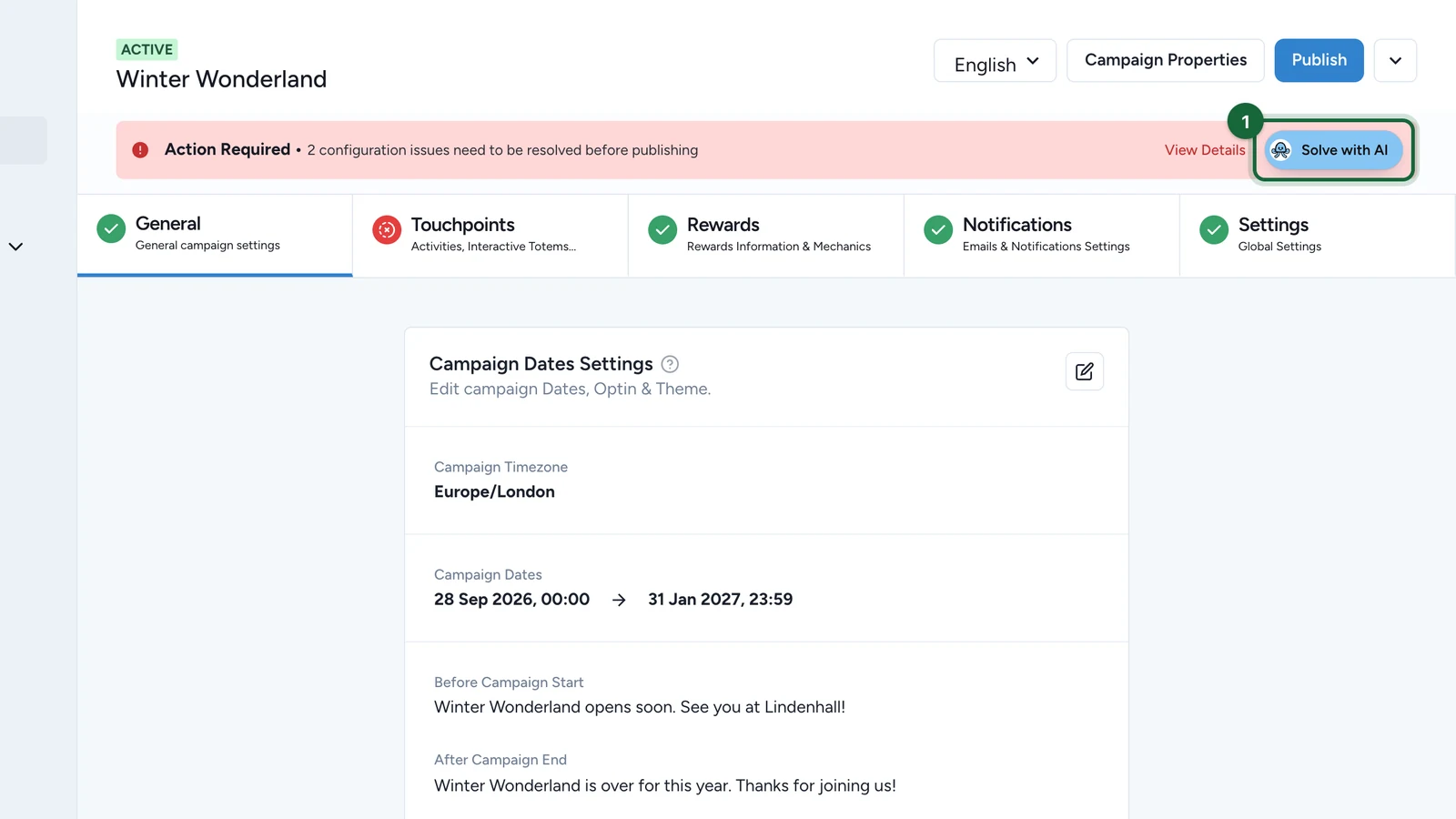
Omi opens in a new chat, explains each error in plain words and gives the steps to fix it.
Each issue in the validation window has its own Solve with AI, to ask about that issue only. See Validation & publishing.
Open the help page for a screen
-
At the top of the screen, select Guide.
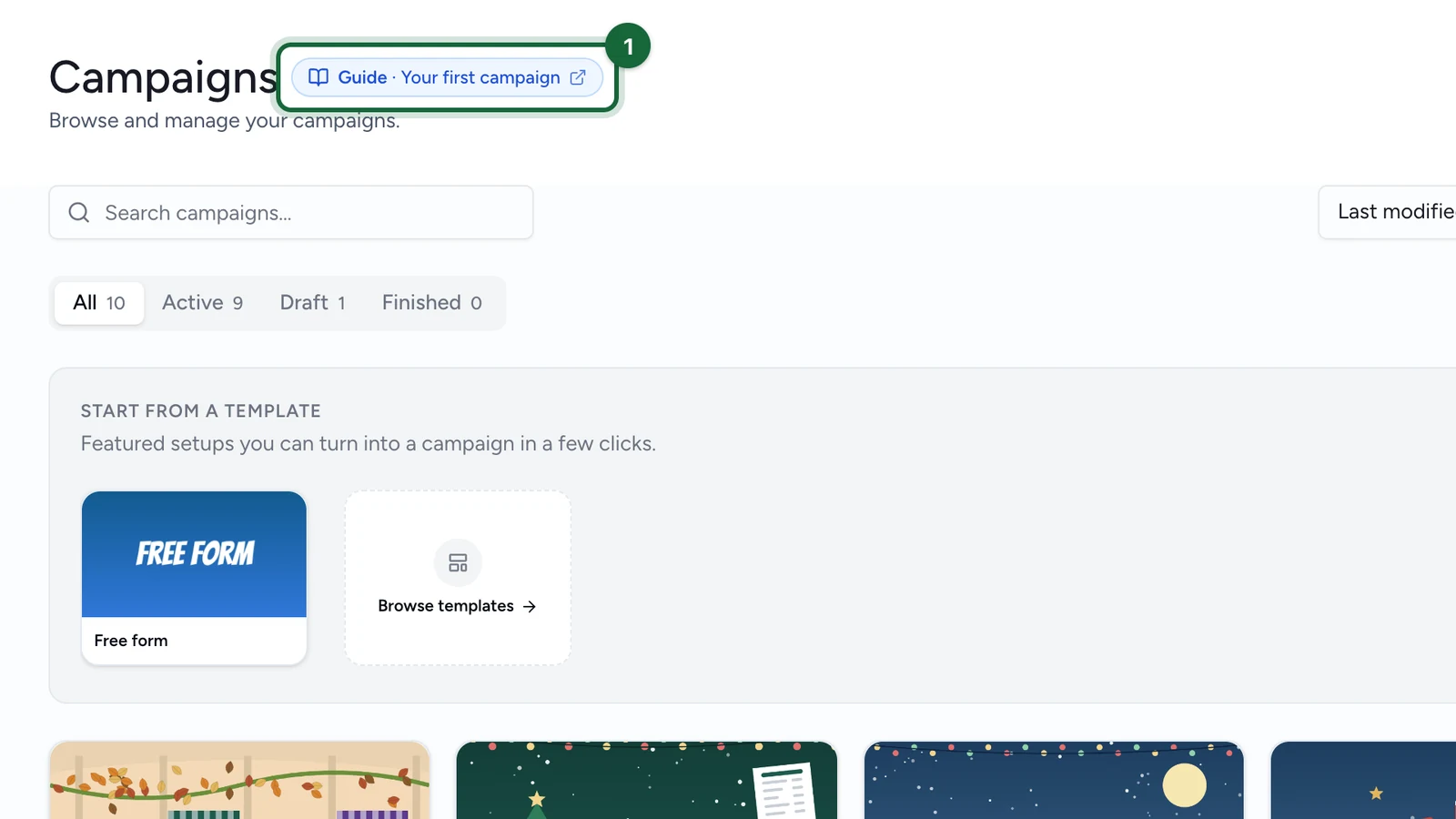
The help page opens in a new tab, in your organisation's language.
Where a setting is easy to get wrong, a ? beside the section's title, or a Learn more line, opens the page that explains it. The help icon in the side menu opens the Help Center's home page.