Check-in rates & no-shows
Use confirmed bookings and check-ins to understand attendance quality after the event starts.
This article explains how to use event KPI reporting after bookings turn into real arrivals, so you can separate demand from attendance and plan the next event more accurately.
What this view helps you answer
Use this view when you need to know:
- Which slots or days had the strongest real attendance?
- Where are you losing people between booking and arrival?
- Are cancellations happening early enough, or are you still carrying too many no-shows?
- Should you change reminders, staffing, capacity, or slot timing next time?
No-show is something you calculate
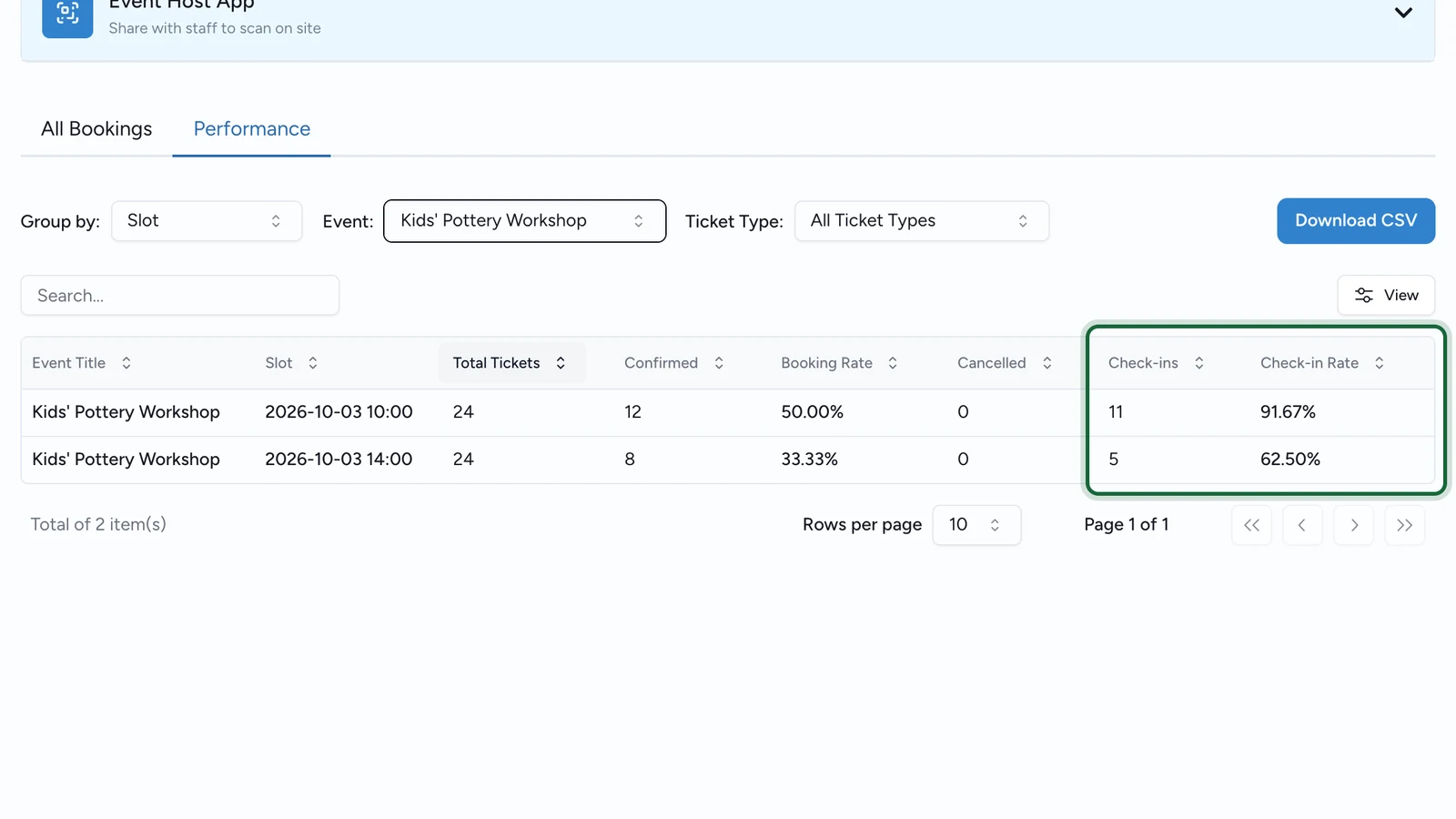
OmniLab shows Confirmed, Cancelled, Check-ins, and Check-in Rate. A practical no-show rate is (Confirmed - Check-ins) / Confirmed for the period you are reviewing.
The metrics that matter after launch
| Metric | What it helps you answer | Practical reading |
|---|---|---|
Confirmed | How many attendees were expected? | This is your attendance plan before people start arriving. |
Cancelled | How much confirmed demand dropped out? | Read this separately from no-shows. A cancellation is not the same as a missed arrival. |
Check-ins | How many people actually arrived? | This is your real attendance number. |
Check-in Rate | What share of confirmed bookings turned into arrivals? | Use it to compare attendance quality across slots, dates, events, and ticket types. |
Work an example
Imagine a workshop shows:
Confirmed:40Cancelled:6Check-ins:32Check-in Rate:80%
From that row, you can say:
- Attendance was strong, because 32 of 40 confirmed bookings arrived.
- The no-show rate was
20%, because(40 - 32) / 40 = 0.20. - Cancellations still matter, but they answer a different question: how many people dropped out before arrival.
Use grouping to spot the right pattern
Slot: best for staffing, host allocation, and identifying the exact session with the weakest attendance.Daily: best for day-of operations, because it rolls multiple slots into one attendance picture.Weekly: best for recurring formats such as classes, demos, or tours that run over several weeks.Monthly: best for high-level reporting when the event program runs across a longer campaign.
Use filters when you need a narrower answer
- If the campaign contains more than one event, start with the
Eventfilter. - After you narrow to one event, use
Ticket Typeto compare attendance quality inside that event.
How to act on what you learn
- If bookings are strong but
Check-in Rateis weak, review reminders, arrival instructions, and check-in timing. - If one
Ticket Typeconsistently underperforms, filter down and compare it against the rest of the event mix. - If one daypart always shows lower attendance, adjust slot times, staffing, or capacity before repeating the format.
- If cancellations spike shortly before the event, review reminder timing and make the cancellation path easier to understand.
Use your own baselines
OmniLab does not apply a built-in no-show benchmark in this view. Compare similar event types, venues, dayparts, and ticket mixes inside your own reporting history.
Related
Booking analytics
Read slot fill, booking demand, and event or ticket-type performance before you focus on attendance.
Exports for events
Download the current event view or jump to the canonical export documentation.
Early/late window issues
Troubleshoot check-in timing problems when attendees arrive too early or too late.