Add a script
Add a tag or script in the Global organisation, choose when it runs, and republish so it reaches live campaigns.
A saved script does nothing on a live campaign until that campaign is published again. That's the step people miss.
Before you begin
- You need Admin access to Global's General Settings.
- Have the script code from your web team, or from the tool's own setup screen. Remove any HTML comment lines around it, such as
<!-- Google Tag Manager -->. - Know which context and trigger it needs: see Where and when a script runs.
Plan your test
Test the script on one campaign before it reaches any live one.
- With a staging environment: follow this page there first, on a campaign nobody is using.
- Without one: add the script here, then publish only one unused campaign, and test that.
Any republish picks the script up
Once saved, the script loads in every campaign anyone publishes, in every organisation, not only your test one. Until your test passes, limit it to the test campaign: see A script for selected campaigns only.
Add the script
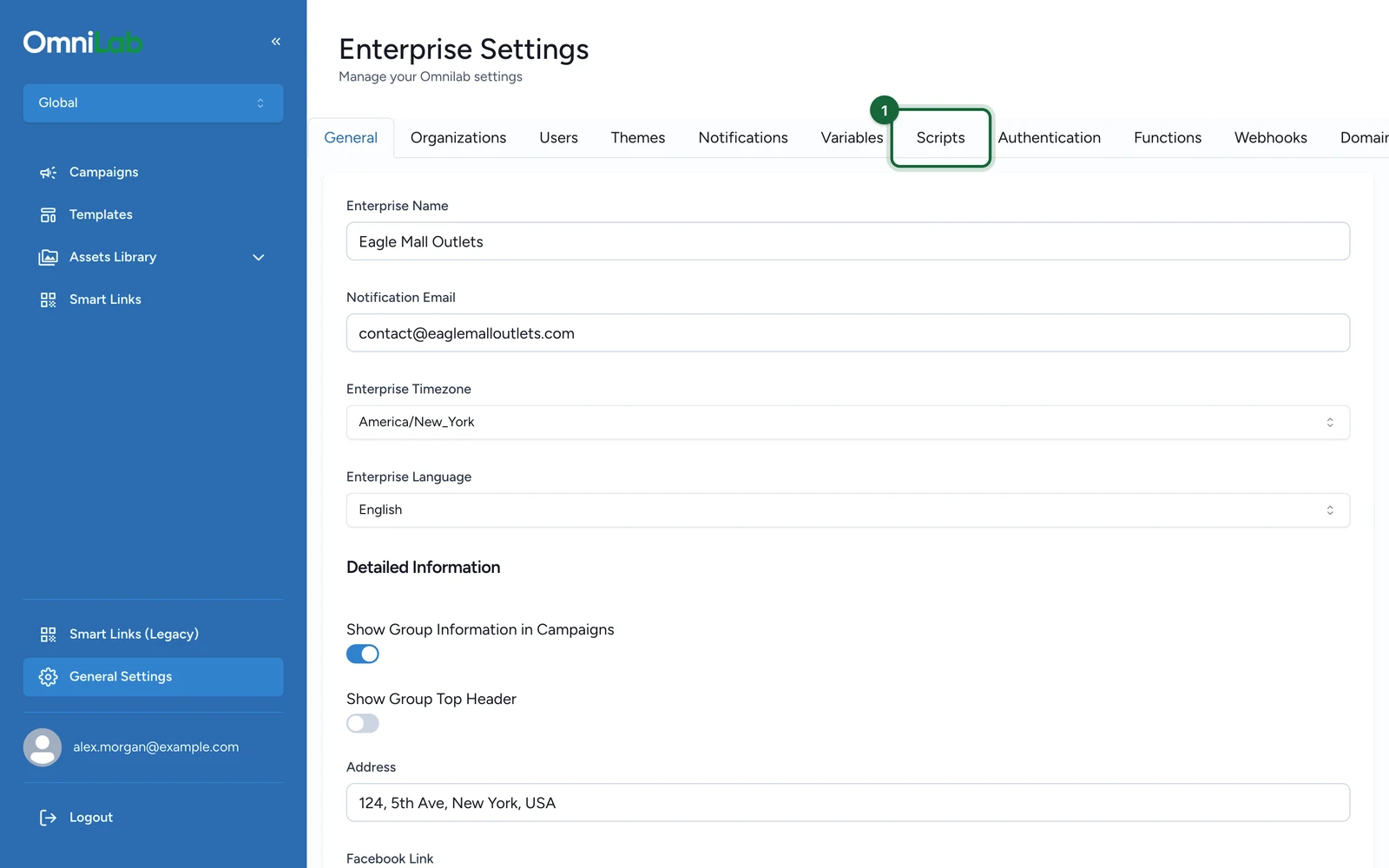
In the organisation switcher, choose Global, and select General Settings. Then:
-
Select the Scripts tab.
-
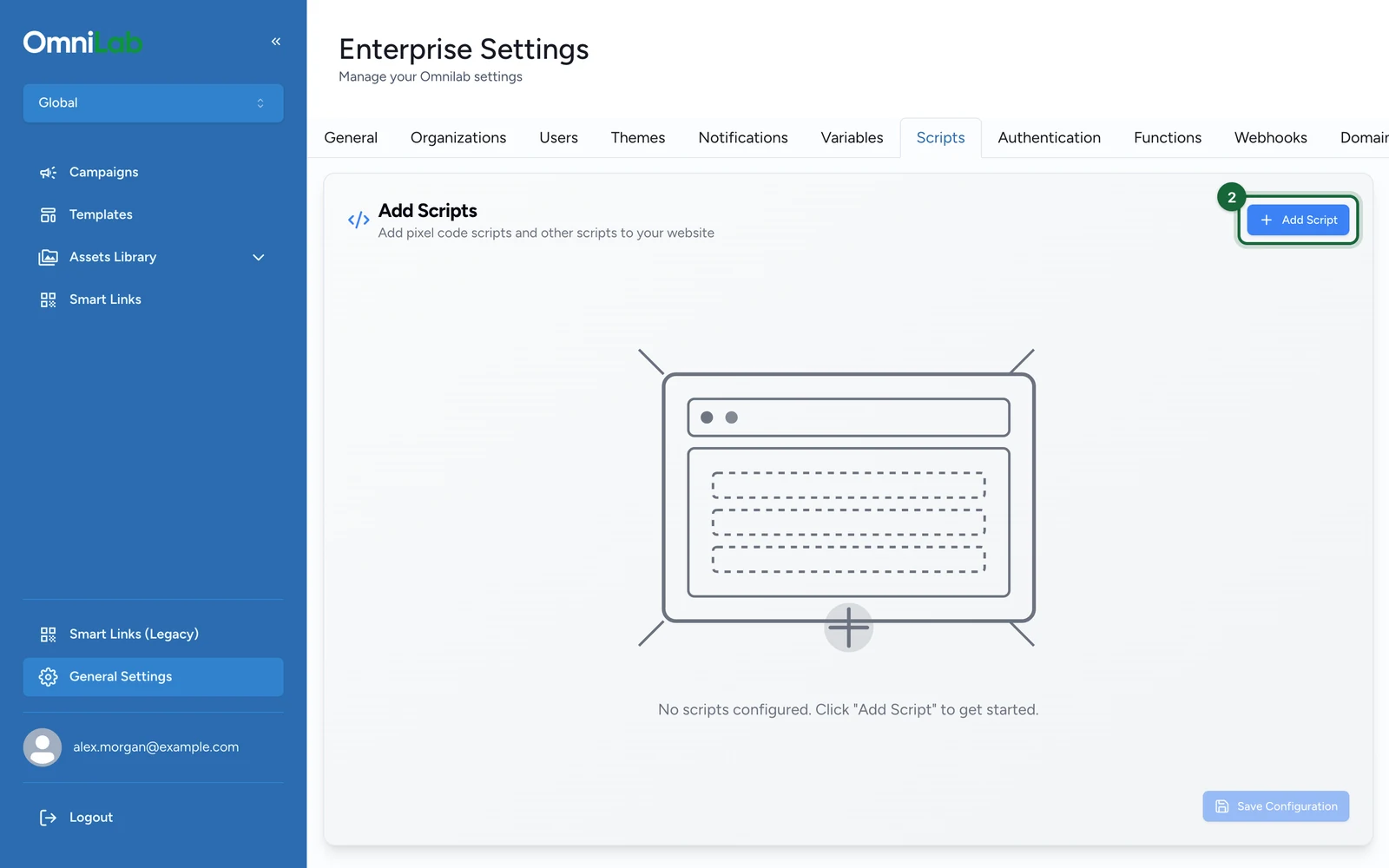
Select Add Script.
-
In Name, say what it does and who owns it, such as
GTM container (web team).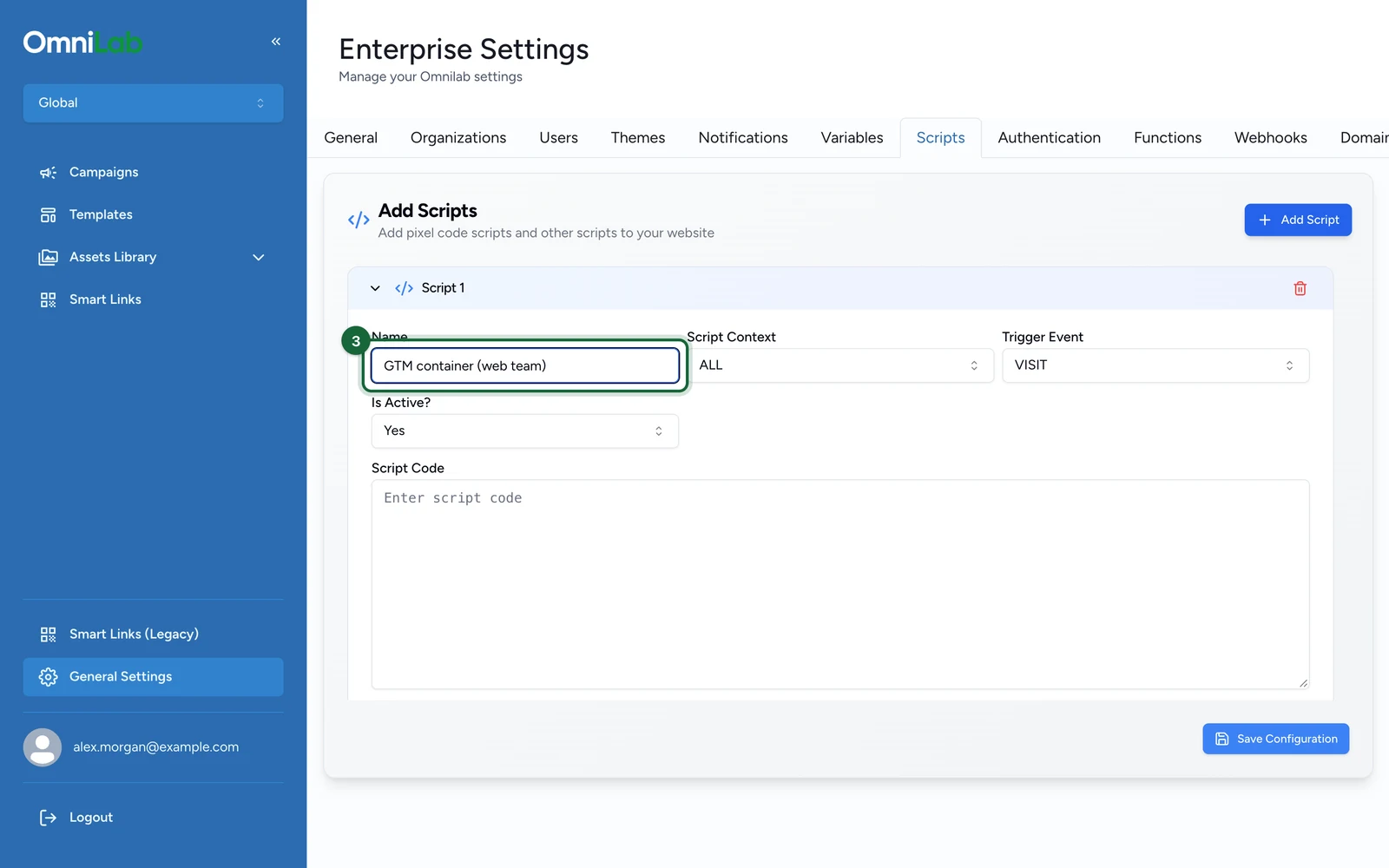
A clear name is findable in a year; "Script 3" isn't.
-
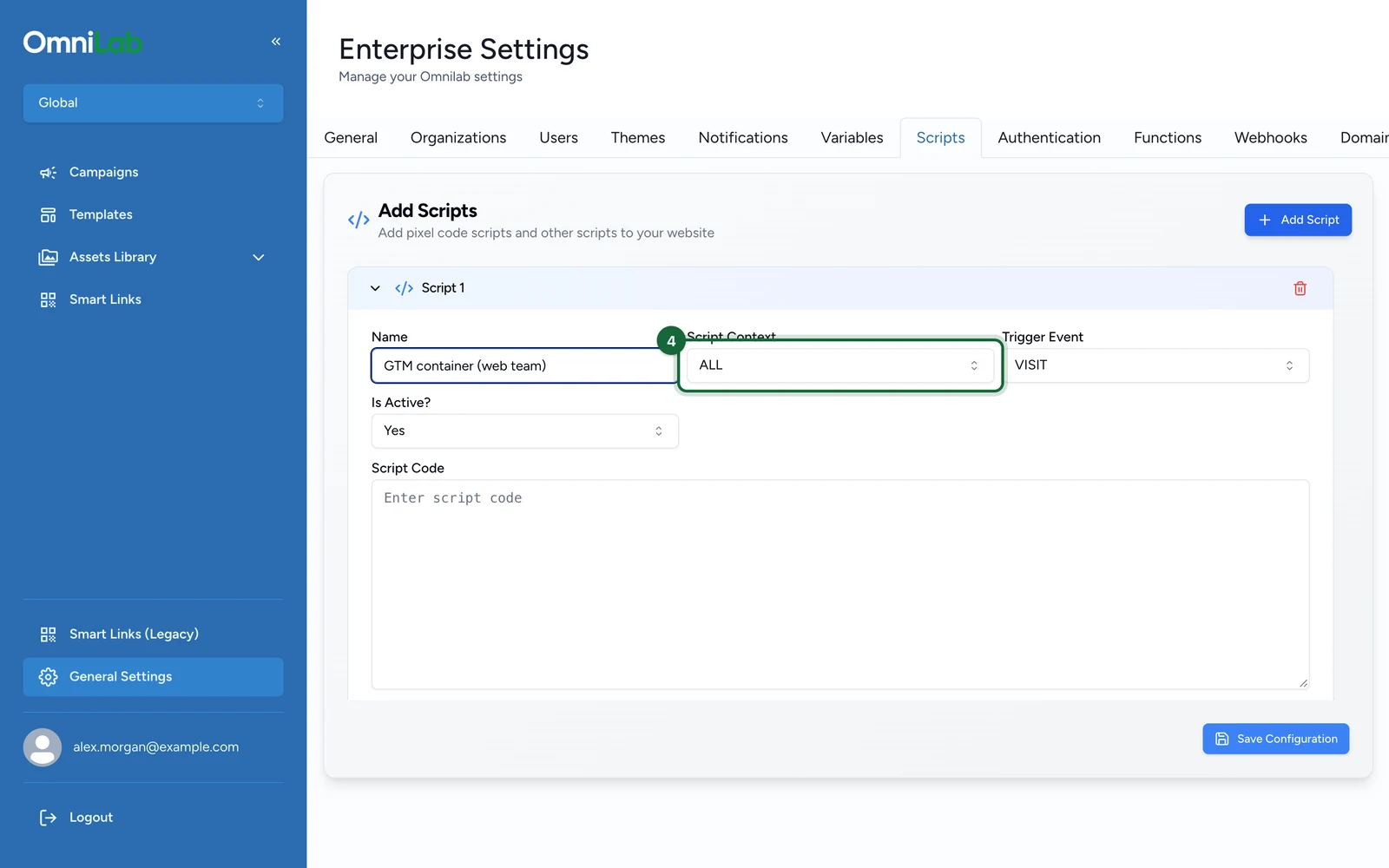
Choose the Script Context: where it runs. See Where and when a script runs.
-
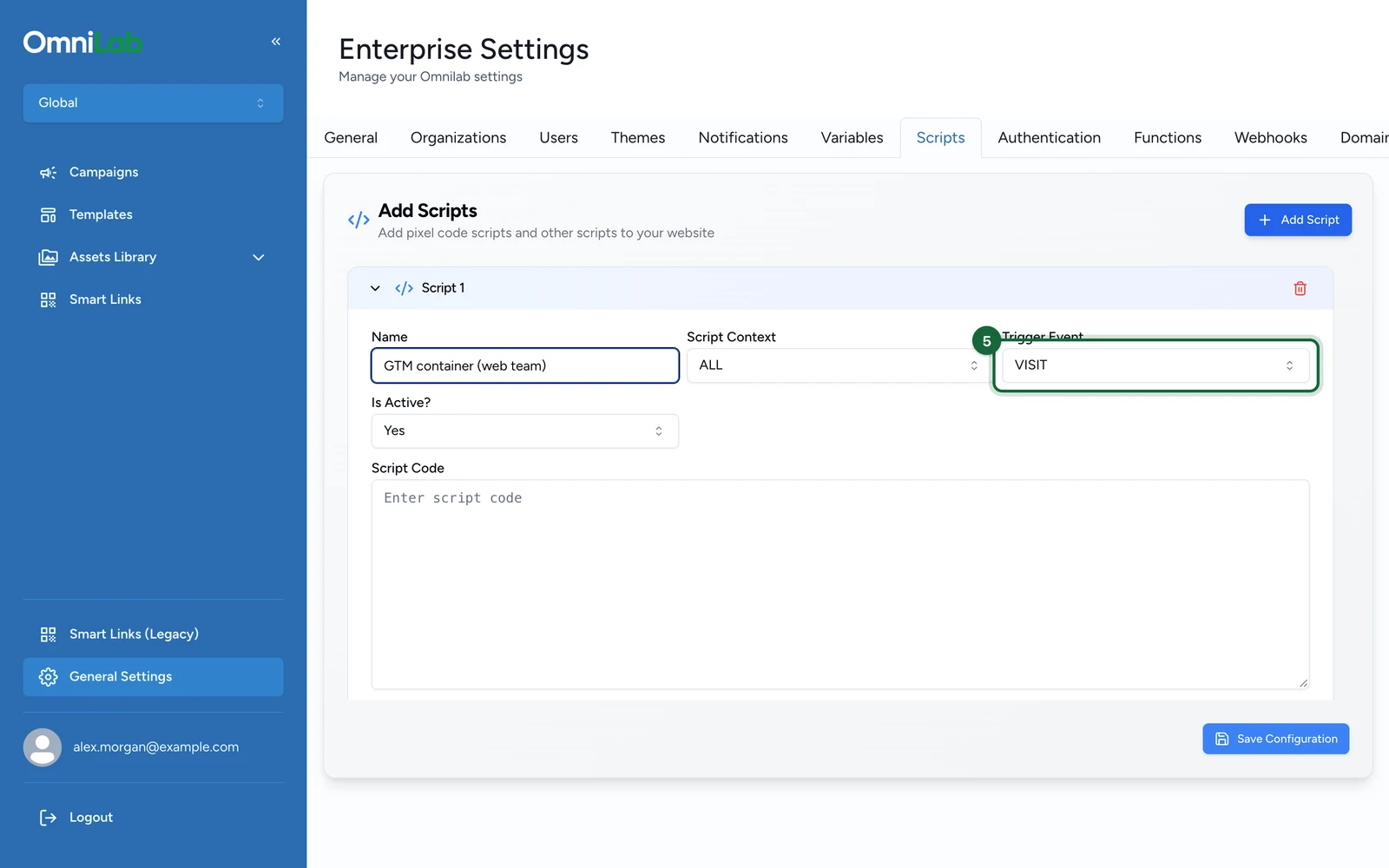
Choose the Trigger Event: when it runs, such as VISIT.
-
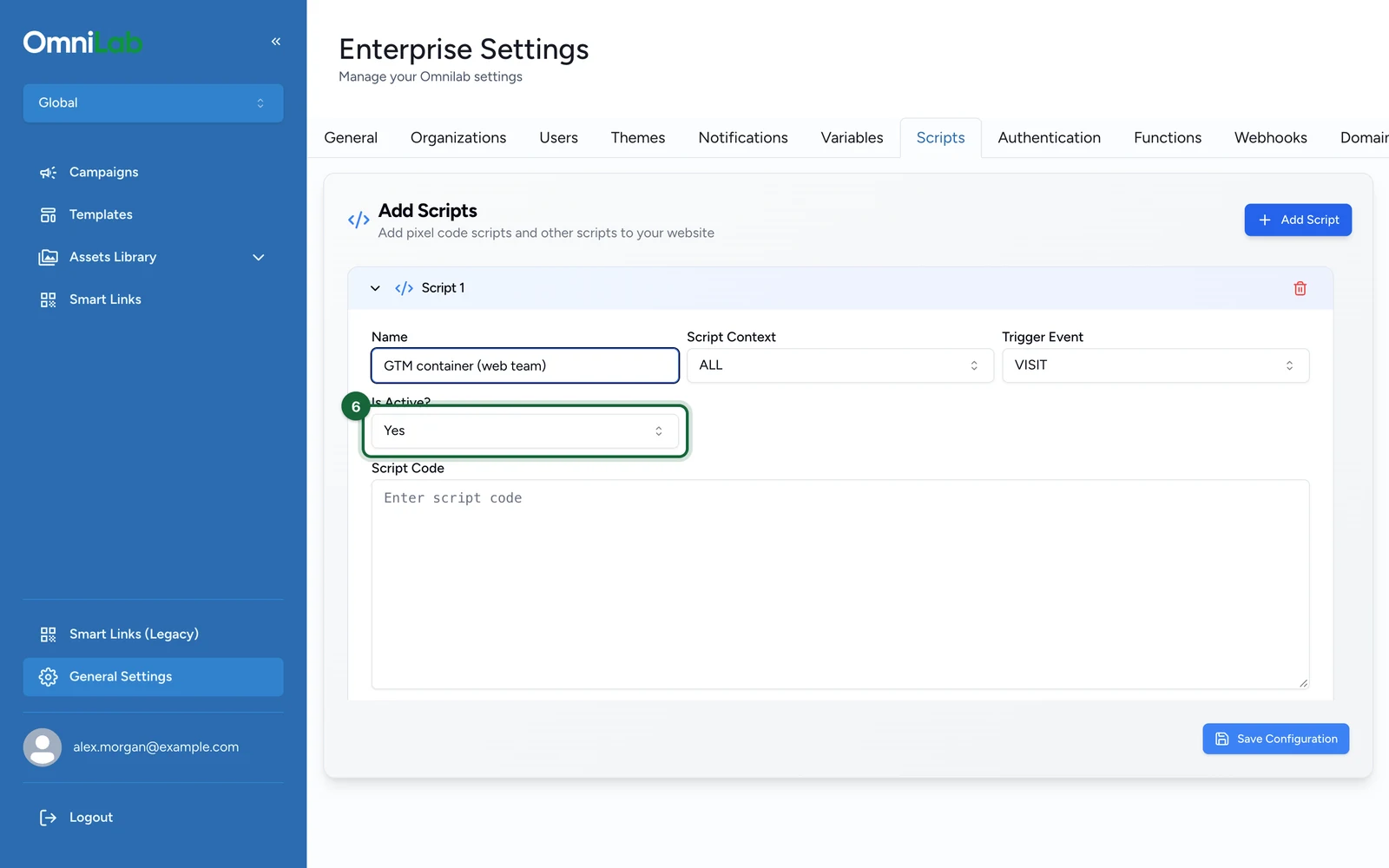
Set Is Active? to Yes.
-
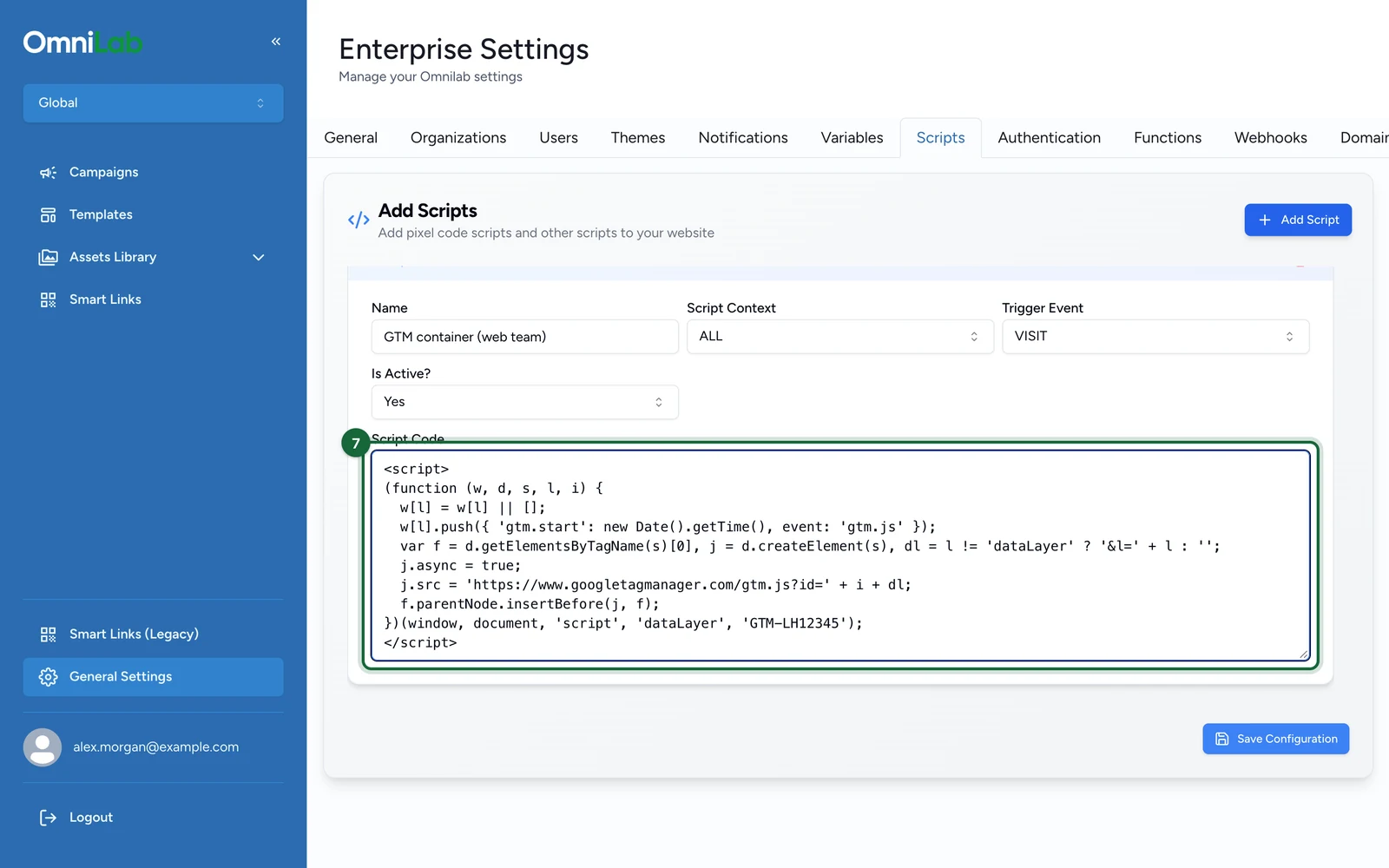
Paste the code into Script Code.
-
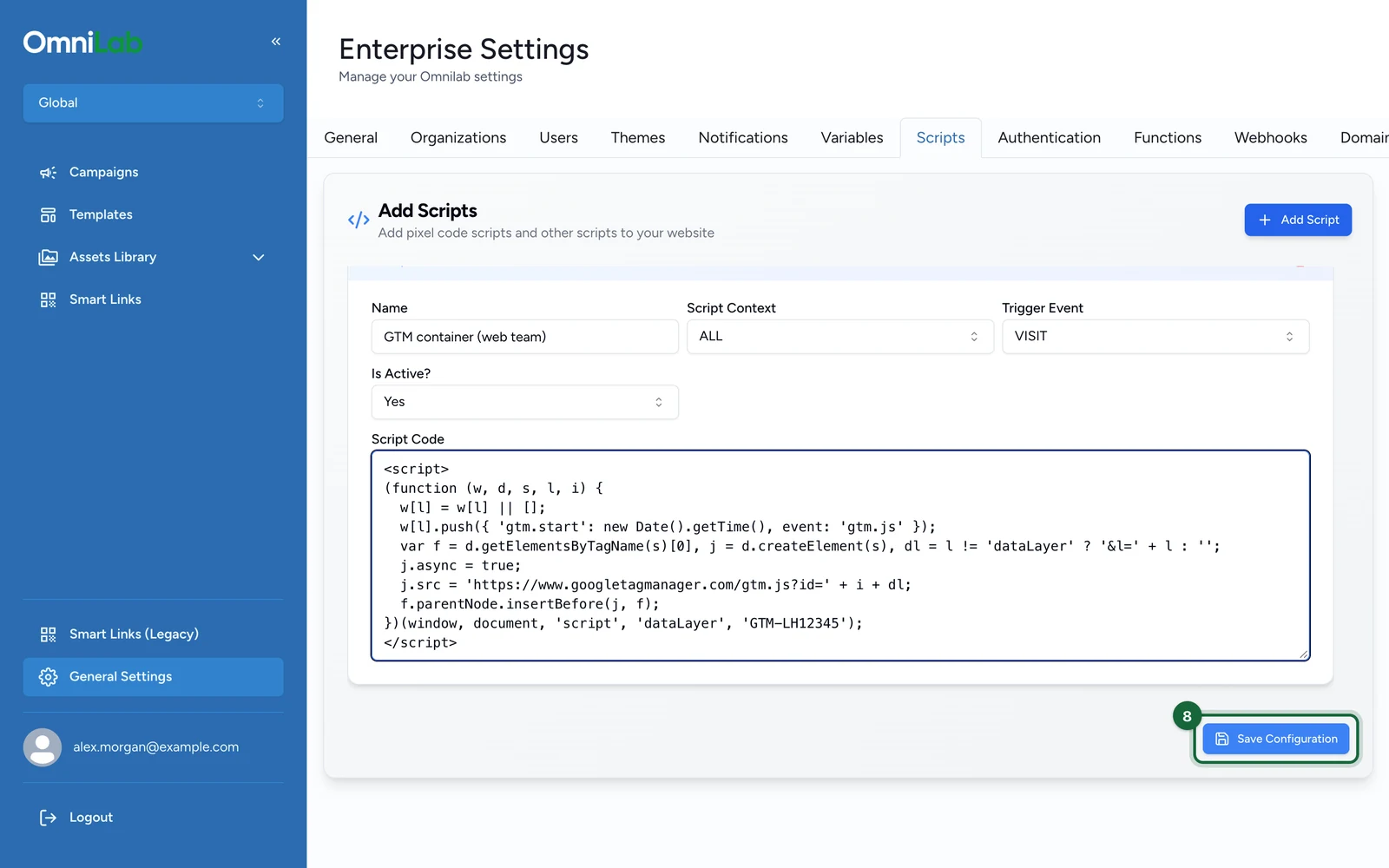
Select Save Configuration.
Test it
Publish your test campaign, and only that one. Then, on it:
- Run the full participant journey: navigation, forms, buttons and the reward step.
- Open the browser console, and check for errors the script introduced.
- Check the tag fired, in the destination tool rather than in Studio.
- If consent is involved, refuse it, and check your tags stay silent.
Once it passes, remove any test-campaign limit from the code, and select Save Configuration again.
Publish the campaigns again
In every campaign that should carry the script:
-
Select Publish.
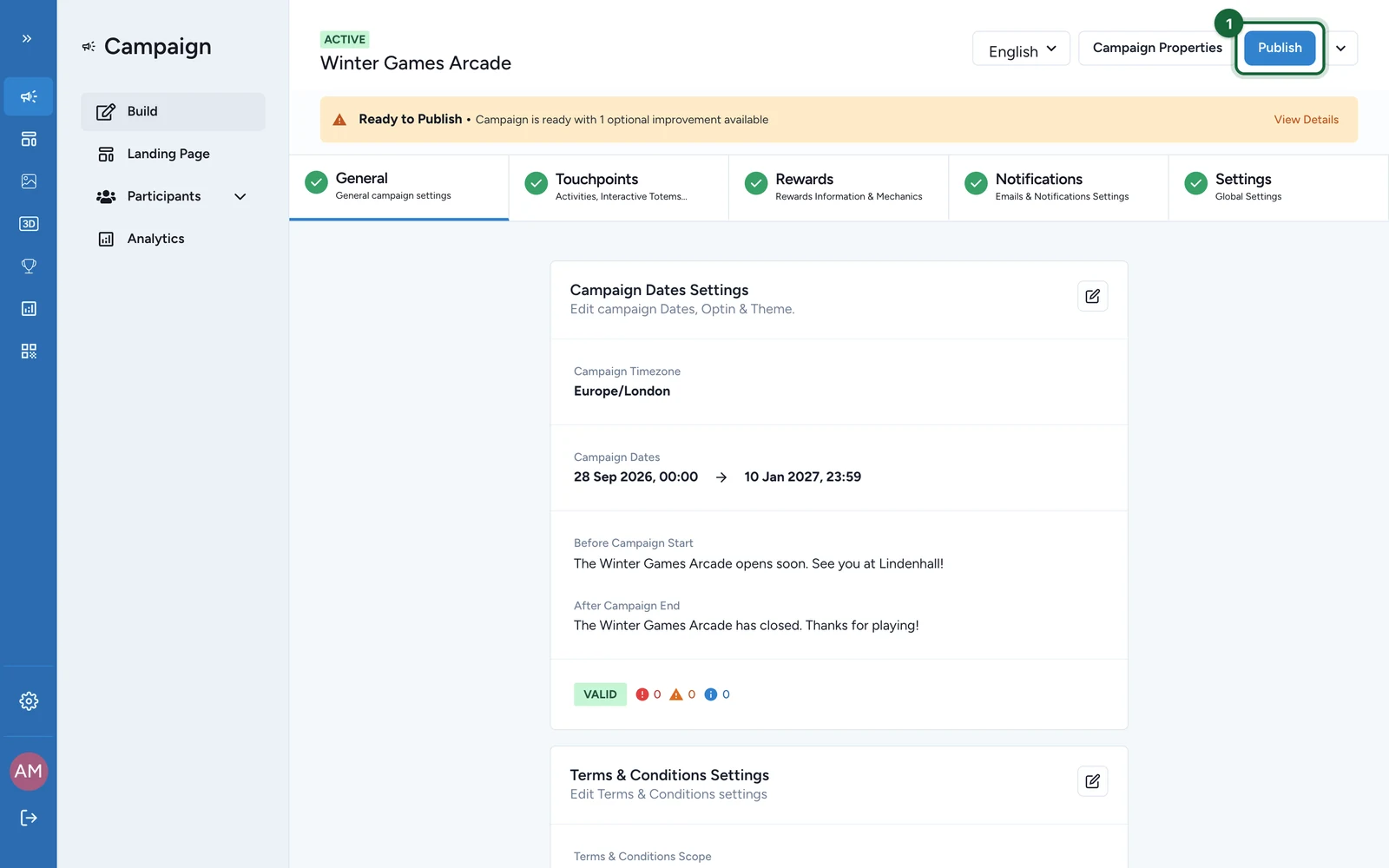
If you save the script and stop there, live campaigns keep running without it, and the settings screen still looks correct.
Switch a script off
To stop a script quickly, set Is Active? to No instead of deleting it. Switch it back on once you understand what happened. Switching off also needs the campaigns published again, so build that into your rollback plan now, not during an incident.
If something's blocked
- The tag doesn't fire on a live campaign: the campaign hasn't been published since the script was added.
- It fires twice: the experience is embedded in a page that already fires the same tag. Set Script Context to
NON_IFRAME_ONLY, and check the embedded address carriesembedded=1: the JavaScript tag adds it. - Save Configuration shows "Invalid script. Must be valid HTML with valid JavaScript inside
<script>tags.": the code must start with<scriptand end with</script>, or hold both a<script>and a<noscript>block. Remove comment lines, and check the JavaScript inside has no syntax error. - The experience broke after adding a script: switch the script off, publish again, and check the experience recovers before you investigate.