The customer activation platform.Every interaction becomes a qualified contact. Book a demo

What is Events

Understand what Events helps you run, when to choose it, and how event mode and check-in method shape the attendee journey.

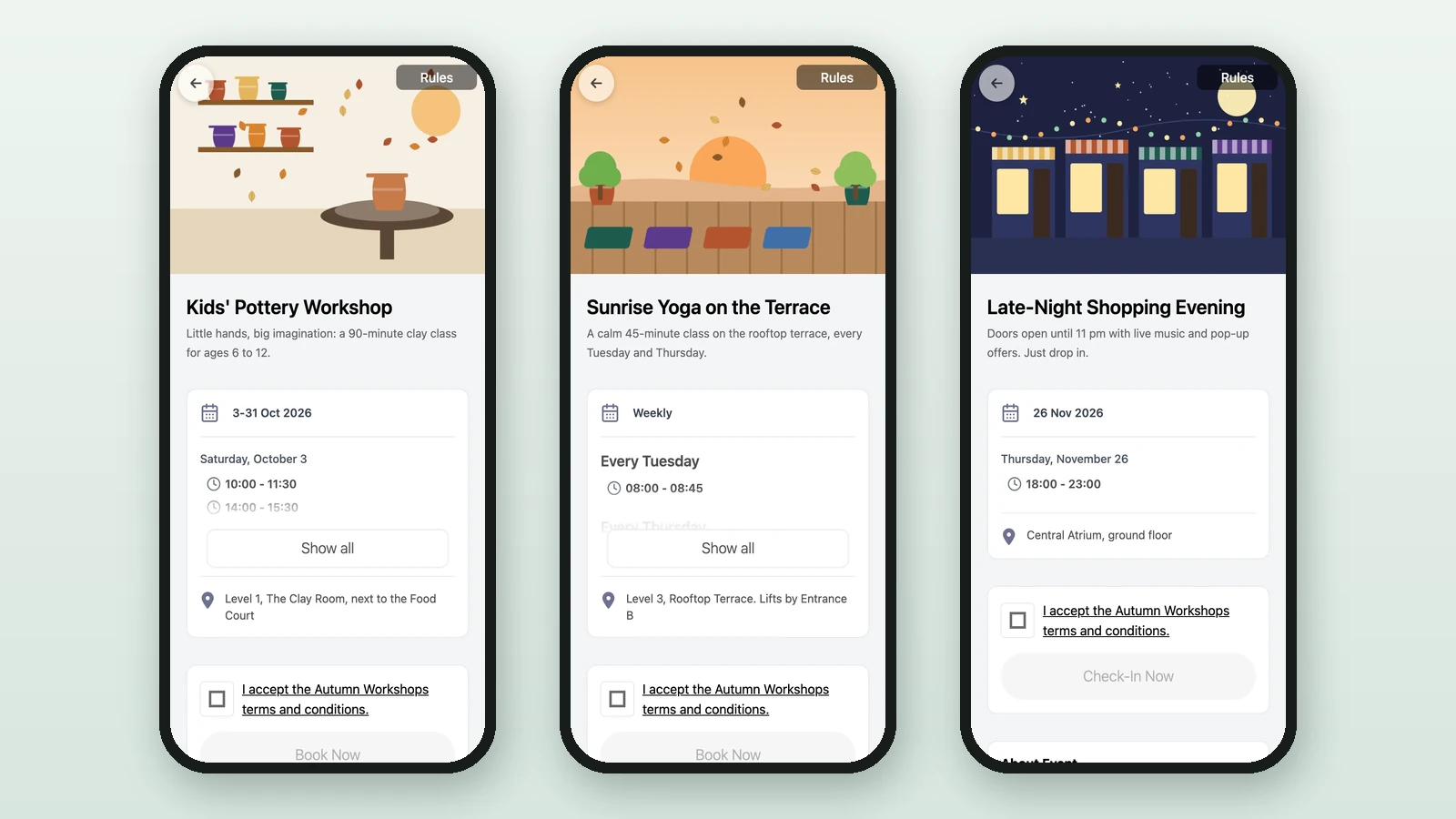
In this article, you'll learn what Events is in OmniLab, how it appears in Studio, and how Check-In Only, Booking and Check-In, Self, and Scan create different attendee journeys.

What Events is

Events is OmniLab's app for scheduled activities. Use it when people need to attend at a specific time, when capacity matters, or when on-site staff need a reliable way to confirm attendance.

Typical examples include workshops, meet-and-greets, kids activities, staffed demonstrations, photo booths, consultations, and other experiences where attendance needs to be planned or verified.

In Studio, the visible touchpoint type is Activity. After you add an Activity, you choose how the event works inside its settings: Check-In Only or Booking and Check-In, then Self or Scan for the check-in method.

What Events helps you do

Events combines the attendee-facing flow with the day-of tools used by staff. In practice, teams use it to:

CapabilityWhat it means in practiceExample
Flexible time slotsRun recurring weekly sessions or one-off specific dates.A beauty consultation every Saturday, or a single launch-day masterclass.
Control attendanceLimit how many people can join each slot.Cap every workshop at 20 visitors.
Capture sign-upsLet attendees reserve in advance when booking is enabled.Ask families to reserve a place for a craft session.
Host check-in appUse the Scanner App when staff need to validate each arrival.A host scans every guest at a VIP entrance.
Reward participationConnect attendance to badges, rewards, or campaign outcomes.Grant a badge after a participant checks in on site.

When needed, you can also create multiple ticket types for the same activity, such as adult and child tickets or standard and VIP access.

The two event modes

Quick rule of thumb

If attendees must reserve before they arrive, start with Booking and Check-In. If they can simply turn up on site, start with Check-In Only.

Yes No Do attendees need to reserve before arrival? Booking and Check-In Check-In Only Choose the check-in method Self Scan
Event modeBest forWhat attendees experience
Check-In OnlyWalk-in activations, open-door experiences, and faster first-rollout setups.Attendees open the activity, wait for the check-in window, and complete attendance without making a reservation first.
Booking and Check-InLimited-capacity sessions, ticketed experiences, and appointment-style visits.Attendees choose a ticket type, book a slot, receive a booking confirmation, then check in on the day.

Check-In Only is usually the best first run because it removes ticket setup and advance booking from the attendee flow. You can still add capacity limits when you need to control how many people can enter each slot.

The two check-in methods

The check-in method decides how attendance is confirmed once someone arrives. You can use either method with either event mode.

Check-in methodWhat attendees doWhat staff doBest for
SelfAttendees open the activity on their own device and complete check-in themselves when the window is open.Staff mainly supervise the area instead of scanning every arrival.Low-friction entry, faster throughput, and first-run testing.
ScanAttendees present a QR code from the event flow on their device.Staff use the Scanner App to scan the code and confirm arrival.Controlled entry, staffed desks, VIP access, and any flow where each arrival must be verified.

How attendee journeys change

SetupWhat happens for the attendeeExample
Check-In Only + SelfOpen the activity, identify themselves if required, then tap check-in on their own device when the window opens.A walk-in photo booth.
Check-In Only + ScanOpen the activity flow, show the QR code provided there, and let staff scan it on arrival.A staffed sampling booth.
Booking and Check-In + SelfChoose a ticket type, select a slot, complete booking, then return later to check in on their own device.A timed wellness session.
Booking and Check-In + ScanBook a slot in advance, then show the booking QR code to staff for scanning at the entrance.A seated workshop or VIP meet-and-greet.

When to choose Events

Choose Events when at least one of these is true:

  • the activity happens in defined time slots;
  • you need capacity control or attendance tracking;
  • attendees need tickets or advance reservations;
  • staff need a structured on-site check-in process;
  • you want reporting on bookings, check-ins, and no-shows.

If the experience does not need time slots, booking, or attendance management, a simpler touchpoint type may be faster to launch.

Was this helpful?

Optional comments help us improve this page for future authors and readers.

On this page