Wheel of Fortune
Build a prize wheel: its look, its slices in the wheel builder, and who wins what and when.
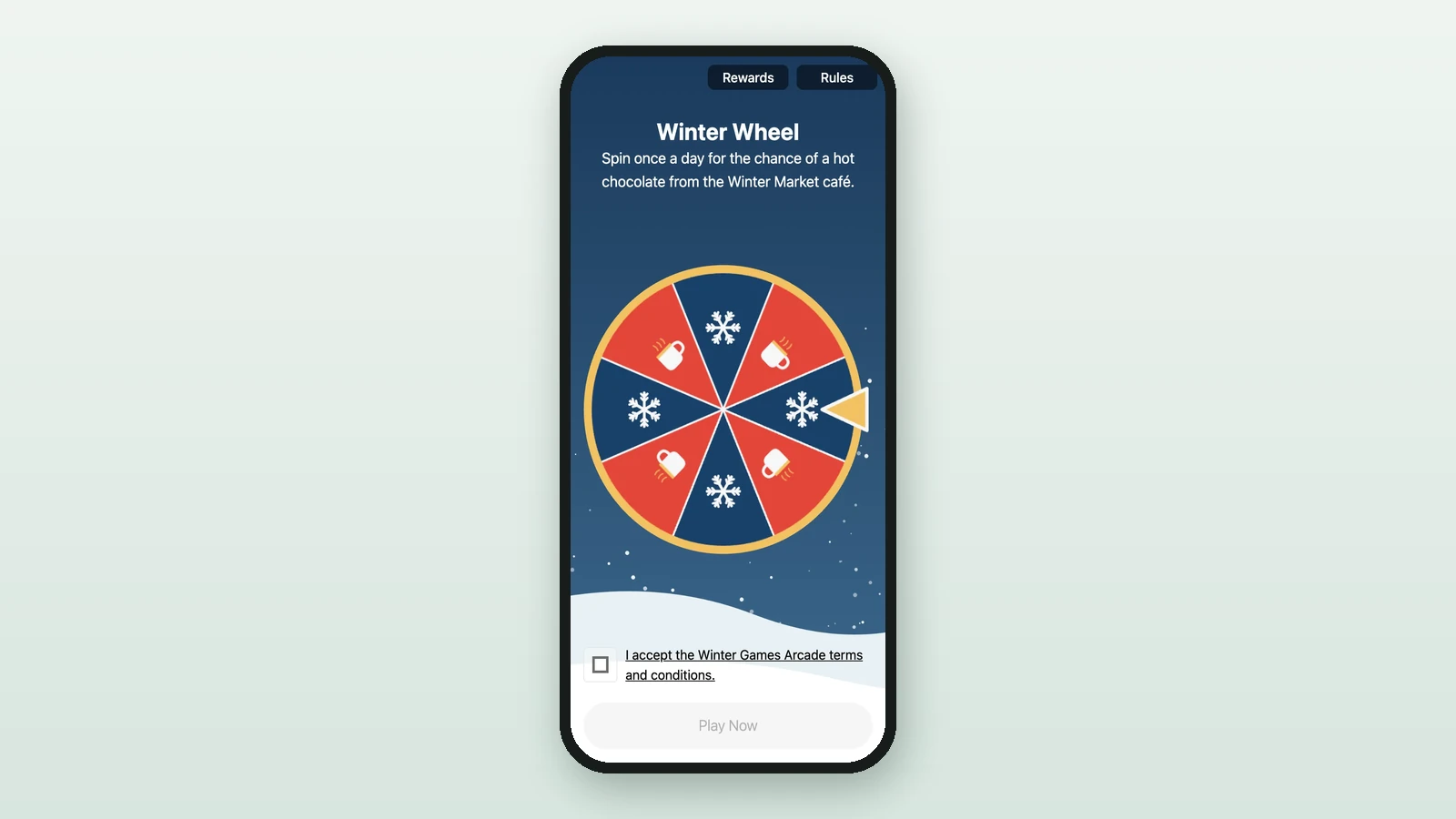
Players spin a wheel and win the prize on the slice where it stops. You design the wheel in Studio's builder, then decide the odds, or the times prizes are won. Here, Lindenhall builds its Winter Wheel from scratch: four hot chocolate slices and four losing slices.
Before you begin
- A campaign open in Build: see Your first campaign.
- A Luck Based Reward for each prize: see Create a reward.
- Your images:
Background Image
RequiredThe full-screen visual behind any game (wheel, scratch, reveal, quiz, and more).
- Requiredexcept for instant reward and sign-up games
- Size1536 × 2048 px
- Aspect ratio3:4
- FormatsJPEG / WEBP / PNG
It fills the screen from the top centre, with the title, the game and the button on top, and phones crop about a fifth off each side: keep text and faces in the middle.
Pointer Image
RequiredThe marker at the right edge of the wheel that points to the winning slice.
- Required
- Size256 × 256 px
- Aspect ratio1:1
- FormatsPNG
Draw it pointing left, towards the centre, on a transparent square PNG — it is stretched to a square about a fifth of the wheel’s width.
Segment Image
RequiredAn optional icon shown inside a slice — one image per prize.
- Requiredfor winning prizes
- Size256 × 256 px
- Aspect ratio1:1
- FormatsJPEG / WEBP / PNG
A square PNG with a transparent background scales cleanly into each slice.
Border & Center Image
OptionalA single overlay that adds the outer ring and the centre hub of the wheel.
- Optional
- Size500 × 500 px
- Aspect ratio1:1
- FormatsPNG
Use a square PNG with a transparent middle so the slices stay visible.
Thumbnail Image
RequiredThe square tile shown in carousels and campaign listings — not on the play screen. Offer passes and interactive totems use it as their image too.
- Requiredwhen the campaign has a landing page
- Size800 × 800 px
- Aspect ratio1:1
- FormatsJPEG / WEBP / PNG
Add the wheel
-
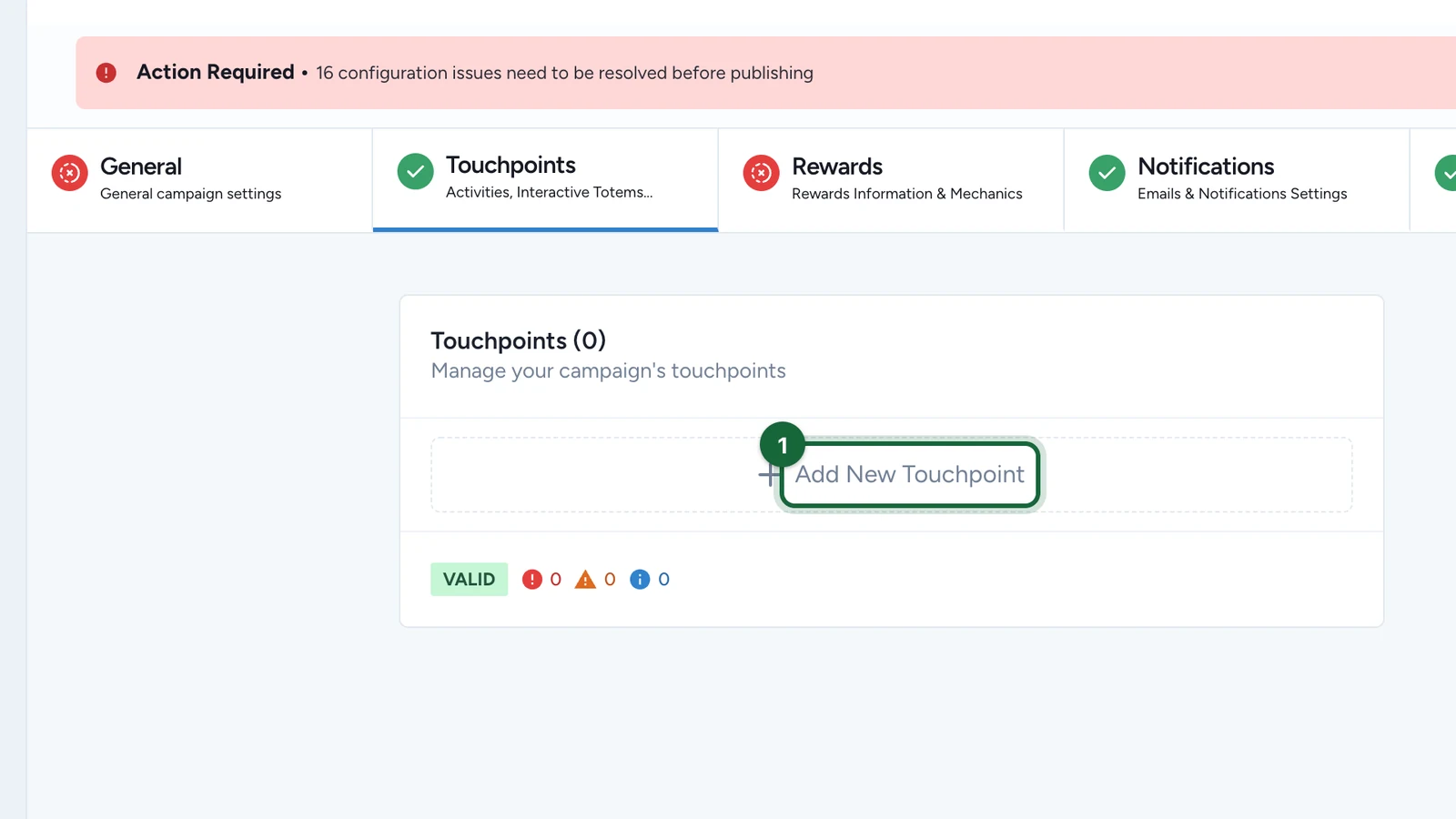
In Build > Touchpoints, select Add New Touchpoint.
-
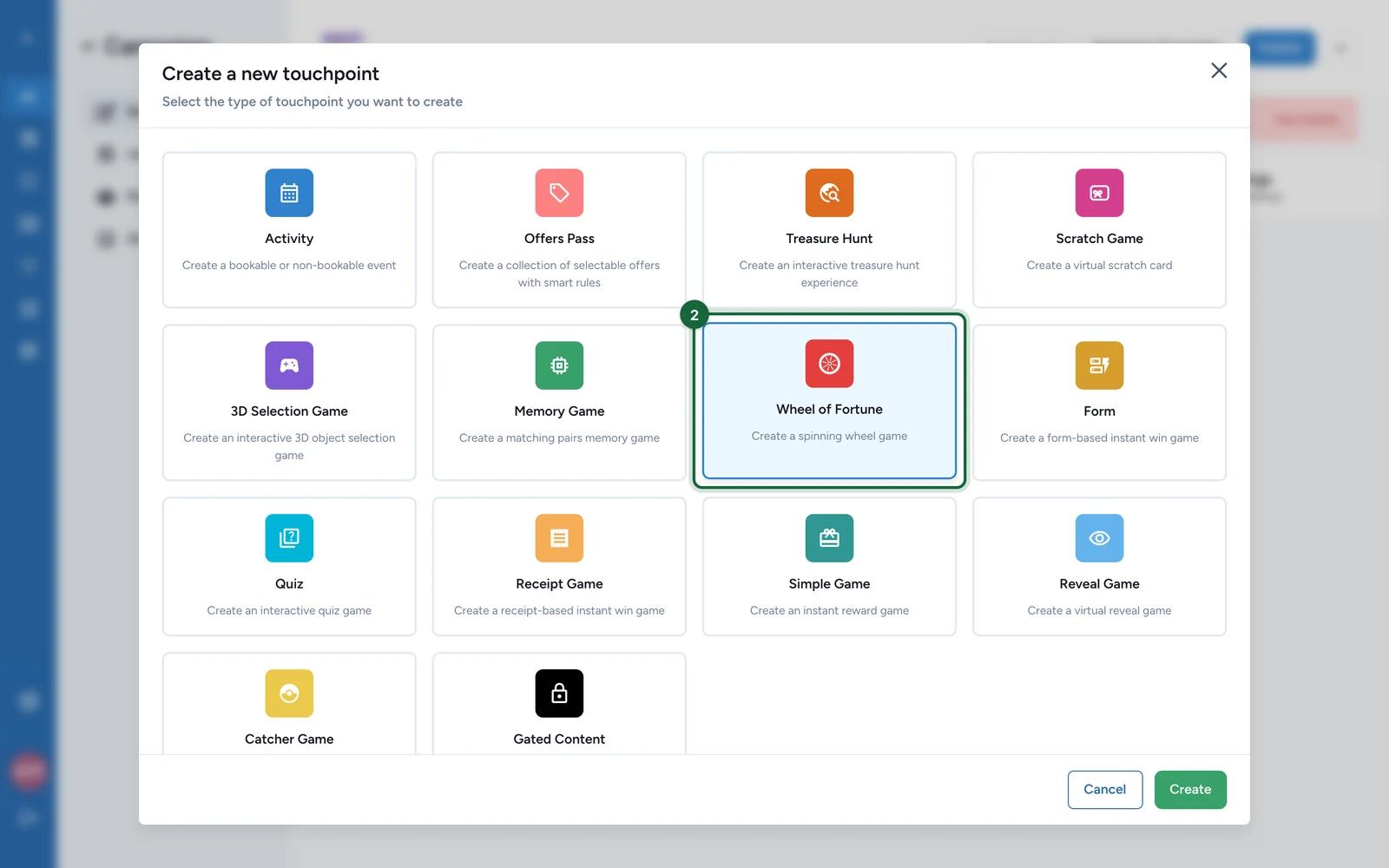
Select Wheel of Fortune.
-
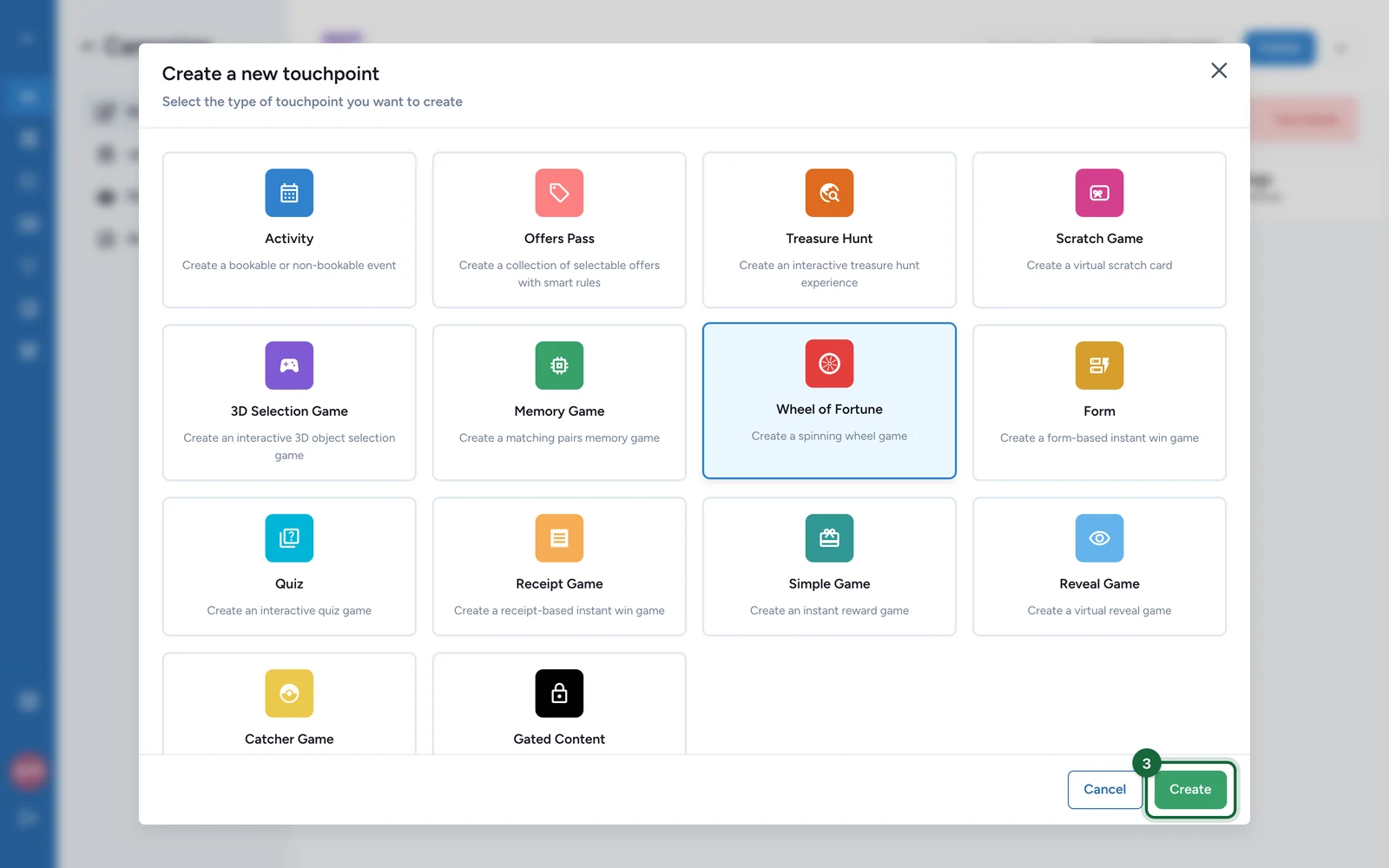
Select Create.
-
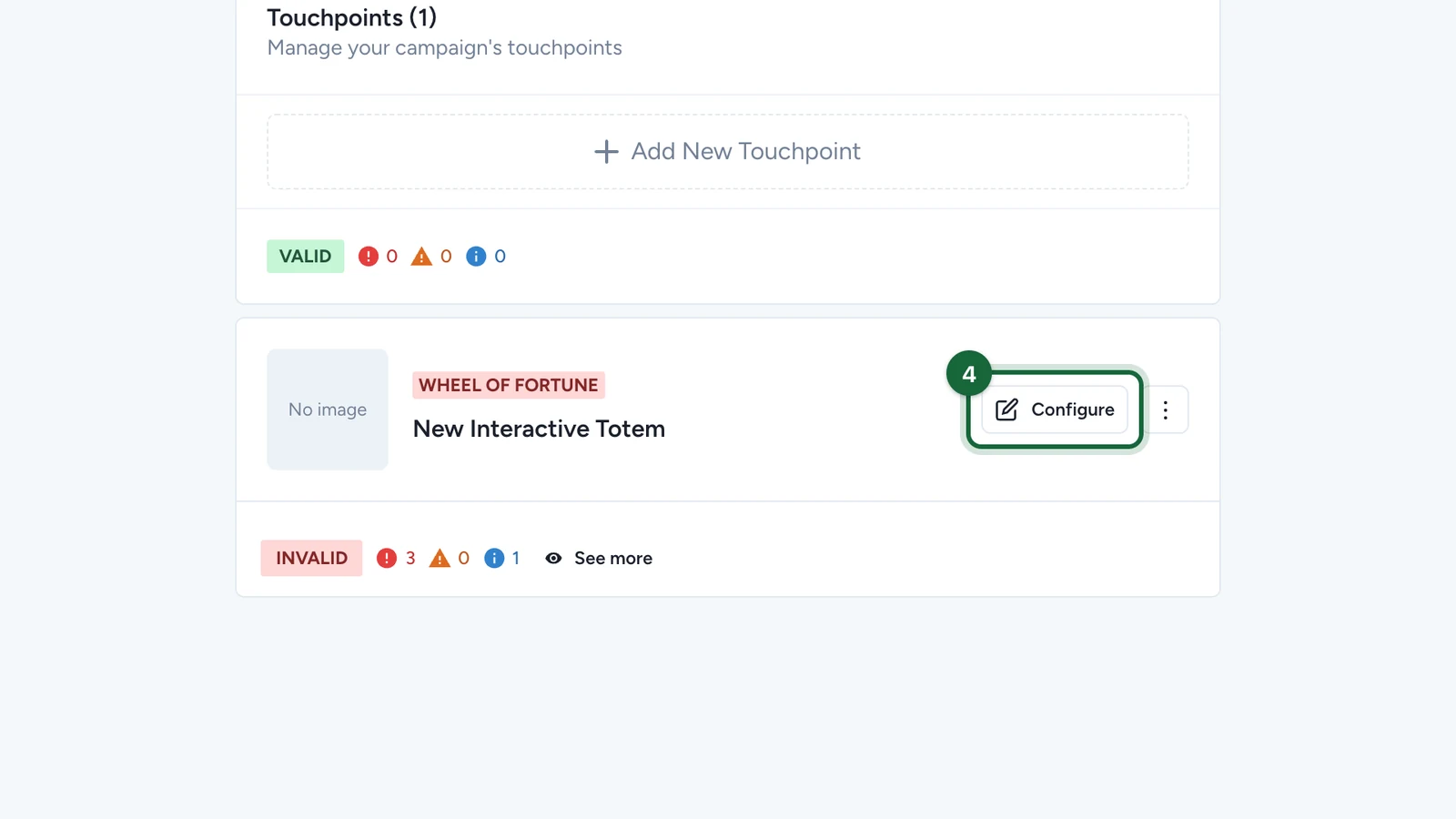
On the new game, named New Interactive Totem, select Configure.
-
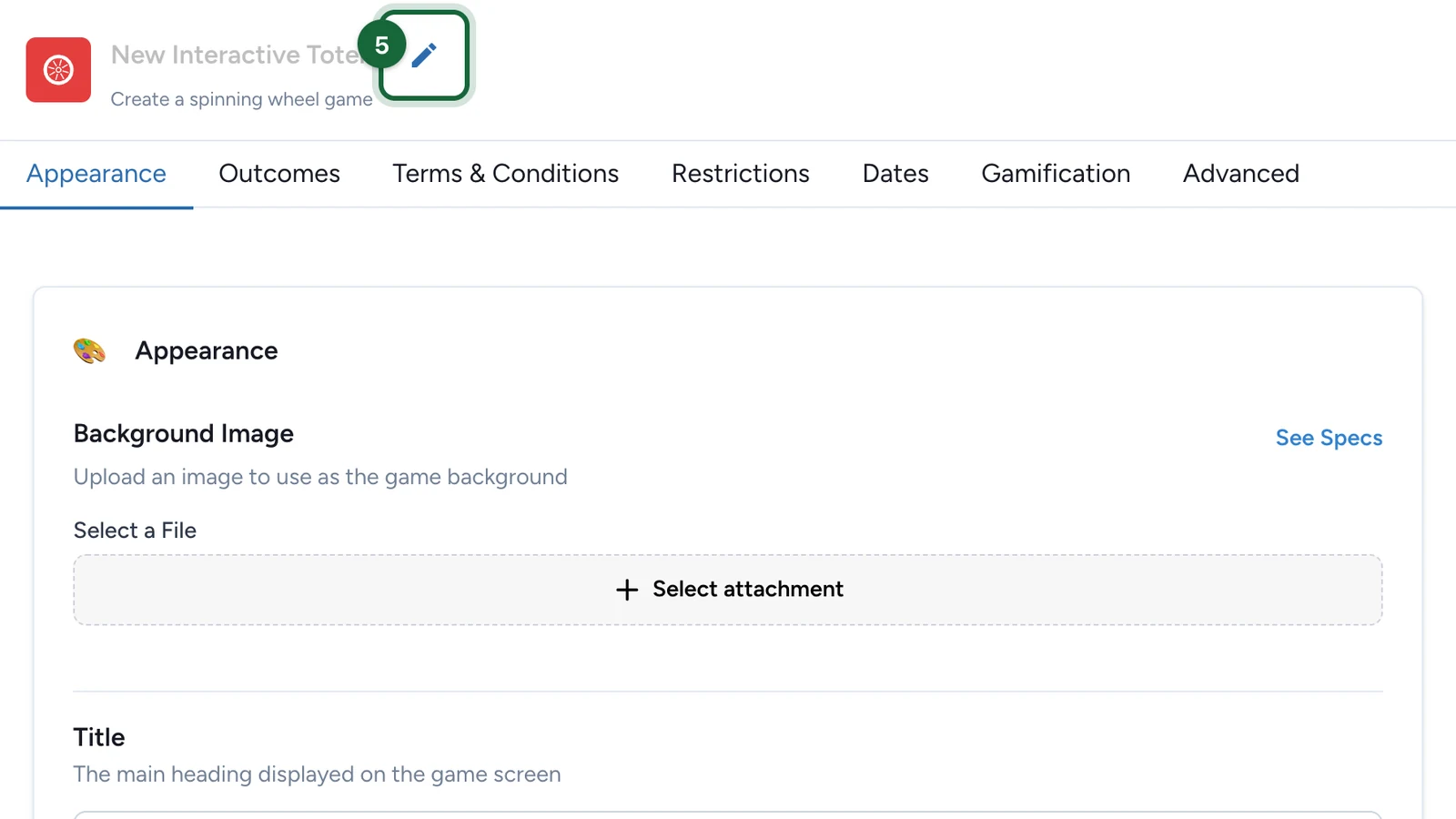
Select the pencil next to the name.
-
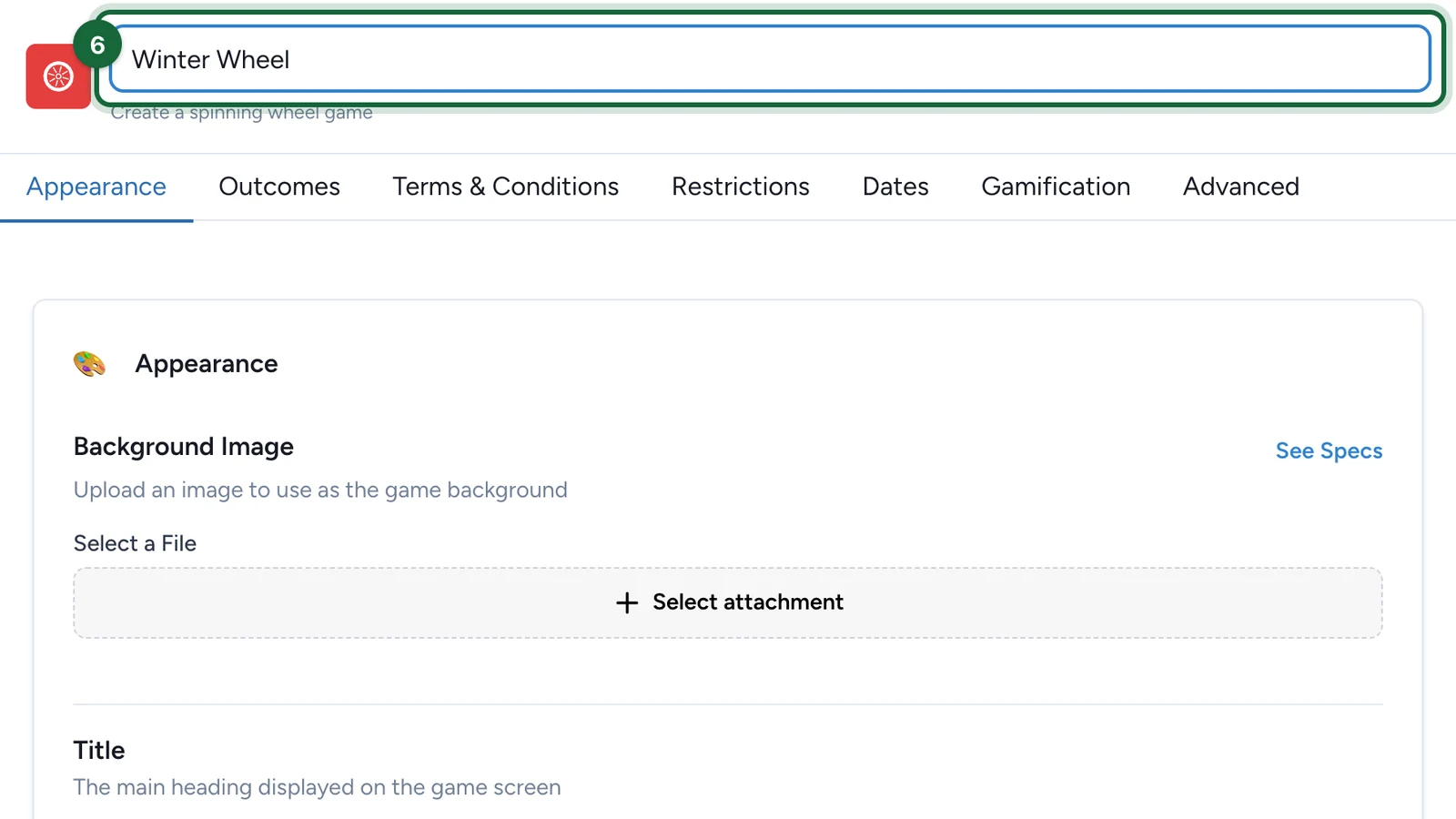
Enter the wheel's name, then press Enter.
Set the look
These steps are on the Appearance tab. To choose a picture, select Select attachment, point at the file, select Select File, then Save.
-
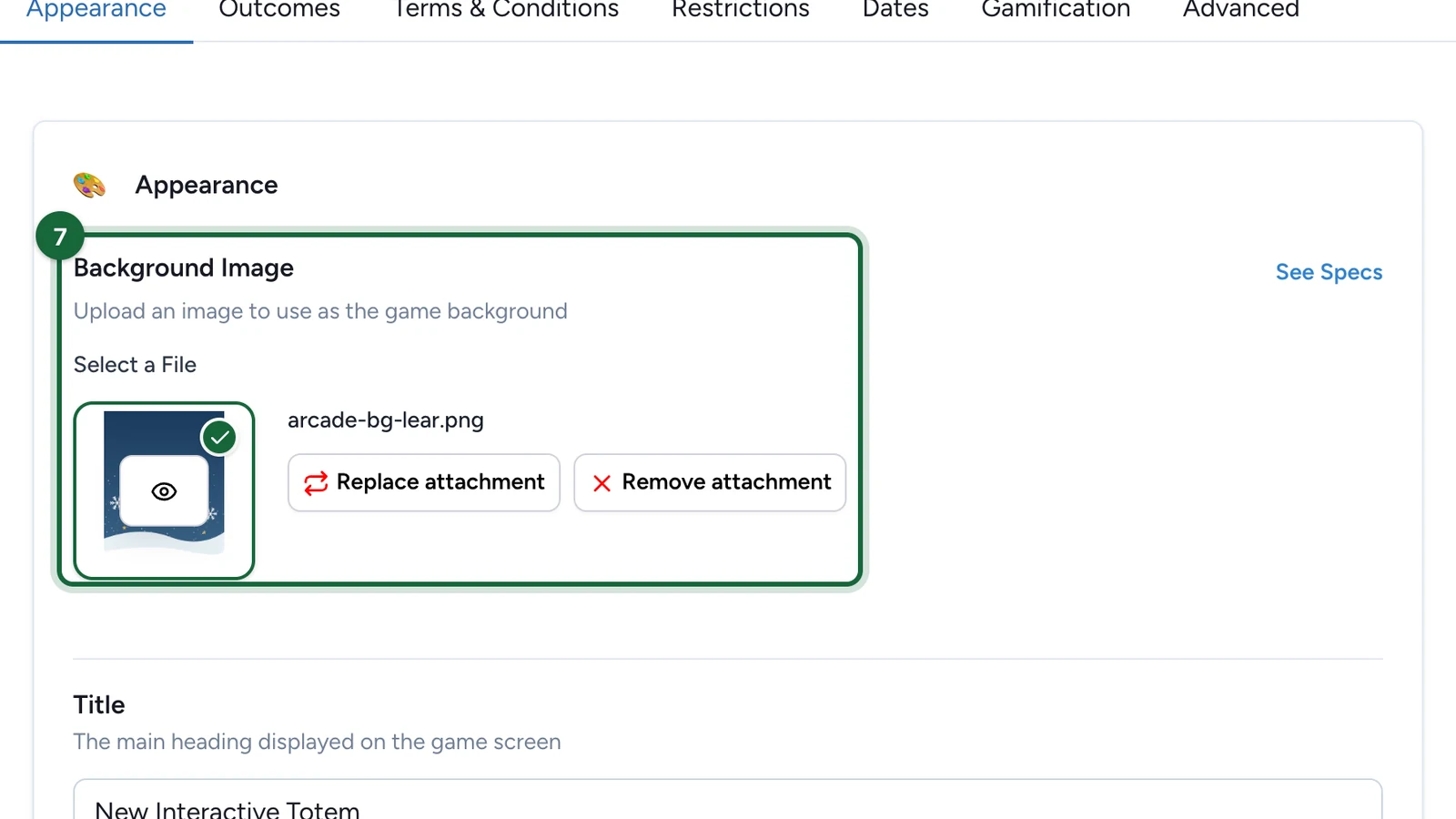
Under Background Image, choose the image behind the wheel.
-
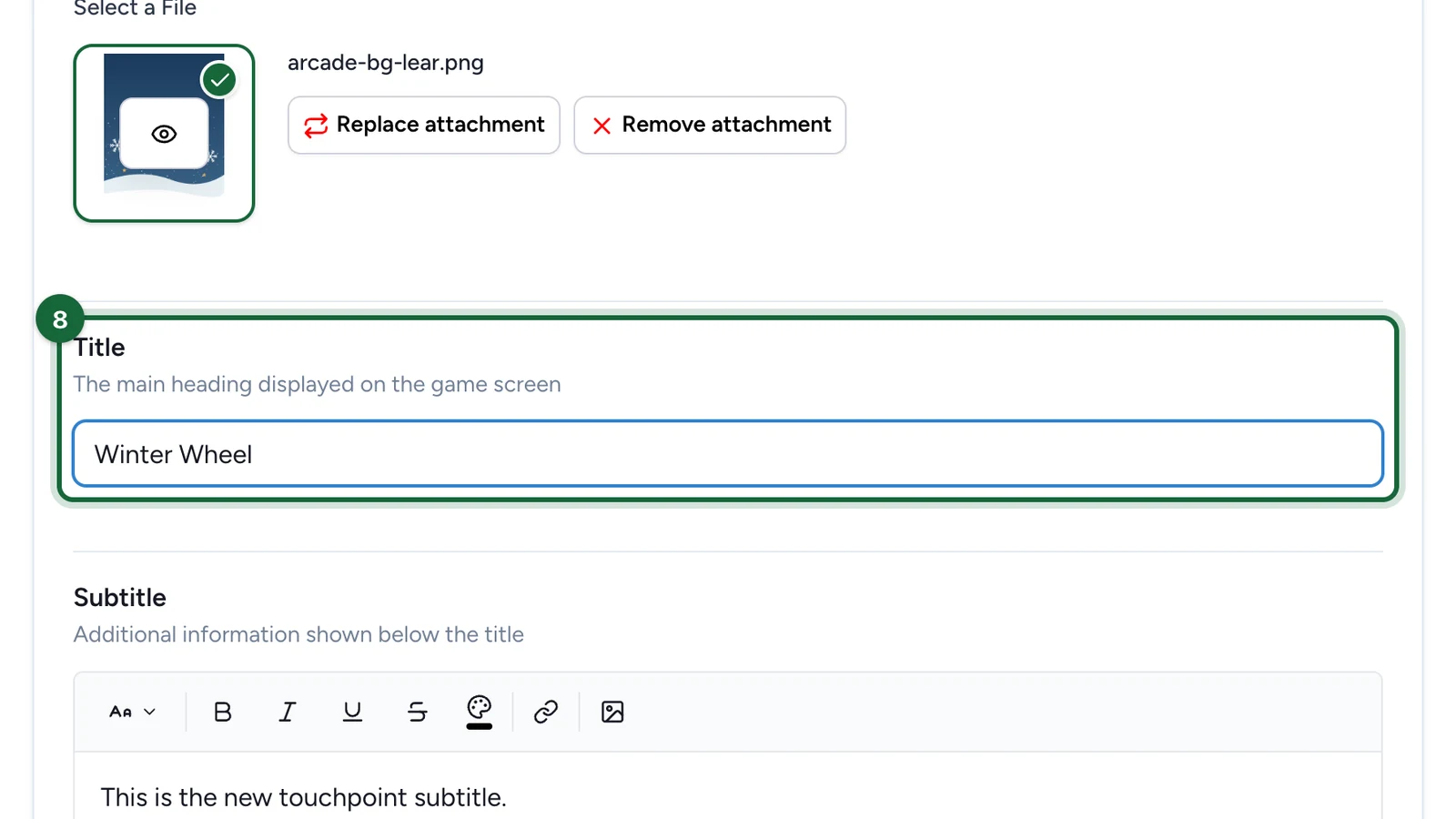
Replace the Title with the wheel's name.
-
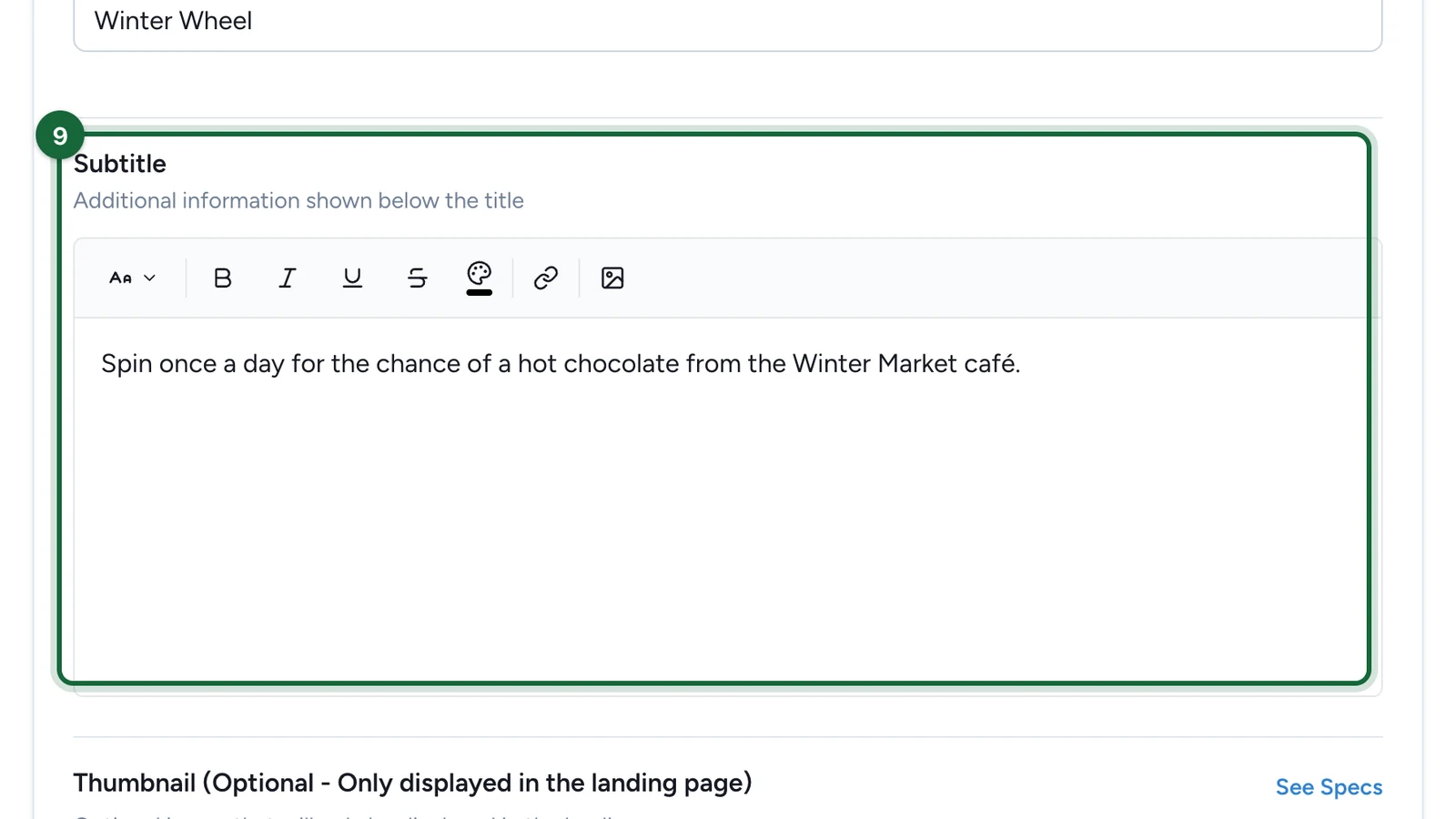
Replace the Subtitle: say what players can win.
-
Under Thumbnail, choose the wheel's picture for the landing page, if the campaign has one.
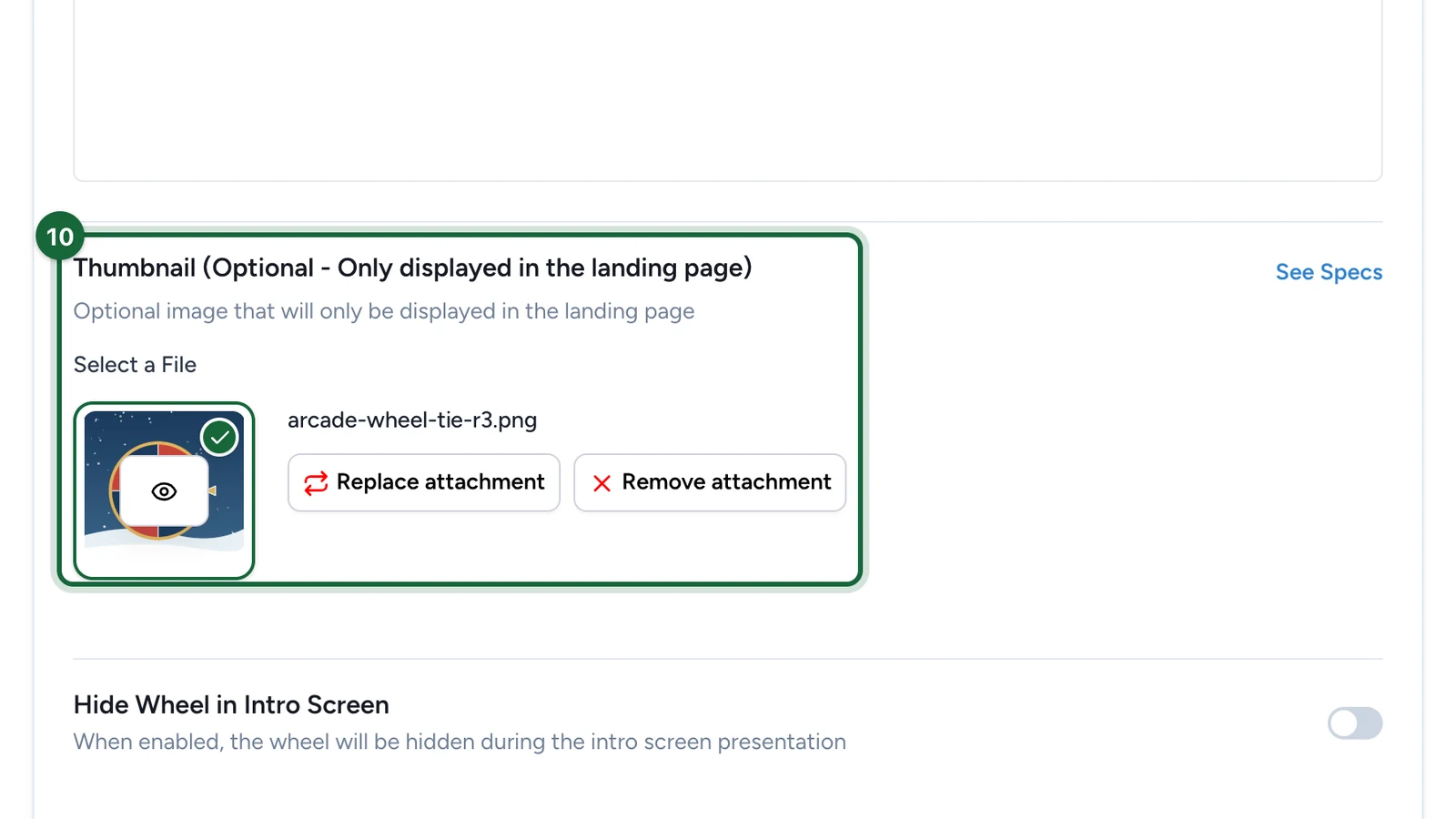
Hide Wheel in Intro Screen stays off, so the wheel shows straight away.
-
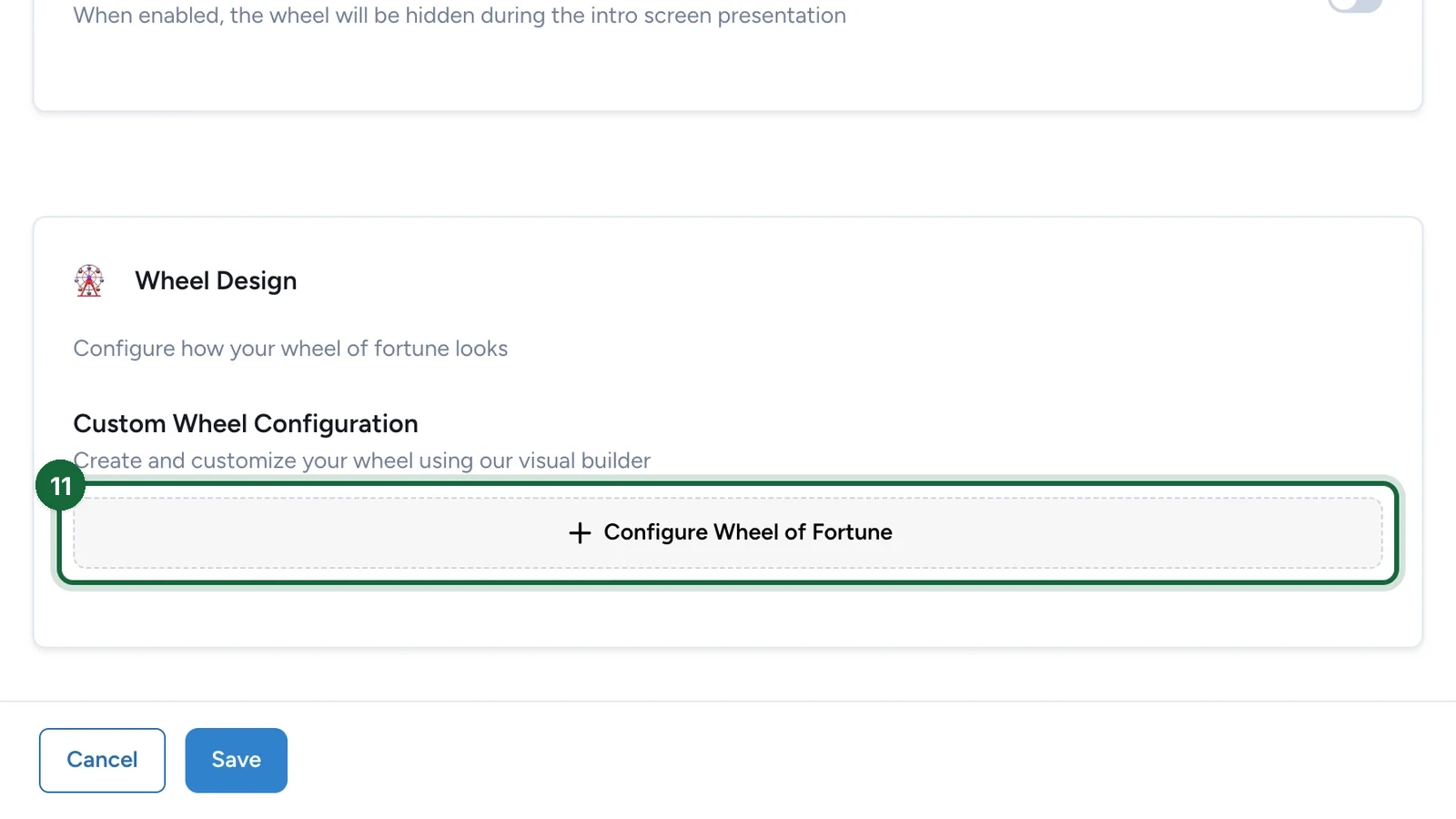
Under Custom Wheel Configuration, select Configure Wheel of Fortune.
Build the wheel
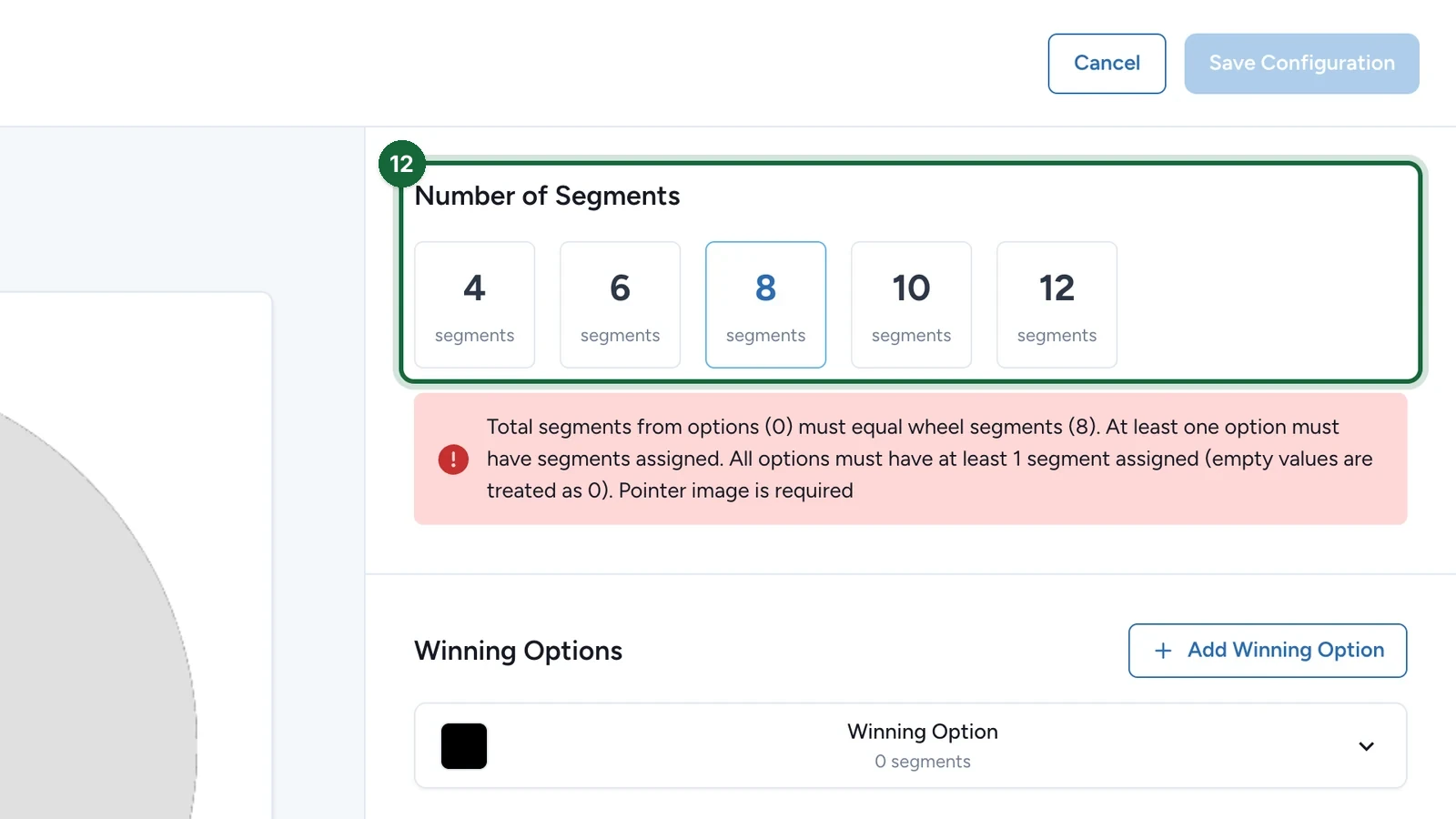
The builder shows the wheel on the left, and lists what's missing in red until the wheel is complete.
-
Under Number of Segments, choose the number of slices.
-
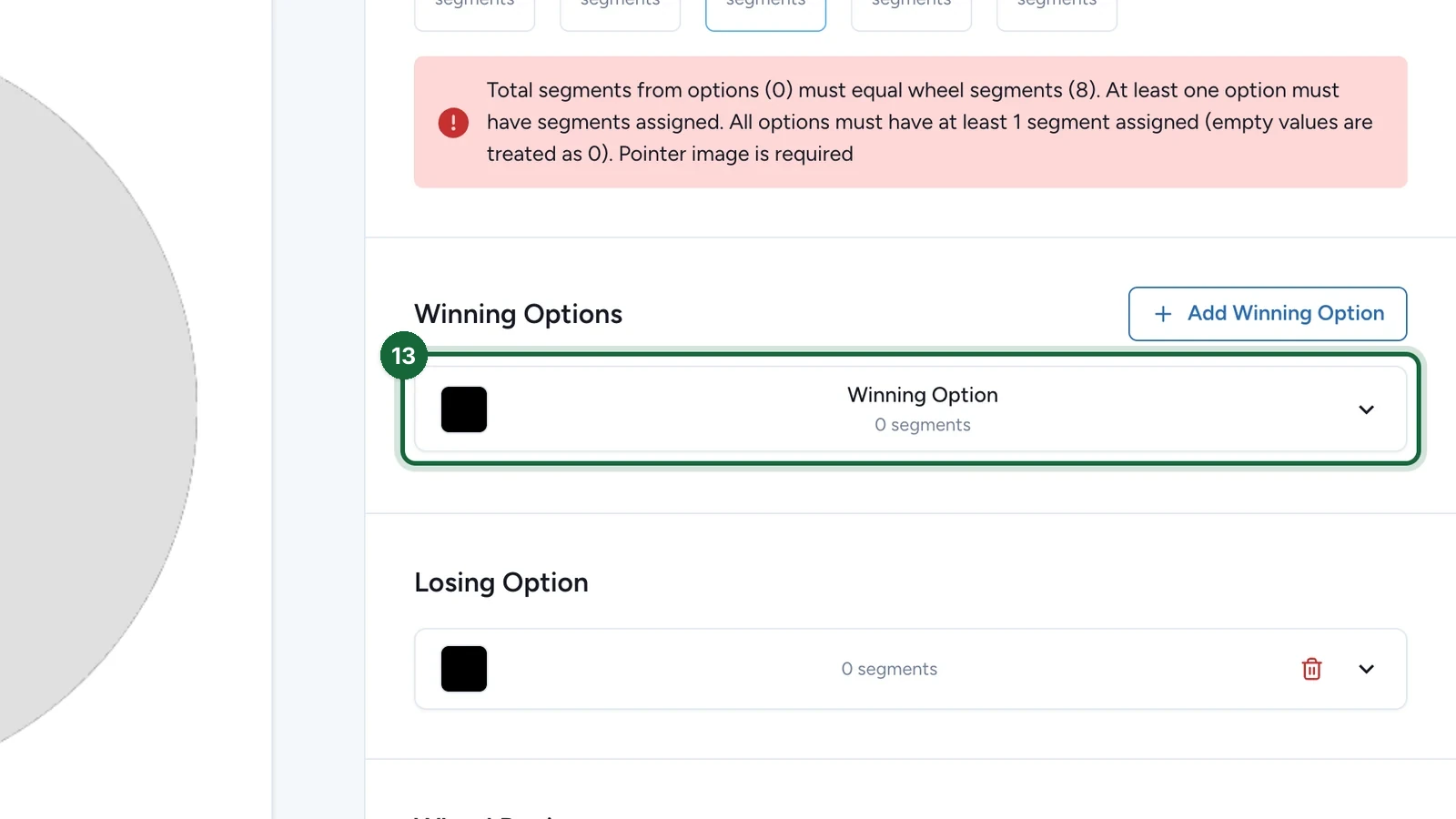
Open Winning Option.
-
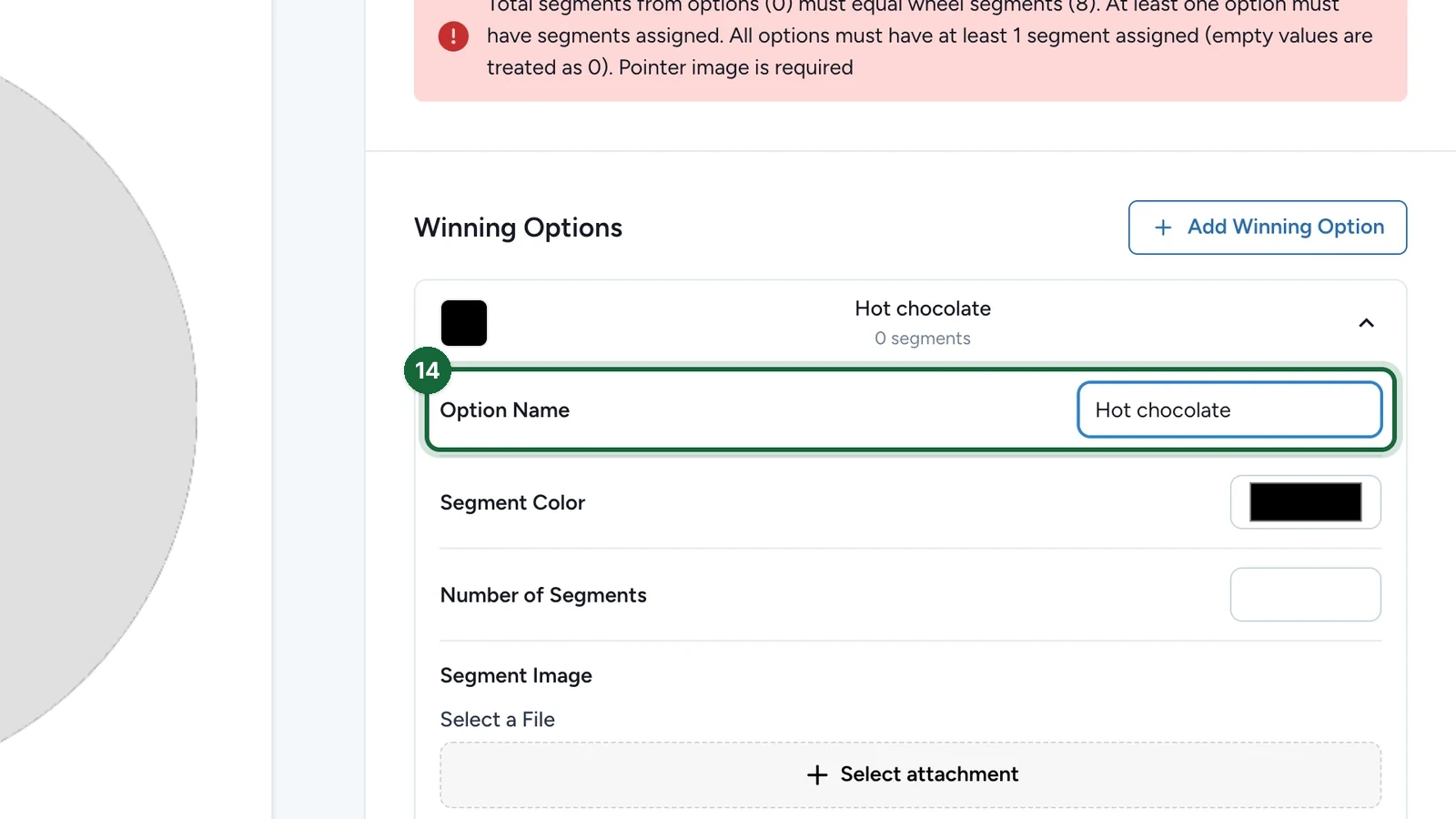
Enter the Option Name: the prize.
-
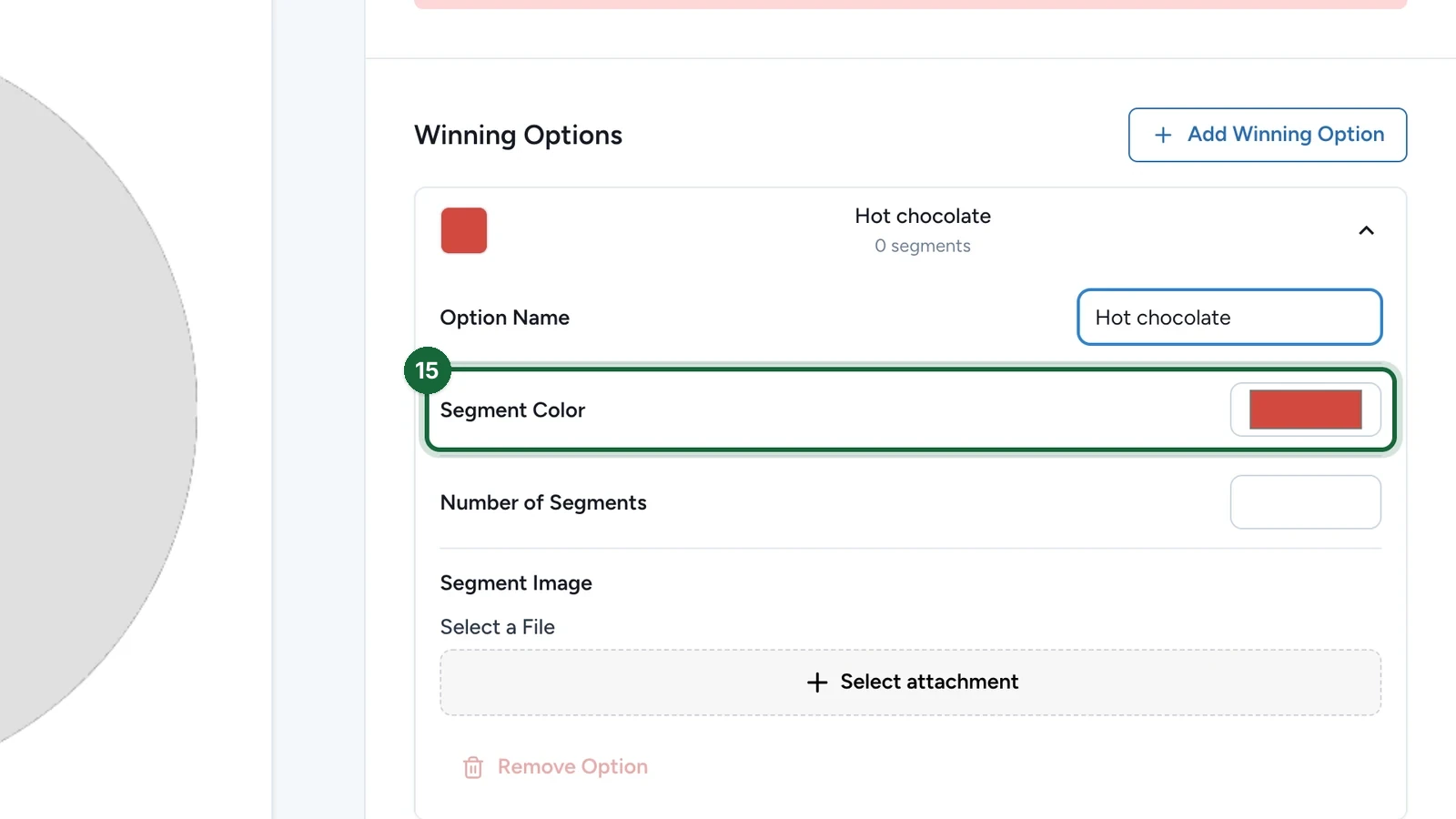
Choose the Segment Color.
-
Enter its Number of Segments.
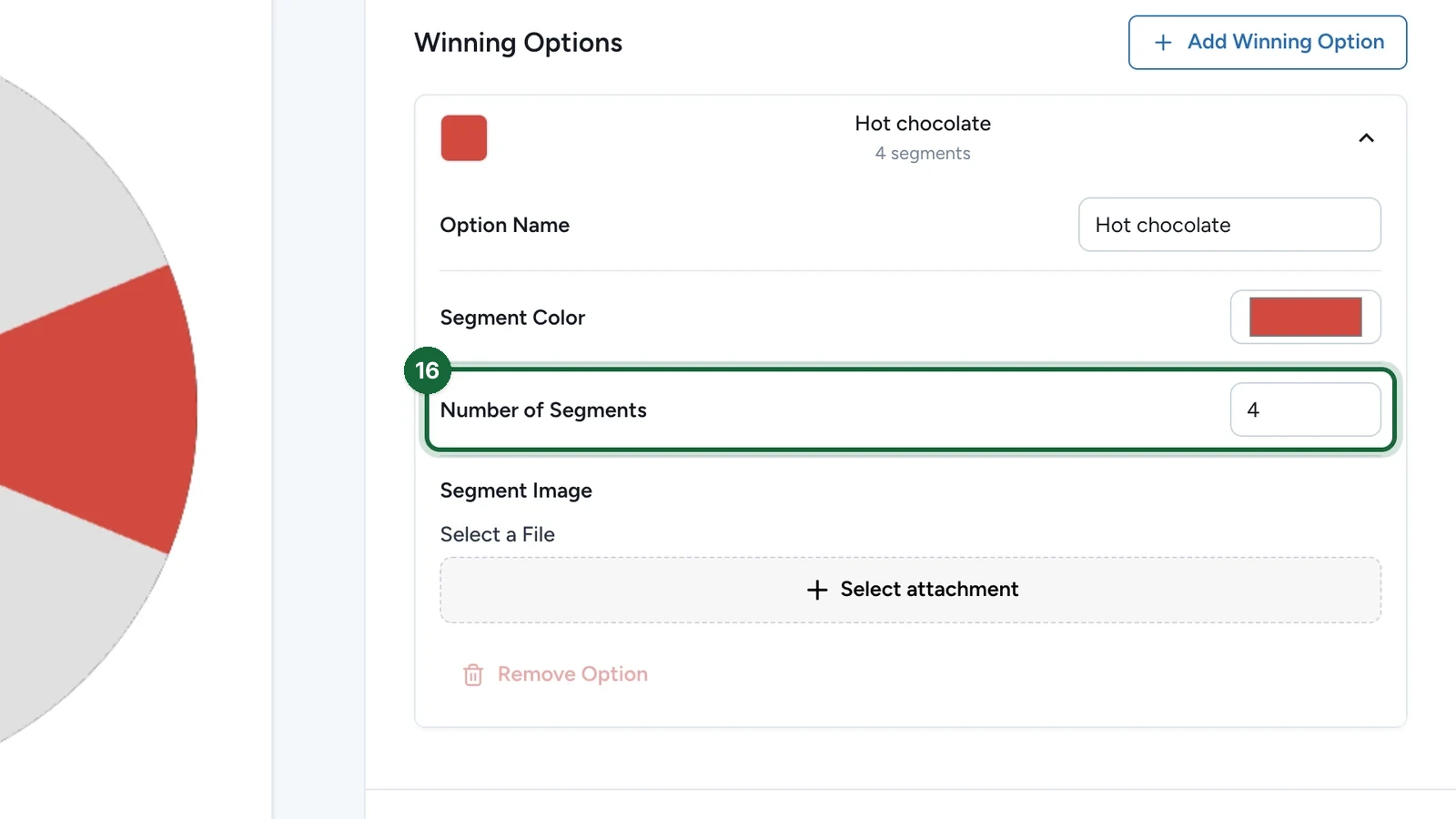
More slices make a prize look more frequent. They don't change the odds: those are set under Outcomes.
-
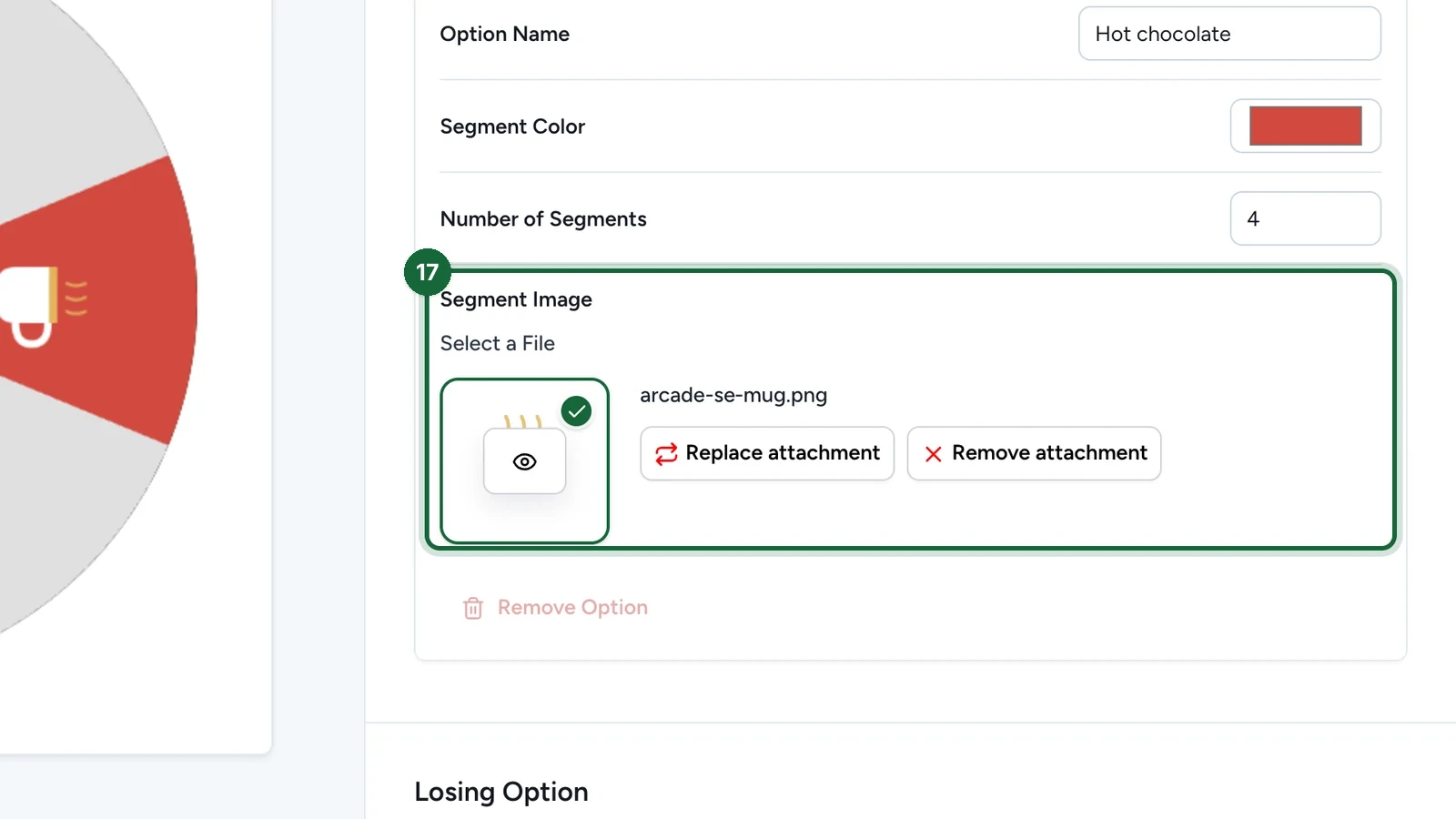
Under Segment Image, choose the picture on these slices.
-
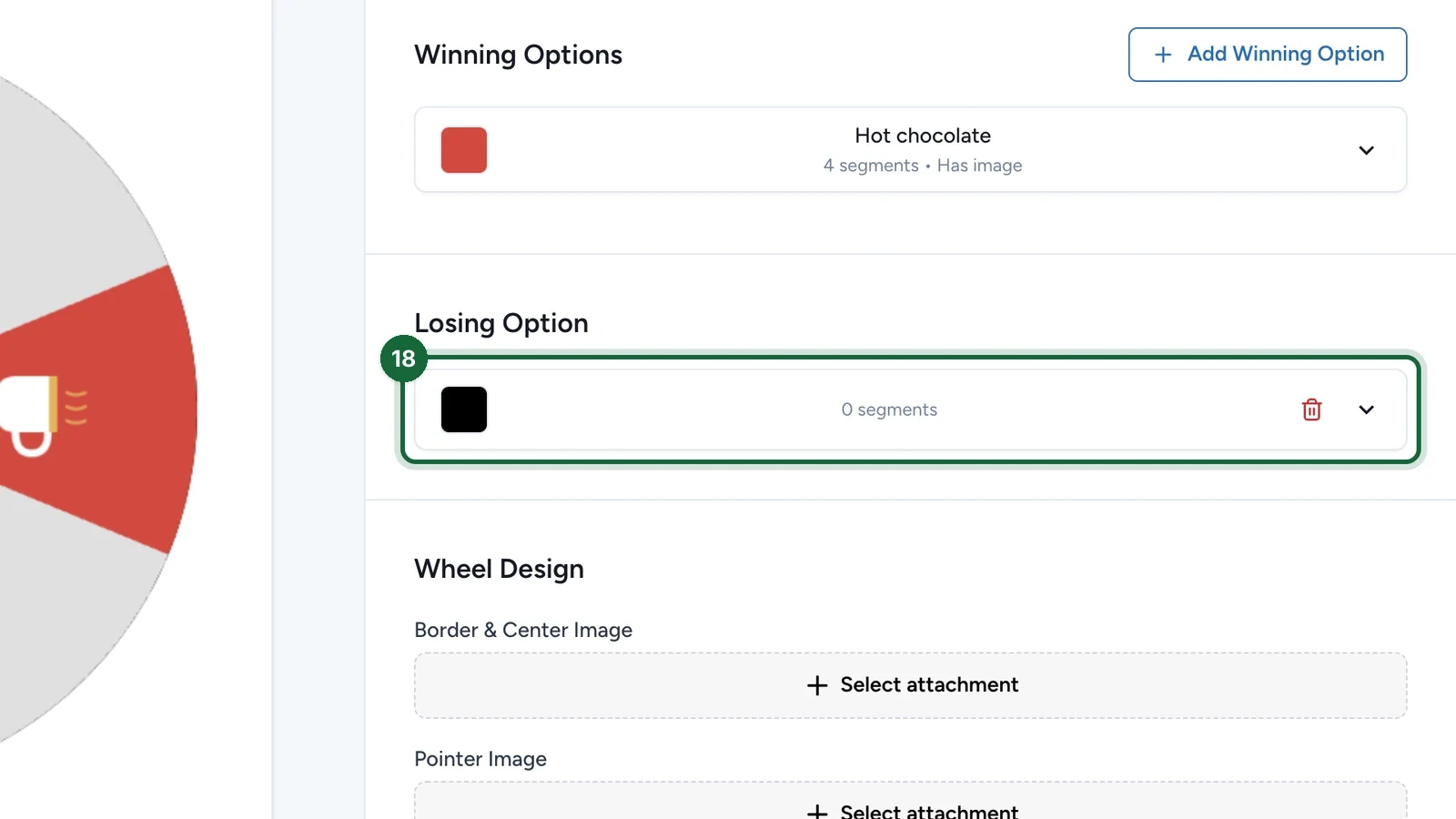
Open Losing Option.
-
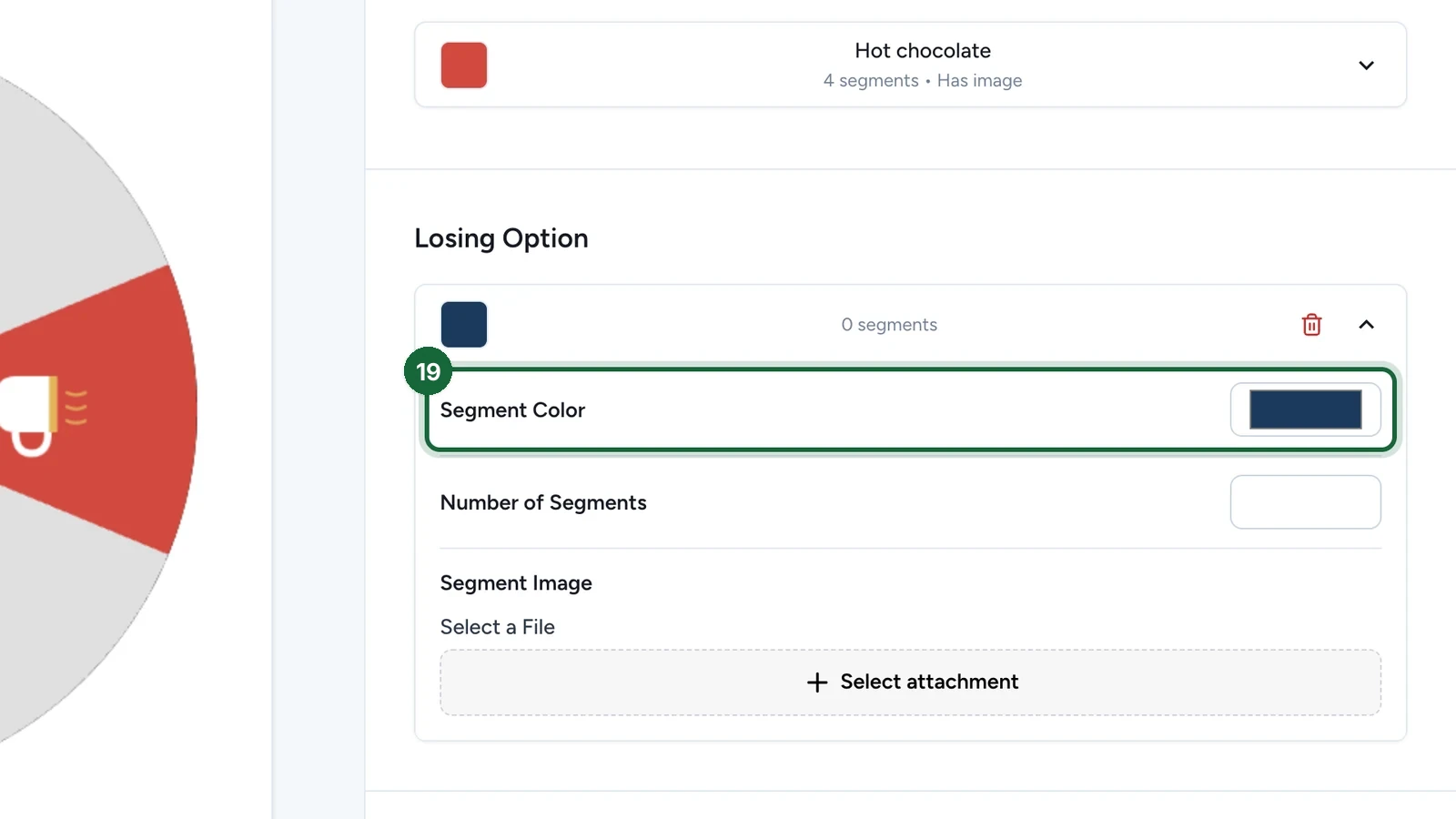
Choose its Segment Color.
-
Enter its Number of Segments.
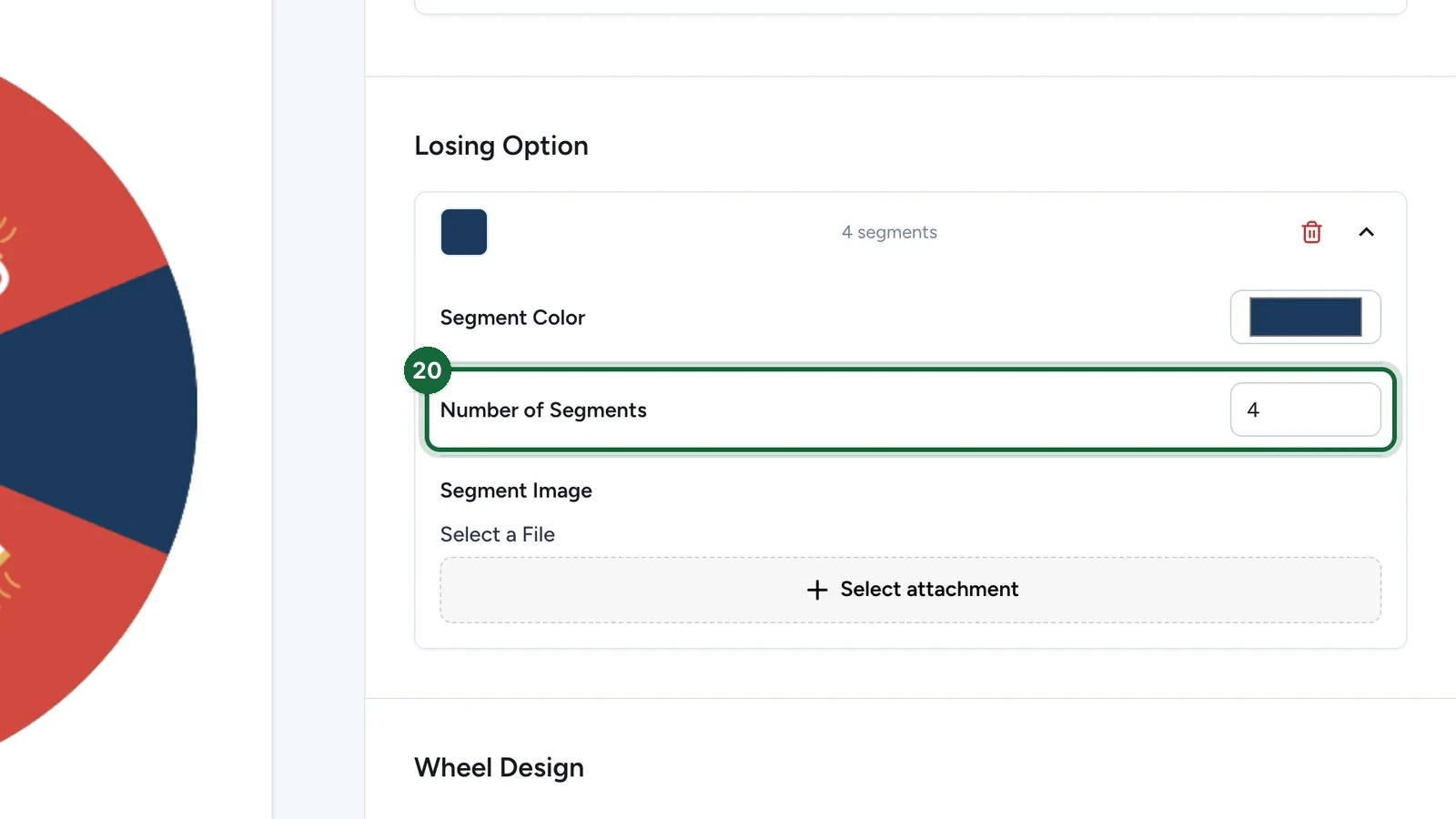
Winning and losing slices must add up to the wheel's total, here 4 and 4 for 8.
-
Under Segment Image, choose its picture.
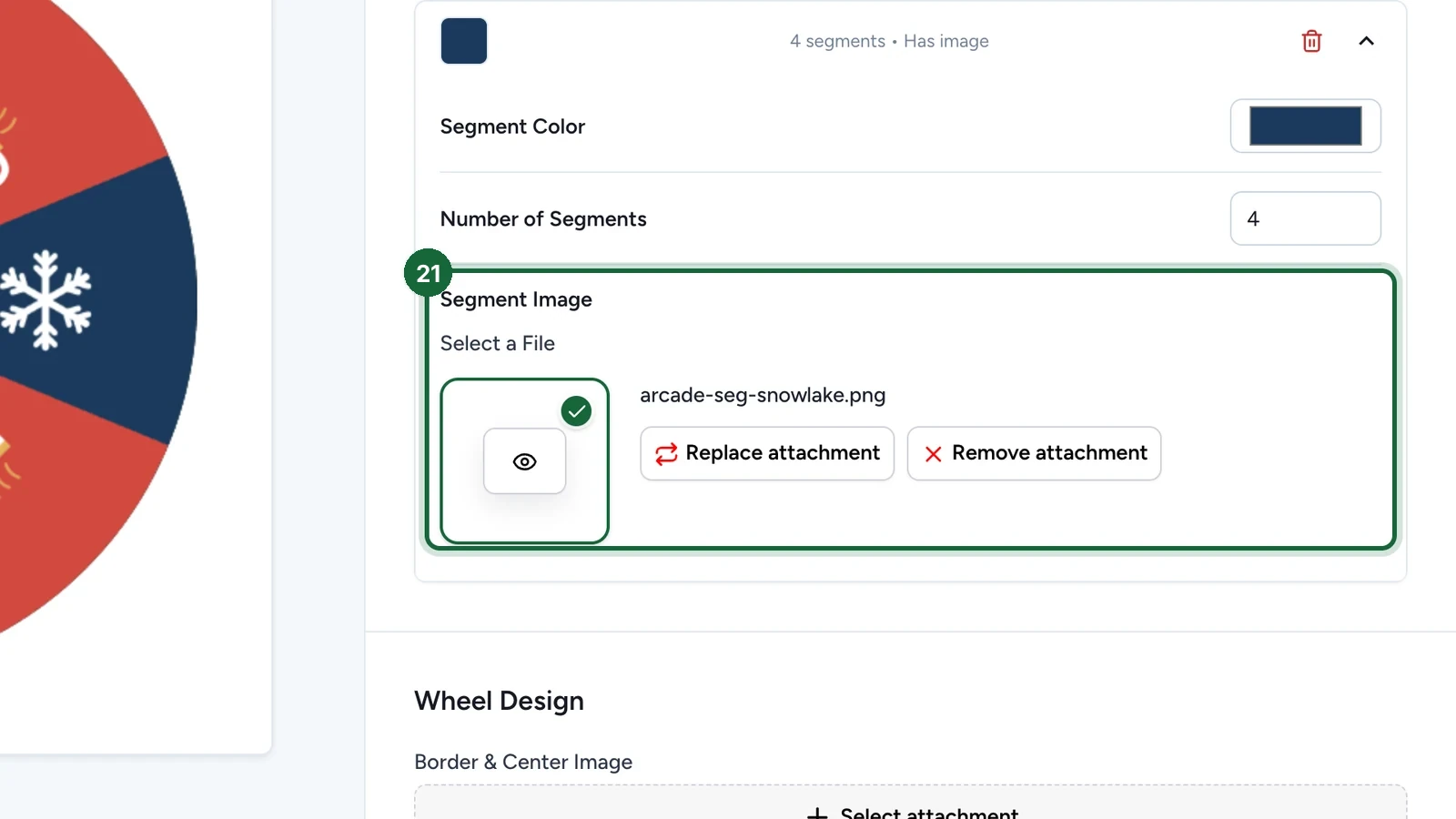
-
Under Pointer Image, choose the pointer.
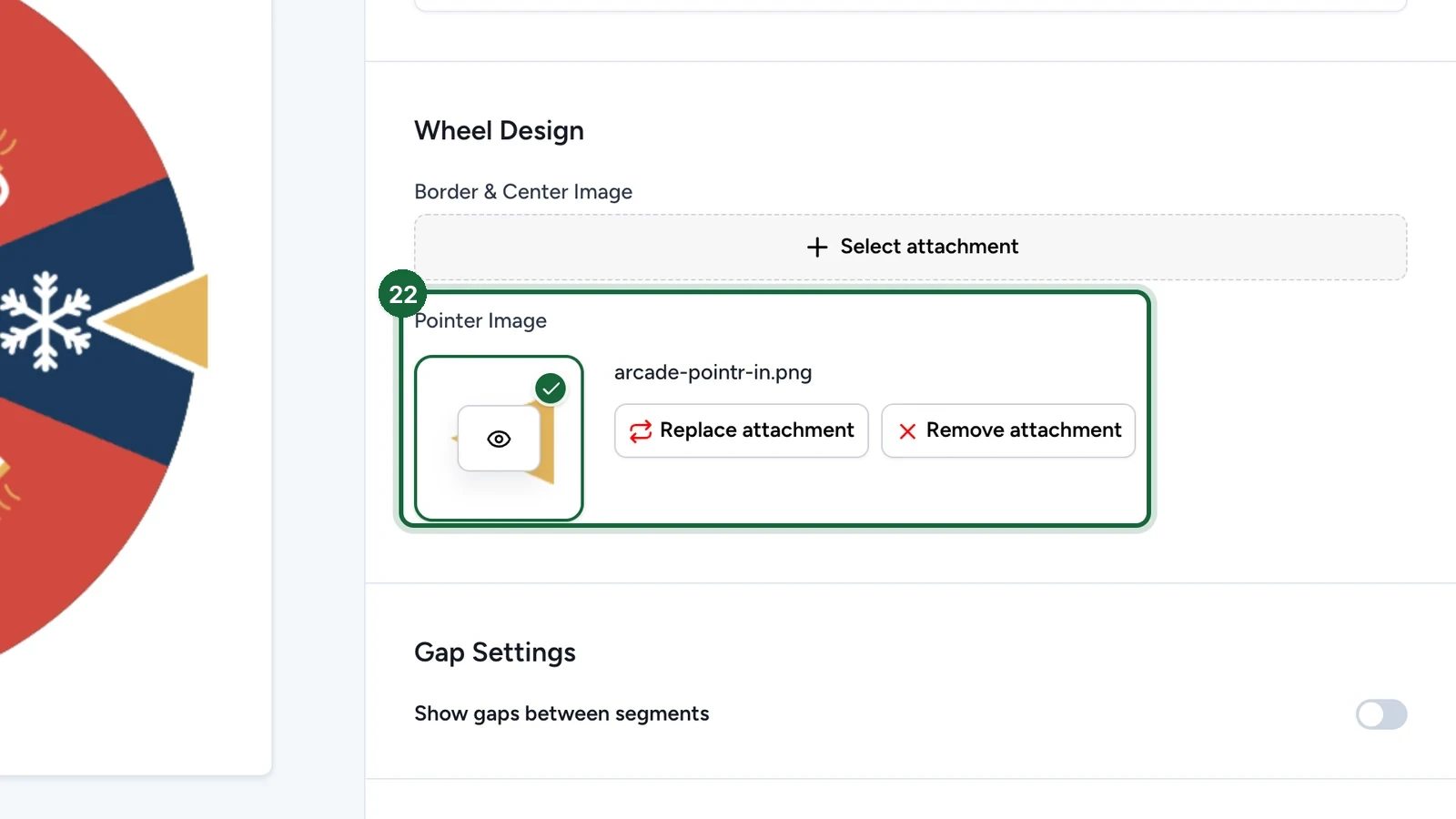
The wheel can't be saved without a pointer.
-
(Optional) Under Border & Center Image, choose a frame for the wheel.
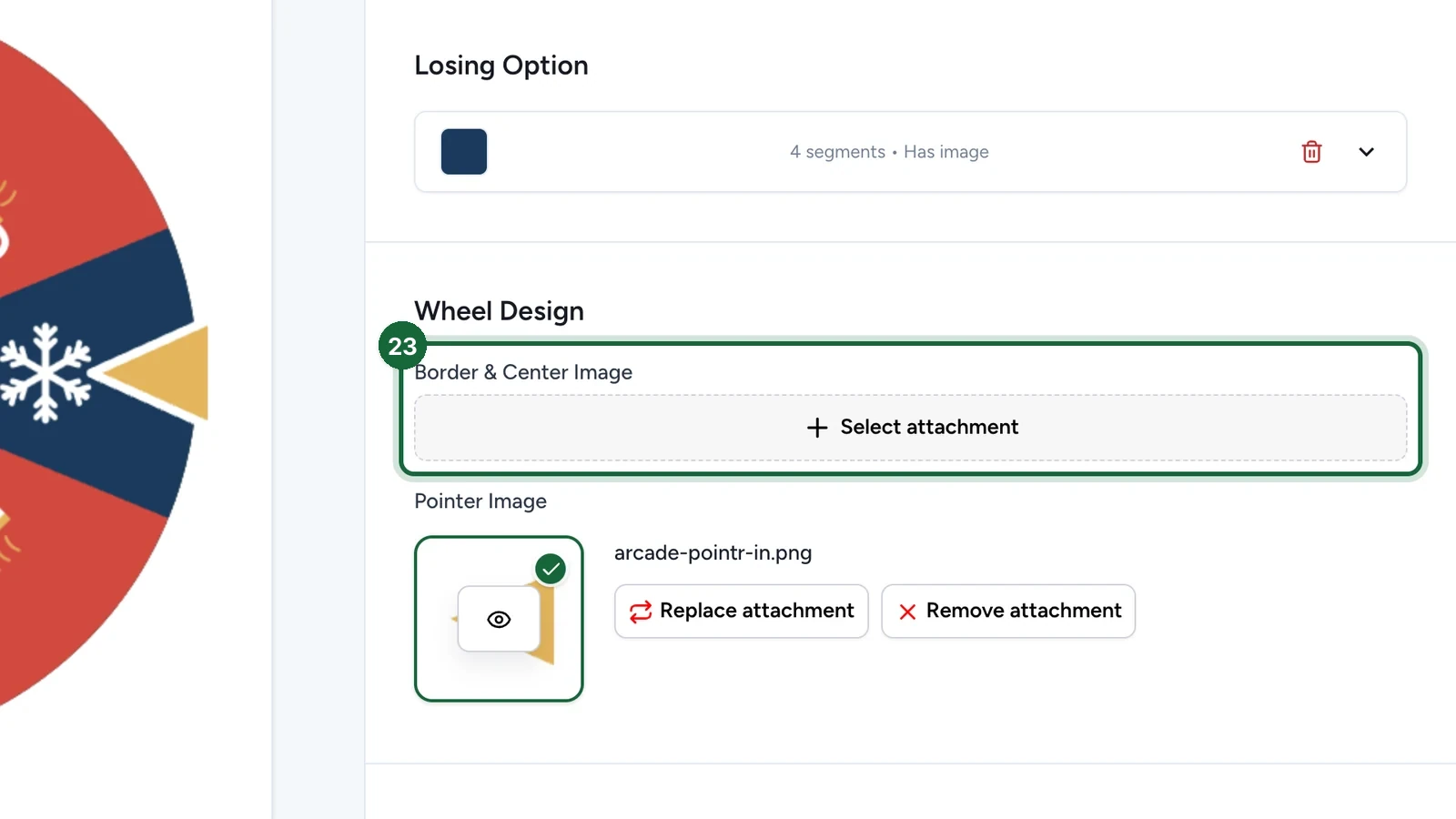
-
(Optional) Turn on Show gaps between segments.
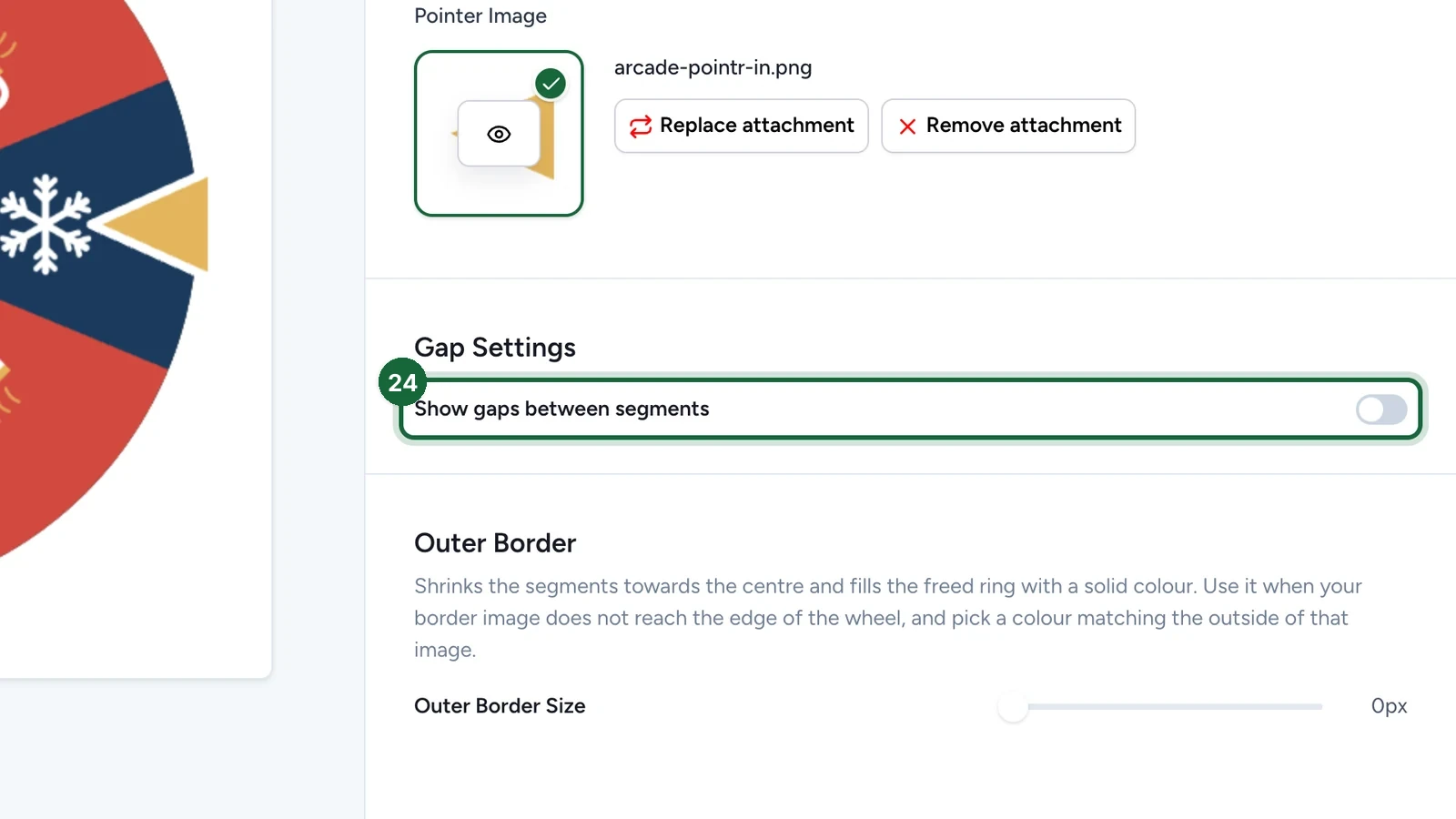
Gap Color and Gap Size then set how the gaps look.
-
Select Save Configuration.
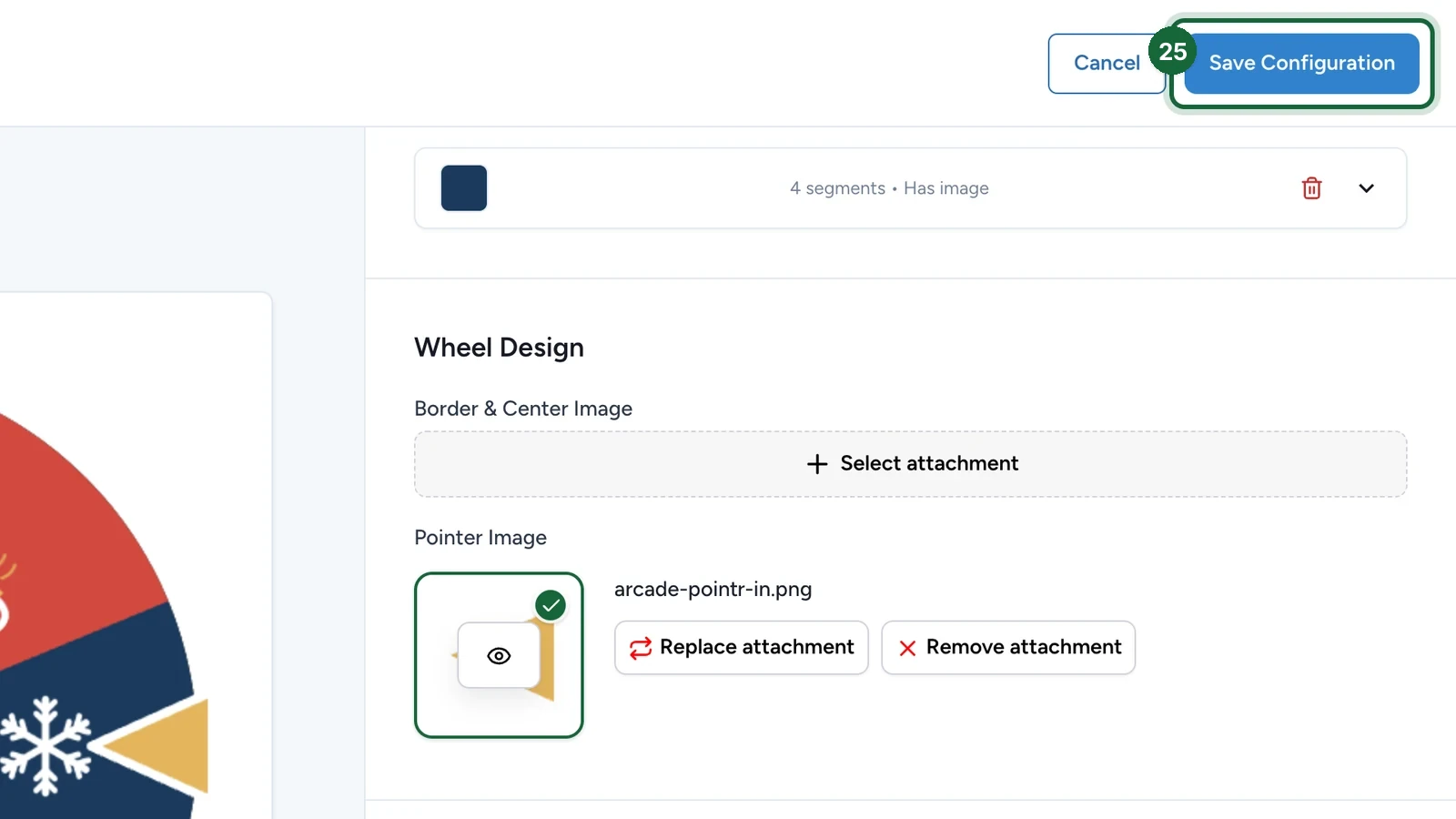
For another prize, select Add Winning Option and set it up the same way.
Decide who wins
-
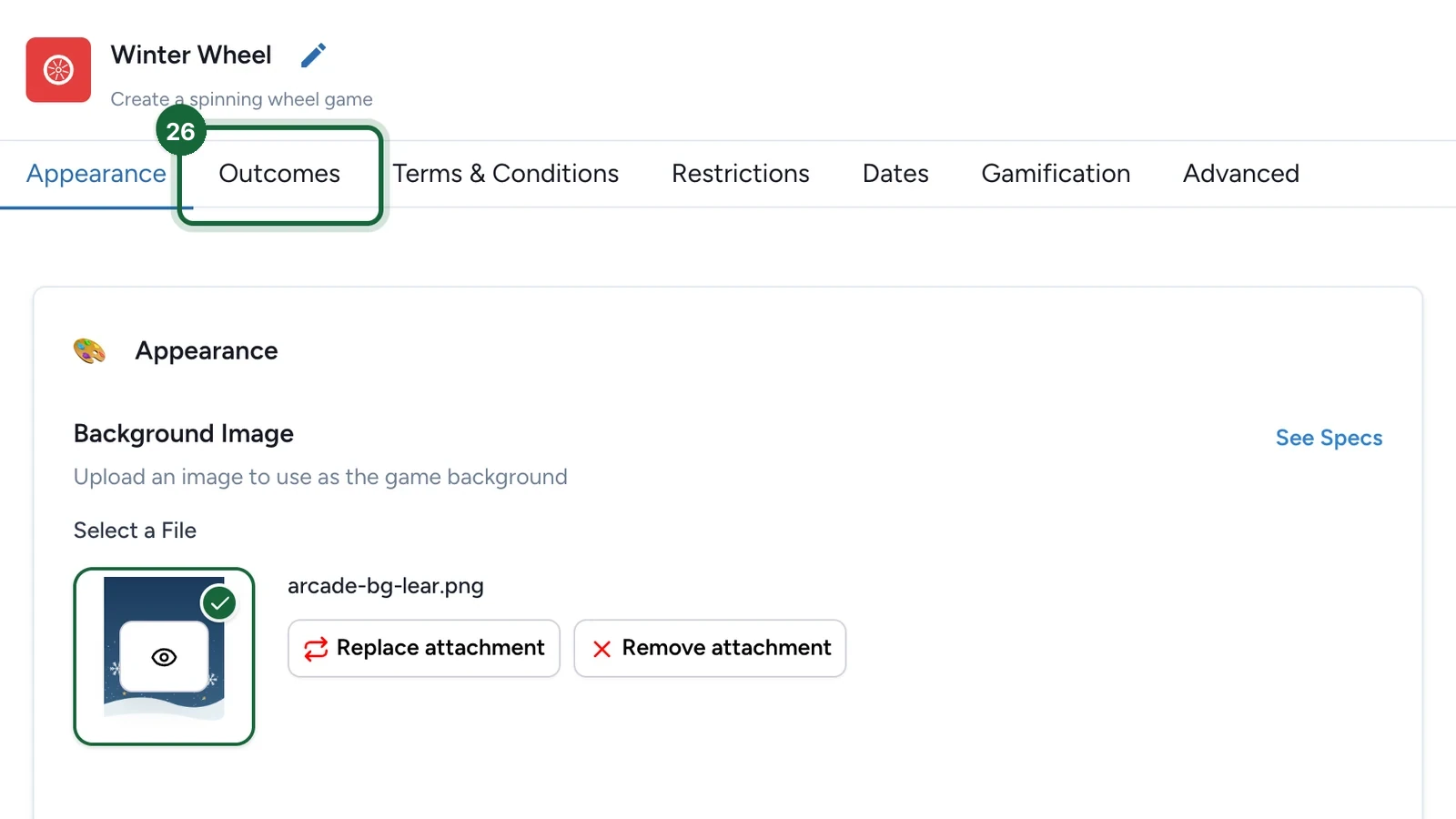
Select the Outcomes tab.
-
Under How Winners Are Determined, select Random Chance.
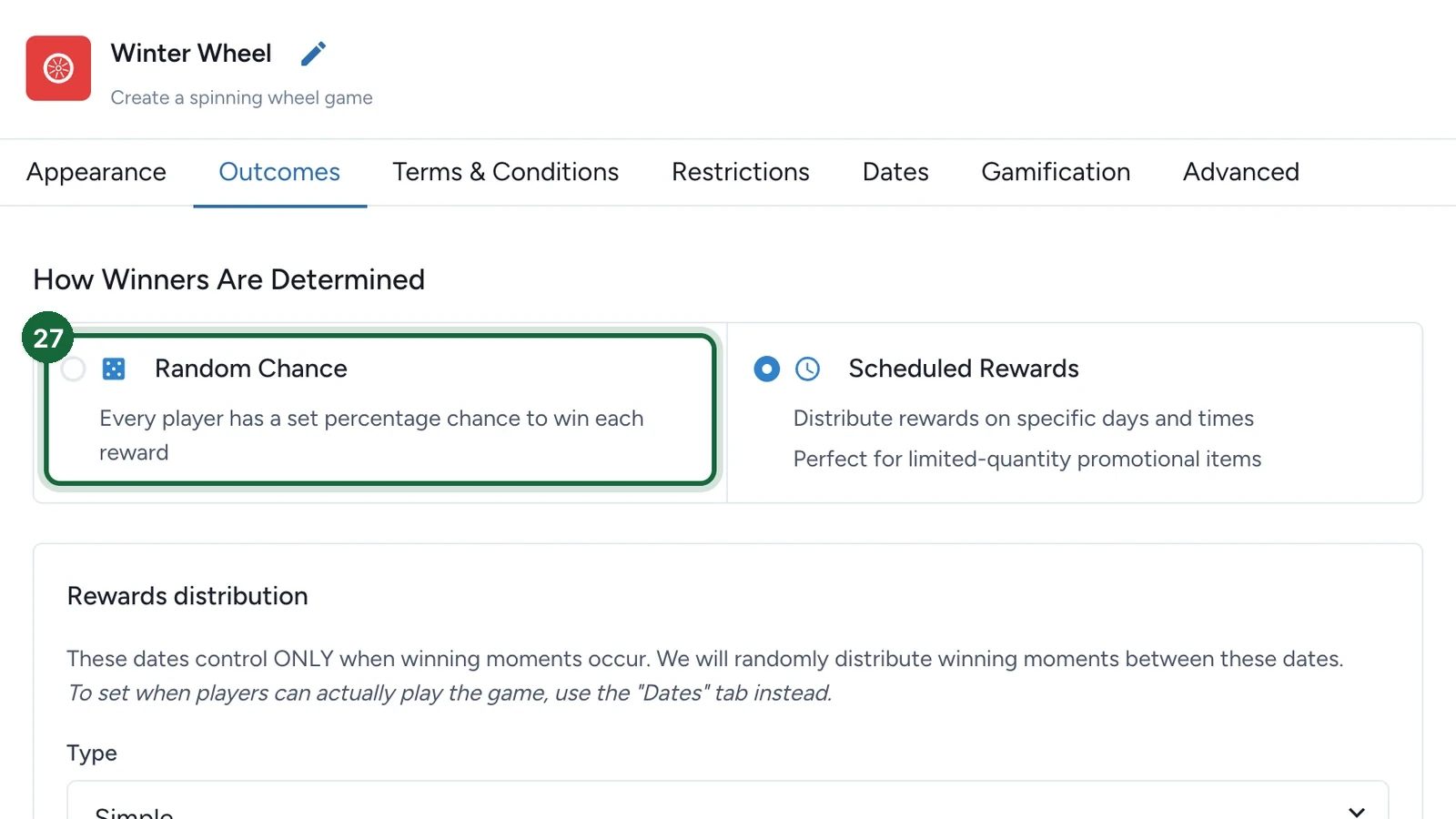
A new wheel starts on Scheduled Rewards. To keep it and spread the prizes over dates, see Schedule the prizes below.
-
On Hot chocolate, set the Probability.
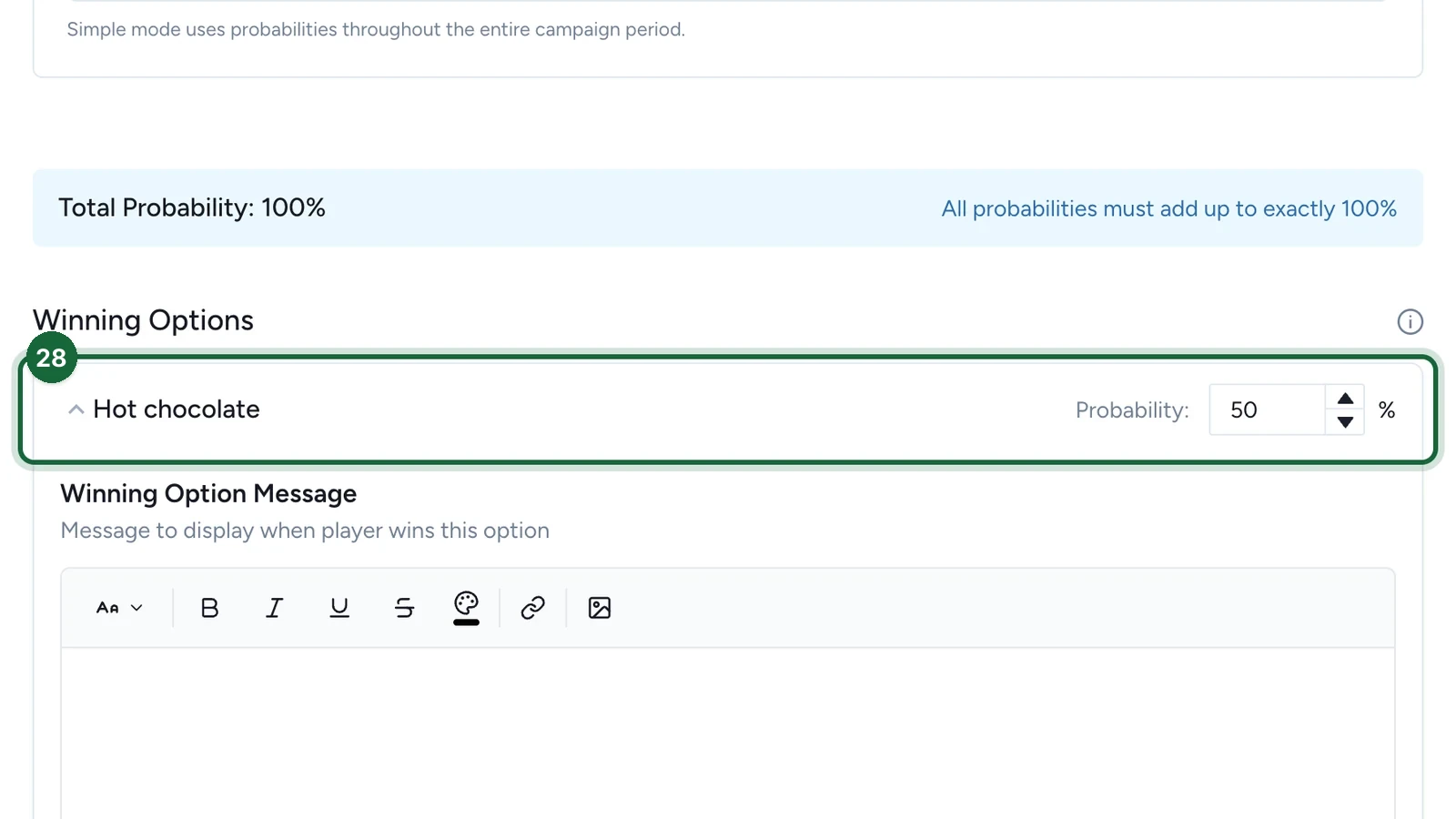
The Total Probability must reach 100%.
-
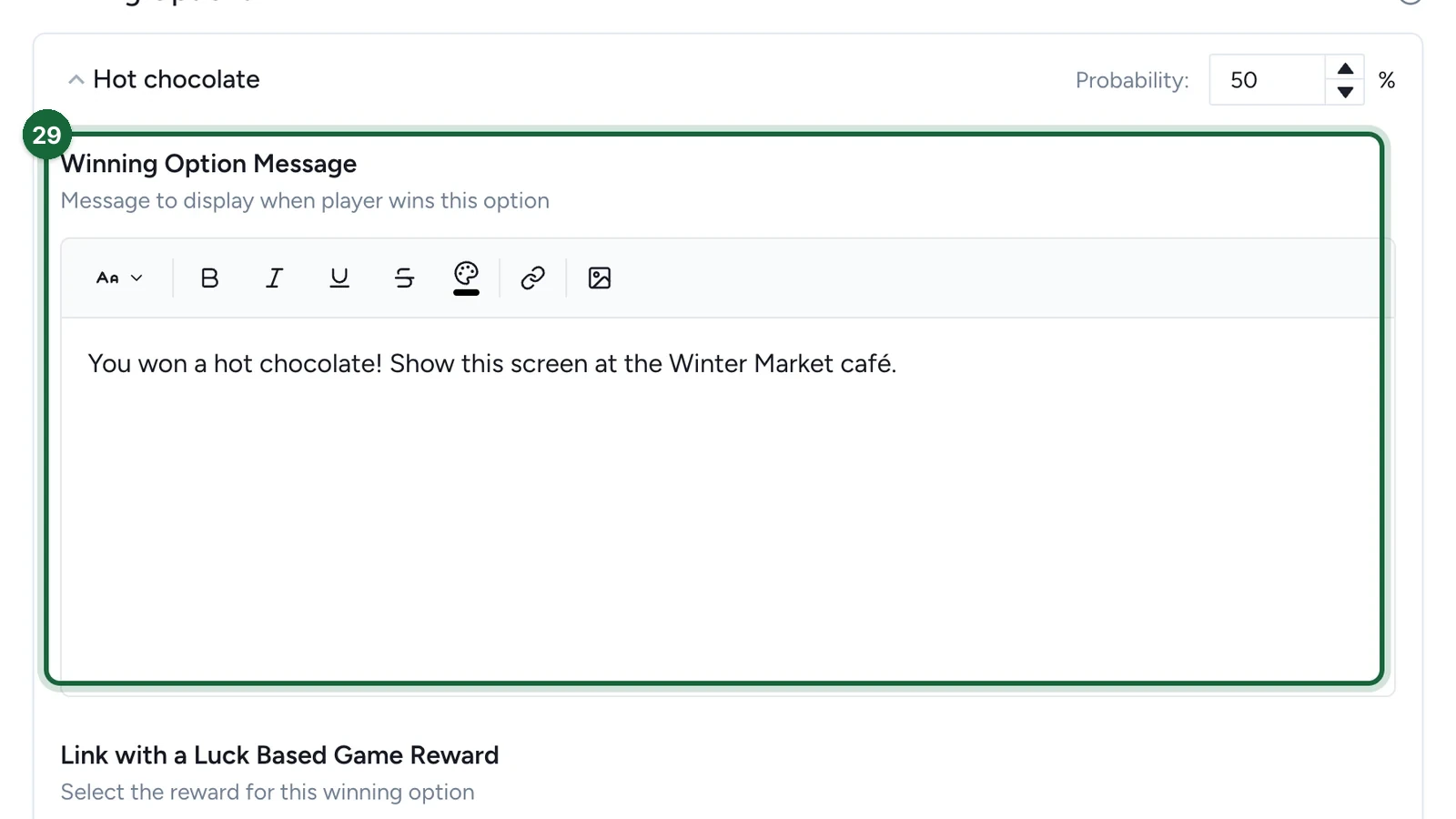
Write the Winning Option Message, shown when the wheel stops on the prize.
-
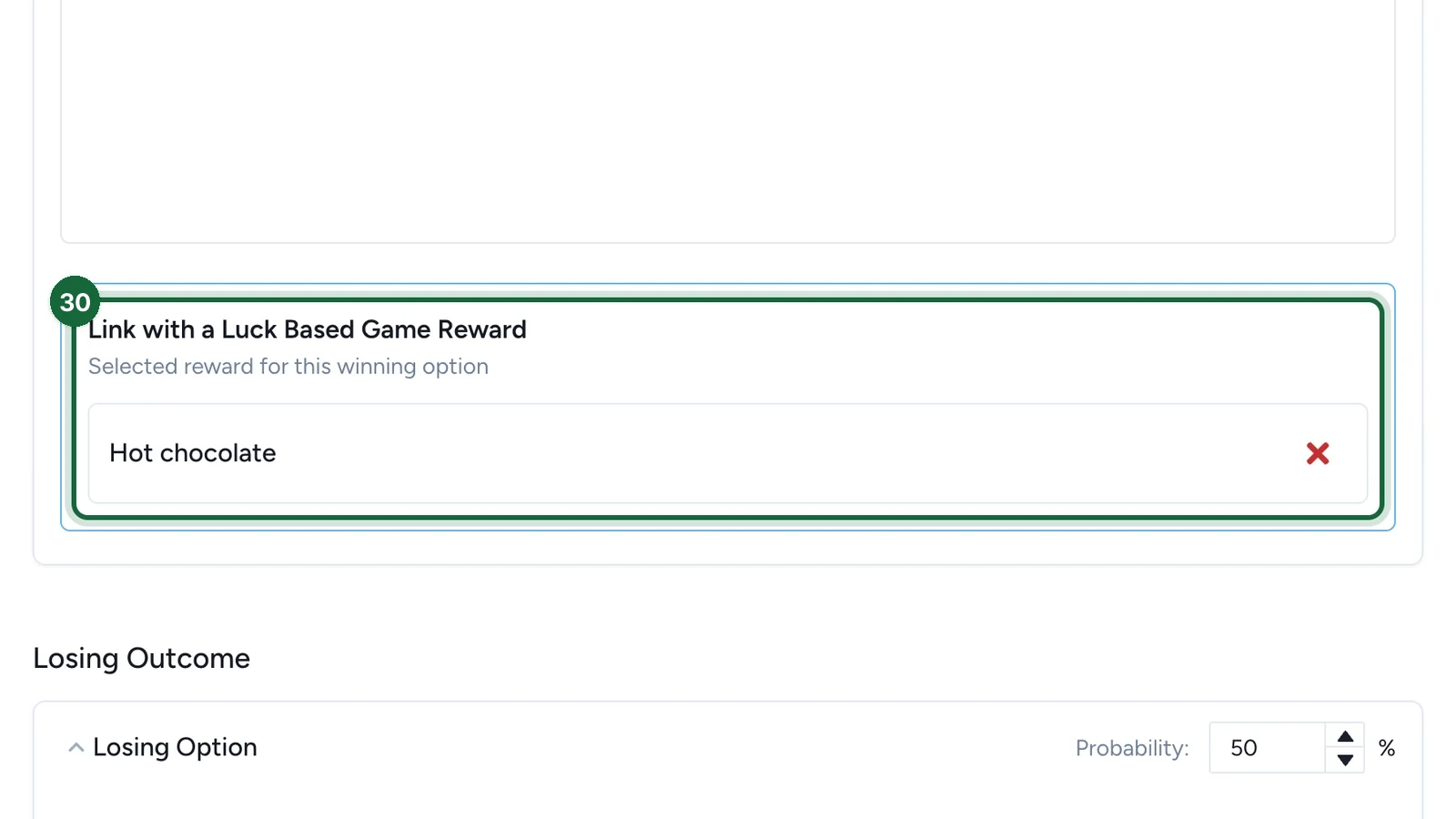
Under Link with a Luck Based Game Reward, choose the prize.
-
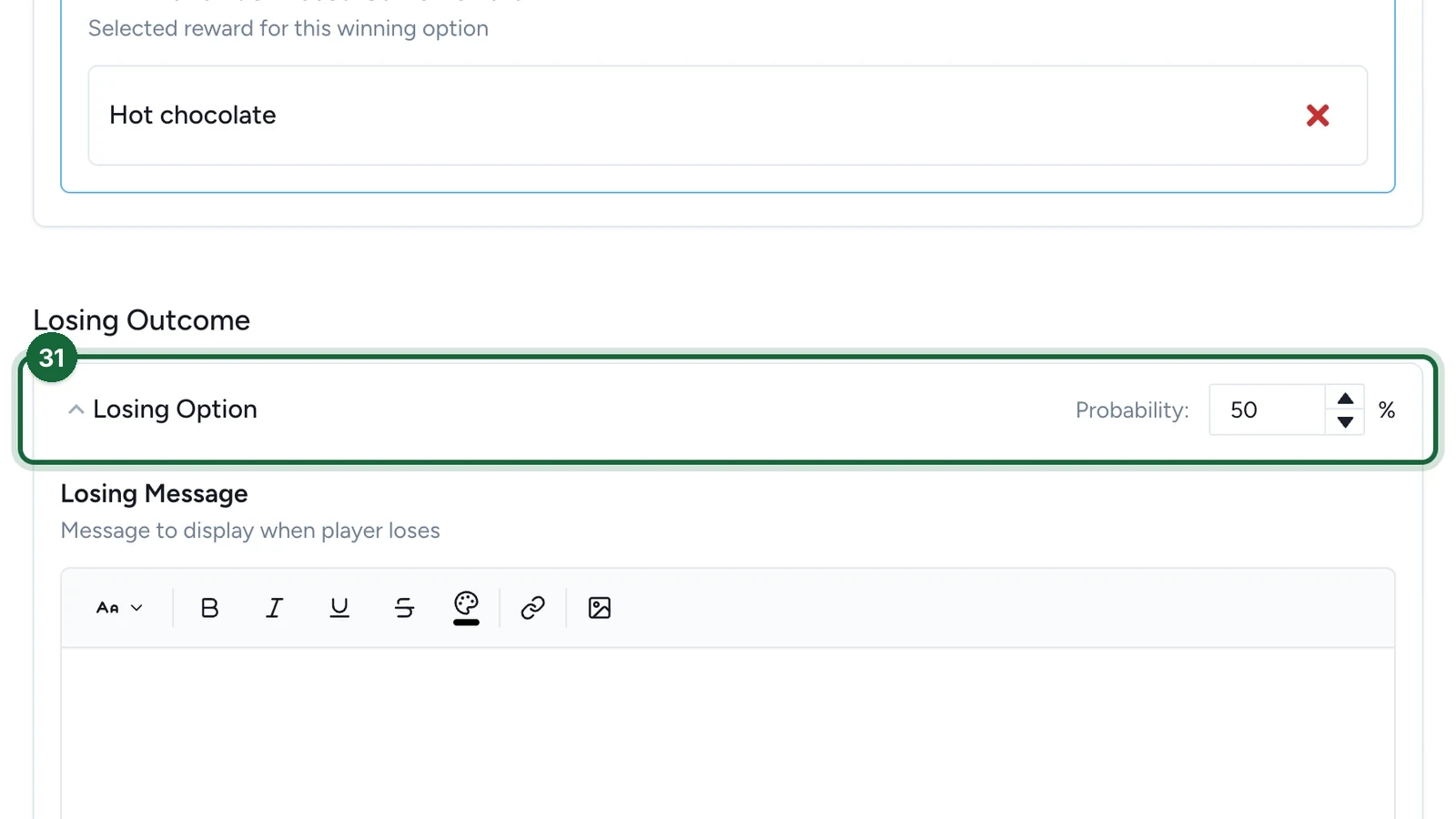
Under Losing Outcome, set the Probability.
-
Write the Losing Message.
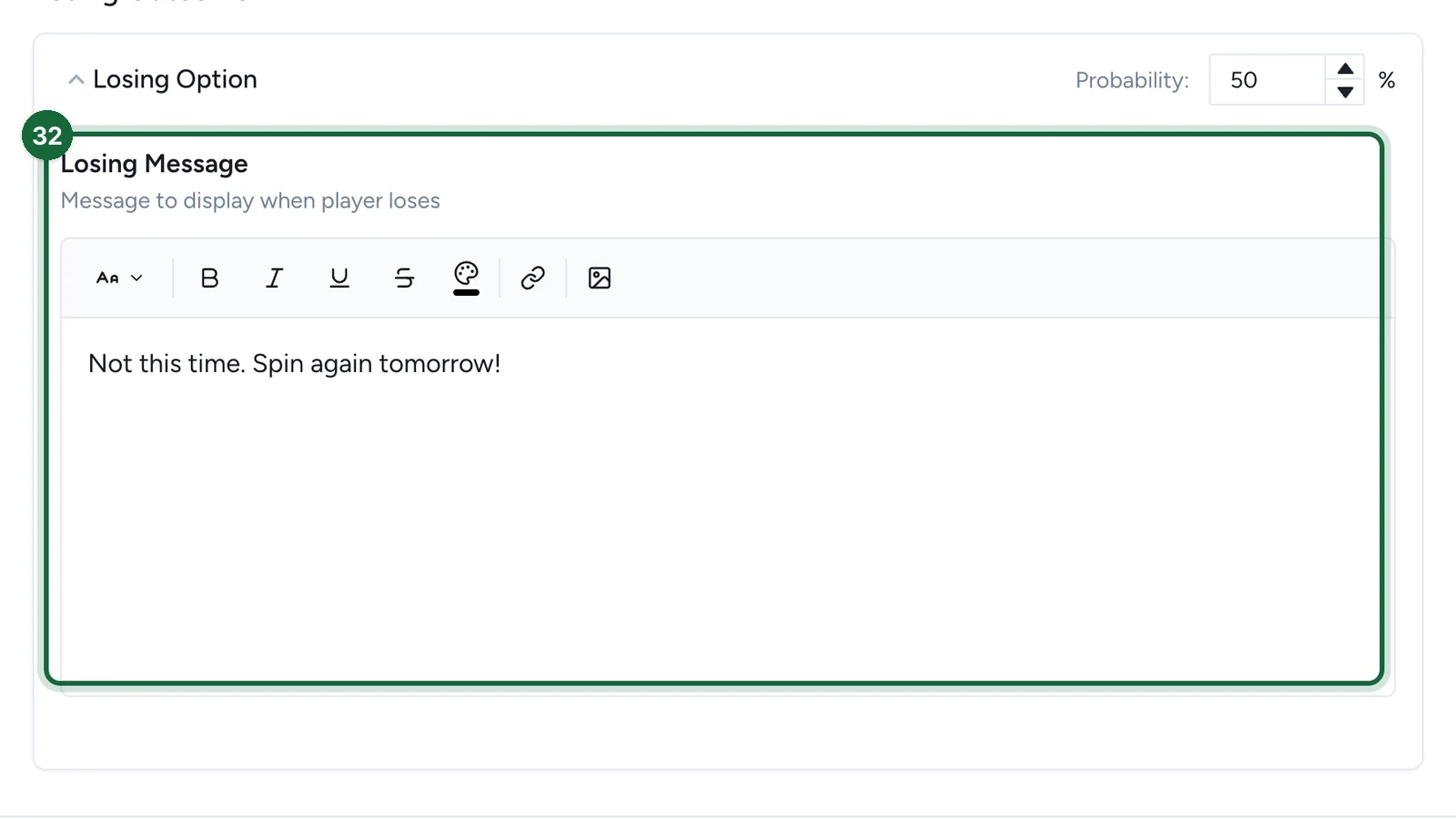
A new wheel allows one spin per player in all. For one a day, as this copy says, also turn on Daily Limit on the Restrictions tab: see Set restrictions for a game.
-
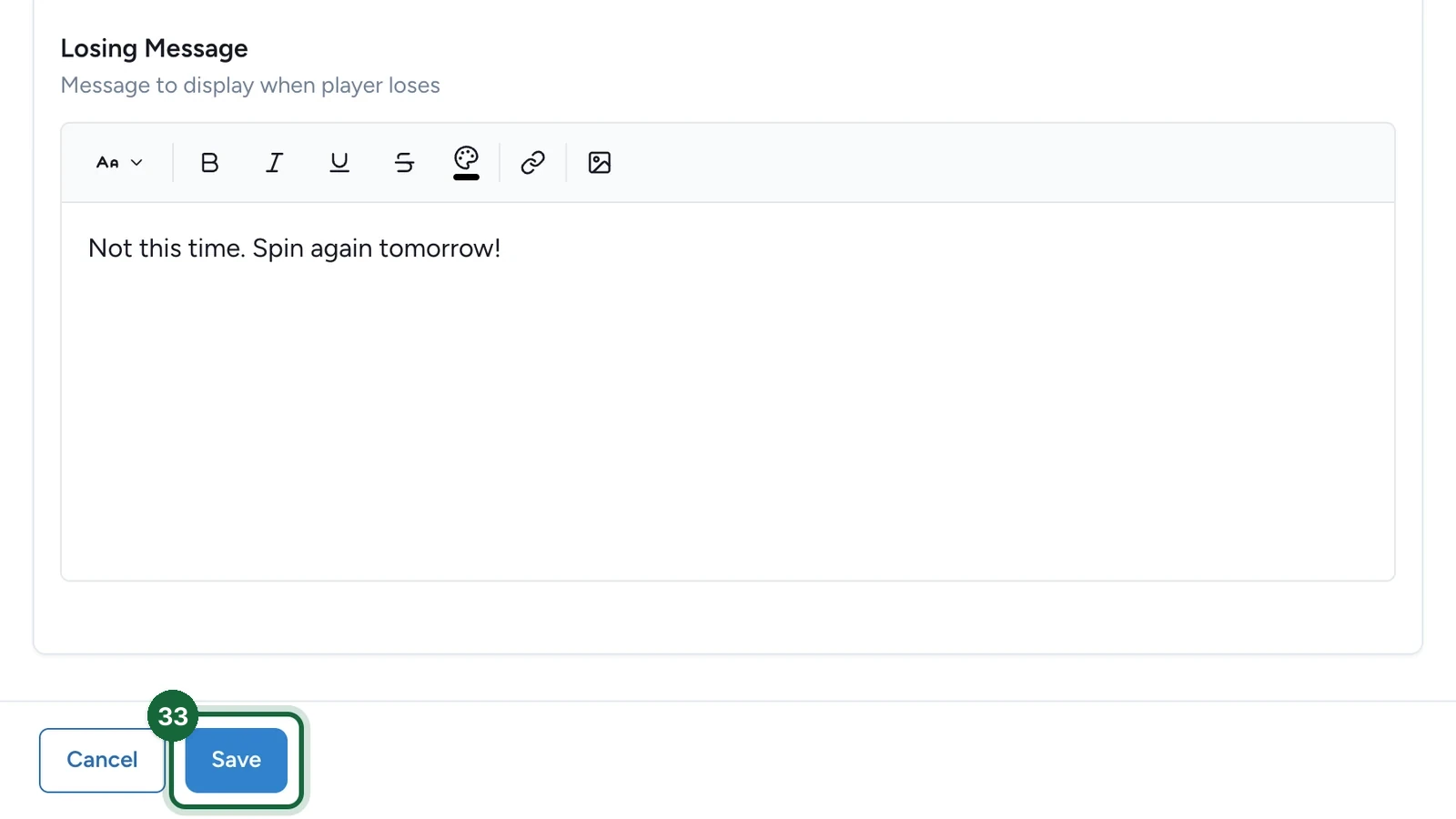
Select Save.
The wheel's card now reads VALID.
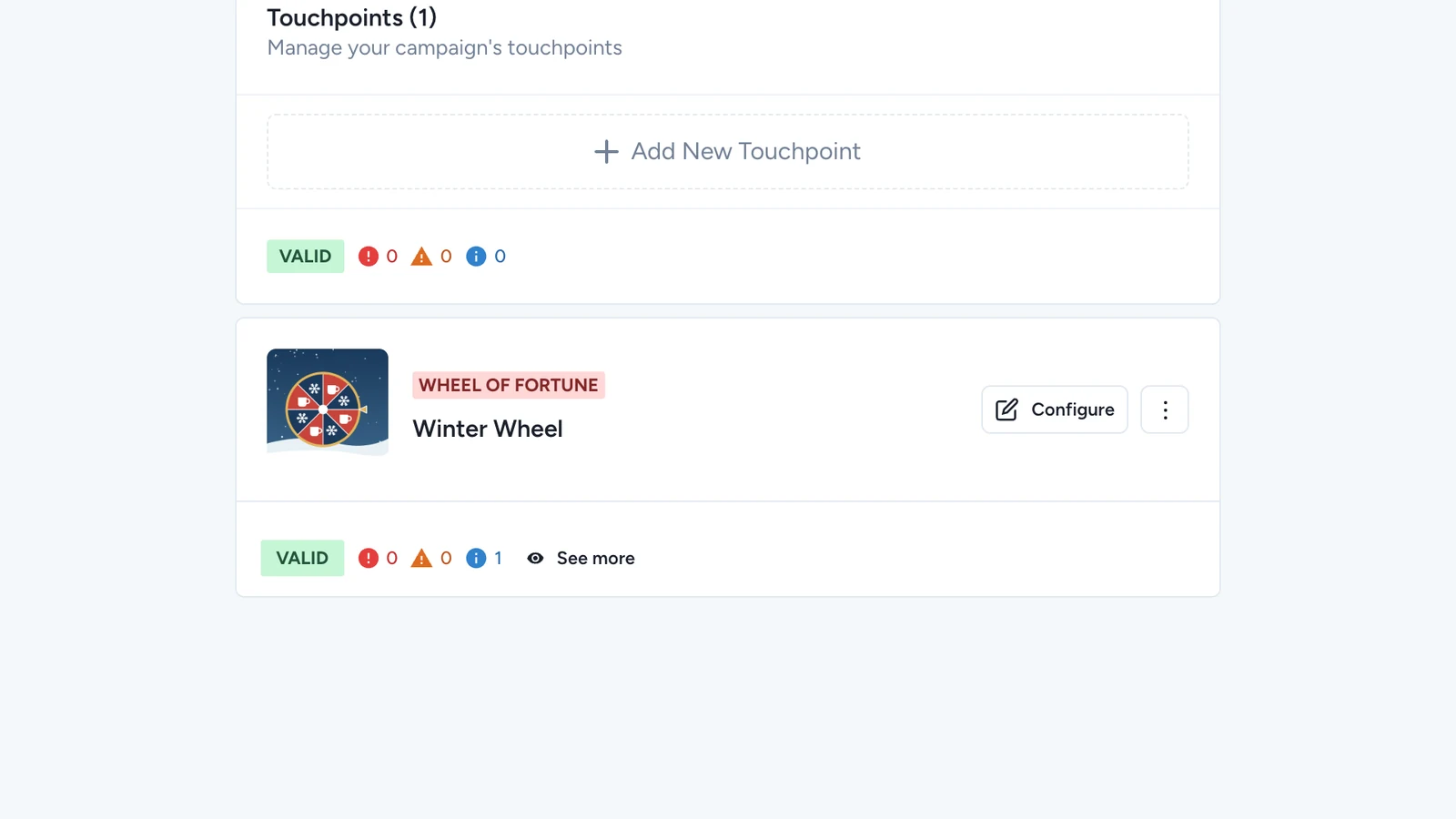
Publish the campaign again for players to see the wheel: see Publish a game.
Schedule the prizes
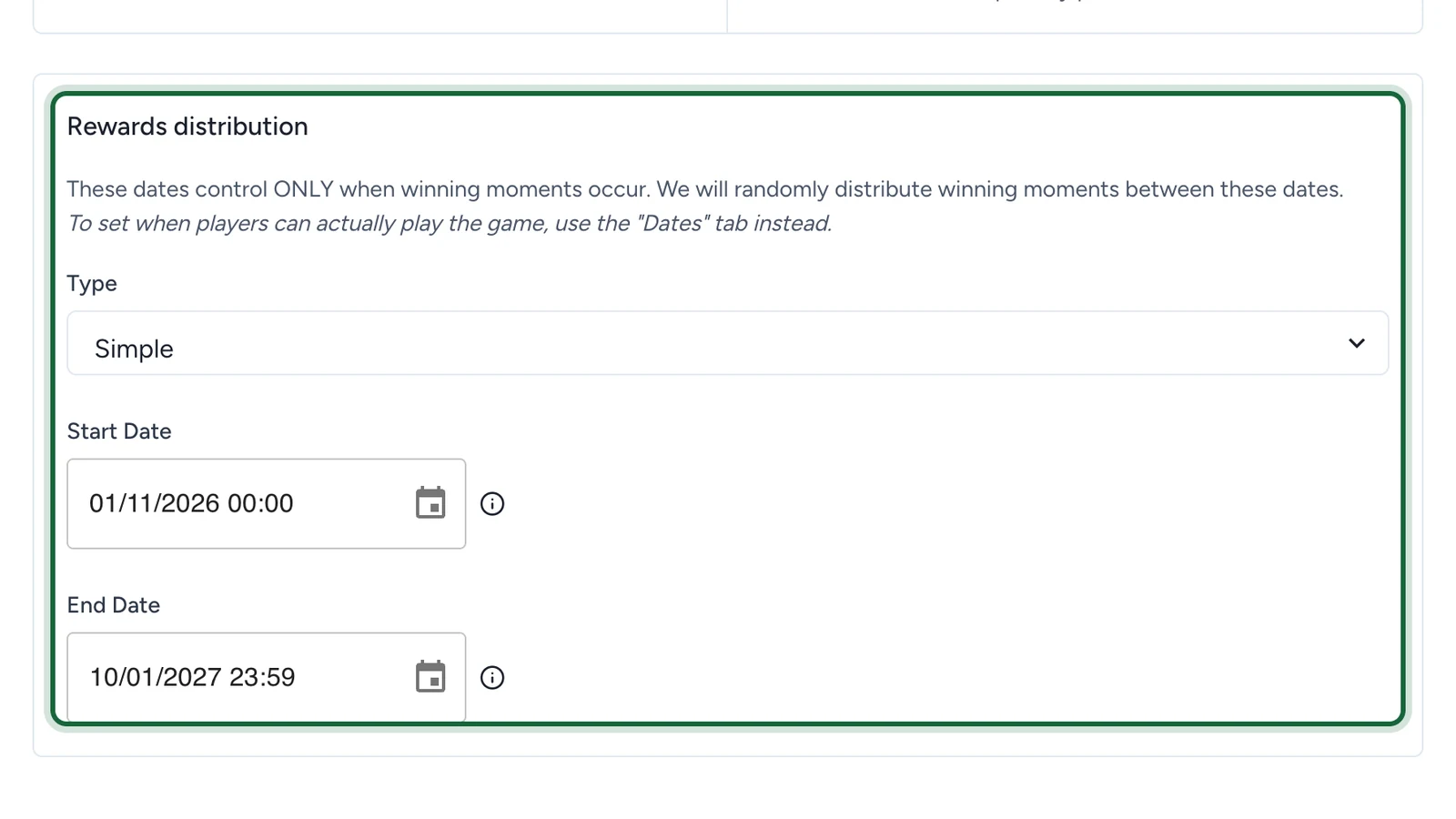
Scheduled Rewards releases the prizes at moments spread between two dates, whatever the odds. Keep it under How Winners Are Determined, then set the Type, Start Date and End Date under Rewards distribution: see Configure outcomes. Those dates only decide when prizes are won: the Dates tab decides when the wheel is open.
If publishing is blocked
- No background image, or no thumbnail while the landing page is on: choose them on the Appearance tab.
- No pointer image, or a winning option with no Segment Image: add them in the builder, then Save Configuration again.
- The slices don't add up: winning and losing segments must total the wheel's segments.
- The probabilities don't total 100%: adjust them under Outcomes.
- A winning option has no prize or no message: fill in Winning Option Message and Link with a Luck Based Game Reward.
- The prize has no winner message: add it in the reward: see Create a reward.
See also Game validation errors.