Scratch Card
Players rub away a cover to find a prize or a friendly miss underneath, with the odds or the timing you set.
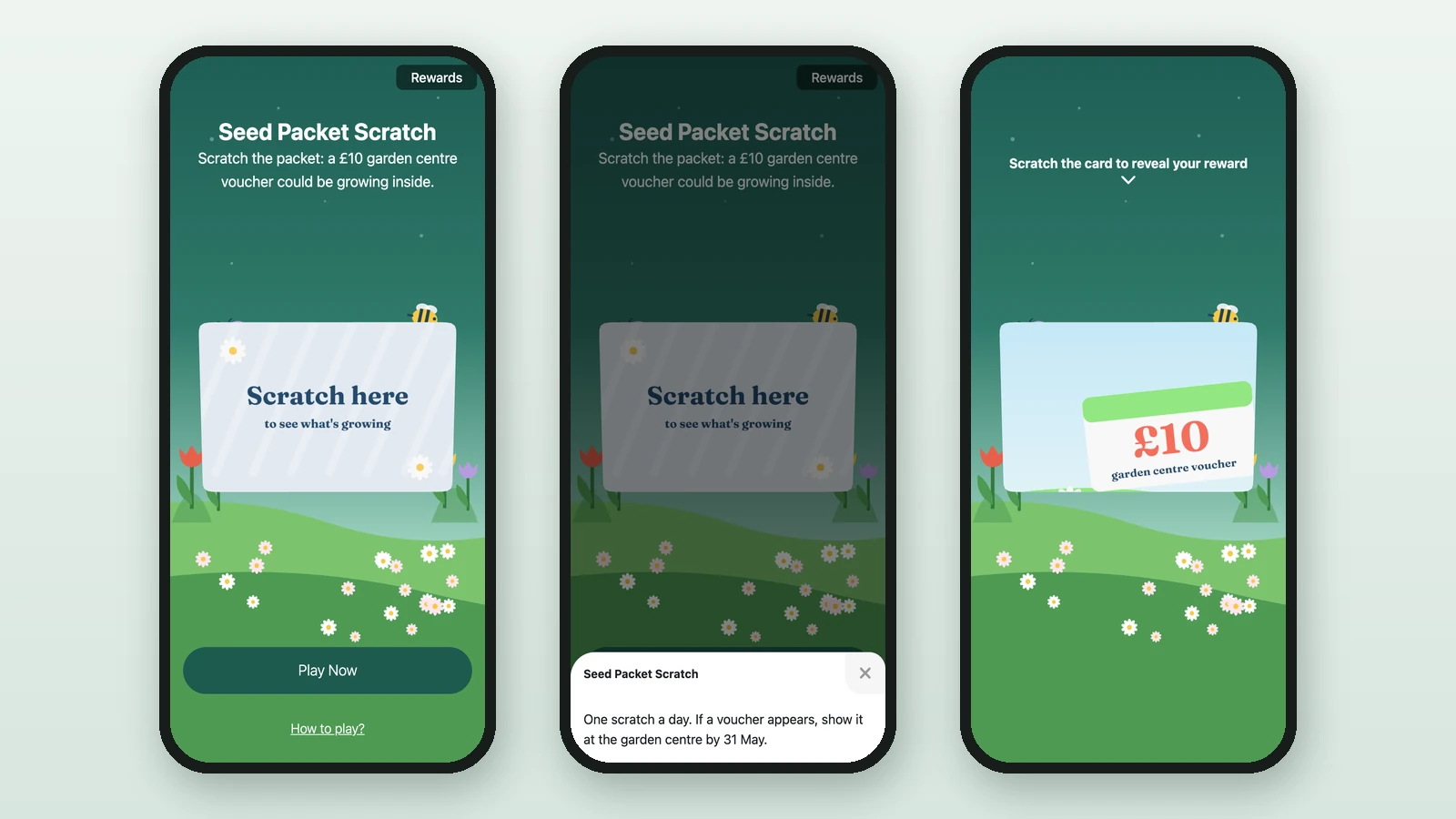
A Scratch Card is a card with a cover on top. Players scratch it off with a finger to see whether they've won. Studio lists it as Scratch Game. Here, Lindenhall's Seed Packet Scratch hides a £10 garden centre voucher, with a one-in-five chance.
Before you begin
- A campaign open in Build: see Your first campaign.
- A Luck Based Reward for each prize: see Create a reward.
- Your images:
Background Image
RequiredThe full-screen visual behind any game (wheel, scratch, reveal, quiz, and more).
- Requiredexcept for instant reward and sign-up games
- Size1536 × 2048 px
- Aspect ratio3:4
- FormatsJPEG / WEBP / PNG
It fills the screen from the top centre, with the title, the game and the button on top, and phones crop about a fifth off each side: keep text and faces in the middle.
Front Image (Scratchable Cover)
RequiredThe cover players scratch off to reveal the result.
- Required
- Size1200 × 800 px
- Aspect ratio3:2
- FormatsJPEG / WEBP / PNG
Use a fully opaque image so the prize stays hidden until scratched. The card is 3:2: a picture of another shape repeats across it.
Back Image (Branding Side)
OptionalThe branded surface shown behind the scratchable cover.
- Optional
- Size1200 × 800 px
- Aspect ratio3:2
- FormatsJPEG / WEBP / PNG
Keep it the same ratio as the front image.
Winning Option Image
RequiredThe picture players uncover when they win: one per winning option.
- Required
- Size1200 × 800 px
- Aspect ratio3:2
- FormatsJPEG / WEBP / PNG
It is stretched to the front image’s size, so keep both at 3:2: it then fills the card once scratched.
Losing Image
RequiredThe picture players uncover when they don’t win.
- Required
- Size1200 × 800 px
- Aspect ratio3:2
- FormatsJPEG / WEBP / PNG
Keep it friendly, and say when they can try again.
Reward Icon
OptionalThe icon that represents a reward.
- Optional
- Size800 × 800 px
- Aspect ratio1:1
- FormatsJPEG / WEBP / PNG
Circular design and a transparent background work best.
Add the game
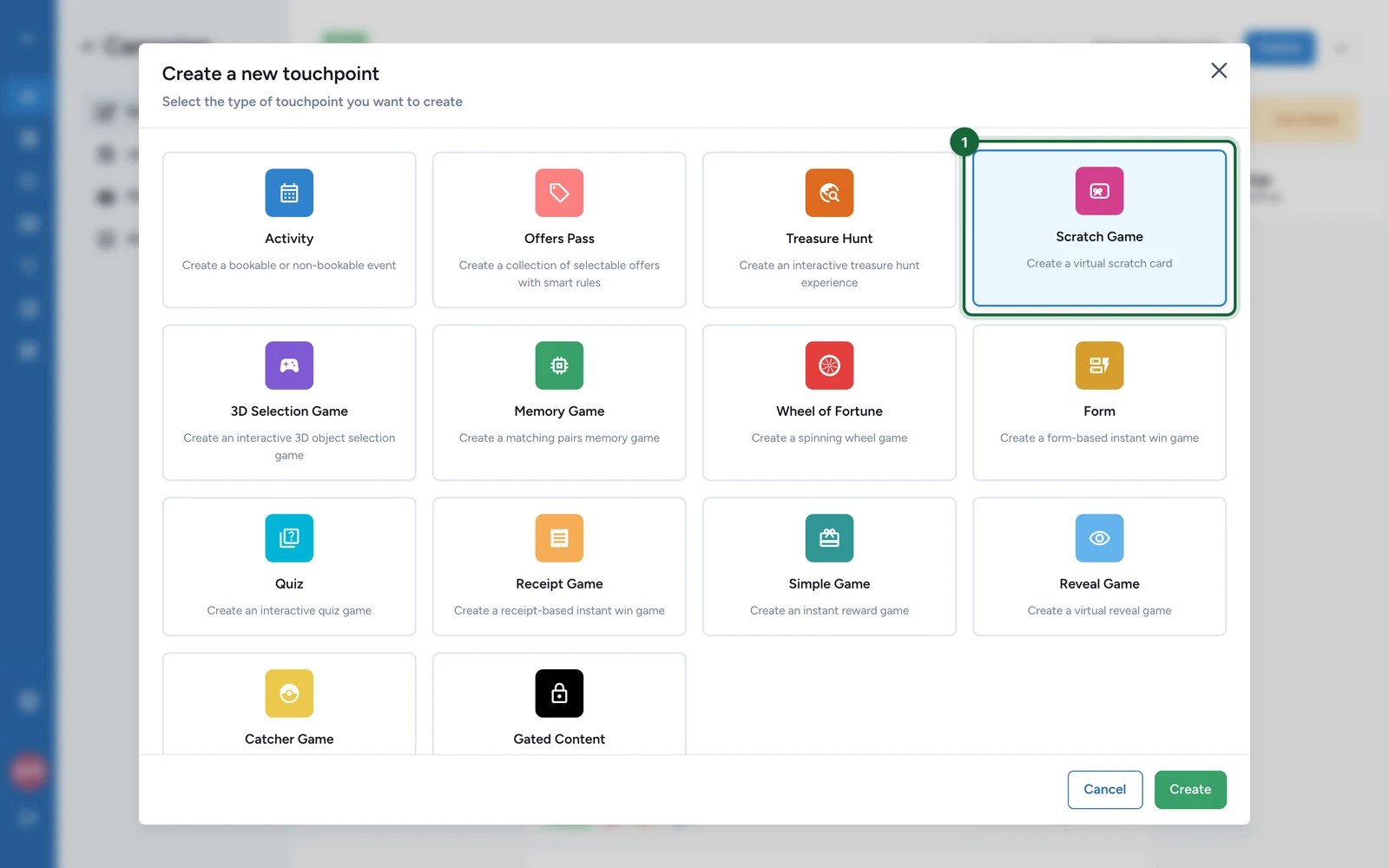
In Build > Touchpoints, select Add New Touchpoint.
-
Select Scratch Game, then Create.
-
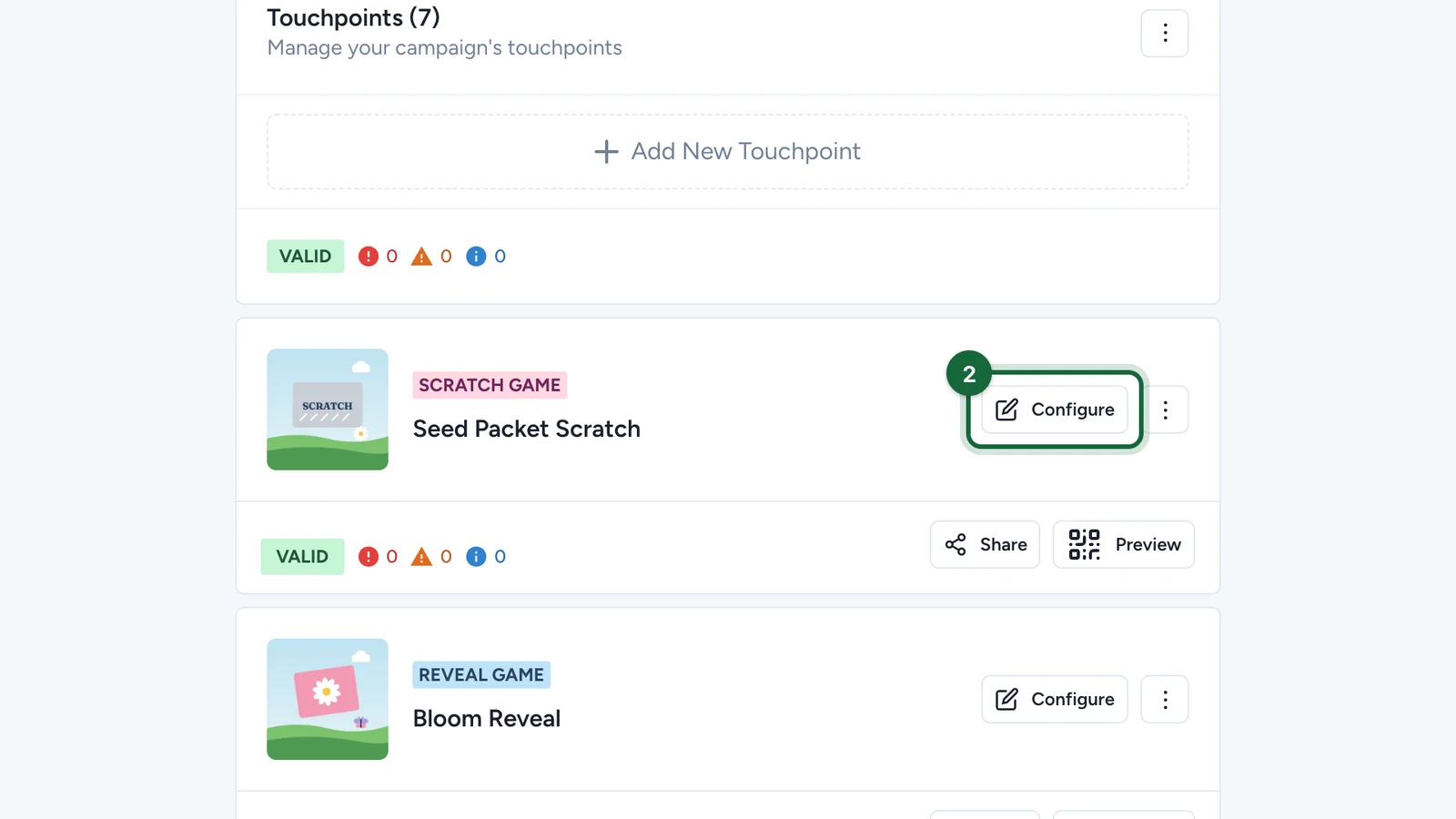
On the new game, select Configure.
Set the page
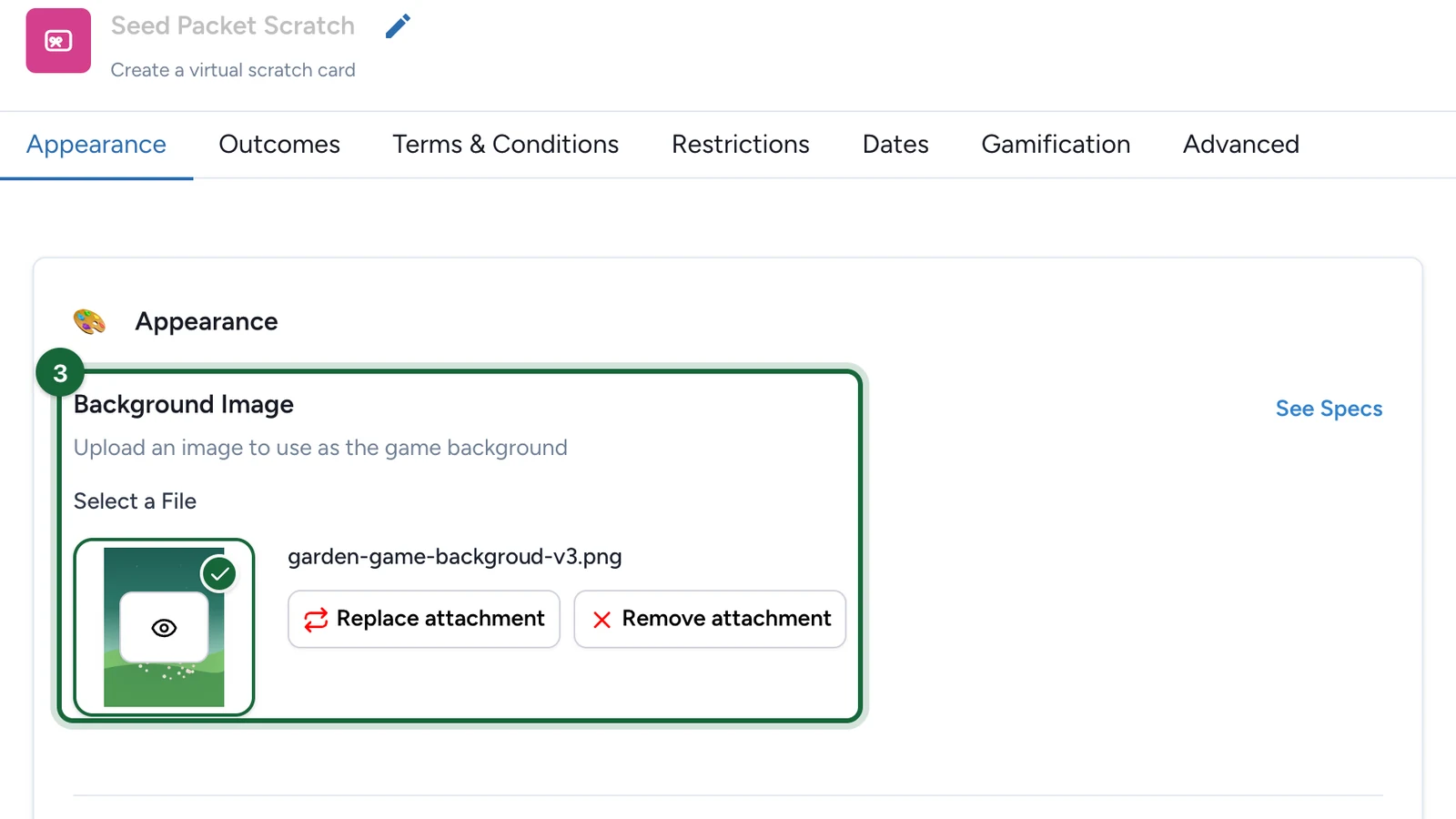
On the Appearance tab:
-
Under Background Image, choose the picture behind the card.
-
Enter the Title.
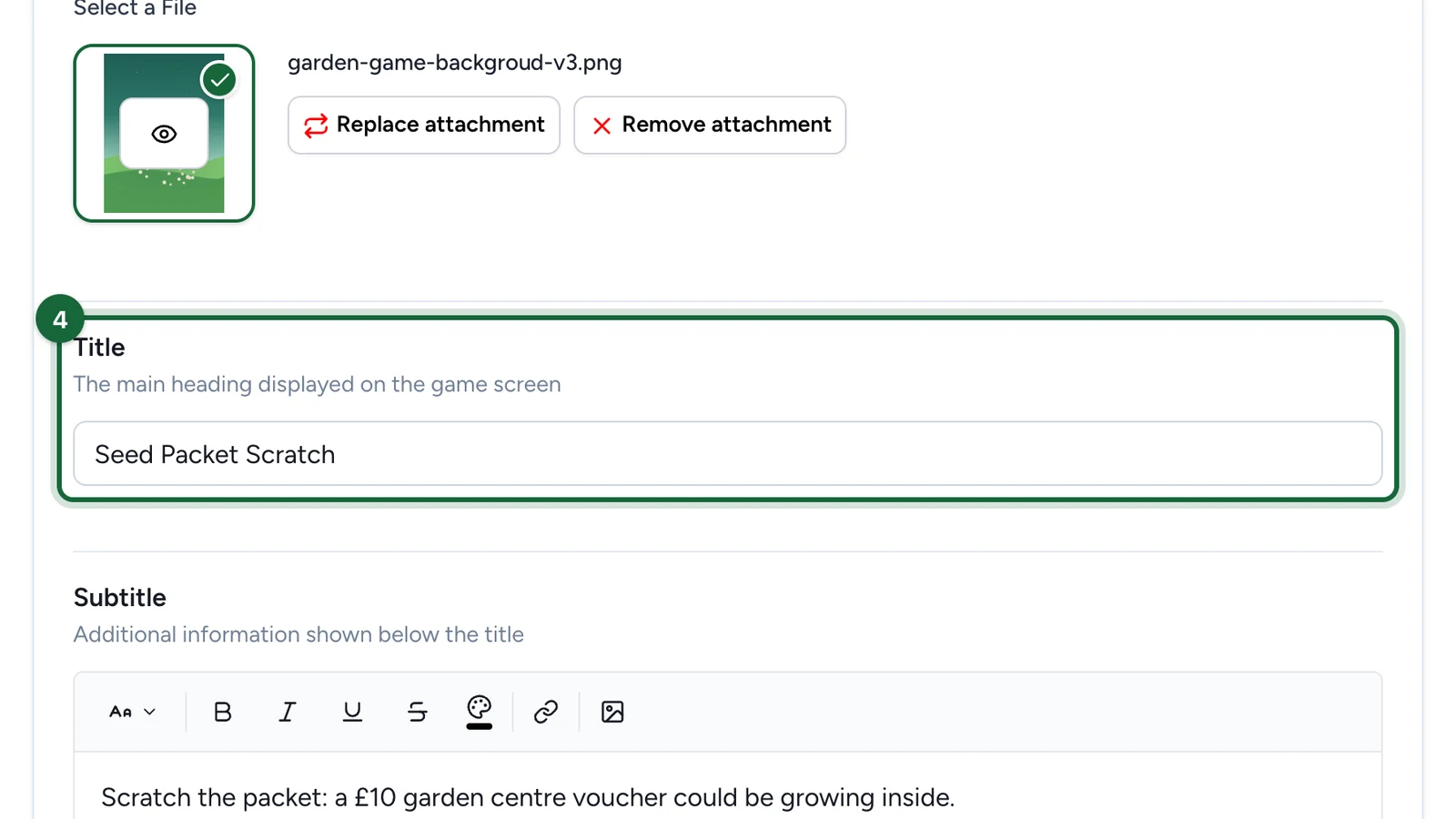
-
Enter the Subtitle: say what players can win.
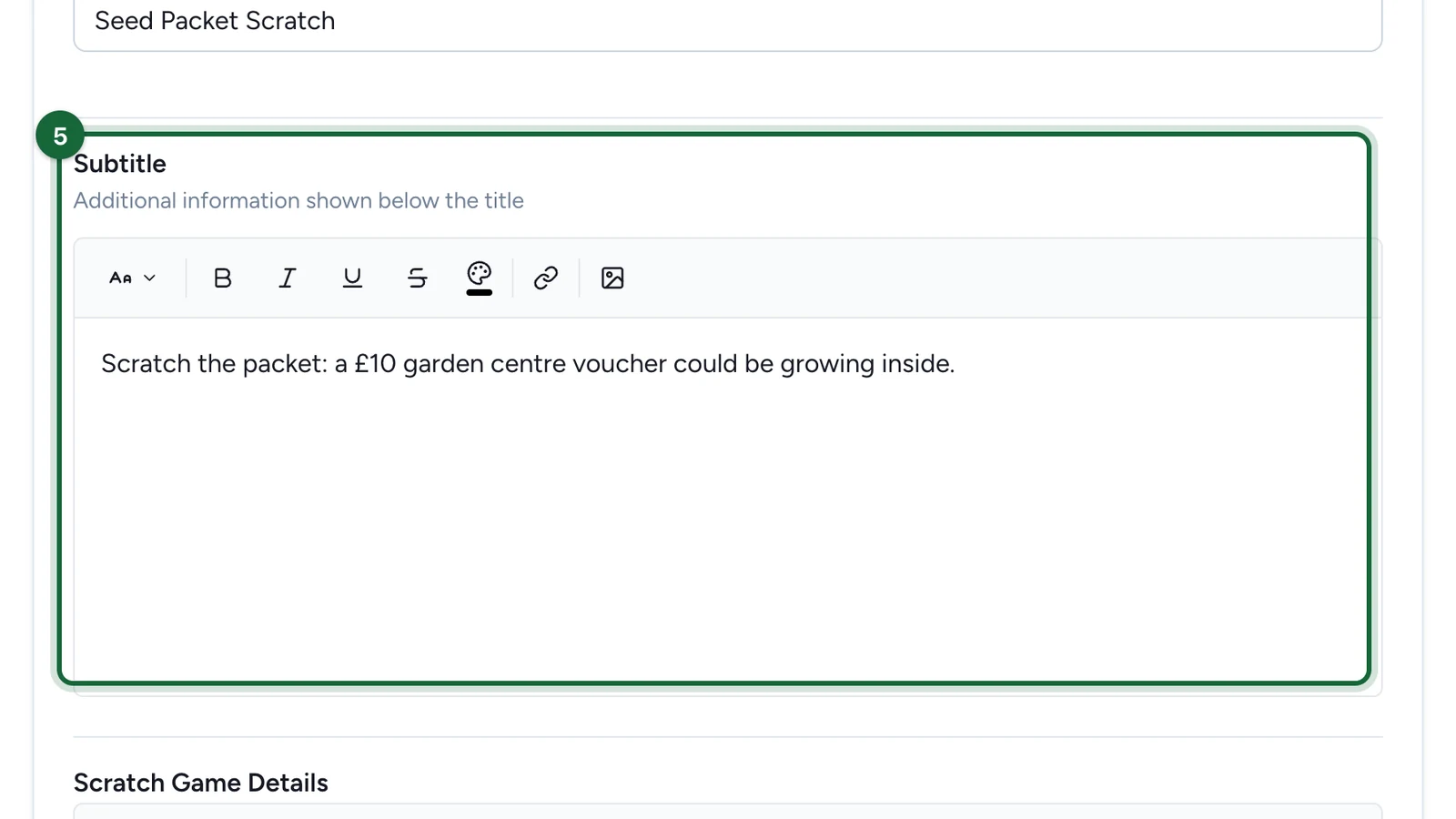
-
Under Scratch Game Details, say how often players can try and where to collect the prize.
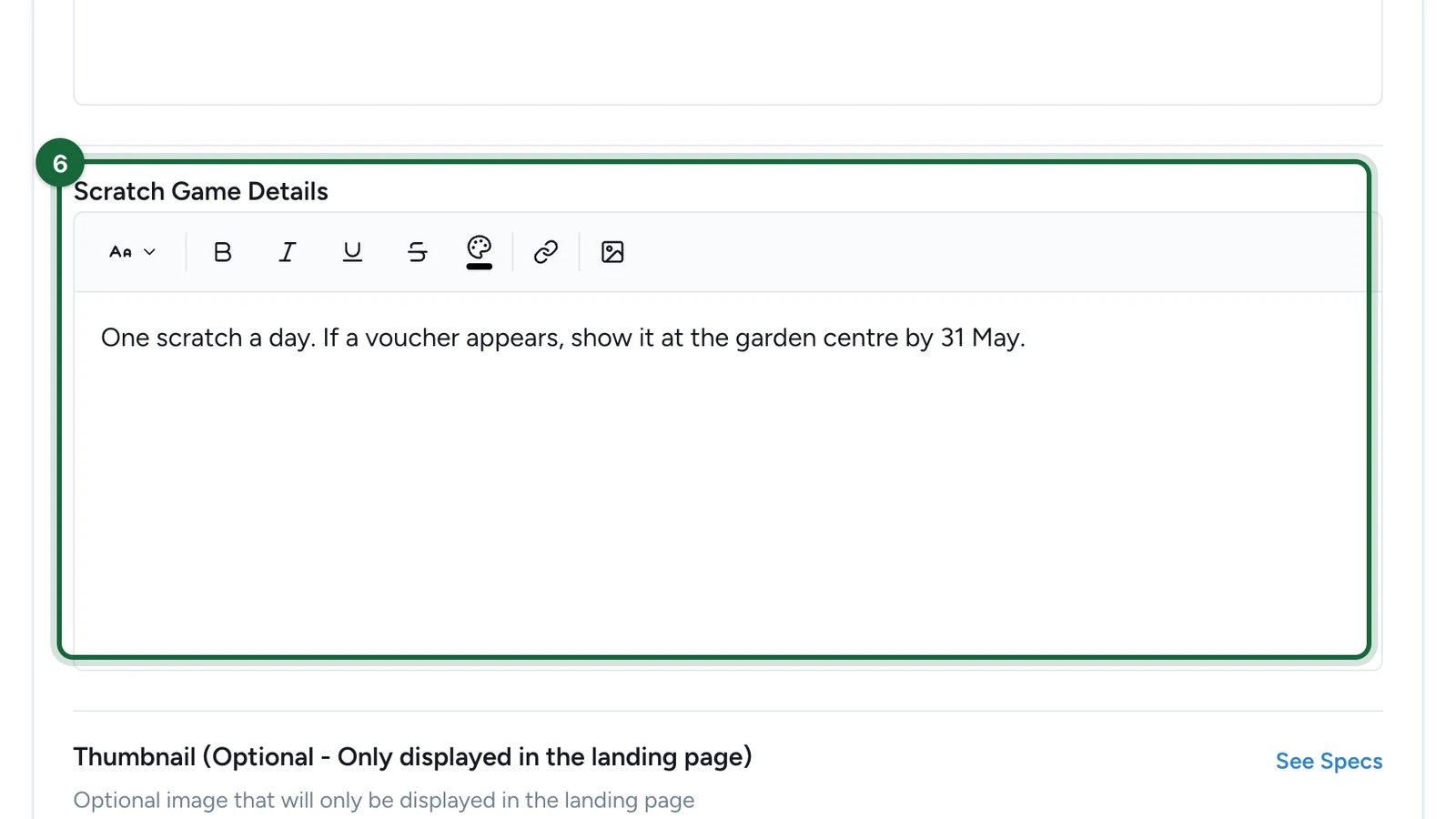
Players read it under How to play?.
-
(Optional) Under Thumbnail, choose the game's picture on the landing page, if the campaign has one.
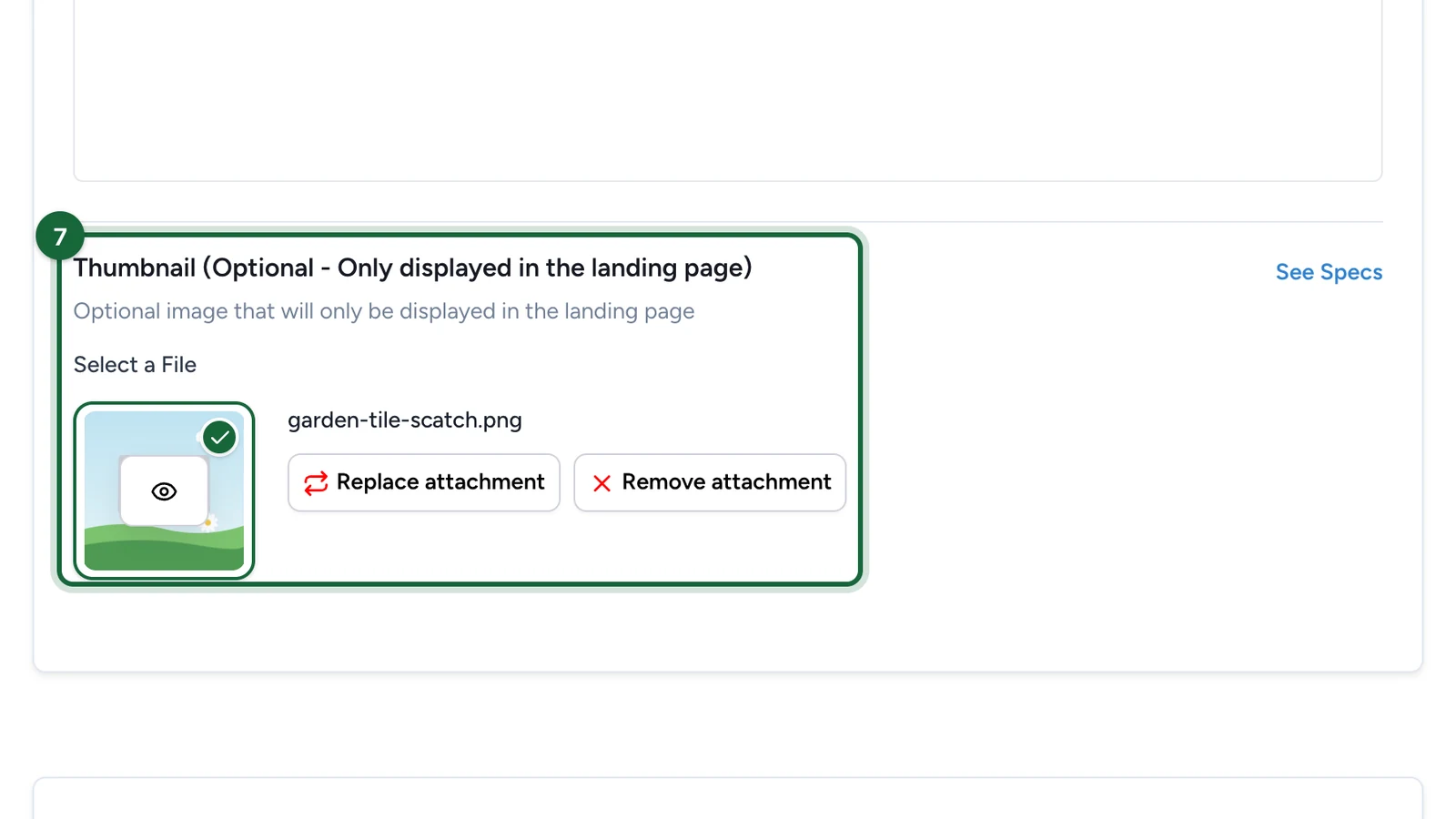
Build the card
-
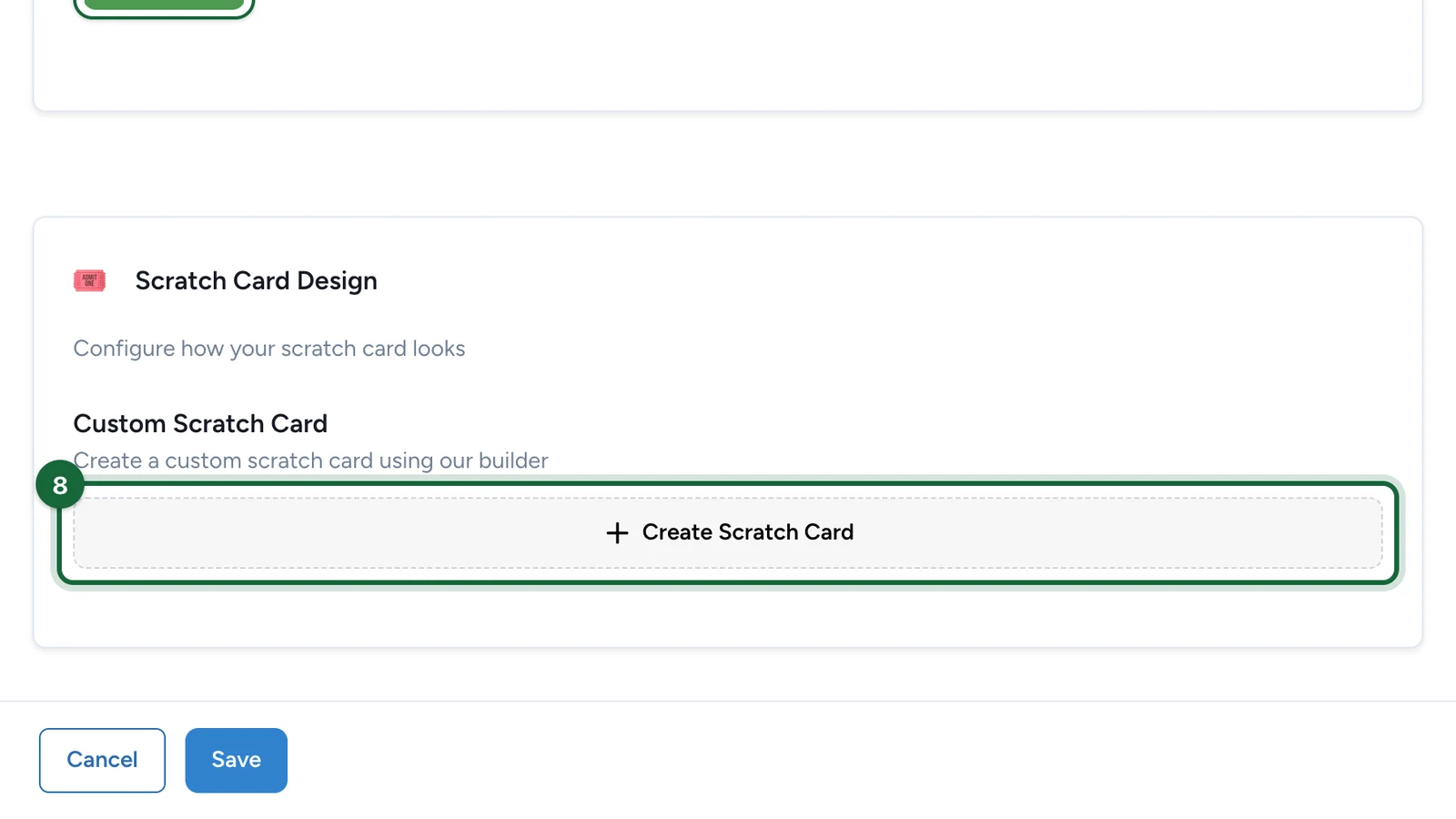
Under Custom Scratch Card, select Create Scratch Card.
-
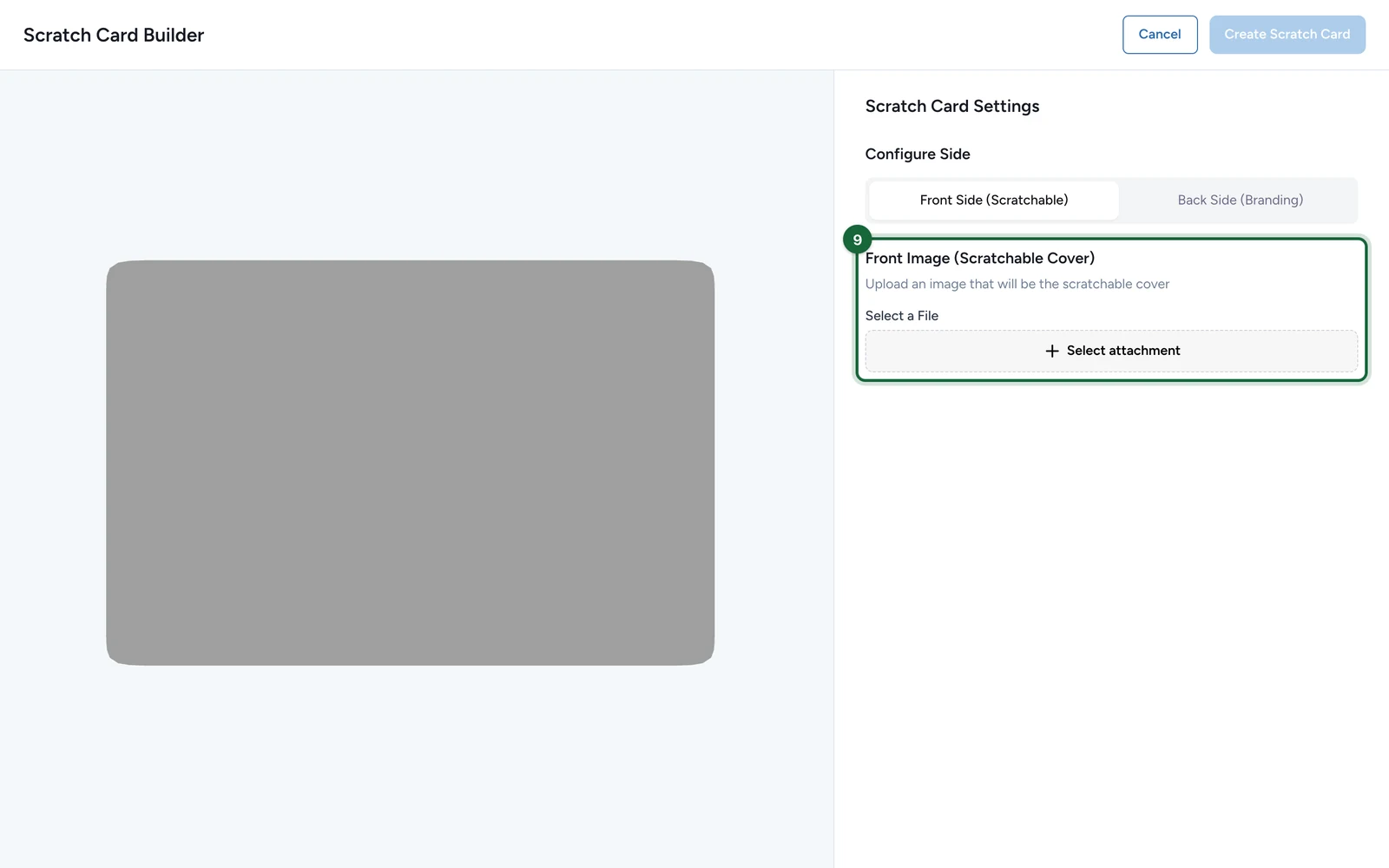
On Front Side (Scratchable), select Select attachment.
-
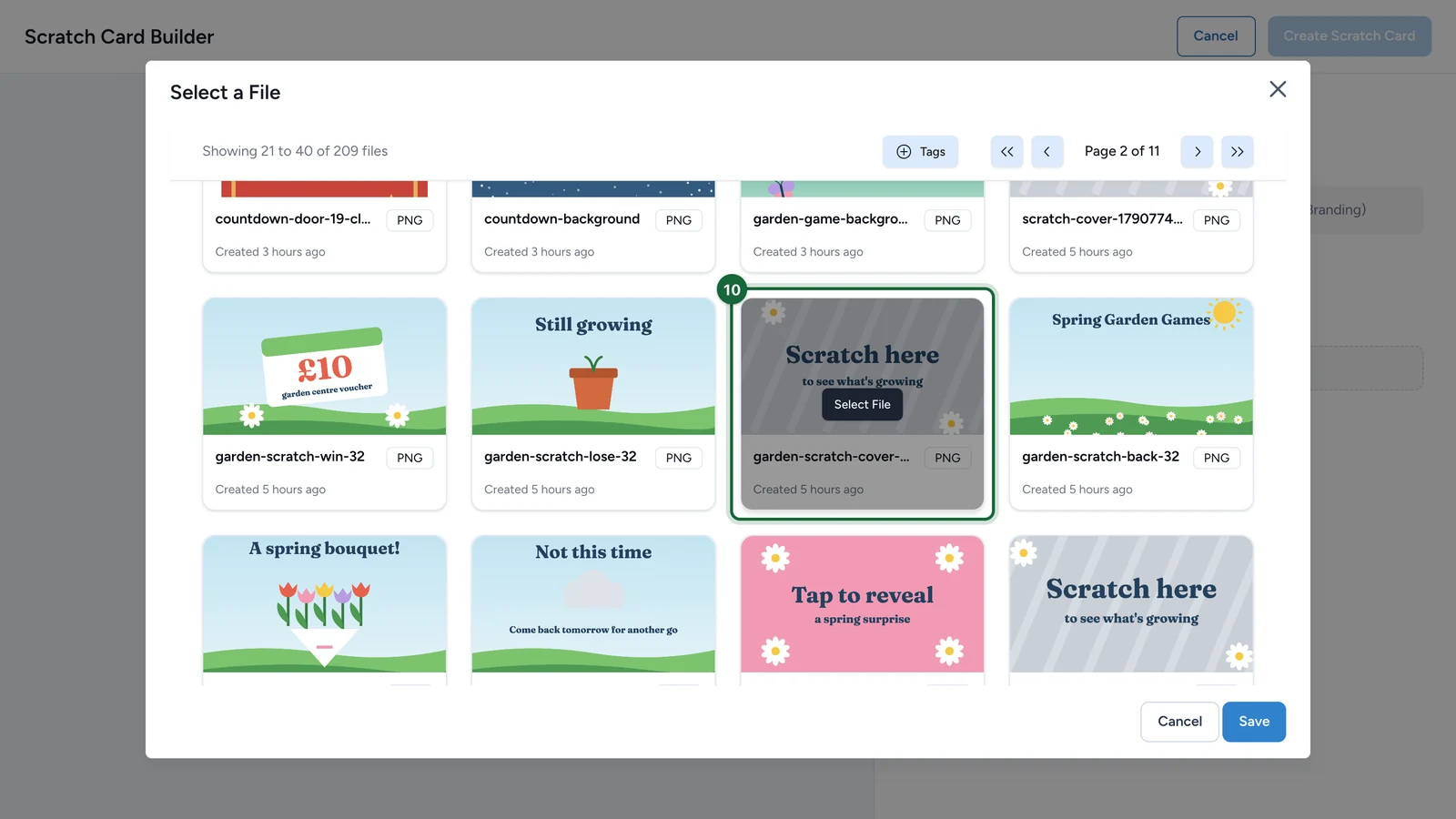
Choose the cover: point at it, then select Select File.
-
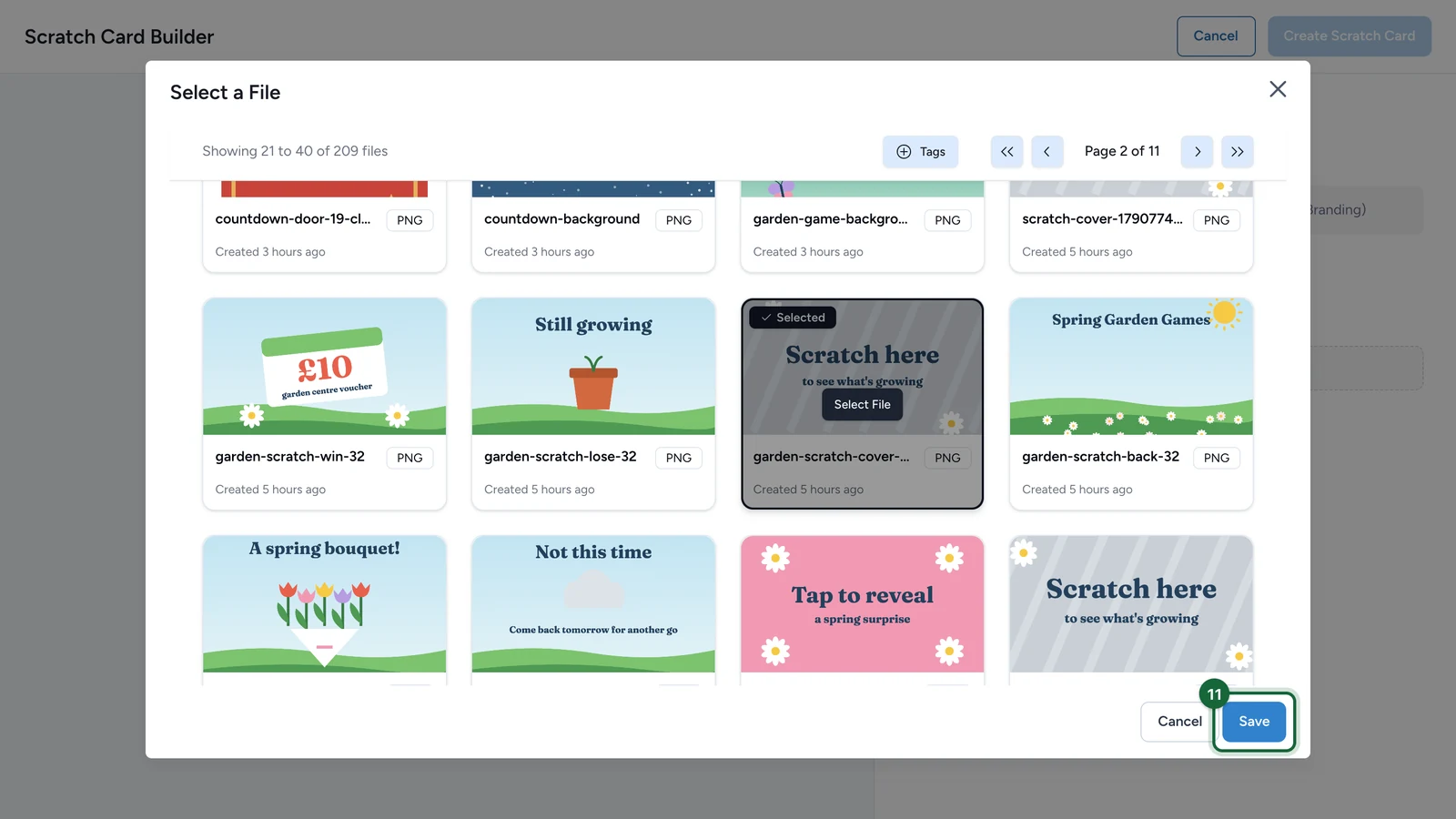
Select Save.
-
(Optional) Select Back Side (Branding), and choose its picture the same way.
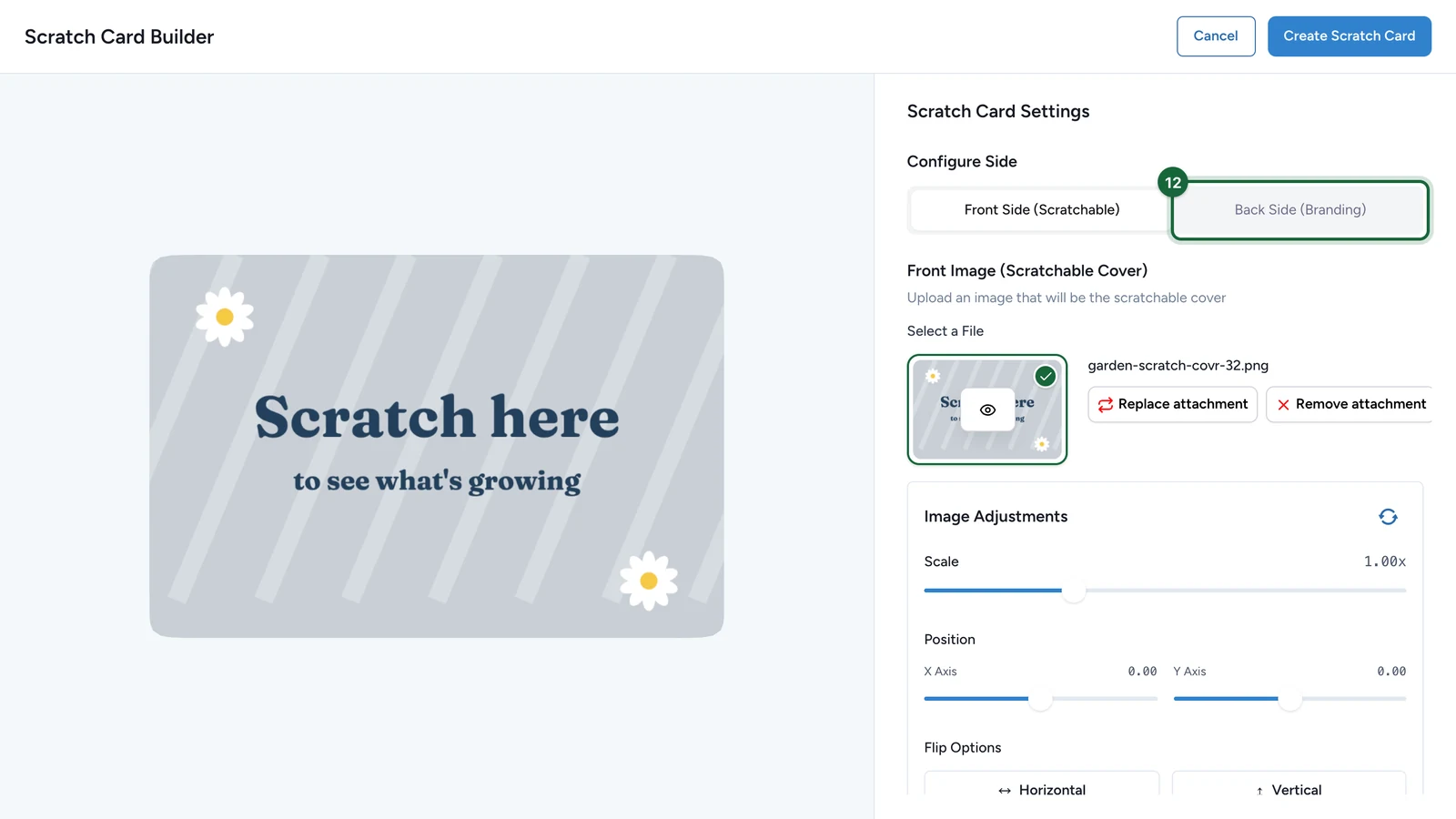
The back is the card's branded side: players see it as they scratch.
-
Select Create Scratch Card.
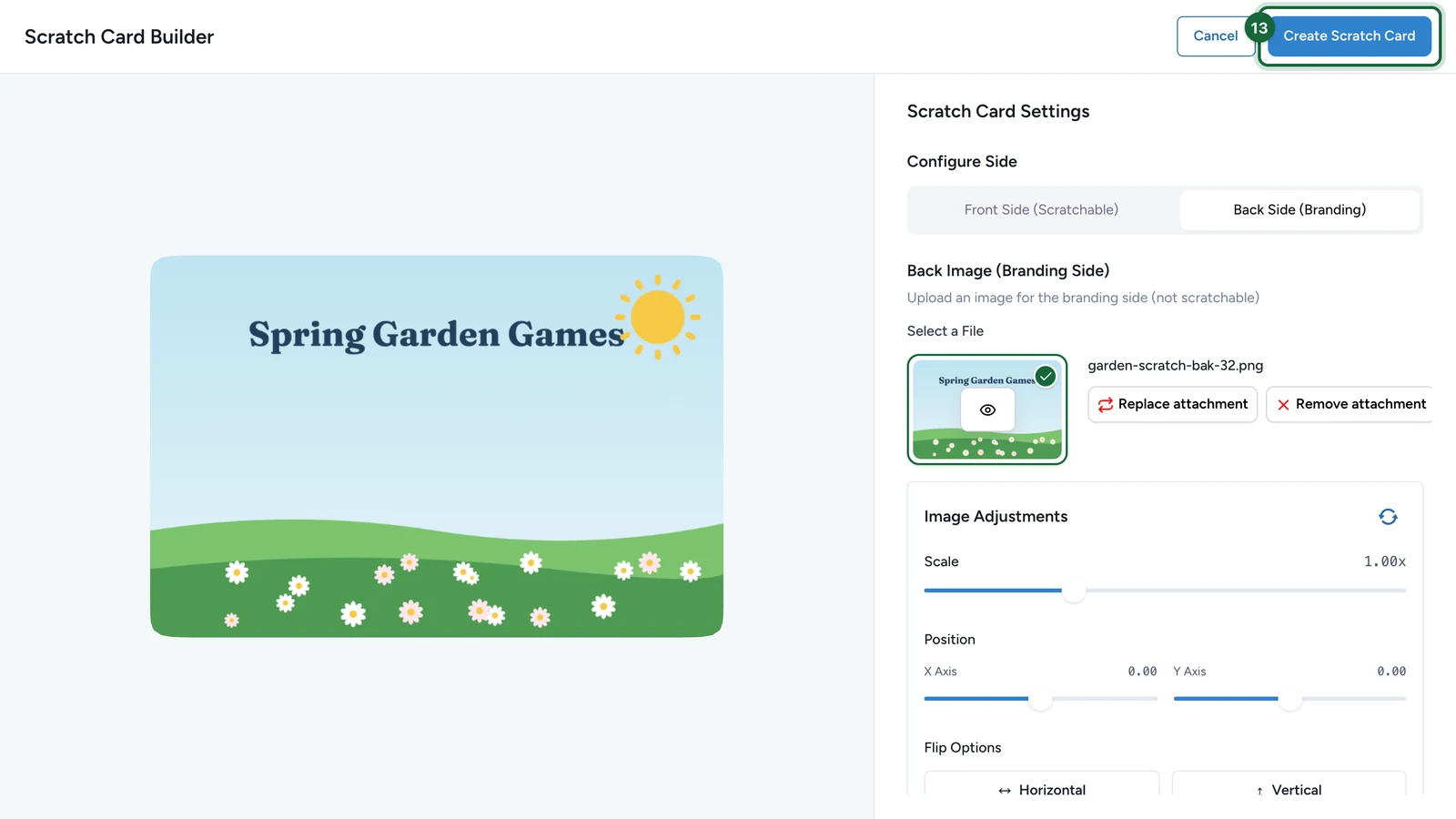
Image Adjustments rescales or moves a picture that doesn't fit the card.
Decide who wins
On the Outcomes tab:
-
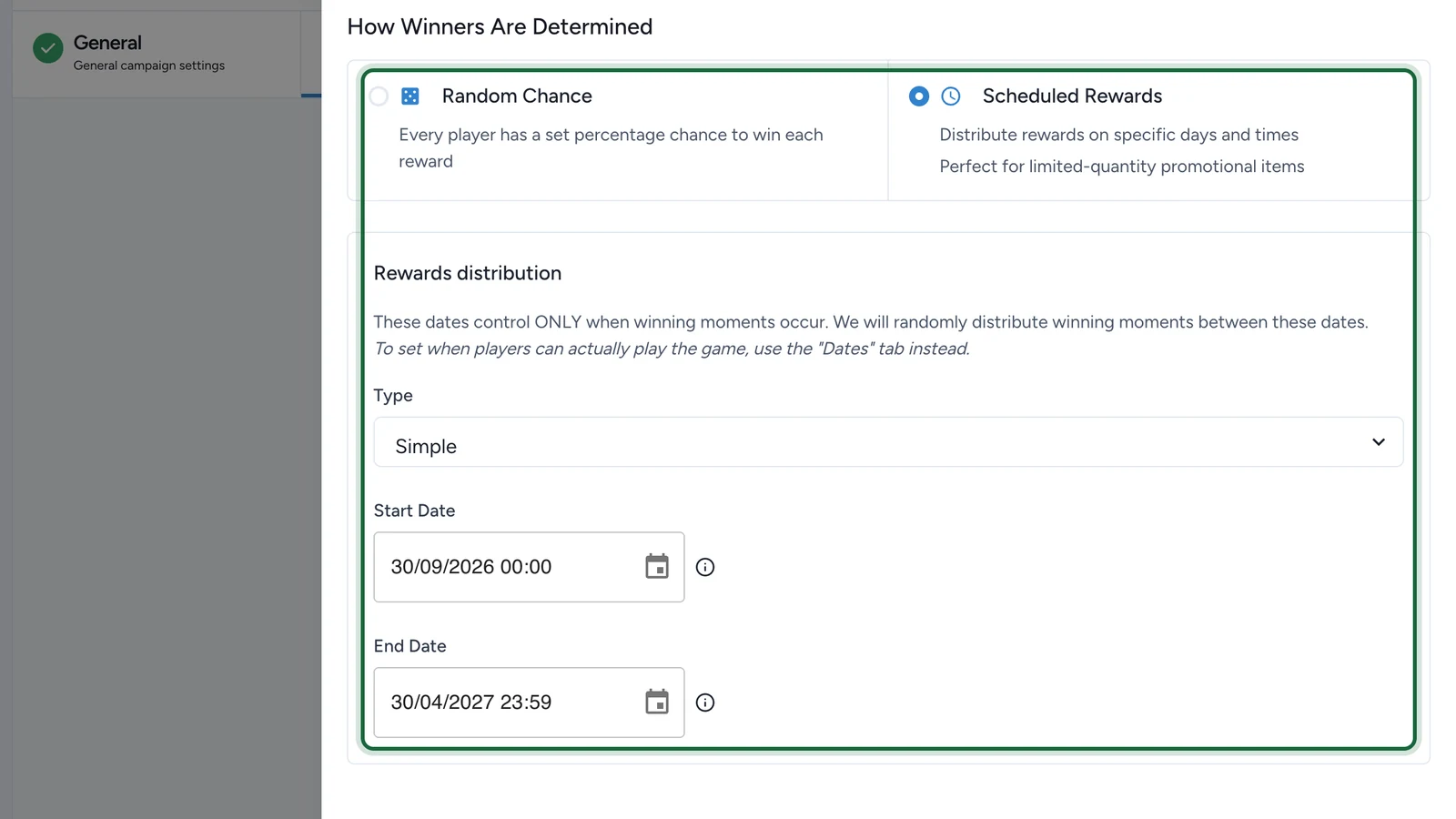
Under How Winners Are Determined, choose Random Chance or Scheduled Rewards.
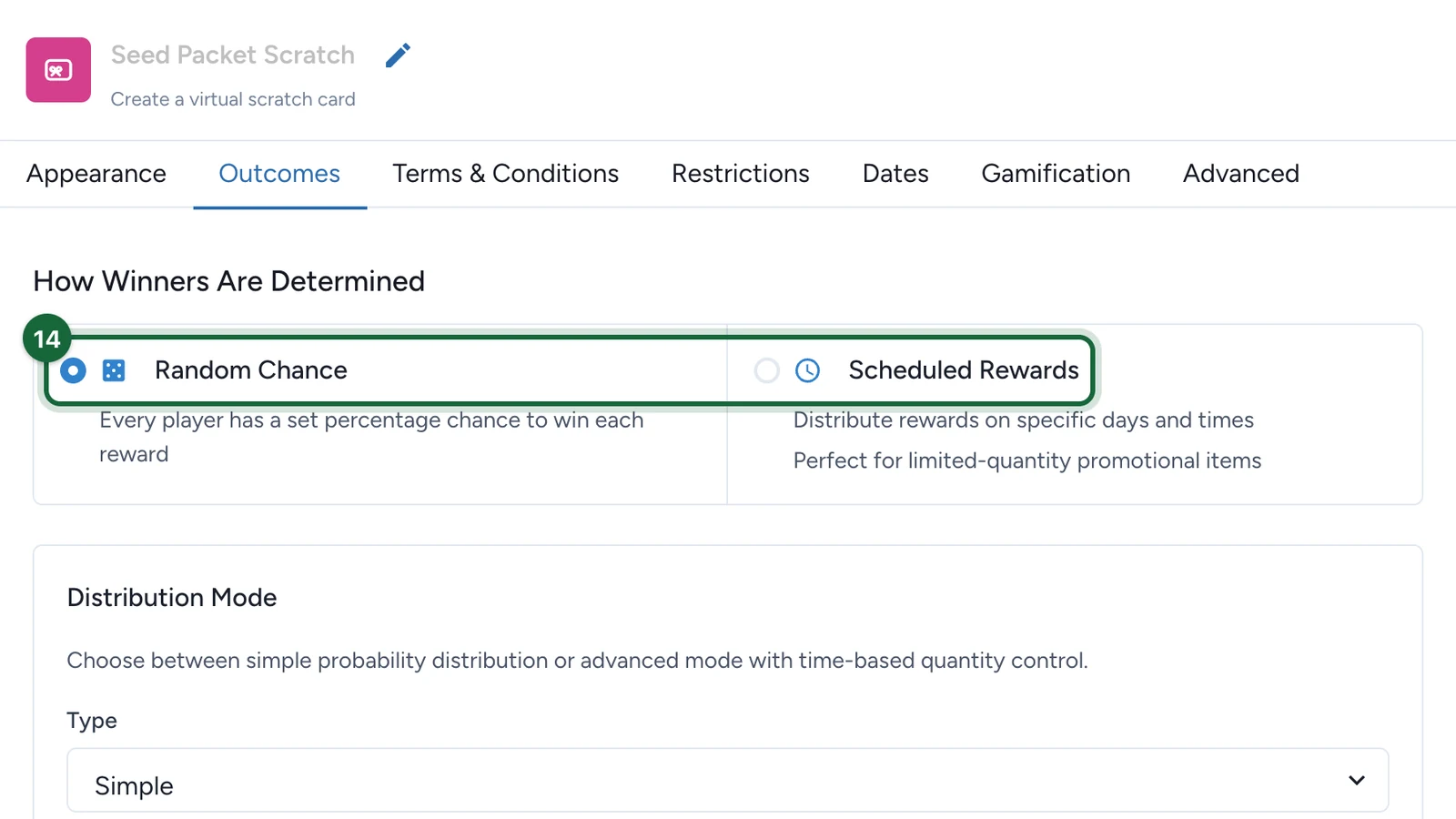
The next steps use Random Chance, with the Simple type: the same odds for the whole campaign. Scheduled Rewards is at the end of this page.
-
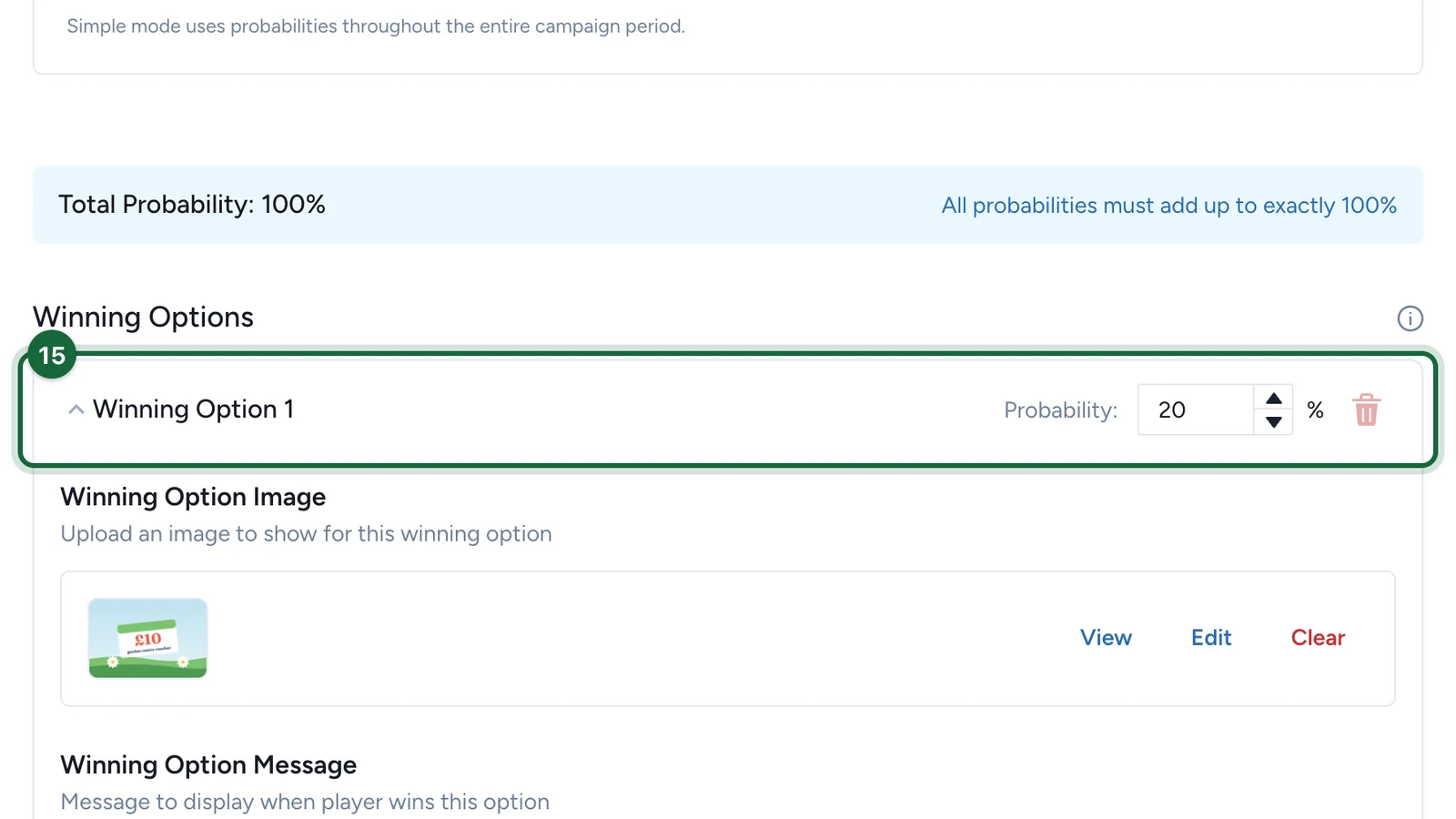
On Winning Option 1, set the Probability.
-
Under Winning Option Image, choose the picture players uncover when they win.
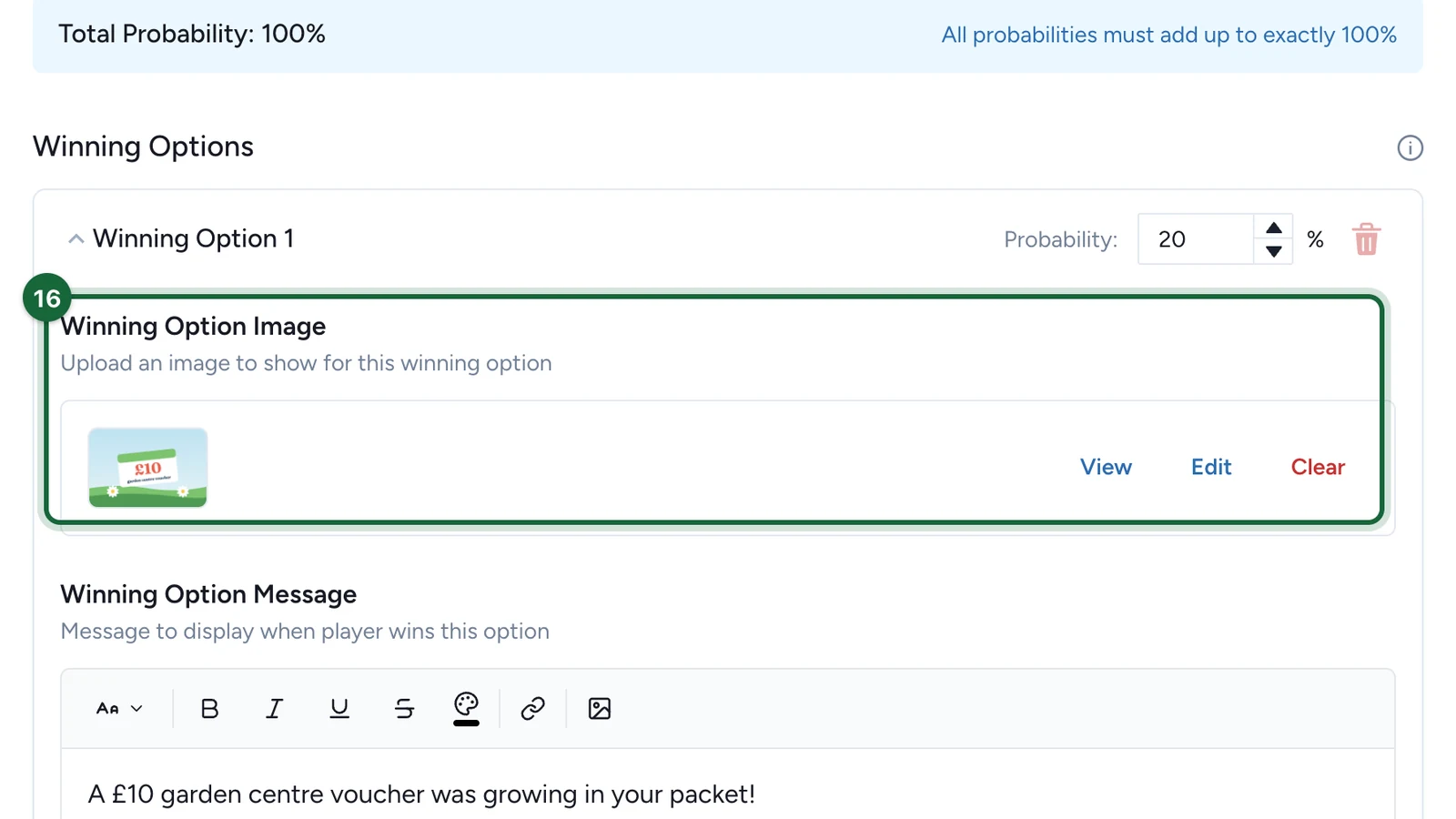
-
Write the Winning Option Message.
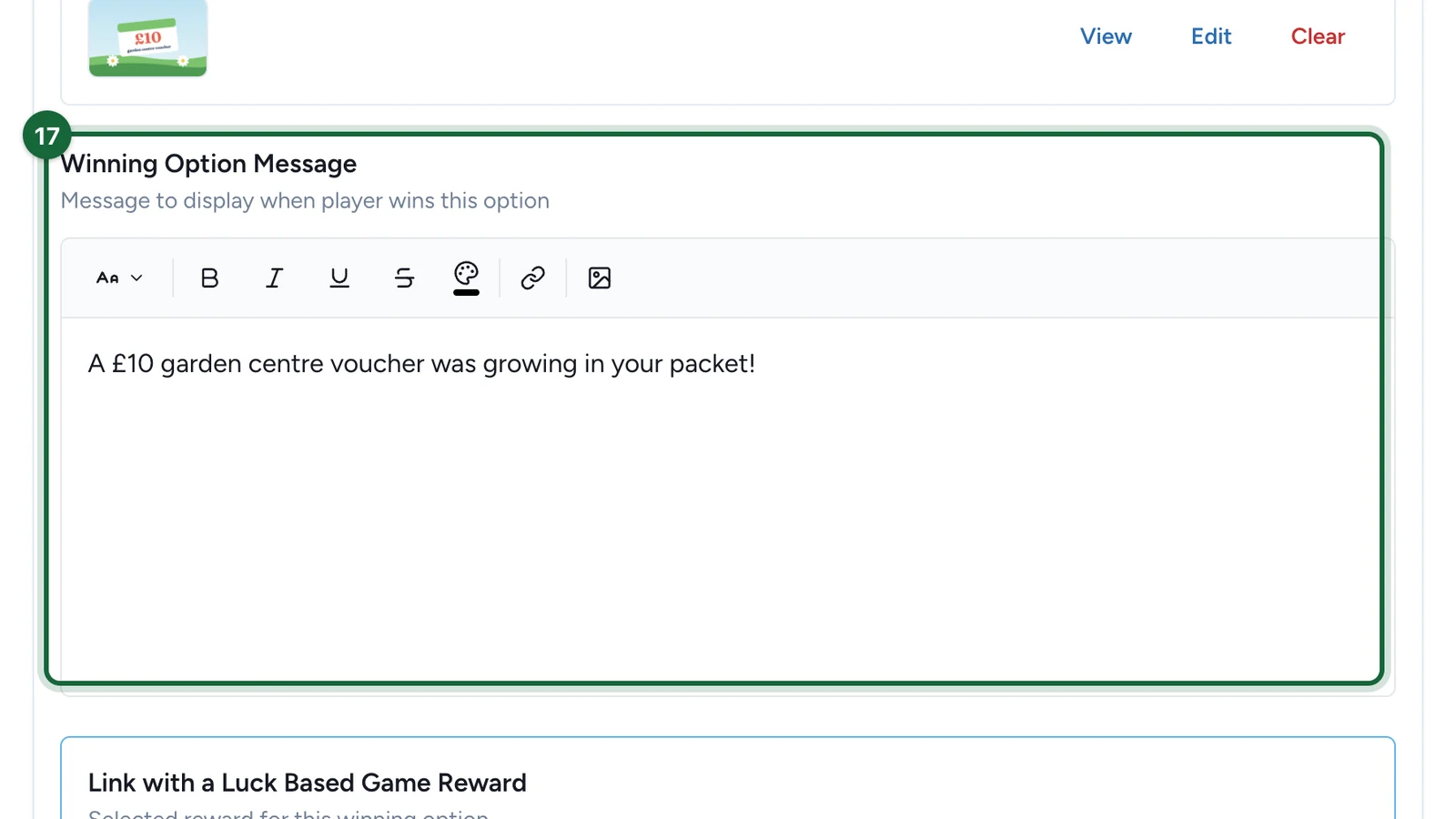
-
Under Link with a Luck Based Game Reward, choose the prize.
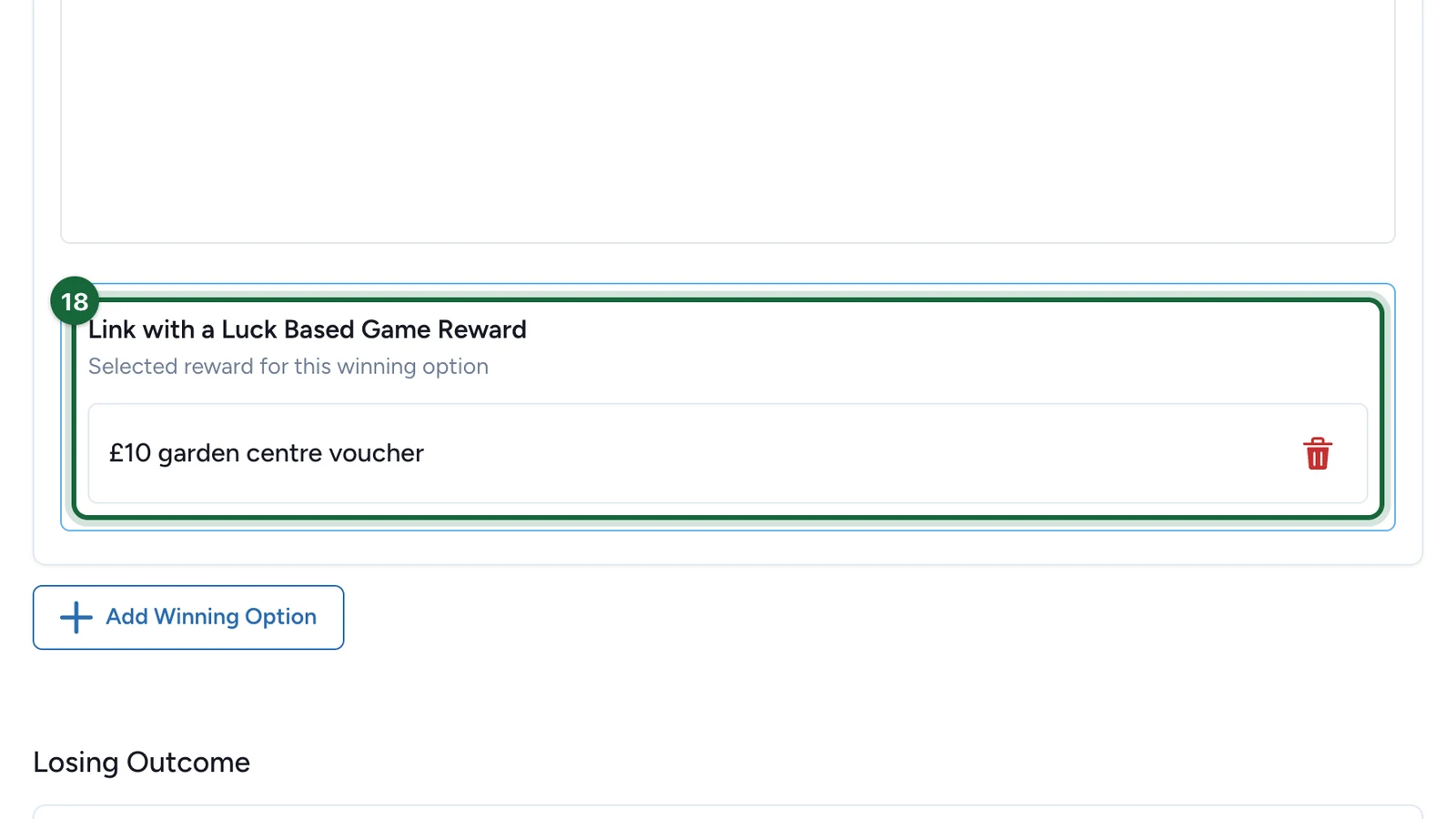
For another prize, select Add Winning Option and set it up the same way.
-
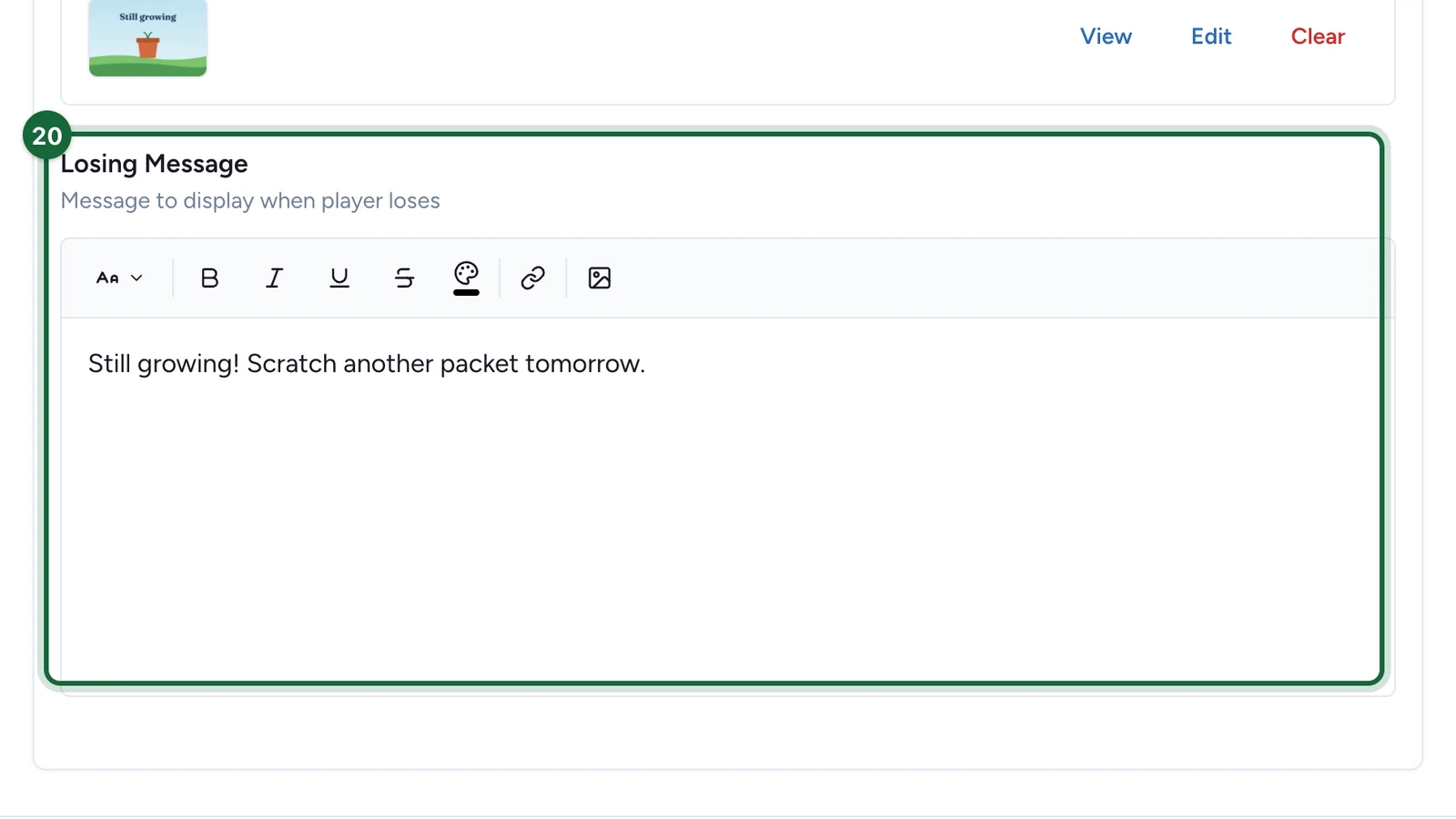
Under Losing Outcome, set the Probability and choose the Losing Image.
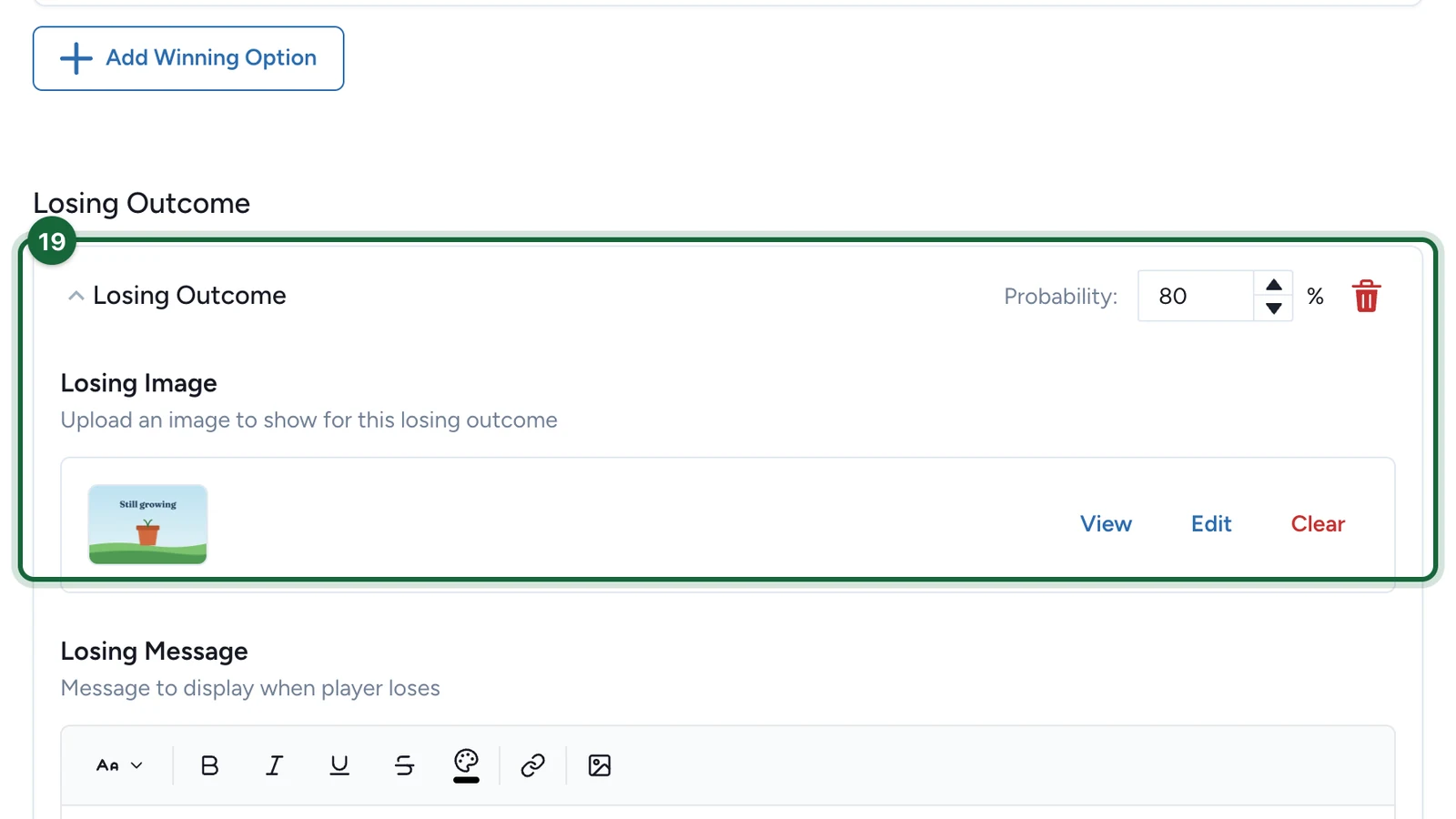
The Total Probability at the top must reach 100%.
-
Write the Losing Message.
-
Select Save.
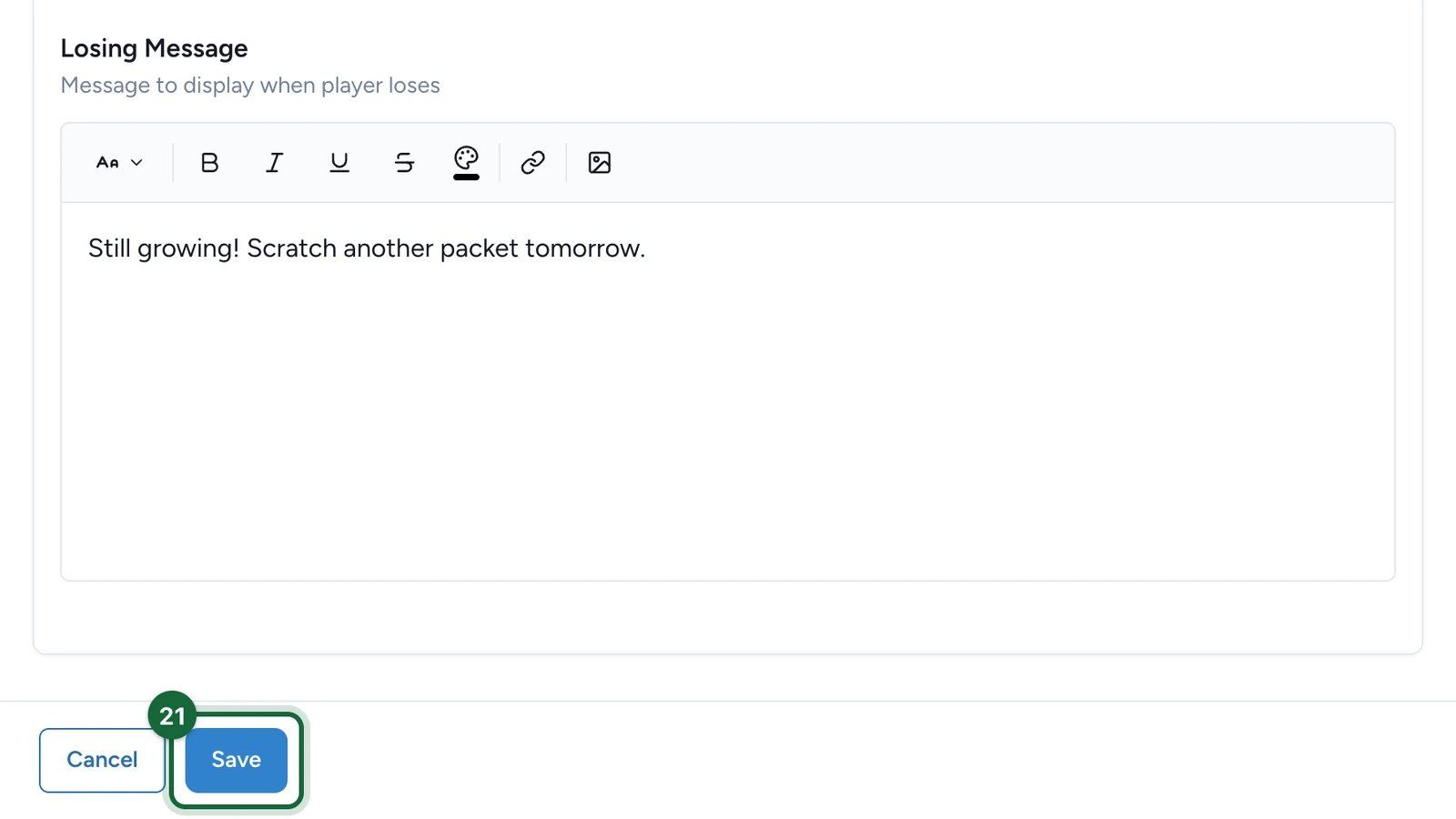
Publish the campaign again for players to see the game: see Publish a game.
Scheduled Rewards
Scheduled Rewards releases the prizes at moments spread between two dates, whatever the odds. Set its Type, Start Date and End Date under Rewards distribution. Those dates only decide when prizes are won: the Dates tab decides when the game is open. See Attribution slots for the Advanced type.
If publishing is blocked
- No background image, or no thumbnail while the landing page is on: choose them on the Appearance tab.
- No scratch card, or no cover: build the card, steps 8 to 13.
- A winning or losing option has no image or no message: fill in both under Outcomes.
- No winning option, no losing outcome, or two losing outcomes: keep one losing outcome and at least one winning option.
- The probabilities don't total 100%: adjust them under Outcomes.
- The prize has no winner message: add one in the reward: see Create a reward.
See also Game validation errors.